Wstęp
This manual provides comprehensive instructions for the Dell UltraSharp U3223QZ 31.5-inch 4K UHD Video Conferencing Monitor. Designed for enhanced productivity and seamless collaboration, this monitor integrates a high-resolution display with advanced conferencing features. Please read this manual thoroughly to ensure proper setup, operation, and maintenance of your device.
The Dell UltraSharp U3223QZ features a 31.5-inch 4K UHD (3840x2160) display with a 16:9 aspect ratio, offering extensive screen real estate and sharp visuals. Its IPS Black technology delivers superior contrast and color accuracy. Integrated conferencing capabilities include an intelligent 4K webcam, dual echo-cancelling microphones, and 14W speakers, providing a complete solution for virtual meetings.
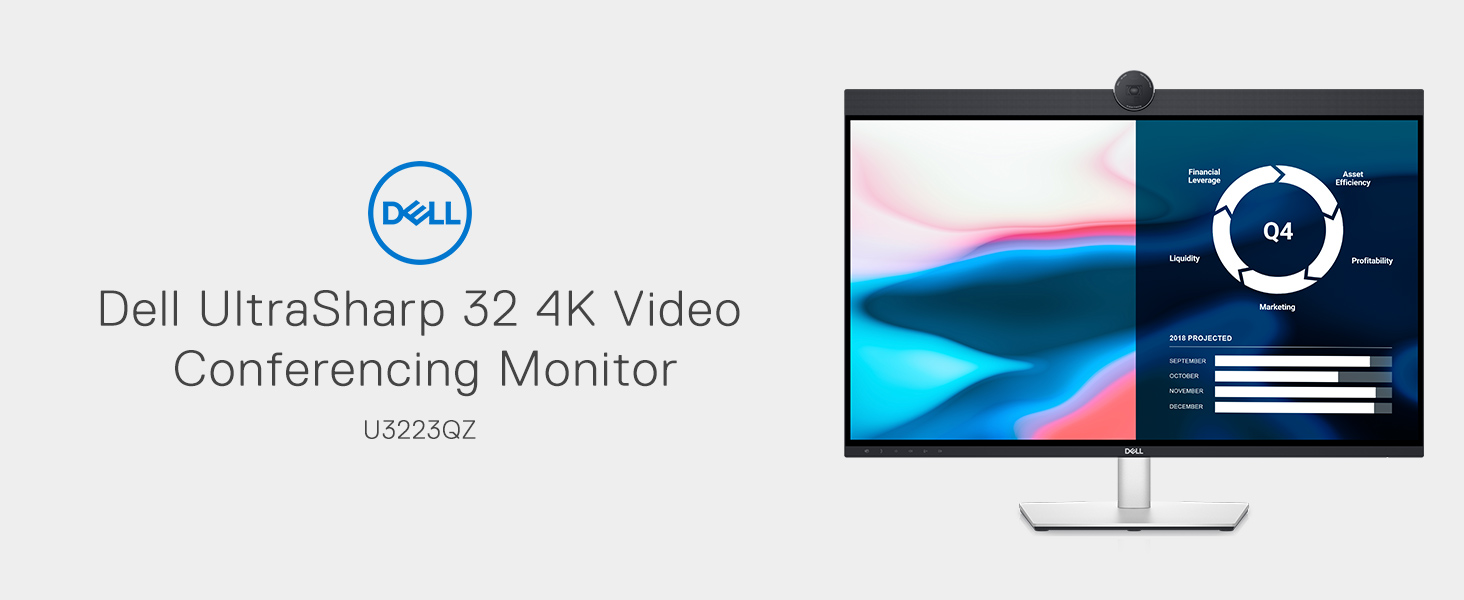
Figure 1: Dell UltraSharp U3223QZ Monitor Overview
Organizować coś
1. Rozpakowanie i montaż
Ostrożnie wyjmij wszystkie elementy z opakowania. Przed przystąpieniem do montażu upewnij się, że wszystkie części są obecne.

Figure 2: Monitor Rear View ze stojakiem
2. Podłączanie monitora
The U3223QZ offers versatile connectivity options. For a streamlined setup, use the USB-C cable to connect your laptop, which provides video, data, and up to 90W power delivery through a single cable.

Figure 3: USB-C Connectivity to Laptop
Additional ports are available for various peripherals. Refer to the diagram below for port identification.
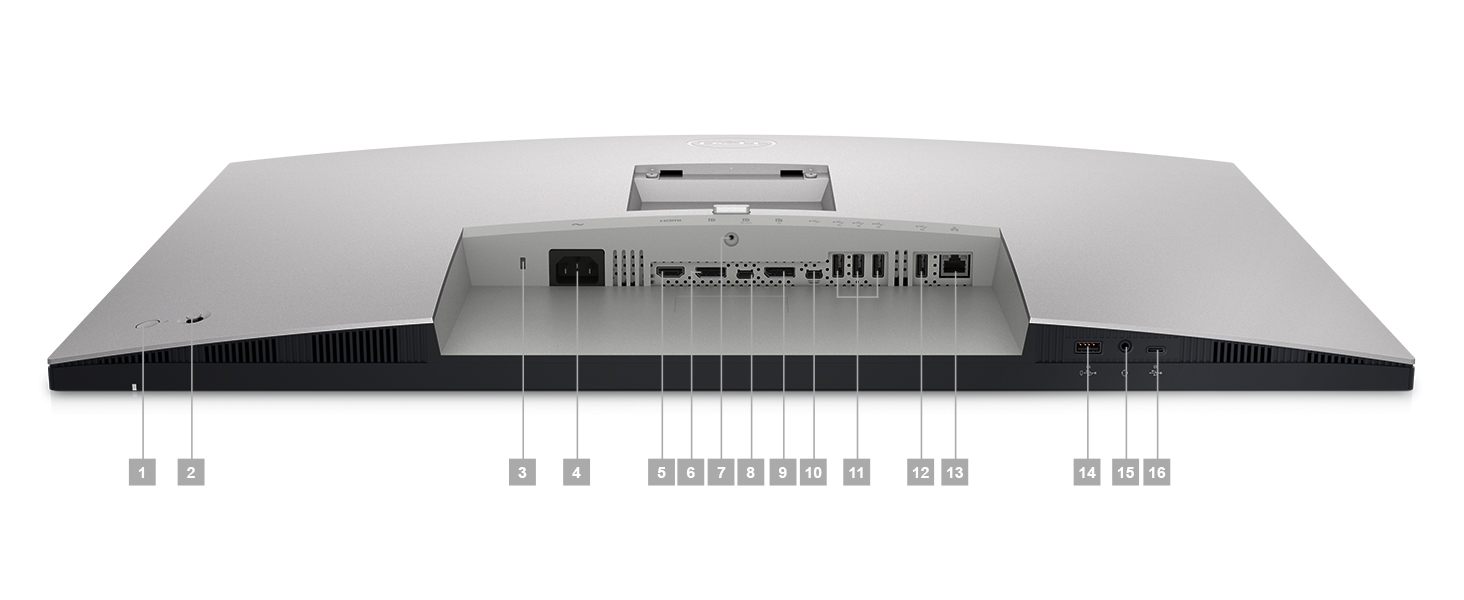
Figure 4: Rear Port Configuration
3. Regulacja położenia monitora
Podstawka pod monitor umożliwia regulację wysokości, nachylenia i obrotu, aby zoptymalizować viewkomfort.
- Regulacja wysokości: Delikatnie pchnij lub pociągnij monitor w górę lub w dół.
- Regulacja nachylenia: Możesz pochylić ekran do przodu lub do tyłu, aby uzyskać preferowany kąt.
- Regulacja obrotu: Obróć monitor na podstawie w lewo lub w prawo.

Figure 5: Monitor Tilt Adjustment

Figure 6: Monitor Swivel Adjustment
Instrukcja obsługi
1. Włączanie/wyłączanie zasilania
Press the power button located on the monitor to turn it on or off. A blue LED indicator will illuminate when the monitor is active.
2. Ustawienia wyświetlania
Access the On-Screen Display (OSD) menu using the buttons on the monitor to adjust settings such as brightness, contrast, color modes, and input source. The 4K UHD resolution provides a vast workspace, and IPS Black technology ensures deep blacks and vibrant colors.

Figure 7: IPS Black Technology for Enhanced Contrast
3. Video Conferencing Features
The integrated 4K webcam offers high-quality video for virtual meetings. Features like SafeShutter and ExpressSign-in enhance privacy and convenience. AI Auto Framing keeps you centered during calls.

Figure 8: Integrated 4K Webkrzywka

Rysunek 9: Webcam Control Interface
The monitor also includes dual echo-cancelling microphones and ear-level 14W speakers for clear audio during calls.
4. Funkcjonalność koncentratora USB
Utilize the integrated USB hub for connecting peripherals such as keyboards, mice, and external storage devices. The quick access ports on the side provide convenient connectivity for frequently used devices.
Video 1: Dell UltraSharp 32 4K Video Conferencing Monitor Overview. This video demonstrates the key features and benefits of the Dell UltraSharp U3223QZ monitor, including its 4K webcam, audio capabilities, and connectivity options.
Konserwacja
1. Czyszczenie monitora
- Przed czyszczeniem należy zawsze odłączyć monitor od gniazdka zasilania.
- Delikatnie użyj miękkiej, niestrzępiącej się szmatki dampCzyścić wodą lub nieściernym środkiem do czyszczenia ekranów.
- Nie rozpylać środka czyszczącego bezpośrednio na ekran.
- Unikaj stosowania benzenu, rozcieńczalnika, środków czyszczących na bazie amoniaku i środków ściernych.
2. Ogólna opieka
- Keep the monitor in a well-ventilated area.
- Avoid exposing the monitor to direct sunlight or excessive heat.
- Nie blokuj otworów wentylacyjnych monitora.
Rozwiązywanie problemów
Typowe problemy i rozwiązania
| Problem | Możliwa przyczyna | Rozwiązanie |
|---|---|---|
| Brak obrazu na ekranie | Power cable disconnected; incorrect input source; computer in sleep mode. | Ensure power cable is securely connected. Select correct input source via OSD menu. Wake up computer. |
| Obraz jest niewyraźny lub zniekształcony | Incorrect resolution setting; loose video cable. | Set display resolution to 3840x2160. Reconnect video cable securely. |
| USB-C connection issues (e.g., not recognized after inactivity) | Temporary communication glitch; power cycle needed. | Unplug the monitor's power cable from the wall outlet, wait 5 minutes, then plug it back in. This often resets the USB-C connection. |
| Webcam or microphone not working | Privacy shutter closed; software settings; driver issues. | Ensure SafeShutter is open. Check privacy settings in your operating system and conferencing software. Update monitor drivers if necessary. |
Specyfikacje
| Funkcja | Szczegół |
|---|---|
| Rozmiar ekranu | 31.5 cali |
| Rezolucja | 4K UHD (3840 x 2160) |
| Proporcje obrazu | 16:9 |
| Typ panelu | IPS Czarny |
| Czas reakcji | 5 ms GTG (Fast) |
| Webkrzywka | Integrated 4K Webcam with SafeShutter, ExpressSign-in, AI Auto Framing |
| Audio | Dual Echo-Cancelling Microphones, 14W Speakers |
| Łączność | USB-C (90W Power Delivery), HDMI, DisplayPort, Super Speed USB 10Gbps, RJ45 Ethernet |
| Możliwość regulacji | Wysokość, pochylenie, obrót |
| Kolor | Czarny |
| Waga przedmiotu | 25.4 funta |
| Wymiary produktu | 6.89 x 21.26 x 36.48 cala |

Figure 10: Environmental Certifications
Gwarancja i wsparcie
For warranty information, technical support, or service requests, please visit the official Dell support website. You will need your monitor's service tag or express service code, typically found on a label on the back of the monitor or in the packaging.
Dell provides comprehensive support resources, including drivers, manuals, and troubleshooting guides online. Regular updates to drivers and firmware are recommended for optimal performance and security.


