Wstęp
This manual provides comprehensive instructions for the installation, operation, and maintenance of your Kensington SD4839P USB-C Triple Video Dock. Please read this manual thoroughly before using the product to ensure proper functionality and to prevent damage.
Informacje dotyczące bezpieczeństwa
- Nie wystawiaj urządzenia na działanie wody ani nadmiernej wilgotności.
- Nie należy podejmować prób demontażu ani modyfikacji urządzenia. Spowoduje to unieważnienie gwarancji i może spowodować uszkodzenia.
- Use only the power adapter supplied with the dock.
- Aby zapobiec przegrzaniu, należy zapewnić odpowiednią wentylację wokół doku.
- Przechowywać w miejscu niedostępnym dla dzieci.
Zawartość opakowania
Sprawdź, czy w opakowaniu znajdują się wszystkie elementy:
- Kensington SD4839P USB-C Triple Video Dock
- Kabel USB-C do USB-C
- Zasilacz
- Szybki przewodnik (nie jest zawarty w niniejszej instrukcji cyfrowej)
Produkt ponadview
The Kensington SD4839P is a USB-C triple video docking station designed to expand the connectivity of your laptop. It provides multiple video outputs, USB ports, and power delivery through a single USB-C connection.
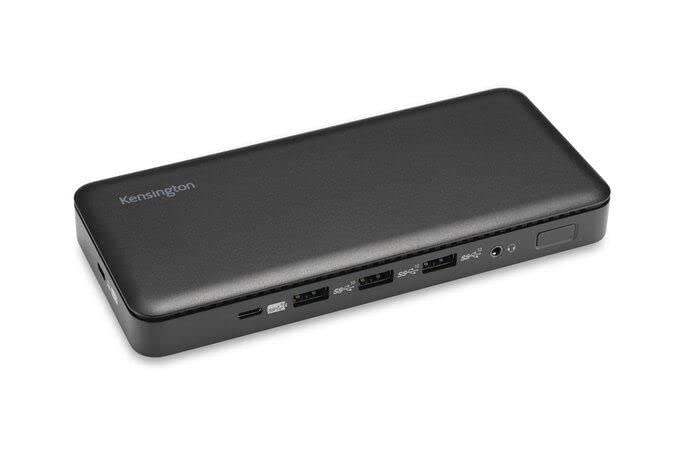
Obraz 1: Przód view of the Kensington SD4839P USB-C Triple Video Dock. This image displays the compact design of the docking station, highlighting its various ports for connecting peripherals and displays.
Układ portu:
- Przód: USB-A ports, USB-C data port.
- Tył: Power input, USB-C host port (with power delivery), DisplayPort outputs, HDMI output, USB-A ports, Ethernet port, Audio jack.
Organizować coś
- Podłącz zasilanie: Connect the included power adapter to the DC-in port on the back of the dock, then plug the adapter into a power outlet.
- Połącz z urządzeniem hosta: Connect one end of the supplied USB-C to USB-C cable to the USB-C host port on the back of the dock and the other end to a compatible USB-C port on your laptop. Ensure your laptop's USB-C port supports DisplayPort Alternate Mode and Power Delivery for full functionality.
- Podłącz wyświetlacze:
- Connect your monitors to the available DisplayPort and/or HDMI ports on the dock using appropriate cables.
- The dock supports up to three external displays, depending on your host device's capabilities and operating system.
- Podłącz urządzenia peryferyjne: Connect your USB devices (keyboard, mouse, external drives, etc.) to the USB-A and USB-C data ports on the dock.
- Połącz sieć (opcjonalnie): For a wired network connection, connect an Ethernet cable from your router or network switch to the Ethernet port on the dock.
Operacyjny
Początkowe połączenie:
Upon initial connection, your operating system (Windows, macOS, Chrome OS) should automatically detect the dock and connected devices. The SD4839P is designed to be driverless for most basic functions.
Konfiguracja wyświetlacza:
- Okna: Right-click on the desktop and select "Display settings" to arrange your monitors, change resolution, and set display modes (extend, duplicate, second screen only).
- MacOS: Idź do Ustawienia systemowe (Lub Preferencje systemowe) > Wyświetla to configure your external monitors.
Dostawa energii:
The dock provides power delivery to your connected laptop through the USB-C host cable, charging it while you work. The wattage provided is listed in the specifications section.
Konserwacja
- Czyszczenie: Disconnect the dock from power and all devices before cleaning. Use a soft, dry, lint-free cloth to wipe the exterior. Do not use liquid cleaners or aerosols.
- Składowanie: Store the dock in a cool, dry place away from direct sunlight and extreme temperatures when not in use for extended periods.
- Zarządzanie kablami: Aby zapobiec uszkodzeniom, należy unikać ostrych zgięć i załamań kabli.
Rozwiązywanie problemów
| Problem | Możliwe rozwiązanie |
|---|---|
| No power to the dock or laptop. |
|
| Brak obrazu na monitorach zewnętrznych. |
|
| Urządzenia USB nie zostały rozpoznane. |
|
| Problemy z połączeniem sieciowym. |
|
Specyfikacje
- Numer modelu: K33480EU
- Wymiary produktu: 19.69 x 19.69 x 11.02 cala
- Waga przedmiotu: 2.29 funta (1.04 kilograma)
- Marka: Kensington
- Interfejs sprzętowy: USB typu C
- Całkowita liczba portów USB: 3 (plus 1 USB-C data port)
- Liczba portów: 5 (referring to primary functional ports)
- Całkowita liczba portów HDMI: 1
- DisplayPort Outputs: 2 (for triple video output capability)
- Cotage (Power Delivery): 85 watów
- Zgodne urządzenia: Dell Precision 5510, Google Pixelbook, HP EliteBook Folio 9470m, MacBook Air, MacBook Pro, Microsoft Surface series, iPad, iPhone series, iPod series (See product page for full list)
Gwarancja i wsparcie
Kensington products are designed for reliability and performance. For warranty information, technical support, or to register your product, please visit the official Kensington webOdwiedź stronę internetową lub skontaktuj się bezpośrednio z działem obsługi klienta. Zachowaj dowód zakupu na wypadek reklamacji.
Official Kensington Webstrona: www.kensington.com