Wstęp
This manual provides detailed instructions for the setup, operation, and maintenance of your Pantum M6550NW/M6552NW Monochrome Multifunction Laser Printer. Please read this manual thoroughly before using the printer to ensure proper and safe operation.

Obraz: Przód view of the Pantum M6550NW/M6552NW Monochrome Multifunction Laser Printer.
Produkt ponadview
The Pantum M6550NW/M6552NW is a versatile monochrome laser printer designed for efficient printing, copying, and scanning. It features wireless and Ethernet networking capabilities, a compact design, and an intuitive LCD control panel.
Główne cechy
- Print, Copy, Scan functionality
- USB, Network, and Wireless connectivity
- 20,000-page monthly duty cycle
- 150 sheets input tray capacity
- Up to 23 letter pages per minute print speed
- Automatyczny podajnik dokumentów (ADF)
- LCD Control Panel for easy operation
- One-step driver installation
- Obsługa drukowania mobilnego

Image: Diagram showing key components of the printer, including the All-in-One Toner Cartridge slot, Paper Input Tray, Auto Document Feeder, LCD Control Panel, and highlighting its small footprint and networking capabilities.
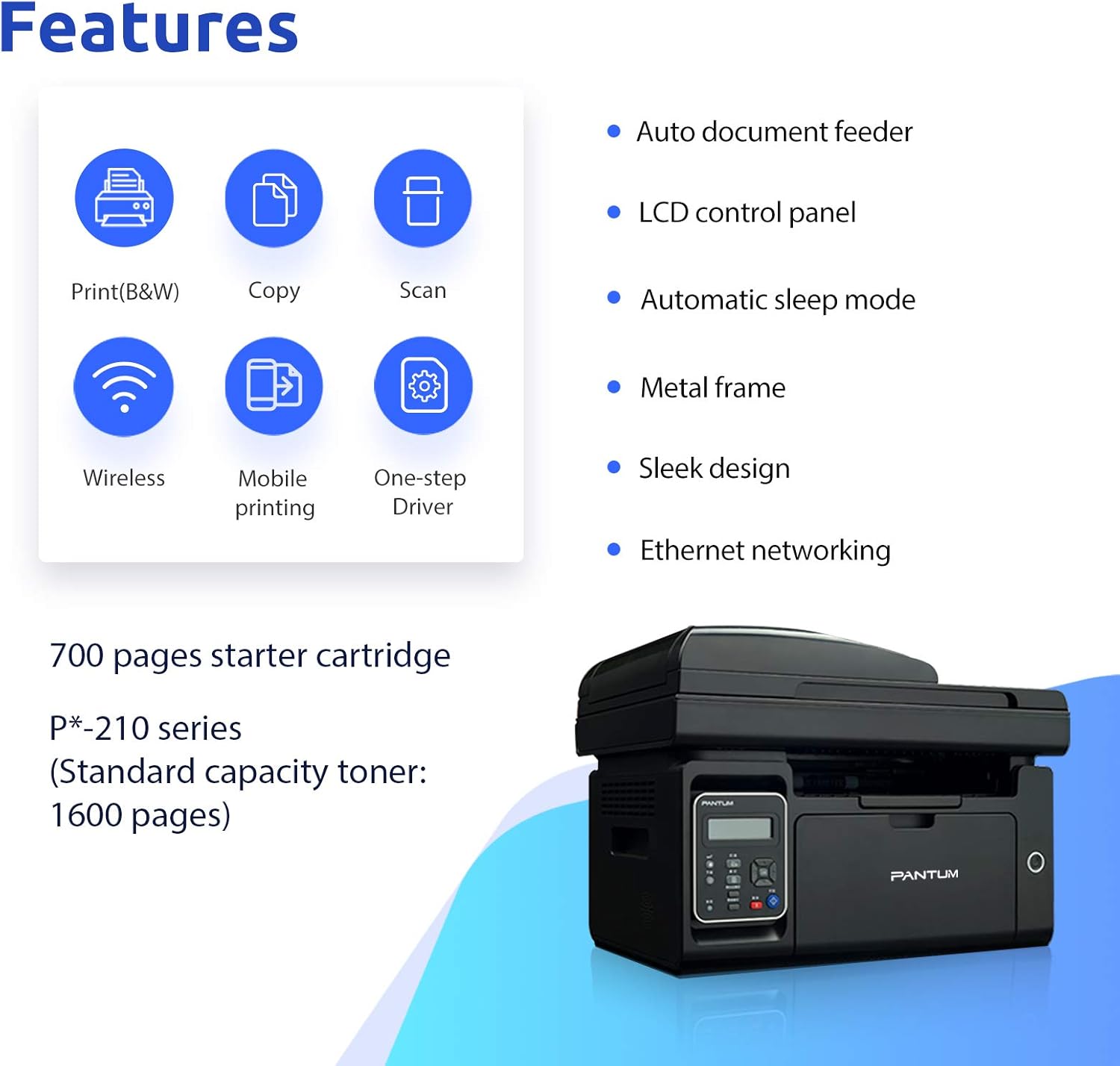
Image: Visual representation of the printer's core features: Print (B&W), Copy, Scan, Wireless, Mobile printing, and One-step Driver installation. Also notes the 700-page starter cartridge and P*-210 series standard capacity toner (1600 pages).
Organizować coś
Follow these steps for the initial setup of your printer.
1. Rozpakowanie i sprawdzenie komponentów
Ostrożnie wyjmij drukarkę z opakowania. Sprawdź, czy wszystkie elementy są obecne:
- Pantum M6550NW/M6552NW Printer
- Przewód zasilający
- Kabel interfejsu USB
- Wkład z tonerem startowym
- Krótki przewodnik konfiguracji
- CD-ROM (for drivers and software)

Image: Contents typically found in the printer box, including the printer, power cord, USB cable, starter cartridge, quick setup guide, and CD-ROM.
2. Instalacja wkładu z tonerem
Before first use, install the toner cartridge. Refer to the quick setup guide for specific instructions, but generally, this involves:
- Otwórz przednią pokrywę drukarki.
- Carefully unpackage the toner cartridge.
- Remove any protective seals or tapes from the cartridge.
- Włóż wkład do odpowiedniego gniazda, aż do usłyszenia kliknięcia.
- Zamknij przednią pokrywę.

Image: Step-by-step visual guide for installing the toner cartridge: 1) Take out the cartridge, 2) Remove the seal, 3) Install the cartridge.
3. Podłączenie zasilania
Podłącz przewód zasilający do drukarki, a następnie do uziemionego gniazdka elektrycznego.
4. Driver Installation and Connectivity
Install the printer drivers from the included CD-ROM or download the latest drivers from the official Pantum website. You can connect the printer via USB, Wi-Fi, or wired network.
- Połączenie USB: Podłącz drukarkę do komputera za pomocą dostarczonego kabla USB.
- Połączenie Wi-Fi: Follow the on-screen instructions on the printer's LCD panel or use the setup wizard on your computer to connect to your wireless network. The printer supports Wi-Fi Hotspot direct connection.
- Przewodowe połączenie sieciowe: Podłącz kabel Ethernet do drukarki i routera sieciowego lub przełącznika.

Image: Illustrations demonstrating the three easy driver installation and connection methods: USB, Wi-Fi, and wired network.
Instrukcja obsługi
Using the LCD Control Panel
The LCD control panel allows you to navigate printer functions, view status, and configure settings. Use the arrow keys and OK button to make selections.

Obraz: Zbliżenie view of the printer's LCD control panel, showing buttons for navigation, status, copy functions, and start/cancel.
Druk
Aby wydrukować dokument:
- Sprawdź, czy drukarka jest włączona i podłączona do urządzenia.
- Załaduj papier do zasobnika wejściowego.
- Na komputerze lub urządzeniu mobilnym otwórz dokument, który chcesz wydrukować.
- Wybierz opcję drukowania (zwykle File > Drukuj).
- Choose the Pantum M6550NW/M6552NW from the list of available printers.
- W razie potrzeby dostosuj ustawienia drukowania (np. liczbę kopii, rozmiar papieru, jakość).
- Kliknij „Drukuj”.
For mobile printing, download the Pantum app. It supports direct printing from your smartphone or tablet via Wi-Fi.

Image: Screenshot of the Pantum mobile application interface, demonstrating its capabilities for printing documents (Word, PDF, PPT, Excel, TXT) and scanning, highlighting easy wireless and mobile printing.
Biurowy
Aby wykonać kopię:
- Umieść dokument stroną zadrukowaną do dołu na szybie skanera lub stroną zadrukowaną do góry w automatycznym podajniku dokumentów (ADF).
- Na panelu sterowania wybierz funkcję „Kopiuj”.
- Adjust settings such as number of copies, copy quality, or enlargement/reduction if available.
- Naciśnij przycisk „Start”, aby rozpocząć kopiowanie.
Łów
Aby zeskanować dokument:
- Połóż dokument stroną zadrukowaną do dołu na szybie skanera lub stroną zadrukowaną do góry w podajniku ADF.
- From your computer, open the scanning software (usually installed with the printer drivers) or use the Pantum app on your mobile device.
- Select the "Scan" function.
- Choose scan settings such as resolution, color mode, and destination folder.
- Click "Scan" to start the process.
Konserwacja
Regularna konserwacja zapewnia optymalną wydajność i wydłuża żywotność drukarki.
Czyszczenie drukarki
- Przetrzyj zewnętrzną część drukarki miękką, miękką szmatką.amp, ściereczka nie pozostawiająca włókien.
- Periodically clean the scanner glass with a glass cleaner applied to a cloth (not directly to the glass).
- Nie należy używać środków czyszczących o właściwościach ściernych ani rozpuszczalników.
Wymiana kasety z tonerem
When the toner is low or empty, the printer's LCD panel will display a message. Replace the cartridge as follows:
- Upewnij się, że drukarka jest włączona.
- Otwórz przednią pokrywę.
- Ostrożnie wyjmij stary wkład z tonerem.
- Unpack the new Pantum P*-210 series toner cartridge and remove all protective materials.
- Wsuń nowy wkład mocno, aż zatrzaśnie się na miejscu.
- Zamknij przednią pokrywę.
Zużyte wkłady z tonerem należy utylizować zgodnie z lokalnymi przepisami.
Rozwiązywanie problemów
W tej sekcji omówiono typowe problemy, na które możesz natrafić.
Drukarka nie odpowiada
- Sprawdź, czy drukarka jest włączona i czy przewód zasilający jest prawidłowo podłączony.
- Verify the USB cable is properly connected to both the printer and the computer, or that the Wi-Fi/Ethernet connection is active.
- Uruchom ponownie drukarkę i komputer/urządzenie.
- Ensure the correct printer driver is installed and selected as the default printer.
Słaba jakość druku
- Check the toner level and replace the cartridge if it's low.
- Ensure you are using appropriate paper for laser printing.
- Clean the printer's internal components as per the maintenance section if streaks or smudges appear.
Connectivity Issues (Wi-Fi/Network)
- Upewnij się, że drukarka znajduje się w zasięgu routera bezprzewodowego.
- Sprawdź, czy wprowadzone hasło Wi-Fi jest prawidłowe.
- Uruchom ponownie router i drukarkę.
- Check your network settings on both the printer and your computer.
- If using a wired connection, ensure the Ethernet cable is securely plugged in.
Specyfikacje
| Funkcja | Szczegół |
|---|---|
| Model | M6550NW/M6552NW |
| Funkcje | Drukuj, kopiuj, skanuj |
| Technologia druku | Laser (monochromatyczny) |
| Maksymalna prędkość drukowania (monochromatyczna) | 23 ppm (Letter) |
| Maksymalna rozdzielczość druku | 1200 x 1200 DPI |
| Typ skanera | Arkuszowy |
| Rozdzielczość skanera | 1200 x 1200 DPI |
| Łączność | USB 2.0, Wi-Fi, Ethernet |
| Pojemność tacy wejściowej | 150 arkuszy |
| Kompatybilne urządzenia | Smartfony (Android, iOS) |
| Wymiary produktu | Wymiary 16.42 x 12.01 x 11.85 cm |
| Waga przedmiotu | 9.02 kilogramów |
| Zawarte komponenty | USB cable, Starter Toner Cartridge |
Gwarancja i wsparcie
For warranty information and technical support, please refer to the documentation included with your printer or visit the official PANTUM webZachowaj paragon jako dowód zakupu na wypadek reklamacji.


