
Wstęp
This manual provides comprehensive instructions for the setup, operation, maintenance, and troubleshooting of your Avision AD340G Compact High Speed Duplex Document Scanner. Please read this manual thoroughly before using the scanner to ensure proper and safe operation.
Informacje dotyczące bezpieczeństwa
Aby zapobiec obrażeniom ciała i uszkodzeniu skanera, należy przestrzegać następujących środków ostrożności:
- Używaj wyłącznie zasilacza dołączonego do skanera.
- Nie wystawiaj skanera na działanie wody ani nadmiernej wilgotności.
- Place the scanner on a stable, level surface.
- Keep the scanner away from direct sunlight and heat sources.
- Unplug the scanner before cleaning or if it will not be used for an extended period.
Zawartość opakowania
Sprawdź, czy w opakowaniu znajdują się wszystkie elementy:
- Avision AD340G Document Scanner
- Zasilacz
- Kabel USB
- Szybki przewodnik
- Płyta CD z oprogramowaniem (lub instrukcja pobierania)
Produkt ponadview
Familiarize yourself with the main components of the Avision AD340G scanner.
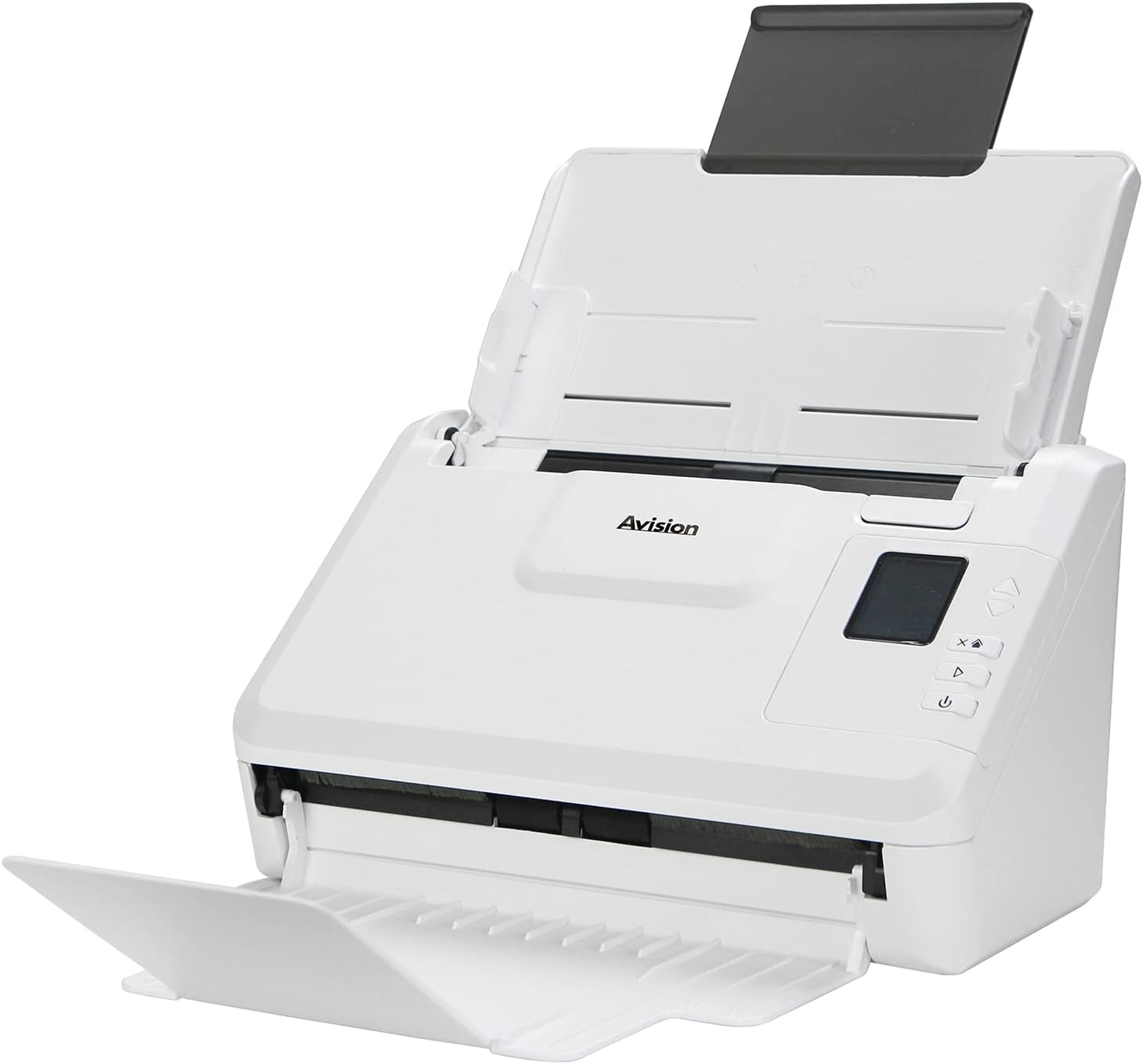
Obraz: The Avision AD340G scanner shown with its input and output trays extended, ready for document feeding. This view highlights the compact design and accessible paper path.
- Document Feeder Tray: Where documents are loaded for scanning.
- Taca wyjściowa: Where scanned documents are ejected.
- Panel sterowania: Buttons and display for scanner operation.
- Port USB: Do podłączenia do komputera.
- Port zasilania: Do podłączenia zasilacza.
Organizować coś
1. Konfiguracja fizyczna
- Rozpakuj skaner: Ostrożnie wyjmij skaner i wszystkie akcesoria z opakowania.
- Umieść skaner: Position the scanner on a flat, stable surface with adequate space for the input and output trays.
- Podłącz zasilanie:
- Connect the power adapter to the scanner's power port.
- Podłącz zasilacz do gniazdka elektrycznego.
- Połącz z komputerem:
- Connect one end of the USB cable to the scanner's USB port.
- Podłącz drugi koniec kabla USB do wolnego portu USB w komputerze.
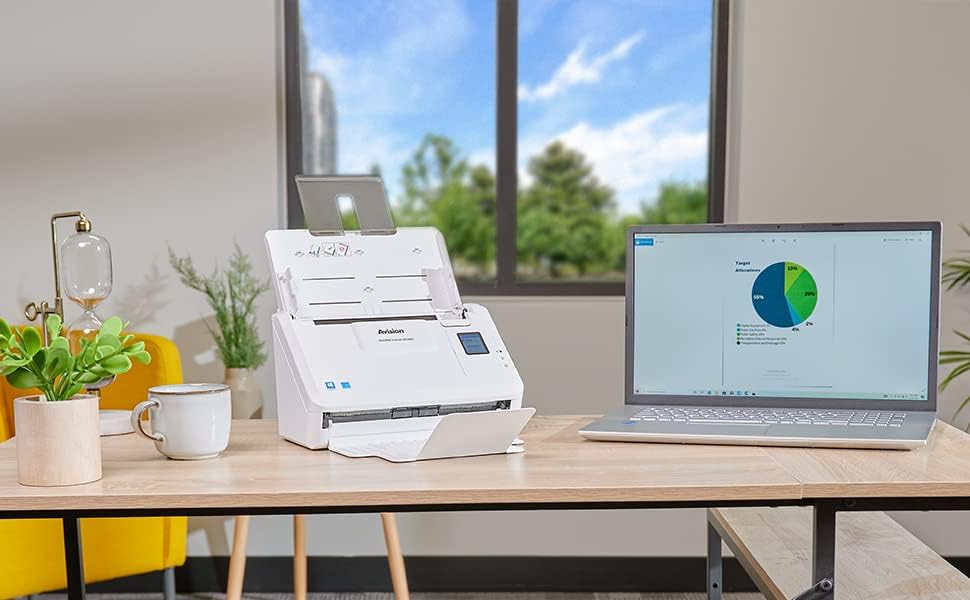
Obraz: The Avision AD340G scanner set up on a desk next to a laptop, illustrating a typical connected environment. This shows the scanner's compact footprint when in use.
2. Instalacja oprogramowania
Install the necessary drivers and scanning software from the provided CD or by downloading them from the official Avision webstrona.
- Insert the software CD into your computer's CD/DVD drive, or navigate to the Avision support website to download the latest drivers and utilities for the AD340G model.
- Follow the on-screen instructions to complete the installation. This typically includes installing the TWAIN/ISIS drivers and the Avision scanning utility software.
- Jeśli zostaniesz o to poproszony, uruchom ponownie komputer.
Obsługa skanera
1. Ładowanie dokumentów
- Open the document feeder tray and extend the output tray.
- Dopasuj prowadnice papieru do szerokości dokumentów.
- Place the documents face-down in the input tray, ensuring they are neatly stacked and aligned. The scanner supports up to 50 sheets.

Obraz: A hand carefully placing a stack of documents into the input tray of the Avision AD340G scanner, demonstrating the correct loading procedure.
2. Scanning Procedure
- Włącz skaner, naciskając przycisk zasilania.
- Launch the Avision scanning software on your computer.
- Wybierz żądanego specjalistę od skanowaniafile (e.g., color, grayscale, black & white, resolution). The AD340G supports duplex scanning (both sides simultaneously).
- Kliknij przycisk „Skanuj” w oprogramowaniu lub naciśnij przycisk skanowania na panelu sterowania skanera.
- The scanner will feed and process the documents. Once scanning is complete, the images will appear in the software.
- Review the scanned images, make any necessary adjustments (e.g., rotate, crop), and save them to your desired location and format (e.g., PDF, JPEG, TIFF).
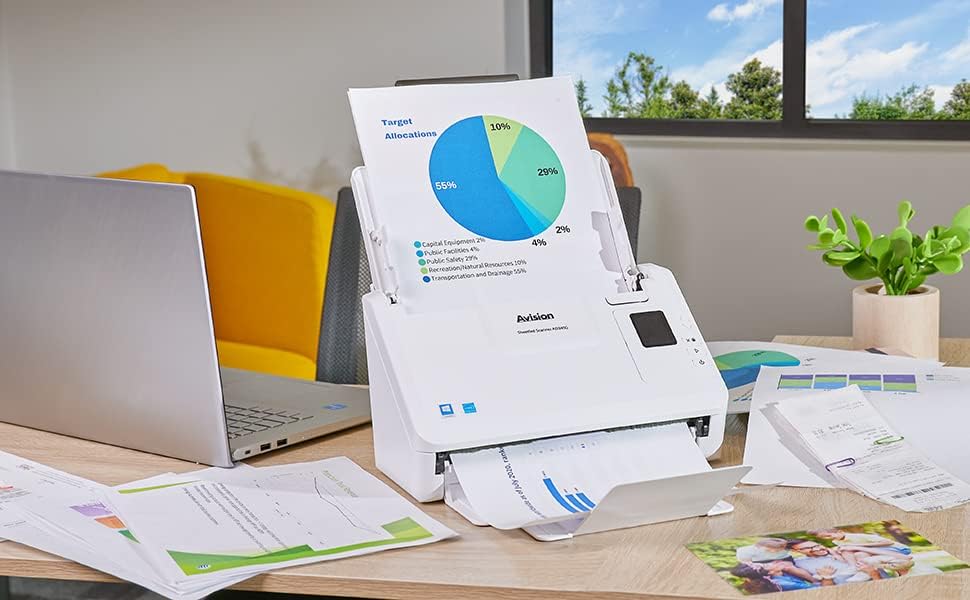
Obraz: The Avision AD340G scanner in operation, feeding a document with a pie chart. This illustrates the scanner's ability to handle various document types efficiently.
Konserwacja
Czyszczenie skanera
Regularne czyszczenie zapewnia optymalną wydajność i wydłuża żywotność skanera.
- Wyłącz i odłącz: Always turn off the scanner and disconnect the power adapter and USB cable before cleaning.
- Czysty wygląd zewnętrzny: Wipe the exterior of the scanner with a soft, lint-free cloth lightly dampSpłukać wodą lub łagodnym, nieściernym środkiem czyszczącym.
- Clean Interior (Rollers and Glass):
- Open the scanner cover to access the rollers and glass scanning surfaces.
- Gently wipe the feed rollers with a clean, lint-free cloth. If necessary, use a small amount of isopropyl alcohol on the cloth for stubborn residue.
- Clean the glass scanning strips with a soft cloth and glass cleaner (non-ammonia based).
- Przed zamknięciem pokrywy i ponownym podłączeniem zasilania należy odczekać, aż wszystkie elementy całkowicie wyschną.
Rozwiązywanie problemów
| Problem | Możliwa przyczyna | Rozwiązanie |
|---|---|---|
| Skaner się nie włącza. | Kabel zasilający nie jest podłączony; problem z gniazdkiem elektrycznym. | Upewnij się, że kabel zasilający jest dobrze podłączony. Spróbuj użyć innego gniazdka elektrycznego. |
| Documents jam frequently. | Misaligned paper guides; worn rollers; dirty rollers. | Adjust paper guides. Clean the feed rollers. If problem persists, rollers may need replacement. |
| Zeskanowane obrazy są rozmazane lub mają linie. | Dirty scanning glass; incorrect resolution settings. | Clean the scanning glass. Adjust scanning resolution in the software. |
| Komputer nie wykrył skanera. | USB cable disconnected; driver not installed or corrupted. | Check USB cable connection. Reinstall scanner drivers. Try a different USB port. |
Specyfikacje
Key technical specifications for the Avision AD340G Document Scanner:
- Model: AD340G
- Typ skanera: ADF Duplex Document Scanner
- Łączność: USB
- Rezolucja: 600 dpi (Optical)
- Szybkość skanowania: 40 ppm (pages per minute) / 80 ipm (images per minute)
- Głębia koloru: 48 bits input / 24 bits output
- Standardowa pojemność arkusza: 50 arkuszy
- Technologia czujnika optycznego: CIS (kontaktowy czujnik obrazu)
- Wymiary produktu: 11 x 6.1 x 6.5 cala
- Waga przedmiotu: 8 funta
- Minimalne wymagania systemowe: Windows XP/7/8/10
Gwarancja i wsparcie
For warranty information, technical support, or service inquiries, please refer to the warranty card included with your product or visit the official Avision webInformacje kontaktowe do działu obsługi klienta można zazwyczaj znaleźć na stronie producenta. webstrona.
Avision Official Webstrona: www.avision.com


