1. Wprowadzenie
The Surfola SD510 Dash Cam is a dual-camera system designed to provide comprehensive video recording for your vehicle. It captures Full HD 1080P footage from the front and 720P from the rear, offering a wide 170° angle view. Key features include Wi-Fi connectivity for app control, seamless loop recording, advanced emergency recording via a built-in G-sensor, and 24-hour parking monitoring. This manual provides detailed instructions to help you set up, operate, and maintain your dash cam for optimal performance and safety.
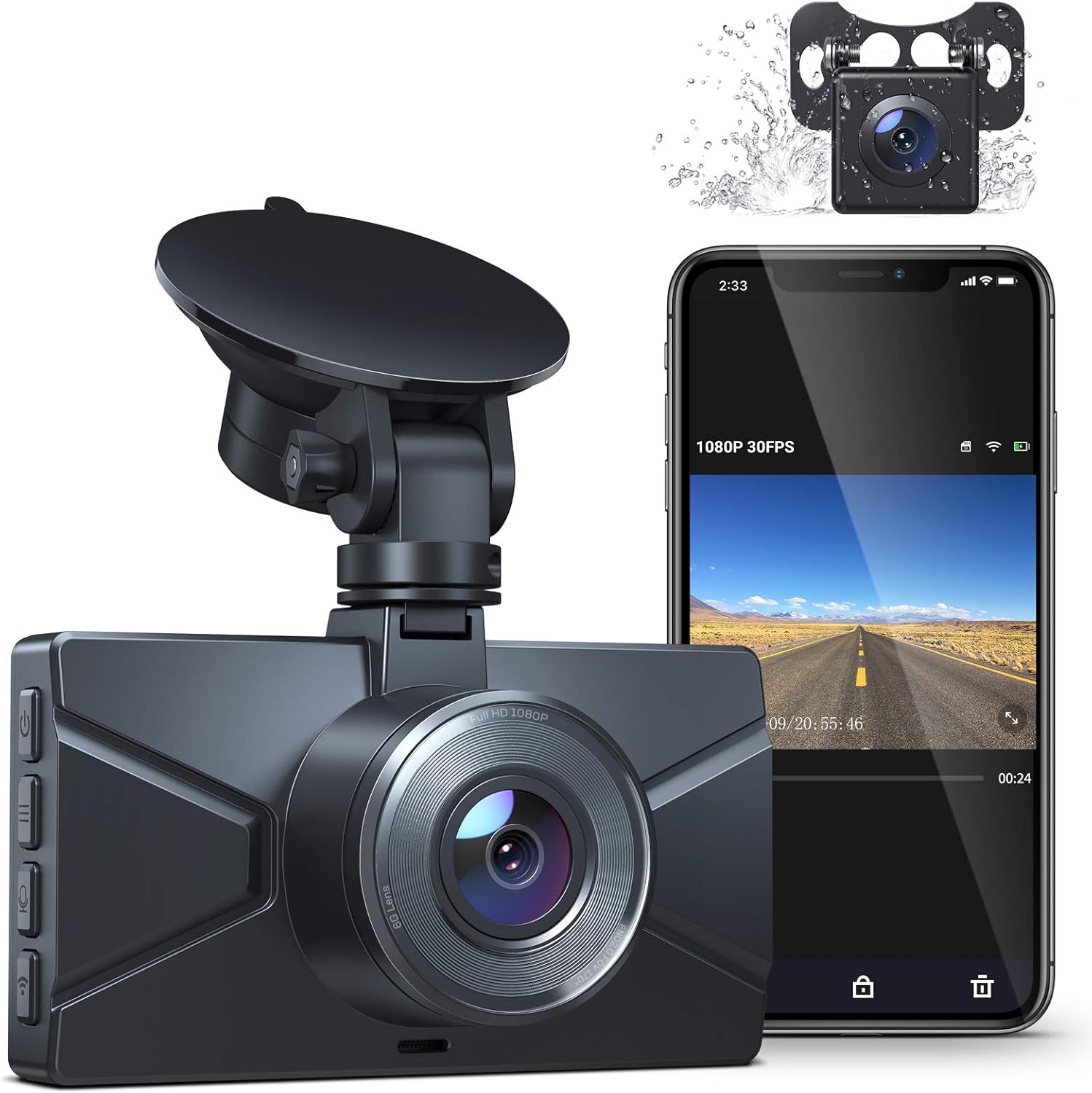
Image: The Surfola SD510 Dash Cam, featuring its main unit with a suction mount, a smartphone displaying the live feed from the dash cam app, and a small inset image of the rear camera, highlighting its dual recording and app control capabilities.
2. Co znajduje się w pudełku
- Surfola SD510 Dash Cam Unit
- Kamera tylna
- Ładowarka samochodowa
- Crowbar (for cable installation)
- Instrukcja obsługi
- Przyssawka
3. Koniec produktuview
The Surfola SD510 is equipped with advanced features to ensure reliable recording and ease of use:
- Full HD 1080P Front + 720P Rear Recording: Captures clear video evidence day and night.
- Kontrola Wi-Fi i aplikacji: Connects to your smartphone via the "RoadCam" App for easy viewpobieranie, udostępnianie i pobieranie plików footage. Settings can also be adjusted directly from the app.
- Ekran IPS 3 cala: Provides a clear display for live view i odtwarzanie.
- Płynne nagrywanie w pętli: Zapewnia ciągłość nagrywania poprzez nadpisywanie najstarszych files gdy karta pamięci jest pełna.
- Advanced Emergency Recording (G-sensor): Automatycznie blokuje i zapisuje wideo footage upon detecting a collision or sudden impact, protecting critical evidence.
- Całodobowy monitoring parkingu: Activates and records a 1-minute video if an impact is detected while the vehicle is parked. Requires a hardwire kit (not included) for continuous power.
- Łatwa instalacja: Features a flexible suction mount and includes a crowbar tool to assist with cable management.
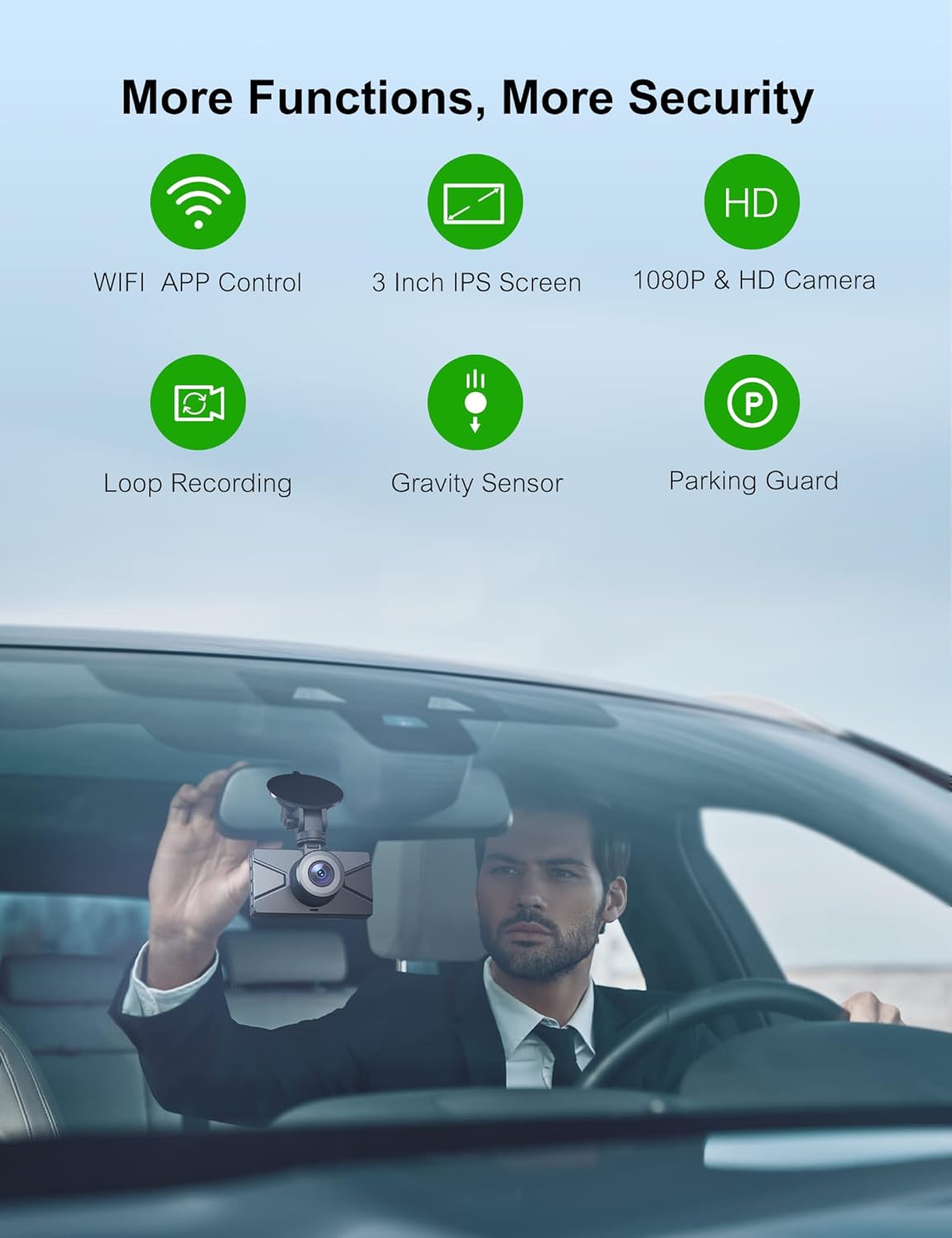
Image: An infographic illustrating the key functions of the Surfola SD510 Dash Cam, such as Wi-Fi, app control, IPS screen, dual cameras, loop recording, G-sensor, and parking guard, alongside a visual of the dash cam being installed in a car.

Image: A visual summary of the Surfola SD510's capabilities, including its dual 1080P and 720P recording, Wi-Fi and app control, super night vision, WDR (Wide Dynamic Range), parking mode, loop recording, emergency lock, and support for up to 128GB memory cards.
Video: An official product video from SurfolaDirect showcasing the Surfola SD510 Dash Cam's features, including its dual recording, app connectivity, seamless recording, and emergency recording capabilities. The video demonstrates how the dash cam acts as a smart witness on the road.
4. Konfiguracja
4.1 Fizyczna instalacja
- Wyczyść obszar przedniej szyby w miejscu, w którym zamierzasz zamontować kamerę samochodową.
- Attach the suction mount to the dash cam and then firmly press it onto the cleaned windshield. Ensure it does not obstruct your view.
- Connect the power cable from the car charger to the dash cam's USB Type-C port.
- Route the power cable neatly along the edge of the windshield and dashboard, using the included crowbar tool to tuck it into crevices for a clean installation. Plug the car charger into your vehicle's cigarette lighter socket.
- Connect the rear camera cable to the main dash cam unit and route it to the rear of your vehicle, ensuring it is securely mounted and does not interfere with vehicle operation.
- Insert a compatible Micro SD card (up to 128GB, not included) into the dash cam's card slot.
4.2 App Connection (RoadCam App)
The Surfola SD510 features built-in Wi-Fi for seamless connection to your smartphone via the "RoadCam" app. This allows for easy video access, download, and sharing.
- Download the "RoadCam" app from your smartphone's app store (iOS or Android).
- Turn on Wi-Fi on your dash cam. The screen will display the Wi-Fi SSID (e.g., Surfola_SD510_XXXX) and password.
- Na swoim smartfonie przejdź do ustawień Wi-Fi i połącz się z siecią Wi-Fi kamery samochodowej, korzystając z podanego hasła.
- Open the "RoadCam" app. Once connected, you can view żyćtage, access recorded videos, and adjust settings directly from your phone.

Image: A step-by-step guide demonstrating how to establish a wireless connection between the Surfola SD510 Dash Cam and a smartphone using the RoadCam app, showing the Wi-Fi activation on the dash cam, connecting via phone settings, and accessing the app interface.
5. Instrukcja obsługi
5.1 Włączanie/wyłączanie zasilania
- The dash cam will automatically power on and begin recording when connected to your car's power supply and the engine starts.
- Urządzenie wyłączy się automatycznie po wyłączeniu silnika.
- To manually power on/off, press and hold the Power button.
5.2 Tryby nagrywania
- Nagrywanie w pętli: Kamera samochodowa nagrywa wideo w krótkich fragmentach (np. 1, 3 lub 5 minut). Gdy karta pamięci jest pełna, najstarszy odblokowany film jest nagrywany automatycznie. filesą automatycznie nadpisywane przez nowe nagrania.
- Nagrywanie awaryjne (czujnik G): W przypadku nagłego uderzenia lub kolizji wbudowany czujnik G automatycznie wykryje zdarzenie i zablokuje bieżący fragment wideo, zapobiegając jego nadpisaniu przez nagrywanie w pętli.
- Monitorowanie parkowania: When enabled and powered (preferably via a hardwire kit for 24-hour monitoring), the dash cam will automatically turn on and record a short video if it detects a vibration or impact while the vehicle is parked.

Image: A visual representation of the seamless loop recording feature, showing the dash cam continuously capturing and cycling through video footage, ensuring no moments are missed.

Image: An illustration highlighting the dash cam's ability to monitor the car for 24 hours, featuring icons for 24H Parking Guard and Motion Detection with a 170° Ultra-Wide Angle, all within a protective digital dome around a car.
5.3 Odtwarzanie i File Kierownictwo
- Odtwarzanie na urządzeniu: Use the dash cam's 3-inch IPS screen and navigation buttons to browse and play back recorded videos.
- Odtwarzanie aplikacji: Connect to the "RoadCam" app via Wi-Fi to view żyćtage, przeglądaj nagrane files, download them to your phone, or share them.
- Odtwarzanie na komputerze: Remove the Micro SD card from the dash cam and insert it into a card reader connected to your computer to access and manage files.
6. Konserwacja
- Wyczyść obiektyw: Regularly wipe the front and rear camera lenses with a soft, lint-free cloth to ensure clear video quality.
- Sprawdź kartę SD: Periodically format the Micro SD card (at least once a month) within the dash cam's settings to prevent data corruption and ensure optimal recording performance. Back up any important files przed formatowaniem.
- Aktualizacje oprogramowania układowego: Check the Surfola official webodwiedź tę witrynę lub aplikację, aby uzyskać dostęp do aktualizacji oprogramowania sprzętowego, które poprawią wydajność i dodadzą nowe funkcje.
- Temperatura: Unikaj wystawiania kamery samochodowej na działanie ekstremalnych temperatur przez dłuższy czas, ponieważ może to wpłynąć na żywotność baterii i trwałość podzespołów.
7. Rozwiązywanie Problemów
| Problem | Możliwa przyczyna | Rozwiązanie |
|---|---|---|
| Kamera samochodowa nie włącza się. | Brak zasilania z ładowarki samochodowej; uszkodzony kabel; luźne połączenie. | Check car charger connection and vehicle's cigarette lighter socket. Ensure cable is securely plugged into the dash cam. Try a different USB cable or car charger if available. |
| "Card Full" error or recording stops. | SD card is full; too many locked files; SD card error. | Format the Micro SD card (back up important files first). Reduce G-sensor sensitivity to minimize locked files. Replace the SD card if the issue persists. |
| Problemy z połączeniem Wi-Fi w aplikacji. | Incorrect password; app not updated; interference. | Ensure correct Wi-Fi password is entered. Update the "RoadCam" app to the latest version. Restart both the dash cam and your smartphone. Try connecting in a different location to rule out interference. |
| Słaba jakość wideo. | Dirty lens; protective film still on lens; low resolution setting. | Clean the camera lenses. Remove any protective film. Check video resolution settings in the dash cam or app and set to 1080P/720P. |
| Suction mount keeps falling off. | Dirty windshield; extreme temperature changes; worn out suction cup. | Clean the windshield and suction cup thoroughly. Apply a small amount of moisture to the suction cup before attaching. Ensure the lever is fully engaged. Consider replacing the suction mount if it's old or damaged. |
8. Specyfikacje
| Funkcja | Szczegół |
|---|---|
| Nazwa modelu | SD510 |
| Wymiary produktu | 3.43 x 2.01 x 1.36 cala |
| Waga przedmiotu | 14.8 uncji |
| Rozdzielczość przechwytywania wideo | 1080p (przód), 720p (tył) |
| Wyświetlacz | Ekran IPS 3 cala |
| Technologia łączności | Wi-Fi |
| Cechy specjalne | Dual Recording, App Control, Built-In WiFi, Emergency Accidents Locks, Night Vision, Parking Monitor |
| Maksymalna obsługa kart SD | 128 GB |
| Typ montażu | Przyssawka |
9. Gwarancja i pomoc techniczna
Surfola is committed to providing high-quality products and excellent customer service. If you encounter any problems during the use of your SD510 Dash Cam, please do not hesitate to contact our support team. We are dedicated to providing you with the best possible solution without delay.
For more detailed operation instructions and video tutorials, please follow the official Surfola YouTube channel, where operation videos of related products are uploaded periodically.
You can also visit the official Surfola store on Amazon for additional information and support: Surfola Amazon Store


