1. Wprowadzenie
This manual provides essential information for setting up, operating, and maintaining your Intel NUC 11 NUC11PAHi7 Mini PC. Please read this manual thoroughly before using the product to ensure proper functionality and safety.
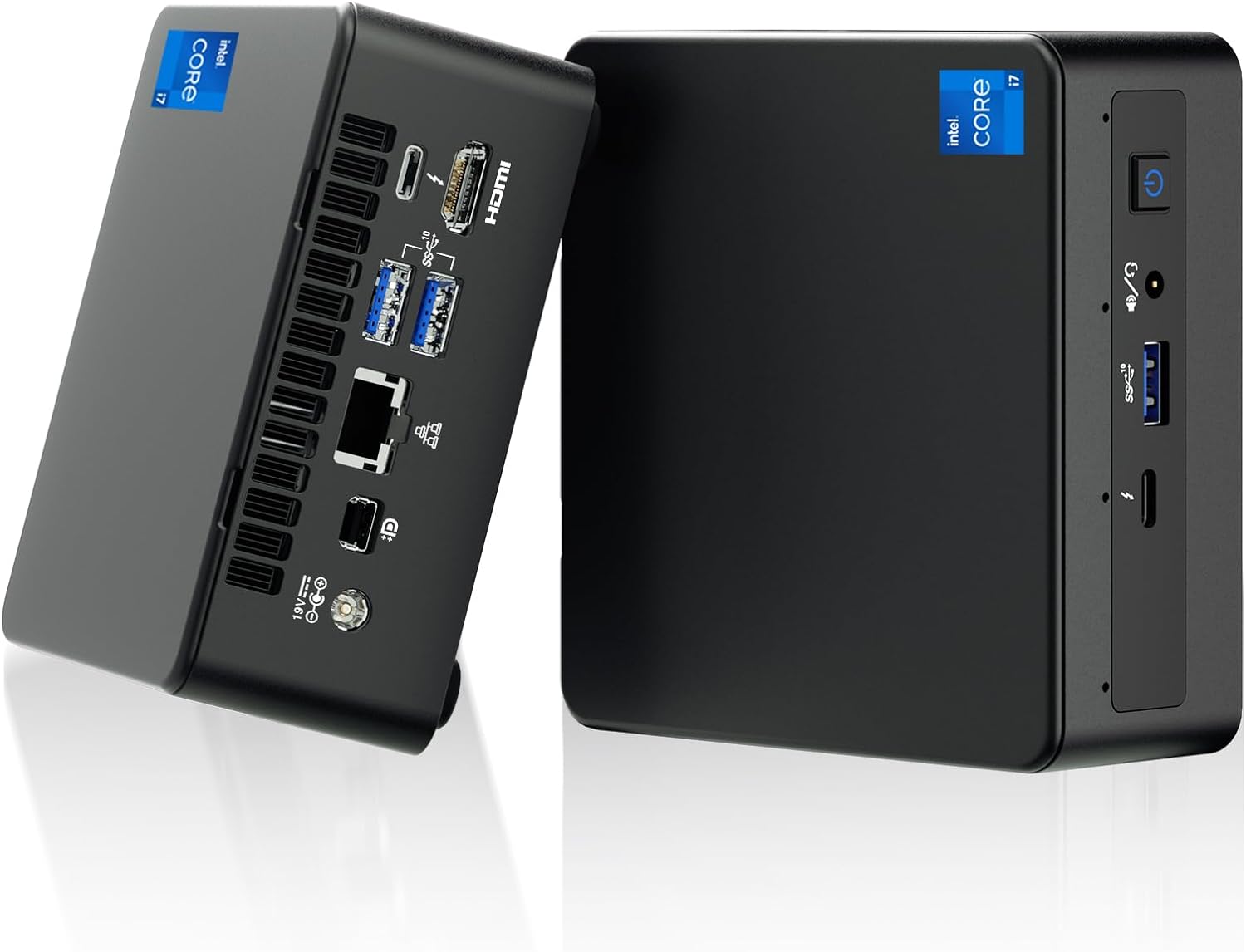
Rysunek 1: Przód i tył view of the Intel NUC 11 Mini PC, showcasindzięki kompaktowej konstrukcji i licznym portom.
2. Co znajduje się w pudełku
Przed przystąpieniem do instalacji sprawdź, czy w opakowaniu znajdują się wszystkie elementy.
- Intel NUC 11 Mini PC
- Zasilacz
- Przewód zasilający USA
- Mocowanie VESA
- Mounting Screws and M.2 Screws (10 pieces)
- Instrukcja obsługi
- Safety Information Documents (2 pieces)

Figure 2: All items included in the Intel NUC 11 Mini PC packaging, including the mini PC, power adapter, VESA mount, and documentation.
3. Funkcje produktu
The Intel NUC 11 NUC11PAHi7 Mini PC offers a range of advanced features for various computing needs.
- Edytor: Procesor Intel Core i7-1165G7 11. generacji (pamięć podręczna 12 MB, do 4.70 GHz)
- Grafika: Intel Iris Xe Graphics, supporting 4K UHD and quad-screen display.
- Pamięć: 16GB SODIMM DDR4 (3200MHz), dual-channel, upgradeable to 64GB.
- Składowanie: 512GB M.2 PCIe 2280 SSD, with support for external 2.5-inch 7mm HDD expansion.
- Łączność:
- Dwa porty Thunderbolt 3
- Port HDMI 2.0b
- Mini DisplayPort 1.4 port
- Three USB 3.1 Gen2 ports
- Intel Ethernet Controller i225-V (Gigabit 2500Mb/s)
- Intel Wi-Fi 6
- Bluetooth 5.2
- Gniazdo SDXC z obsługą UHS-II
- Przednie gniazdo słuchawek stereo 3.5 mm
- Front consumer infrared port
- System operacyjny: Preinstalled with Windows 11 Pro.
- Dodatkowe funkcje: Beam-forming, far-field, quad-mic array with Alexa support, Kensington Lock Ready.

Rysunek 3: Koniecview of the Intel NUC 11's core specifications, highlighting the i7 processor, Iris Xe graphics, memory, storage, and network capabilities.

Figure 4: Illustration of the various input/output ports available on the Intel NUC 11, including Thunderbolt 3, HDMI, Mini DisplayPort, USB, LAN, and an SD Card slot.
4. Przewodnik konfiguracji
4.1 Połączenie początkowe
- Podłącz wyświetlacz: Connect your monitor(s) to the HDMI, Mini DisplayPort, or Thunderbolt 3 ports using appropriate cables. The NUC supports up to four displays.
- Podłącz urządzenia peryferyjne: Plug in your keyboard, mouse, and any other USB devices into the available USB 3.1 Gen2 ports.
- Połączenie internetowe: For a wired connection, connect an Ethernet cable to the LAN port. For wireless, ensure your Wi-Fi network is available.
- Podłączenie zasilania: Connect the power adapter to the DC-in port on the NUC and then plug the AC cord into a power outlet.
4.2 Włączanie
Press the power button located on the front of the unit. The system will boot into Windows 11 Pro. Follow the on-screen instructions for initial Windows setup if this is the first time powering on.
5. Instrukcja obsługi
5.1 Podstawowa obsługa
- System operacyjny: Your Intel NUC comes preinstalled with Windows 11 Pro. Familiarize yourself with the Windows interface for daily tasks.
- Konfiguracja wielu wyświetlaczy: Utilize the multiple display outputs (HDMI, Mini DisplayPort, Thunderbolt 3) to extend your desktop across several monitors for enhanced productivity.
- Połączenie bezprzewodowe: Connect to Wi-Fi 6 networks for high-speed wireless internet access. Use Bluetooth 5.2 for connecting wireless peripherals like headphones or keyboards.
- USB and Thunderbolt Ports: Use the USB 3.1 Gen2 ports for high-speed data transfer with external drives and peripherals. The Thunderbolt 3 ports offer even faster data transfer, video output, and power delivery capabilities.

Figure 5: The Intel NUC 11 connected to a monitor, illustrating its advanced networking capabilities with WiFi 6 and Bluetooth 5.2.
6. Konserwacja i modernizacje
6.1 Ogólna konserwacja
- Trzymaj urządzenie w dobrze wentylowanym pomieszczeniu, aby zapobiec przegrzaniu.
- Regularnie czyść obudowę miękką, suchą ściereczką. Unikaj płynnych środków czyszczących.
- Ensure software and drivers are updated for optimal performance and security.
6.2 Ulepszenia pamięci i pamięci masowej
The Intel NUC 11 allows for memory and storage expansion:
- BARAN: The device supports dual-channel DDR4 SODIMM memory, upgradeable to a maximum of 64GB (2 x 32GB, up to 3200MHz).
- Dysk SSD: The preinstalled 512GB M.2 PCIe 2280 SSD can be upgraded. Additionally, the unit supports an external 2.5-inch 7mm HDD expansion (not included) for increased storage capacity.
Caution: Before performing any internal upgrades, ensure the device is powered off and unplugged. Refer to the detailed instructions in the Intel NUC technical documentation for proper installation procedures. Removing memory and SSD before aftermarket service is recommended for privacy and security.

Figure 6: Illustration of the internal components, specifically the 512GB M.2 SSD and 16GB DDR4 RAM modules, indicating upgrade potential.
7. Rozwiązywanie Problemów
W tej sekcji znajdziesz rozwiązania typowych problemów, na jakie możesz natrafić.
- Brak zasilania:
- Upewnij się, że zasilacz jest prawidłowo podłączony do urządzenia NUC i do sprawnego gniazdka elektrycznego.
- Sprawdź, czy gniazdko elektryczne działa prawidłowo, podłączając je do innego urządzenia.
- Brak wyświetlacza:
- Check all display cable connections (HDMI, Mini DisplayPort, Thunderbolt 3) between the NUC and the monitor.
- Sprawdź, czy monitor jest włączony i ustawiony na prawidłowe źródło sygnału wejściowego.
- Spróbuj podłączyć się do innego wyświetlacza lub użyć innego kabla.
- Brak połączenia z internetem:
- For wired connections, ensure the Ethernet cable is properly connected and your router is working.
- For Wi-Fi, check if Wi-Fi is enabled in Windows settings and if you are connected to the correct network with the right password.
- Restart your router and the NUC.
- Spowolnienie systemu:
- Zamknij niepotrzebne aplikacje działające w tle.
- Sprawdź w Menedżerze zadań, czy występują procesy intensywnie wykorzystujące procesor lub pamięć RAM.
- Upewnij się, że system Windows i sterowniki są aktualne.
- Consider performing a disk cleanup or defragmentation (for HDDs, not SSDs).
8. Specyfikacje
| Funkcja | Szczegół |
|---|---|
| Edytor | 11th Gen Intel Core i7-1165G7 (2.8 GHz, up to 4.7 GHz Turbo, 4 cores, 8 threads, 12 MB Cache) |
| Grafika | Karta graficzna Intel Iris Xe (zintegrowana) |
| BARAN | 16 GB DDR4 (3200MHz), expandable to 64 GB |
| Składowanie | 512 GB M.2 PCIe SSD (NVMe PCIe Gen4) |
| System operacyjny | Windows 11 Pro |
| Łączność bezprzewodowa | Intel Wi-Fi 6, Bluetooth 5.2 |
| Łączność przewodowa | Intel Ethernet Controller i225-V (2.5 Gigabit) |
| Porty (przód) | 1x USB 3.1 Gen2, 1x Thunderbolt 3, 3.5mm Headset Jack, Power Button |
| Porty (tył) | 2x USB 3.1 Gen2, 1x Thunderbolt 3, HDMI 2.0b, Mini DisplayPort 1.4, LAN, DC-in |
| Other Ports/Slots | SDXC slot with UHS-II support, Kensington Security Slot, Front Consumer Infrared Port |
| Wymiary (dł. x szer. x wys.) | 4.6 x 4.4 x 2 cala |
| Waga | 3.1 funta (ok. 1.4 kg) |
| Kolor | Czarny |

Figure 7: A detailed comparison table outlining the specifications for different Intel NUC 11 Performance Mini PC and Kit configurations, including processor, graphics, memory, and storage options.
9. Informacje dotyczące bezpieczeństwa
Please observe the following safety guidelines to prevent damage to the device or personal injury.
- Use only the provided power adapter and AC cord.
- Nie wystawiaj urządzenia na działanie ekstremalnych temperatur, wilgoci ani bezpośredniego światła słonecznego.
- Unikaj umieszczania urządzenia w pobliżu źródeł ciepła lub w słabo wentylowanych pomieszczeniach.
- Do not open the chassis unless performing authorized upgrades (RAM/SSD) and always disconnect power first.
- Trzymaj urządzenie z dala od płynów.
- If you encounter any issues, refer to the troubleshooting section or contact support before attempting repairs.

Figure 8: Important safety warnings and precautions provided in multiple languages, covering electrical safety, environmental conditions, and proper usage.
10. Gwarancja i wsparcie
Your Intel NUC 11 Mini PC comes with a comprehensive warranty and support:
- Gwarancja: A 3-year global warranty from Intel and GEEK+ is provided. This includes a 3-year free Warranty Service from Intel for the NUC Barebone part. RAM, SSD, and OS are covered by a three-year warranty provided by GEEK+.
- Wsparcie: For issues with the NUC Barebone part, you can contact local Intel NUC after-sales locations directly. For other inquiries or assistance, send a message to GEEK+ for help.
- Prywatność i bezpieczeństwo: To ensure your privacy and security, it is recommended to remove the Memory and SSD before sending the unit for aftermarket service.
For further assistance, please refer to the official Intel NUC support webstronie internetowej lub skontaktuj się ze sprzedawcą.


