1. Wprowadzenie
The ASUS Notebook E210 is a compact and lightweight 11.6-inch laptop designed for productivity and portability. It features an Intel Celeron N4020 Processor, 4GB RAM, and 64GB eMMC storage, running Windows 10 in S mode. This manual provides essential information for setting up, operating, and maintaining your device.

Figure 1: ASUS Notebook E210, showcasing its compact design with the screen displaying a colorful desktop background.
2. Konfiguracja
2.1 Rozpakowanie i wstępna inspekcja
Ostrożnie wyjmij wszystkie elementy z opakowania. Sprawdź, czy w zestawie znajdują się następujące elementy:
- ASUS Notebook E210 (Model: E210MA-DB02)
- Zasilacz i przewód
- Instrukcja użytkownika
- Karta gwarancyjna
Inspect the laptop for any physical damage. If any components are missing or damaged, contact your retailer or ASUS support.
2.2 Włączanie i konfiguracja początkowa
- Podłącz zasilacz do portu ładowania laptopa, a następnie do gniazdka elektrycznego.
- Otwórz pokrywę laptopa. Laptop może włączyć się automatycznie lub konieczne może być naciśnięcie przycisku zasilania.
- Follow the on-screen instructions to complete the Windows 10 Home in S Mode setup, including language selection, network connection, and user account creation.
- Ensure the laptop is fully charged before its first use.
3. Instrukcja obsługi
3.1 Podstawowe użytkowanie
- Włączanie/wyłączanie: Naciśnij przycisk zasilania, aby włączyć. Aby wyłączyć, kliknij przycisk Start, a następnie Zasilanie > Wyłącz.
- Tryb uśpienia: Zamknij pokrywę lub kliknij przycisk Start, następnie Zasilanie > Uśpienie.
- Klawiatura: The full-size keyboard offers comfortable typing with 1.4mm key travel.
- Panel dotykowy: The touchpad supports multi-gesture input for navigation and control.
3.2 Windows 10 in S Mode
Windows 10 in S mode is a version of Windows 10 that is streamlined for security and performance, exclusively using apps from the Microsoft Store. If you require apps outside the Microsoft Store, you can switch out of S mode. This is a one-way switch and cannot be undone.
- Otwórz Menu startowe i wybierz Ustawienia.
- Idź do Aktualizacja i bezpieczeństwo > Aktywacja.
- In the "Switch to Windows 10 Home" or "Switch to Windows 10 Pro" section, select Idź do sklepu.
- On the "Switch out of S mode" (or similar) page that appears in the Microsoft Store, click the Dostawać przycisk.
- After confirming, you will be switched out of S mode.
4. Funkcje ponadview
- Wydajna wydajność: Powered by the Intel Celeron N4020 Processor for daily computing tasks.
- Kompaktowy i lekki: Designed for portability, measuring 0.7 inches thin and weighing 2.31 lbs.
- 11.6” HD Display: A clear 1366 x 768 resolution display suitable for productivity and media consumption.
- Integrated NumberPad: The touchpad features an illuminated NumberPad for efficient data entry.
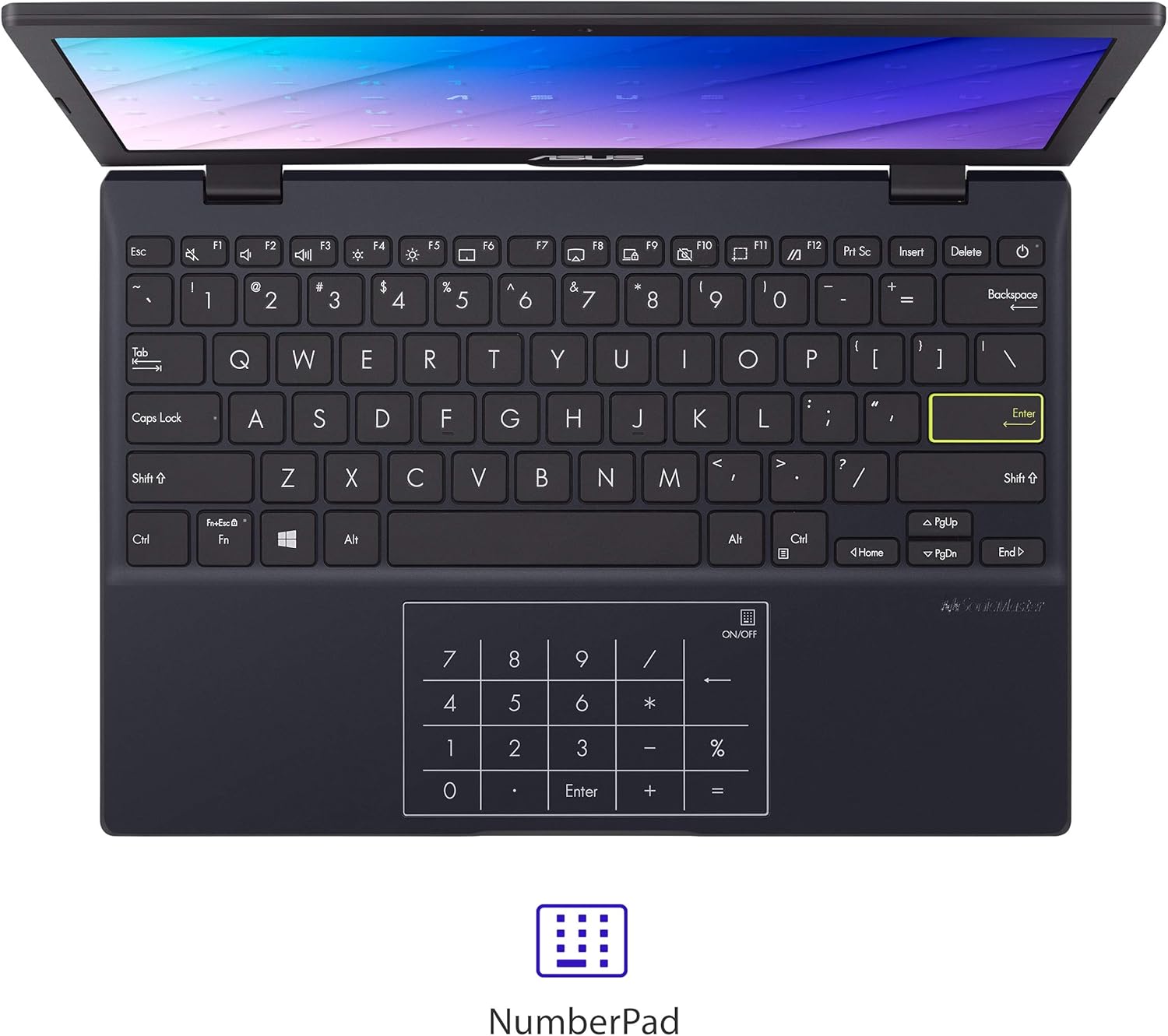
Figure 2: The touchpad with integrated NumberPad for quick numerical input.
- Zawias 180° z możliwością rozłożenia na płasko: Allows the laptop to open completely flat for easy sharing and collaboration.

Figure 3: The laptop's 180-degree lay-flat hinge allows for versatile viewi udostępnianie.
- Długa żywotność baterii: Provides up to 12 hours of battery life for extended use on the go.
5. Porty i łączność
The ASUS Notebook E210 offers a variety of ports for connecting peripherals and external displays:
- 1x USB 2.0 typu A
- 1x USB 3.2 Gen 1 typu A
- 1x USB 3.2 Gen 1 Type-C
- 1x HDMI 1.4
- 1x 3.5 mm gniazdo audio typu combo
- Wi-Fi 802.11ac
- Bluetooth
6. Konserwacja
- Czyszczenie: Do czyszczenia ekranu i obudowy używaj miękkiej, niepozostawiającej włókien ściereczki. Unikaj agresywnych środków chemicznych.
- Pielęgnacja baterii: To prolong battery life, avoid fully discharging the battery frequently. Store the laptop in a cool, dry place.
- Aktualizacje oprogramowania: Regularnie aktualizuj system Windows i sterowniki, aby zapewnić optymalną wydajność i bezpieczeństwo.
- Zarządzanie pamięcią masową: Okresowo usuwaj niepotrzebne files and applications to maintain adequate storage space.
7. Rozwiązywanie Problemów
- Laptop się nie włącza: Upewnij się, że zasilacz jest prawidłowo podłączony, a bateria jest wystarczająco naładowana. Spróbuj użyć innego gniazdka elektrycznego.
- Niska wydajność: Close unnecessary applications, check for background updates, and ensure sufficient free storage space.
- Problemy z łącznością Wi-Fi: Restart the laptop and your Wi-Fi router. Check network settings and ensure Wi-Fi is enabled.
- Problemy z ekranem: If the screen is blank or flickering, try restarting the laptop. Connect to an external monitor to check if the issue is with the laptop's display or graphics.
8. Specyfikacje
| Funkcja | Szczegół |
|---|---|
| Marka | ASUS |
| Nazwa modelu | L210 |
| Numer modelu przedmiotu | E210MA-DB02 |
| Rozmiar ekranu | 11.6 cali |
| Rozdzielczość ekranu | 1366 x 768 pikseli |
| Edytor | Intel Celeron N4020 (1.1 GHz, up to 2.8 GHz) |
| BARAN | 4 GB pamięci LPDDR4 |
| Dysk twardy | 64 GB eMMC Flash Storage |
| Koprocesor graficzny | Karta graficzna Intel UHD 600 |
| System operacyjny | Windows 10 Home w trybie S |
| Typ bezprzewodowy | 802.11ac, Bluetooth |
| Porty USB 2.0 | 1 |
| Porty USB 3.0 | 2 |
| Waga przedmiotu | 2.31 funtów |
| Wymiary produktu | 10.98 x 7.52 x 0.67 cala |
| Kolor | Star Black |
| Baterie | 1 bateria litowo-jonowa (w zestawie) |
9. Gwarancja i wsparcie
9.1 Informacje o gwarancji
This ASUS Notebook E210 is covered by a manufacturer's warranty. Please refer to the included Warranty Card for specific terms, conditions, and duration of coverage. Keep your proof of purchase for warranty claims.
9.2 Obsługa klienta
Aby uzyskać pomoc techniczną, rozwiązać problemy lub zadać pytania dotyczące serwisu, odwiedź oficjalną stronę pomocy technicznej ASUS website or contact their customer service. Details can be found on the ASUS webstronie lub w dokumentacji produktu.


