1. Wprowadzenie
This manual provides comprehensive instructions for the installation, operation, and maintenance of your TP-Link Archer C5 AC1200 Dual-Band Gigabit Wireless Wi-Fi Router. The Archer C5 is designed to provide seamless Wi-Fi coverage with its dual-band capabilities, offering speeds up to 750Mbps on the 5GHz band and up to 300Mbps on the 2.4GHz band. It features four external antennas for stable wireless connections and full Gigabit ports for high-speed wired connections.
Please read this manual carefully before using the device to ensure proper setup and optimal performance.
2. Zawartość opakowania
Sprawdź, czy w przesyłce znajdują się następujące elementy:
- Router TP-Link Archer C5
- Power Adapter (DC Adapter)
- Kabel Ethernet (RJ45)
- Quick Installation Guide (may be a separate document)
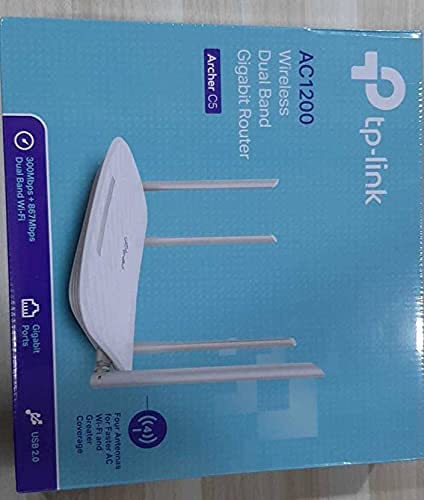
3. Koniec produktuview
3.1 Panel przedni

The front panel features LED indicators that provide information about the router's status, including power, internet connectivity, Wi-Fi status for both 2.4GHz and 5GHz bands, and LAN port activity.
3.2 Panel tylny

The rear panel includes all physical connection ports and buttons:
- Pobór mocy: Podłączany do dostarczonego zasilacza.
- Przycisk zasilania: Włącza lub wyłącza router.
- Port USB: Do podłączania urządzeń pamięci masowej USB w celu udostępniania files w całej sieci.
- Port WAN (niebieski): Connects to your modem for internet access. This is a Gigabit port.
- Porty LAN (żółte): Four Gigabit Ethernet ports for connecting wired devices such as computers, gaming consoles, or smart TVs.
- Przycisk resetowania: Służy do przywrócenia routera do ustawień fabrycznych.
- Przycisk WPS/Wi-Fi: Press to enable WPS (Wi-Fi Protected Setup) for easy connection, or press and hold to turn Wi-Fi on/off.
4. Przewodnik konfiguracji
Follow these steps to set up your TP-Link Archer C5 router:
- Wyłącz modem: Odłącz zasilanie od istniejącego modemu.
- Podłącz router:
- Connect one end of the provided Ethernet cable to the WAN port (blue) on your Archer C5 router.
- Podłącz drugi koniec kabla Ethernet do portu Ethernet modemu.
- Włącz urządzenia:
- Podłącz zasilacz do wejścia zasilania routera, a następnie do gniazdka elektrycznego.
- Power on your modem, then wait for it to fully boot up (usually indicated by stable LED lights).
- Power on the Archer C5 router. Wait for the LED indicators to stabilize, particularly the Internet LED.
- Connect to the Router's Wi-Fi Network:
- Znajdź nazwę sieci Wi-Fi (SSID) i hasło wydrukowane na etykiecie znajdującej się na spodzie routera.
- On your computer or mobile device, select the router's Wi-Fi network and enter the password to connect.
- Uzyskaj dostęp do Web Interfejs zarządzania:
- Otwórz web przeglądarkę (np. Chrome, Firefox) i typ
http://tplinkwifi.netor192.168.0.1do paska adresu. - Zaloguj się, używając domyślnej nazwy użytkownika i hasła (zwykle
admindla obu lub zgodnie ze specyfikacją na etykiecie routera). - Follow the Quick Setup wizard to configure your internet connection and personalize your Wi-Fi network name and password.
- Otwórz web przeglądarkę (np. Chrome, Firefox) i typ
- Optional: Use the TP-Link Tether App: Download the TP-Link Tether app from your mobile device's app store for easy setup and management.
5. Instrukcja obsługi
Once your router is set up, you can manage its functions through the web management interface or the TP-Link Tether app.
5.1 Dwuzakresowe Wi-Fi
The Archer C5 operates on two Wi-Fi bands:
- Pasmo 2.4 GHz: Provides wider coverage and better penetration through walls, suitable for general internet use and older devices.
- Pasmo 5 GHz: Offers faster speeds and less interference, ideal for bandwidth-intensive activities like online gaming and HD video streaming.
You can configure separate SSIDs (network names) and passwords for each band or use a single SSID with Band Steering enabled (if available in your firmware) to allow the router to automatically assign devices to the best band.
5.2 Zarządzanie siecią
Przez web interfejs, możesz:
- Change Wi-Fi settings (SSID, password, security type).
- Set up a Guest Network for visitors.
- Configure parental controls to manage internet access for children.
- Prioritize devices or applications using Quality of Service (QoS).
- Zarządzaj podłączonymi urządzeniami.
- Access advanced settings like port forwarding, VPN server, and dynamic DNS.
6. Konserwacja
Regularna konserwacja pomaga zapewnić długowieczność i optymalną wydajność routera.
- Aktualizacje oprogramowania układowego: Okresowo sprawdzaj oficjalną stronę TP-Link webStrona z aktualizacjami oprogramowania sprzętowego. Aktualizacja oprogramowania sprzętowego może poprawić wydajność, dodać nowe funkcje i naprawić luki w zabezpieczeniach.
- Miejsce pracy: Place the router in a central location, away from obstructions and devices that emit electromagnetic interference (e.g., microwaves, cordless phones). Elevating the router can also improve signal distribution.
- Czyszczenie: Keep the router clean and free from dust. Ensure ventilation holes are not blocked to prevent overheating.
- Ponowne uruchomienie: If you experience slow speeds or connectivity issues, try rebooting the router by unplugging its power adapter for 10 seconds and then plugging it back in.
7. Rozwiązywanie Problemów
W tej sekcji omówiono typowe problemy, jakie mogą wystąpić podczas korzystania z routera Archer C5.
7.1 Brak dostępu do Internetu
- Sprawdź połączenia kablowe: Ensure the Ethernet cable from your modem is securely connected to the router's blue WAN port.
- Status modemu: Sprawdź, czy modem działa prawidłowo i czy ma aktywne połączenie z Internetem.
- Diody LED routera: Check the Internet LED on the router. If it's off or red, there might be an issue with your internet service provider (ISP) or modem connection.
- Ponowne uruchomienie urządzeń: Power cycle your modem and then your router.
- Klonuj adres MAC: Niektórzy dostawcy usług internetowych wymagają klonowania adresów MAC. Uzyskaj dostęp do routera web interface and check WAN settings for this option.
7.2 Wi-Fi Signal Drops or is Weak
- Umiejscowienie routera: Move the router to a central location, away from obstacles and interference sources.
- Orientacja anteny: Adjust the four external antennas for optimal signal reception.
- Zakłócenia kanału: W routerze web interface, try changing the Wi-Fi channel for both 2.4GHz and 5GHz bands to a less congested one.
- Aktualizacja firmware: Upewnij się, że oprogramowanie sprzętowe routera jest aktualne.
7.3 Zapomniałem hasła do routera
Jeśli zapomnisz hasła do web management interface, you will need to reset the router to its factory default settings. Locate the Reset button on the rear panel, press and hold it for about 10 seconds until the LEDs flash, then release. The router will reboot with default settings (usually admin for username and password).
8. Specyfikacje
| Funkcja | Szczegół |
|---|---|
| Marka | TP-Link |
| Nazwa modelu | Łucznik C5 |
| standard bezprzewodowy | IEEE 802.11ac/n/a 5 GHz, IEEE 802.11n/b/g 2.4 GHz |
| Prędkość Wi-Fi | AC1200 (867 Mb/s w paśmie 5 GHz, 300 Mb/s w paśmie 2.4 GHz) |
| Klasa pasma częstotliwości | Dwuzakresowy (2.4 GHz i 5 GHz) |
| Porty Ethernet | 1x port Gigabit WAN, 4x porty Gigabit LAN |
| Port USB | 1x port USB 2.0 |
| Anteny | 4 anten zewnętrznych |
| Protokół bezpieczeństwa | WPA2-PSK |
| System operacyjny | RouterOS (as per product data, typically TP-Link custom firmware) |
| Funkcja specjalna | Zdalny dostęp |
| Waga przedmiotu | 710 gramów |
| Zawarte komponenty | Router, DC Adapter, RJ45 Ethernet Cable |
9. Gwarancja i wsparcie
9.1 Informacje o gwarancji
The TP-Link Archer C5 router typically comes with a 1 rok gwarancji. Please refer to the warranty card included in your product packaging or visit the official TP-Link webAby zapoznać się ze szczegółowymi warunkami gwarancji obowiązującymi w Twoim regionie, odwiedź naszą witrynę.
9.2 Wsparcie techniczne
For technical assistance, firmware updates, or further information, please visit the official TP-Link support website. You can usually find FAQs, troubleshooting guides, and contact information for customer support there.
Oficjalny TP-Link Webstrona: www.tp-link.com


