1. Wprowadzenie
The EZVIZ C3W Pro is a high-performance wired outdoor smart Wi-Fi security camera designed to provide reliable surveillance for your property. Featuring 1080p Full HD video, advanced color night vision, and AI-powered human shape detection, this camera offers comprehensive monitoring day and night. Its IP67 weather-resistant design ensures durability in various outdoor conditions. The camera also supports two-way talk, local storage via MicroSD card, and seamless integration with smart home ecosystems like Amazon Alexa and Google Assistant.

Figure 1: EZVIZ C3W Pro Outdoor Smart Wi-Fi Security Camera.
2. Co znajduje się w pudełku
Upon unboxing your EZVIZ C3W Pro camera, verify that all the following items are included:
- EZVIZ C3W Pro Camera
- Zasilacz
- Podstawa montażowa
- Śruby montażowe i kołki ścienne
- Szablon wiertła
- Zestaw wodoodporny do kabla sieciowego
- Szybki przewodnik

Figure 2: Included items in the EZVIZ C3W Pro package.
3. Konfiguracja
3.1. Instalacja fizyczna
- Wybierz miejsce montażu: Wybierz miejsce na zewnątrz z czystym powietrzem view of the area you wish to monitor. Ensure the camera is within Wi-Fi range and has access to a power outlet. The camera is IP67 rated for dust and water resistance.
- Use the Drill Template: Place the provided drill template on the desired mounting surface and mark the screw holes.
- Wiercenie otworów: Drill pilot holes at the marked positions. Insert the wall plugs if mounting on masonry or concrete.
- Zamontuj podstawę: Przymocuj podstawę montażową kamery do powierzchni za pomocą dołączonych śrub.
- Zamocuj kamerę: Attach the camera to the mounting base and adjust its angle for optimal coverage.
Figure 3: EZVIZ C3W Pro camera mounted for outdoor use.
3.2. Instalacja karty MicroSD (opcjonalnie)
For local video storage, you can install a MicroSD card (up to 256GB). Locate the MicroSD card slot on the camera, typically protected by a cover secured with screws. Carefully open the cover, insert the MicroSD card, and then re-secure the cover to maintain the camera's weather resistance.
3.3. Włączanie
Connect the camera to the power adapter and plug it into a suitable outdoor power outlet. The camera will power on and its indicator light will begin to flash blue, indicating it's ready for network configuration.
3.4. EZVIZ App Configuration
- Pobierz aplikację EZVIZ: Download and install the EZVIZ app from the App Store (iOS) or Google Play Store (Android).
- Utwórz konto: Launch the app and register for a new EZVIZ account if you don't already have one.
- Dodaj urządzenie: Log in to your EZVIZ account. Tap the '+' icon in the upper right corner of the home screen to add a new device. Select 'Cameras'.
- Skanowania QR code: Scan the QR code located on the camera body or on the Quick Start Guide.
- Połącz się z Wi-Fi: Follow the in-app prompts to connect your camera to your 2.4GHz Wi-Fi network. Ensure your phone is connected to the same 2.4GHz Wi-Fi network during this process.
- Pełna konfiguracja: Po nawiązaniu połączenia możesz nadać nazwę kamerze i dostosować ustawienia początkowe.
Video 1: EZVIZ C3W Pro Setup Guide. This video demonstrates the step-by-step setup process for the camera.
4. Obsługa aparatu
4.1. Na żywo View & Basic Controls
Access the live video feed from your camera through the EZVIZ app. From the live view interfejs, możesz:
- Take Snapshots: Przechwytuj nieruchome obrazy z transmisji na żywo.
- Nagraj wideo: Ręcznie nagrywaj klipy wideo.
- Zoom cyfrowy: Zoom in up to 8x to view bliższe dane.
4.2. Rozmowa dwustronna
The C3W Pro features a built-in microphone and speaker, allowing for two-way communication. Tap the 'Talk' button in the app to speak through the camera and hear responses from the monitored area.
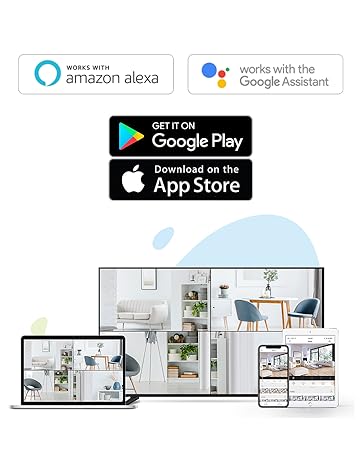
Figure 4: Using the two-way talk feature via the EZVIZ app.
4.3. Tryby widzenia nocnego
Kamera oferuje trzy tryby widzenia nocnego:
- Tryb IR (czarno-biały): Standardowa technologia podczerwieni do widzenia nocnego zapewniająca wyraźne czarno-białe obrazy przy słabym oświetleniu.
- Tryb koloru: Utilizes built-in spotlights to provide full-color night vision, even in complete darkness.
- Inteligentne widzenie w nocy: By default, the camera operates in black and white mode. When motion is detected, it automatically switches to color night vision and activates the spotlights.

Figure 5: Night vision modes: Color Night Vision and Black & White Vision.
4.4. Detekcja ruchu i alerty
The C3W Pro uses AI-powered human shape detection to minimize false alarms. You can customize detection settings:
- Wykrywanie kształtu człowieka: Enable this feature to only receive alerts when a human shape is detected.
- Obszar wykrywania ruchu: Zdefiniuj określone strefy w obrębie kamery view where motion detection will be active. This helps to ignore irrelevant movements (e.g., trees swaying).
- Czułość wykrywania ruchu: Adjust the sensitivity level to fine-tune how easily motion triggers an alert.
- Obrona aktywna: When motion is detected, the camera can trigger a loud siren and flash its spotlights to deter intruders.

Rysunek 6: Wykrywanie osób wspomagane sztuczną inteligencją w akcji.
4.5. Integracja inteligentnego domu
The EZVIZ C3W Pro is compatible with popular smart home platforms:
- Amazon Alexa: Użyj poleceń głosowych, aby view obraz z kamery na kompatybilnych urządzeniach Alexa.
- Asystent Google: Integrate with Google Assistant for voice control and viewing on Google Home devices.

Figure 7: EZVIZ C3W Pro working with Amazon Alexa.
Wideo 2: Oficjalny koniecview of the EZVIZ C3W Pro's key features, including color night vision, AI detection, and two-way talk.
5. Konserwacja
- Regularne czyszczenie: Okresowo czyść obiektyw i obudowę aparatu miękką,amp ściereczką, aby zapewnić wysoką jakość obrazu. Unikaj silnych środków chemicznych.
- Aktualizacje oprogramowania układowego: Keep your camera's firmware updated through the EZVIZ app to ensure optimal performance, security, and access to new features.
- Sprawdź połączenia: Regularly inspect power and network cable connections for any signs of wear or damage, especially in outdoor environments.
6. Rozwiązywanie Problemów
6.1. No Power / Offline
- Upewnij się, że zasilacz jest prawidłowo podłączony do aparatu i do sprawnego gniazdka elektrycznego.
- Sprawdź, czy gniazdko elektryczne działa prawidłowo, podłączając do niego inne urządzenie.
- Sprawdź, czy sieć Wi-Fi jest aktywna i czy kamera znajduje się w zasięgu.
6.2. Słaba jakość obrazu
- Wyczyść obiektyw aparatu, aby usunąć wszelkie zabrudzenia i smugi.
- Upewnij się, że przed obiektywem nie ma żadnych przeszkód.
- Check your Wi-Fi signal strength in the EZVIZ app; a weak signal can affect video quality.
- Adjust the video resolution settings in the app if your network bandwidth is limited.
6.3. Excessive False Alarms
- Enable AI-powered Human Shape Detection in the app settings.
- Adjust the Motion Detection Area to exclude areas with frequent irrelevant motion (e.g., trees, busy roads).
- Lower the Motion Detection Sensitivity in the app.
7. Specyfikacje
| Numer modelu | EZC3W3H2L28 |
| Rozdzielczość przechwytywania wideo | 1080p |
| Technologia łączności | Wireless (Wi-Fi 2.4GHz with Dual External Antennas) |
| Międzynarodowa Ocena Ochrony | IP67 (odporność na warunki atmosferyczne i kurz) |
| Zakres noktowizora | 98 stóp |
| Cechy specjalne | Motion Sensor, Night Vision (Color, Black & White, Smart), AI-Powered Human Detection, Two-Way Talk, Active Defense (Siren & Strobe Light) |
| Składowanie | MicroSD Slot (up to 256GB), Secure Cloud Storage (Optional) |
| Kompatybilne urządzenia | iOS, Android, Amazon Alexa, Google Assistant |
| Źródło zasilania | Wired (Power Adapter Included) |
| Wymiary (dł. x szer. x wys.) | 9 x 4.1 x 3.7 cala |
| Waga przedmiotu | 1.28 funta |
8. Gwarancja i wsparcie
Aby uzyskać informacje dotyczące gwarancji, pomocy technicznej lub zapytań serwisowych, zapoznaj się z oficjalną stroną EZVIZ website or contact their customer support directly. Details can typically be found in the Quick Start Guide or on the product packaging.


