1. Wprowadzenie
Thank you for choosing the Bontempi HarmonyKeys 61-Key Digital Keyboard. This instrument is designed to provide a versatile and engaging musical experience for users of various skill levels. This manual provides essential information for the proper setup, operation, maintenance, and troubleshooting of your new digital keyboard. Please read this manual thoroughly before use to ensure optimal performance and longevity of your instrument.
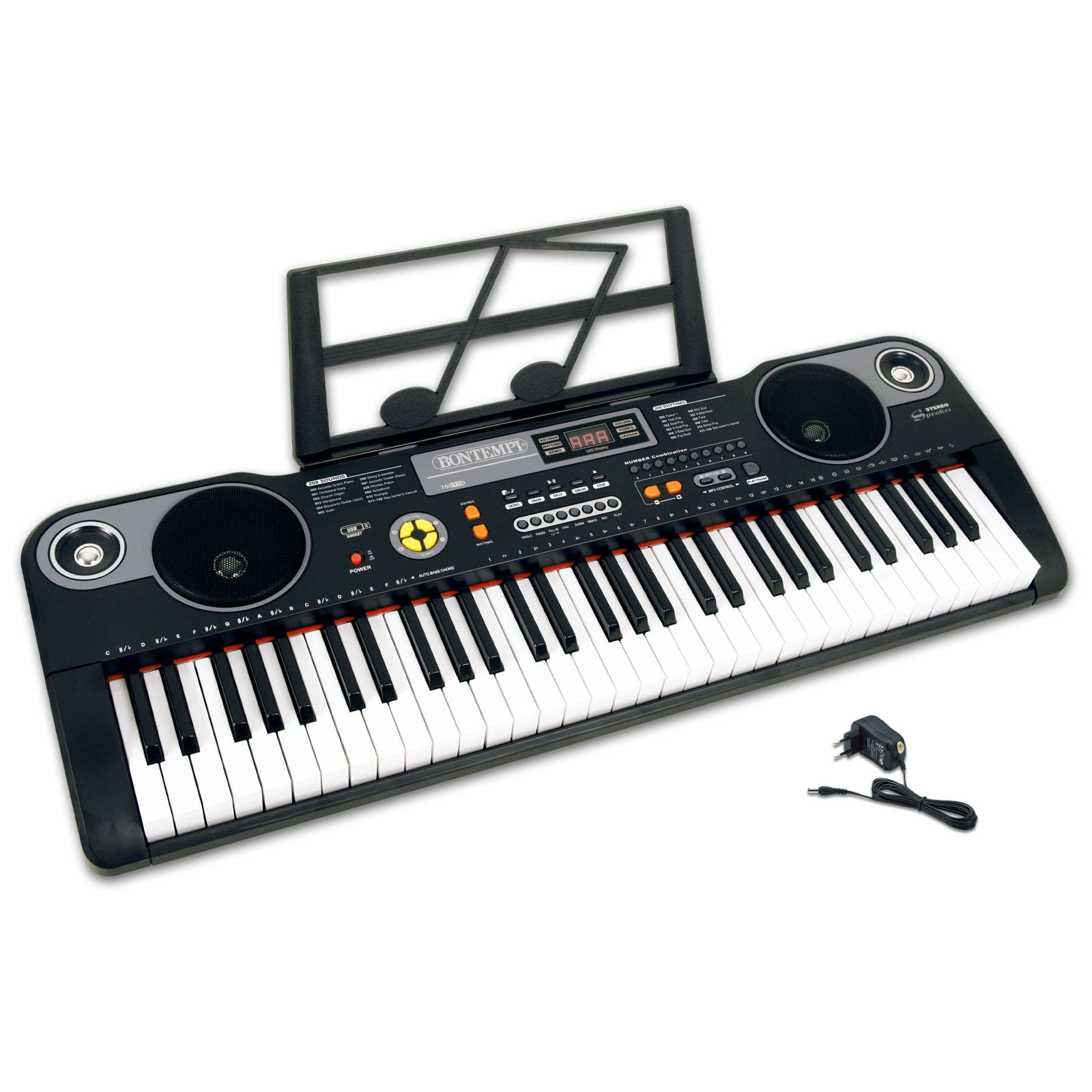
Obraz 1: Góra view of the Bontempi HarmonyKeys 61-Key Digital Keyboard, showing the keys, control panel, and speakers.
2. Informacje dotyczące bezpieczeństwa
To prevent damage to the instrument or injury to yourself or others, please observe the following safety precautions:
- Źródło zasilania: Use only the specified power adapter or a compatible USB power source. Ensure the voltage spełnia wymagania instrumentu.
- Woda i wilgoć: Do not expose the instrument to water or moisture. Avoid placing liquids near the keyboard.
- Źródła ciepła: Keep the instrument away from heat sources such as radiators, heat registers, stoves, or other heat-producing appliances.
- Wentylacja: Nie blokuj żadnych otworów wentylacyjnych. Zapewnij odpowiedni przepływ powietrza wokół urządzenia.
- Czyszczenie: Czyścić wyłącznie suchą szmatką. Nie używaj środków czyszczących w płynie ani w aerozolu.
- Serwisowanie: Nie próbuj samodzielnie naprawiać tego produktu. Wszelkie czynności serwisowe należy powierzyć wykwalifikowanemu personelowi serwisowemu.
- Umieszczenie: Place the instrument on a stable, flat surface to prevent it from falling.
3. Zawartość opakowania
Sprawdź, czy w opakowaniu znajdują się wszystkie elementy:
- Bontempi HarmonyKeys 61-Key Digital Keyboard
- Zasilacz
- Instrukcja obsługi (ten dokument)
- Music Stand (if included with your specific model)
Notatka: Batteries are not included and must be purchased separately if you intend to use the keyboard without the power adapter.

Image 2: The Bontempi HarmonyKeys 61-Key Digital Keyboard shown with its music stand and power adapter.
4. Konfiguracja
4.1 Połączenie zasilania
Your HarmonyKeys keyboard can be powered in two ways:
- Korzystanie z zasilacza sieciowego: Connect the included power adapter to the DC IN jack on the back of the keyboard. Plug the other end into a standard wall outlet.
- Using Batteries (not included): For portable use, insert the required number of D-size batteries (refer to the battery compartment for specifications) into the battery compartment on the underside of the keyboard. Ensure correct polarity.
4.2 Początkowe umiejscowienie
Place the keyboard on a stable, flat surface. If using a keyboard stand, ensure it is properly assembled and secure. Attach the music stand to the designated slot on the keyboard, if applicable.
4.3 Podłączanie słuchawek
To practice privately, connect standard 3.5mm stereo headphones to the HEADPHONE jack on the keyboard. The internal speakers will automatically mute when headphones are connected.
5. Instrukcja obsługi
5.1 Włączanie/wyłączanie
Naciśnij MOC button to turn the keyboard on. The display will light up. Press the MOC Naciśnij przycisk ponownie, aby wyłączyć klawiaturę.
5.2 Podstawowa rozgrywka
Once powered on, you can immediately begin playing the 61 keys. The default sound is typically a piano tone. Use the volume controls to adjust the output level.
5.3 Selecting Sounds and Rhythms
Your HarmonyKeys keyboard features 60 demo songs, 200 sounds, and 200 rhythms. Use the dedicated buttons and the numeric keypad to select different instrument sounds (Tones) and rhythmic accompaniments (Rhythms). The digital display will show your current selection.
5.4 Funkcje specjalne
- Podtrzymywać: Naciśnij PONIEŚĆ button to make notes linger longer after the key is released.
- Wibrato: Aktywuj WIBRATO function to add a slight pitch modulation to the sound.
- Record & Play: Użyj REK button to record your performance and the GRAĆ button to listen back.
- Polifonia: The keyboard supports 8-note polyphony, allowing up to 8 notes to sound simultaneously.
- Learning Function (OKON): Utilize the OKON function for guided learning, which helps users practice songs. Refer to the on-screen prompts or specific instructions for this feature.
5.5 Połączenie USB
The USB connection allows you to connect the keyboard to a computer or other compatible devices for expanded functionality, such as using it as a MIDI controller with general-purpose music software (e.g., GarageBand, FL Studio, Logic Pro) or playing MP3 songs from a USB flash drive.
5.6 Filmy produktowe
Video 1: Demonstration of various sounds and features of the digital keyboard.
Wideo 2: Ponadview of the keyboard's design and key layout.
Wideo 3: Krótki pokaz klipówasing a specific musical style or rhythm.
Video 4: Detailed look at the control panel and button functions.
Video 5: Demonstration of the USB connectivity feature.
Video 6: Quick demonstration of the record and playback function.
Video 7: Showcase of the learning function (OKON).
Wideo 8: Kompleksoweview of the keyboard's musical capabilities.
6. Konserwacja
Proper maintenance ensures the longevity and performance of your digital keyboard.
- Czyszczenie: Wipe the surface of the keyboard with a soft, dry cloth. For stubborn dirt, slightly dampen the cloth with water and then wipe dry immediately. Avoid using abrasive cleaners, solvents, or waxes.
- Składowanie: When not in use for extended periods, store the keyboard in a cool, dry place, away from direct sunlight and extreme temperatures. If using batteries, remove them to prevent leakage.
- Obsługiwanie: Avoid dropping the keyboard or subjecting it to strong impacts. Do not place heavy objects on the keys or control panel.
7. Rozwiązywanie Problemów
Jeśli napotkasz jakiekolwiek problemy, zapoznaj się z poniższą tabelą, w której znajdziesz typowe problemy i ich rozwiązania.
| Problem | Możliwa przyczyna | Rozwiązanie |
|---|---|---|
| Brak zasilania | Zasilacz nie jest podłączony lub jest uszkodzony; baterie są rozładowane lub nieprawidłowo włożone. | Ensure power adapter is securely connected and plugged into a working outlet. Check battery orientation and replace if necessary. |
| Brak dźwięku | Volume too low; headphones connected; speaker malfunction. | Zwiększ głośność. Odłącz słuchawki. Jeśli problem będzie się powtarzał, skontaktuj się z pomocą techniczną. |
| Klawisze nie odpowiadają | Keyboard in a special mode; internal malfunction. | Try restarting the keyboard. Check if any learning or demo modes are active. |
| Zniekształcony dźwięk | Volume too high; faulty connection. | Reduce volume. Check all cable connections. |
8. Specyfikacje
Technical details of the Bontempi HarmonyKeys 61-Key Digital Keyboard:
| Funkcja | Szczegół |
|---|---|
| Nazwa modelu | HarmonyKeys |
| Liczba kluczy | 61 |
| Wymiary (dł. x szer. x wys.) | 860 × 295 × 90 mm (33.86 × 11.61 × 3.54 cala) |
| Waga | 3.89 kg (8.58 funta) |
| Materiał korpusu | Plastikowy |
| Łączność | USB |
| Gniazdo słuchawkowe | 3.5 mm |
| Źródło zasilania | AC Power Adapter (included), Batteries (not included) |
| Obsługiwane oprogramowanie | General purpose music software (e.g., GarageBand, FL Studio, Logic Pro) |
| GTIN (UPC) | 047663557144 |
9. Gwarancja i wsparcie
Bontempi products are manufactured to high-quality standards. For information regarding warranty coverage, please refer to the warranty card included with your product or visit the official Bontempi website. If you require technical assistance or have questions not covered in this manual, please contact Bontempi customer support through their official channels.


