1. Wprowadzenie
Thank you for choosing the Angetube 1080P Webcam with Microphone. This high-definition USB computer camera is designed to provide clear video and audio for various applications, including video conferencing, streaming, and online calls. This manual provides essential information for setting up, operating, and maintaining your webkamera
2. Główne cechy
- Jakość wideo HD: Built-in 1080p Full HD 2MP CMOS sensor and 6-layer premium optical lens capture ultra-clear images at 1080P/30FPS.
- Krystalicznie czysty dźwięk: Equipped with independent IC audio processing enhancement and dual Automatic Noise Reduction technology microphone for optimized sound quality.
- Podłącz i graj: Easy setup without the need for additional software or drivers. Connect via USB for immediate use.
- Szeroka kompatybilność: Compatible with Windows 7/8/10/11, Mac OS, Android 5.0 or above, Google Chrome OS, and Linux. Supports popular applications like OBS, YouTube, Facebook, Skype, FaceTime, Xsplit, and Zoom.
- Elastyczny montaż: Features a versatile clip for secure attachment to monitors, laptops, or tripods, with flexible rotation for optimal viewkąty.
- Ręczne ustawianie ostrości: Allows for precise focus adjustment to ensure sharp images.
- Auto Light & Color Correction: Automatically adjusts to dim lighting conditions to maintain clear video quality.
3. Zawartość opakowania
- Angetube 1080P Webkamera ze zintegrowanym kablem USB
- Instrukcja obsługi
4. Przewodnik konfiguracji
Follow these simple steps to set up your Angetube webkrzywka:
- Zamontuj Webkrzywka: Umieść webcam on top of your computer monitor, laptop screen, or desktop. The flexible clip is designed to securely grip various surfaces.
- Połącz przez USB: Plug the integrated USB cable of the webpodłącz kamerę do wolnego portu USB w komputerze.
- Automatyczna instalacja sterownika: The intelligent system will automatically detect and install the necessary hardware drivers within seconds. No manual software installation is required for basic functionality.
- Open Video Application: Launch your preferred video conferencing or streaming software (e.g., Zoom, Skype, OBS).
- Wybierać Webkrzywka: In your application's settings, select the Angetube webcam as your primary video and audio input device.
- Adjust Focus (Manual Focus Model): If your model features manual focus, gently rotate the lens ring until your image appears sharp and clear.

Image: Step-by-step diagram illustrating the installation process of the Angetube webcam on a computer monitor and connecting its USB cable.

Image: The Angetube webcam demonstrating its flexible mounting bracket, allowing for 720-degree rotation and 180-degree tilt to achieve desired camera angles.
Video: Official Angetube product video demonstrating the webcam's features and ease of use.
5. Instrukcja obsługi
5.1 Podstawowa obsługa
- Po połączeniu webcam is ready for use with any compatible application.
- The built-in microphone will automatically be detected and used by your application.
- Dostosuj webcam's position and angle as needed using its flexible mount.
5.2 Optional Software
For advanced customization of your webcam settings (e.g., brightness, contrast, saturation, sharpness, white balance, exposure), download the optional Angetube Webcam Software. This software supports Windows 7/8/10/11 and MacOS 10.13 or later.
- Visit the official Angetube website to download the latest version of the software.
- Zainstaluj oprogramowanie, postępując zgodnie z instrukcjami wyświetlanymi na ekranie.
- Launch the software to access and modify various image and audio parameters.

Image: A split image demonstrating the superior clarity and detail of 1080P Full HD video compared to 720P, showcasing to webcam's high-definition capability.

Image: Another visual comparison highlighting the difference in video quality between 1080P and 720P, illustrating the webcam's ability to produce exceptionally clear videos.
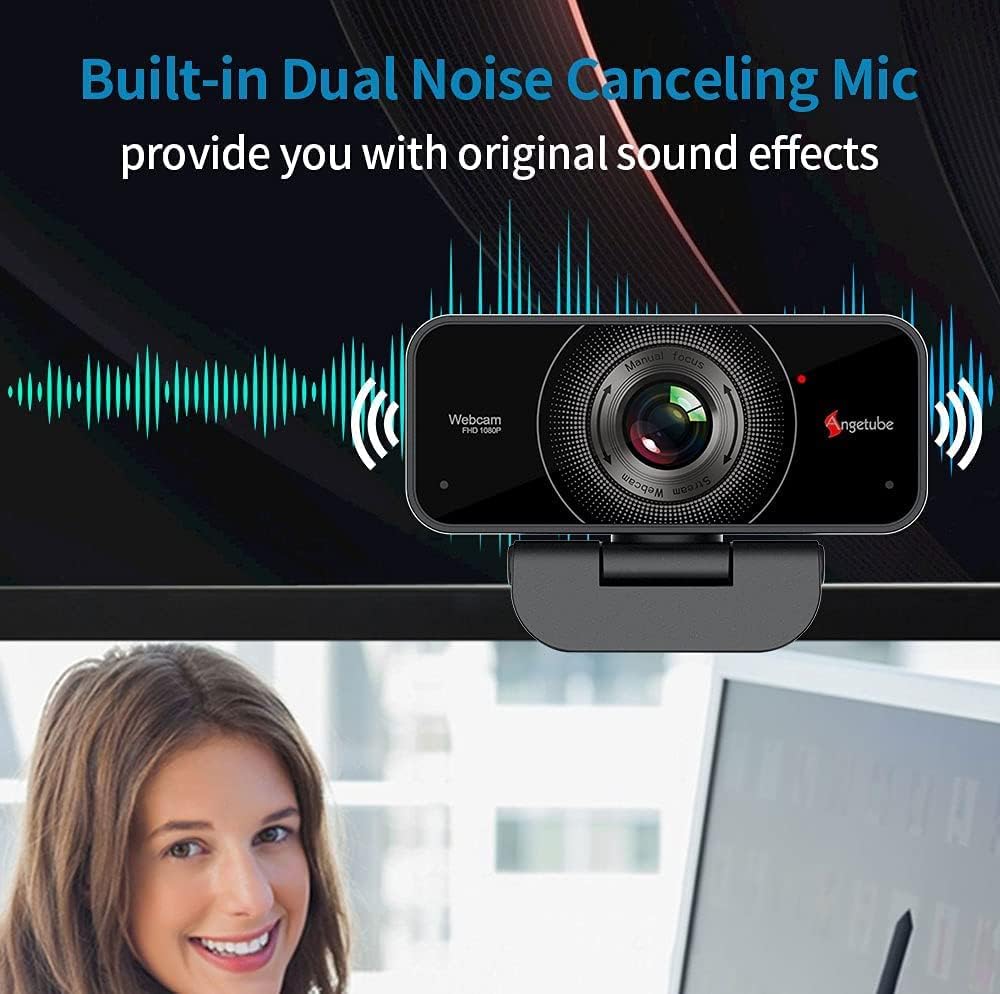
Image: The Angetube webcam positioned on a monitor, with a graphic overlay indicating its built-in dual noise-canceling microphone for clear sound.

Obraz: Wizualna reprezentacja webcam's dual noise-canceling microphone, designed to enhance sound absorption and reduce background noise for clear communication.

Image: A close-up of a hand manually adjusting the focus ring on the webcam, demonstrating the manual focus capability for achieving sharp images.

Image: A comparison showing the Angetube webcam's superior auto light and color correction in dim lighting conditions compared to other webcams, ensuring users look their best during video calls.
6. Zgodność
The Angetube webcam offers broad compatibility with various operating systems and applications:
- Systemy operacyjne: Windows 7/8/10/11, Mac OS, Android 5.0 or above, Google Chrome OS, Linux.
- Zastosowania: OBS, YouTube, Facebook, Skype, FaceTime, Xsplit, Mixer, Zoom, Microsoft Teams, Cisco Webex.

Image: The Angetube webcam with logos of compatible operating systems (Windows, Mac OS, Linux, Ubuntu) and popular applications (WhatsApp, Facebook, YouTube, Skype, Twitter, LINE, TikTok, Mixer, XSplit, Zoom, Xbox, Cisco).

Image: A visual demonstrating the webcam's simple USB plug-and-play connection to a laptop, alongside logos of supported operating systems (Linux, Windows, Mac OS, Ubuntu) and video communication platforms (Facebook, Zoom, Skype, Microsoft Teams, YouTube, OBS Studio).
7. Konserwacja
- Keep the lens clean using a soft, dry cloth. Avoid abrasive materials or harsh chemicals.
- Przechowuj webcam in a cool, dry place when not in use.
- Unikaj narażania webcam to extreme temperatures or direct sunlight for prolonged periods.
8. Rozwiązywanie Problemów
- Brak obrazu/dźwięku: Ensure the USB cable is securely connected. Try a different USB port or restart your computer. Verify that the webW ustawieniach aplikacji jako urządzenie wejściowe wybrano kamerę.
- Rozmazany obraz: If your model has manual focus, rotate the lens ring to adjust focus. Ensure the lens is clean.
- Słaba jakość obrazu: Check your lighting conditions. Use the optional Angetube Webcam Software to adjust brightness, contrast, and other settings.
- Problemy z mikrofonem: Zapewnij webcam's microphone is not muted in your system or application settings. Check for any conflicting audio devices.
9. Specyfikacje
| Funkcja | Szczegół |
|---|---|
| Nazwa marki | oferta |
| Numer modelu przedmiotu | 525MF |
| Waga przedmiotu | 7 uncji |
| Wymiary produktu | 4.3 x 2.5 x 4.3 cala |
| Technologia czujnika fotograficznego | CMOS |
| Rozdzielczość przechwytywania wideo | 1080p |
| Maksymalna ogniskowa | 1200 milimetrów |
| Maksymalna apertura | 2 stopnia |
| Format przechwytywania wideo | MP4 |
| Obsługiwany format audio | AAC, MP3, PCM |
| Technologia łączności | USB |
10. Gwarancja i wsparcie
Angetube is committed to ensuring a perfect customer experience. If you are not satisfied with your webcam, please contact Angetube customer service for immediate assistance or a refund. Our customer service team is available 24/7 to address any needs or concerns you may have.
For further support, please refer to the official Angetube webodwiedź witrynę lub skontaktuj się bezpośrednio z działem obsługi klienta.


