Wstęp
This manual provides comprehensive instructions for the setup, operation, and maintenance of your Plantronics Poly Studio P5 Webcam and Voyager 4220 UC Headset Kit. Please read this manual thoroughly before using the product to ensure optimal performance and longevity.
The kit includes a high-definition webcam designed for professional video conferencing and a stereo Bluetooth wireless headset for clear audio communication.
Zawartość opakowania
- Poli Studio P5 Webkrzywka
- Zestaw słuchawkowy Poly Voyager 4220 UC Wireless
- USB-A Adapter (for headset)
- Kabel USB (do webkrzywka)
- Szybki przewodnik
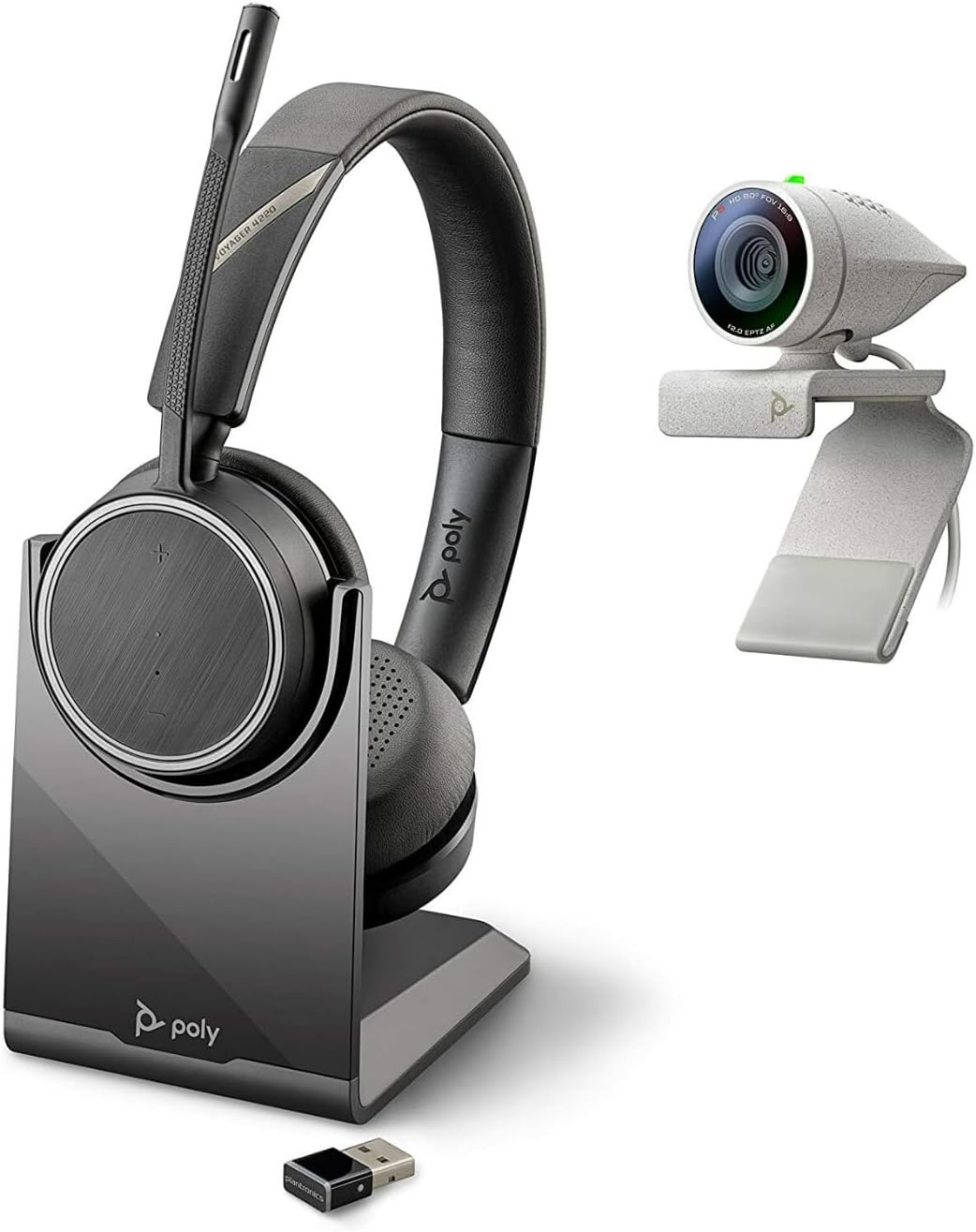
Image: Poly Studio P5 Webcam and Voyager 4220 UC Headset Kit, showing the webcam, headset, charging stand, and USB adapter.
Instrukcje konfiguracji
1. Poly Studio P5 WebKonfiguracja kamery
- Montaż Webkrzywka:
Umieść webcam on top of your monitor or laptop screen. Adjust the clip to secure it firmly. The webcam can also be mounted on a tripod using the integrated tripod-ready design.

Image: Poly Studio P5 Webcam positioned on top of a laptop screen, showing its compact design and mounting clip.
- Łączenie się z komputerem:
Podłącz zintegrowany kabel USB do webcam to an available USB port on your PC or Mac. The device is plug-and-play; drivers will install automatically.
- Żaluzje zapewniające prywatność:
Ten webcam features an integrated privacy shutter. Slide the shutter to cover the lens when not in use to enhance security and privacy.

Obraz: Przód view of the Poly Studio P5 Webcam, highlighting the lens and the integrated privacy shutter mechanism.
2. Voyager 4220 UC Headset Setup
- Ładowanie zestawu słuchawkowego:
Before first use, fully charge the headset. Connect the charging cable to the headset and a USB power source. A full charge provides approximately 12 hours of talk time or 15 hours of listening time.
- Connecting the USB-A Adapter:
Insert the USB-A adapter into an available USB port on your PC or Mac. The adapter will automatically pair with the Voyager 4220 UC headset.
- Noszenie zestawu słuchawkowego:
Adjust the headband for a comfortable fit. Position the microphone boom approximately two finger-widths from the corner of your mouth for optimal voice pickup.
Instrukcja obsługi
1. Using the Poly Studio P5 Webkrzywka
- Wideokonferencje: Ten webcam is compatible with Zoom, Microsoft Teams, and other video conferencing services. Select "Poly Studio P5" as your camera and microphone input within your chosen application's settings.
- Automatic Low-Light Compensation: Ten webcam automatically adjusts to maintain proper light exposure, ensuring clear visibility even in darker environments.
- Zoom cyfrowy: The camera supports up to 4x digital zoom. This feature can typically be controlled through your video conferencing software or the Poly Lens Desktop app.

Image: A person wearing the Voyager 4220 UC Headset and using the Poly Studio P5 Webcam with a laptop, demonstrating a typical video conferencing setup.
2. Using the Voyager 4220 UC Headset
- Włączanie/wyłączanie: Slide the power switch to turn the headset on or off.
- Regulacja głośności: Use the volume up (+) and volume down (-) buttons on the earcup to adjust audio levels.
- Wycisz/Włącz wyciszenie: Press the mute button on the microphone boom or earcup to mute or unmute your microphone.
- Kontrola połączeń: Press the call button to answer or end calls in supported applications.
- Noise-Cancelling Microphones: The headset features dual noise-cancelling microphones to reduce background noise for clear voice transmission.
3. Poly Lens Desktop App
The Poly Lens Desktop app allows you to customize settings, receive firmware updates, and access practical tips for your devices. Download the app from the official Poly webstrona.
- Regulować webcam settings (e.g., brightness, contrast, zoom).
- Configure headset audio preferences.
- Receive health and wellness reminders.
Konserwacja
- Czyszczenie:
Wytrzyj webcam lens and headset surfaces with a soft, dry, lint-free cloth. Do not use liquid cleaners or abrasive materials.
- Składowanie:
Przechowuj urządzenia w chłodnym, suchym miejscu, z dala od bezpośredniego światła słonecznego i ekstremalnych temperatur, gdy nie są używane.
- Aktualizacje oprogramowania układowego:
Regularly check for firmware updates via the Poly Lens Desktop app to ensure optimal performance and access to new features.
Rozwiązywanie problemów
| Problem | Możliwa przyczyna | Rozwiązanie |
|---|---|---|
| Webkamera nie została wykryta | Loose USB connection, incorrect software settings, driver issue. |
|
| Brak dźwięku z zestawu słuchawkowego | Headset not powered on, not paired, volume too low, incorrect audio output selected. |
|
| Mikrofon nie działa | Microphone muted, incorrect audio input selected, boom not positioned correctly. |
|
| Słaba jakość wideo | Low light conditions, dirty lens, internet bandwidth issues. |
|
Specyfikacje
Poli Studio P5 Webkrzywka
- Maksymalna rozdzielczość ekranu: FHD (1080p)
- Rozdzielczość przechwytywania wideo: 1080p
- Technologia czujnika fotograficznego: CMOS
- Tył WebRozdzielczość kamery: 5 MP
- Maksymalna ogniskowa: 4
- Maksymalna przysłona: f/2.0
- Technologia łączności: USB
- Platforma sprzętowa: PC, Mac
- Cechy szczególne: Integrated privacy shutter, automatic low-light compensation, tripod-ready design.
- Wymiary produktu: 14.1 x 8.3 x 4.5 inches (Kit dimensions)
- Waga przedmiotu: 2.09 pounds (Kit weight)
Poly Voyager 4220 UC Headset
- Typ bezprzewodowy: Bluetooth
- Czas rozmowy: Do 12 godzin
- Czas słuchania: Do 15 godzin
- Mikrofony: Dual noise-cancelling
- Łączność: Adapter USB-A
- Obsługiwany format audio: AAC, MP3
- Baterie: 1 bateria litowo-polimerowa (w zestawie)
Informacje o gwarancji
For detailed warranty information, please refer to the warranty card included with your product or visit the official Poly webStandardowe warunki gwarancji zazwyczaj obejmują wady produkcyjne przez określony czas od daty zakupu.
Wsparcie i kontakt
For technical support, product registration, or to download the latest software and drivers, please visit the official Poly support webstrona:
Webstrona: www.poly.com/support
You can also find FAQs and community forums on the support page.


