1. Wprowadzenie
This manual provides detailed instructions for the setup, operation, maintenance, and troubleshooting of your NEBULA Cosmos Max 4K UHD Home Theater Projector, Model D2150. Please read this manual thoroughly before using the product to ensure correct operation and to maximize its performance and lifespan.
2. Koniec produktuview
The NEBULA Cosmos Max is a 4K UHD home theater projector designed to deliver an immersive viewing experience. It features Android TV 9.0, integrated 360-degree audio, and advanced image processing capabilities.
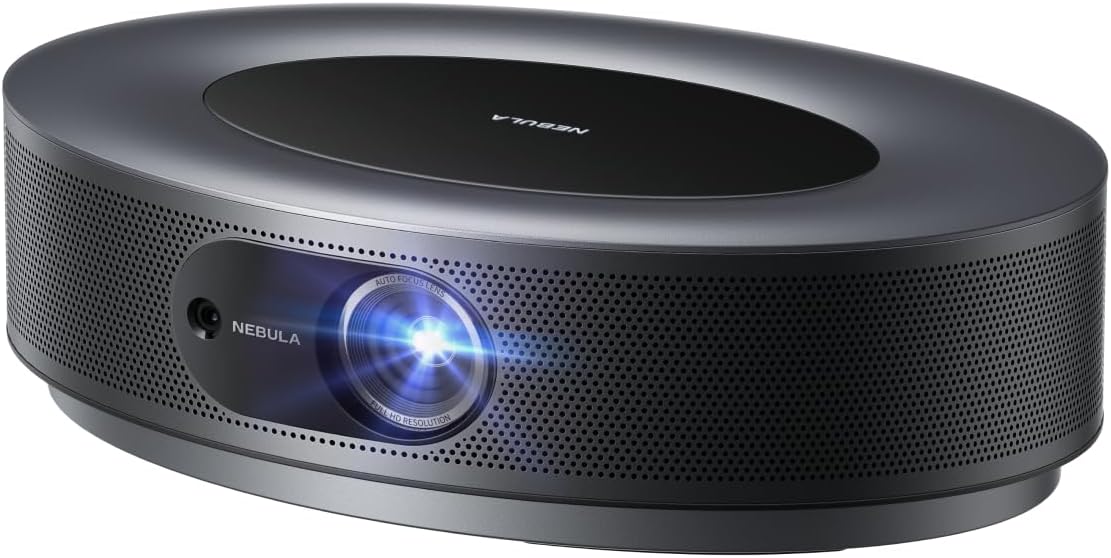
Obraz 2.1: Przód view of the NEBULA Cosmos Max projector, showcasing its sleek, oval design and lens.
Główne cechy:
- 4K UHD Image Quality: Experience movies, sports, and games with exceptional clarity and detail.
- 360° True 3D Audio: Optimized speakers with Dolby Digital Plus and Sound Dimension provide immersive sound.
- Adjustable Image Size: Project images from a smaller size up to 150 inches.
- HLG Upscaling: Automatically enhances non-HDR content to improve visual quality.
- Android TV 9.0: Access over 5000 applications for endless entertainment.

Rysunek 2.2: Szczegółowy view demonstrating the 4K Ultra HD image quality, highlighting fine textures.
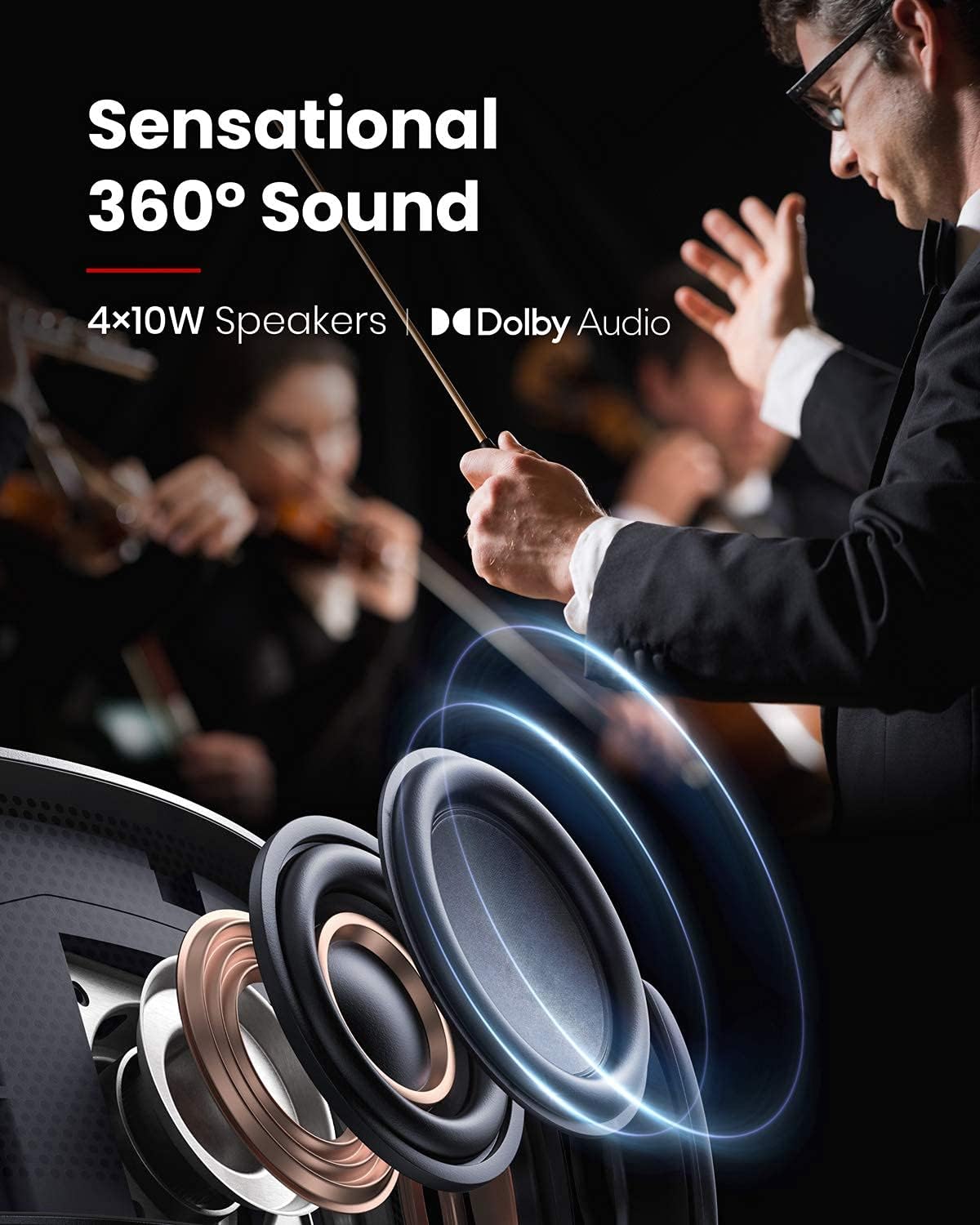
Image 2.3: An illustration depicting the 360-degree sound distribution from the projector's integrated speakers.

Image 2.4: A visual representation of the projector displaying a large image, up to 150 inches, in a living room setting.
3. Konfiguracja
3.1 What's In The Box
- NEBULA Cosmos Max Projector
- Zdalne sterowanie
- Szybki przewodnik
- Zasilacz
3.2 Początkowe umiejscowienie
Place the projector on a stable, flat surface. Ensure there is adequate ventilation around the device. For optimal image quality, position the projector perpendicular to the projection surface.
3.3 Połączenie zasilania
- Podłącz zasilacz do portu wejściowego zasilania projektora.
- Podłącz zasilacz do odpowiedniego gniazdka elektrycznego.
- Naciśnij przycisk zasilania na projektorze lub pilocie, aby włączyć urządzenie.
3.4 Podłączanie urządzeń zewnętrznych
The Cosmos Max features multiple ports for connecting external devices:
- HDMI (x2): Connect Blu-ray players, gaming consoles, or other HDMI-enabled devices.
- USB typu A (x1): Podłącz dyski flash USB w celu odtwarzania multimediów.
- Optyczny (x1): Podłącz do zewnętrznych systemów audio.
4. Instrukcja obsługi
4.1 Interfejs Android TV 9.0
The projector runs on Android TV 9.0, providing access to a wide range of applications and streaming services. Navigate the interface using the provided remote control.

Image 4.1: The Android TV home screen displaying available applications and content.
4.2 Instalacja aplikacji
- Sklep Google Play: Access and install thousands of apps directly from the Google Play Store.
- Netflix: To install Netflix, first install the "Nebula Manager" app from the Google Play Store. Then, install Netflix through "Nebula Manager." For optimal control, use the "Nebula Connect" app on your smartphone in mouse mode.
4.3 Screen Mirroring (iOS Devices)
To connect with an iPhone, iPad, or MacBook:
- Install the "AirScreen" app from the Google Play Store on your projector.
- Ensure both your NEBULA Cosmos Max and your iOS device are connected to the same Wi-Fi network.
- Use the screen mirroring function on your iOS device to connect to the projector.
4.4 Media Playback from USB
To play movies or other media from a USB flash drive:
- Zainstaluj file management app (e.g., File Explorer, File Manager) from the Google Play Store.
- Install a video player app from the Google Play Store.
- Insert your USB flash drive into the USB-A port on the projector.
- Użyj file management app to browse and play content from your USB drive.
4.5 Regulacja obrazu
- Autofokus: The projector features 3-second autofocus. Slightly move the device or press the "focus" button on the remote control to trigger autofocus.
- Korekcja Keystone'a: Supports Auto (vertical ±40°) and Manual (horizontal ±40°) keystone correction. If the projected image appears tilted, navigate to "Settings" > "Projector Settings" > "Keystone Correction" to adjust. You may need to turn off auto keystone correction for manual adjustments.
5. Konserwacja
5.1 Czyszczenie
- Do czyszczenia zewnętrznej części projektora należy używać miękkiej, suchej ściereczki.
- For the lens, use a lens cleaning cloth and specialized lens cleaning solution. Avoid harsh chemicals.
- Aby zapobiec przegrzaniu, należy upewnić się, że otwory wentylacyjne są wolne od kurzu i zanieczyszczeń.
5.2 aktualizacji oprogramowania sprzętowego
For optimal performance and access to the latest features, regularly check for and install firmware updates via the projector's settings menu.
6. Rozwiązywanie Problemów
Typowe problemy i rozwiązania:
- Netflix Not Installing: Install "Nebula Manager" from Google Play Store, then install Netflix through Nebula Manager. Use "Nebula Connect" app on your phone in mouse mode for control.
- Cannot Connect to iOS Device: Ensure "AirScreen" app is installed on the projector and both devices are on the same Wi-Fi network.
- Nośnik USB nie jest odtwarzany: Zainstaluj file management app and a video player app from Google Play Store.
- Tilted Image / Keystone Correction Issues: If auto keystone correction is not sufficient, turn it off via "Settings" > "Projector Settings" > "Keystone Correction" and manually adjust both vertical and horizontal keystone.
- Autofocus Not Triggering: Slightly move the projector or press the dedicated "focus" button on the remote control.
- Image Appears Dark: Brightness (light output) can diminish over time due to usage. Ensure the projector is in an environment with minimal ambient light for best results. Adjust picture settings (e.g., Brightness, Gamma, Picture Mode) in "Projector Settings" > "Picture Settings" for your viewśrodowiska.
7. Specyfikacje
| Funkcja | Szczegół |
|---|---|
| Numer modelu | D2150 |
| Technologia wyświetlania | 0.47DMD in 4K DLP |
| Rezolucja | 3840x2160 (4K UHD) |
| Jasność | 1,500 lumenów ANSI |
| Życie diody LED | 30,000 godziny |
| Współczynnik rzutu | 1.2 |
| Regulacja ostrości | 3-sekundowy autofokus |
| Korekcja trapezowa | Automatyczny (w pionie ±40°), Manualny (w poziomie ±40°) |
| Porty HDMI | x2 |
| Porty USB-A | x1 |
| Optyczne wyjście audio | x1 |
| BARAN | 2GB DDR |
| ROM | 16 GB eMMC |
| Wyjście głośnika | 40 W |
| Wi-Fi | Podwójna częstotliwość 2.4/5 GHz |
| Bluetooth | BT4.2 |
| Hałas wentylatora | <32dB |
| System operacyjny | Android TV 9.0 |
| Chromecast | Utrzymany |
| Sklep z aplikacjami | Google Play |
| Dekodowanie audio | Dolby support |
| Dekodowanie wideo | HDR10 |
| Wymiary produktu | 13.78 x 9.84 x 3.94 cala |
| Waga przedmiotu | 13.18 funta |
8. Gwarancja i wsparcie
For warranty information and technical support, please refer to the documentation included with your purchase or contact NEBULA customer service. You can also visit the official NEBULA support webstrona z odpowiedziami na często zadawane pytania i dalszą pomocą.


