Wstęp
This manual provides comprehensive instructions for the setup, operation, and maintenance of your Keychron K4 RGB Hot Swappable Mechanical Keyboard. Designed for productivity and a tactile typing experience, the K4 features a 96% layout with 100 keys, offering both Bluetooth wireless and USB wired connectivity. It is compatible with both Mac and Windows operating systems.
Zawartość opakowania
- Klawiatura mechaniczna Keychron K4
- Kabel USB typu C.
- Ściągacz nasadek klawiszy
- Przełącznik ściągacza
- Dodatkowe klawisze dla systemów operacyjnych Windows i Mac
- Instrukcja obsługi (ten dokument)
Organizować coś
1. Ładowanie początkowe
Before first use, connect the keyboard to a USB power source using the provided USB Type-C cable. The keyboard features a 4000 mAh battery, providing up to 240 hours of usage with the backlight disabled.
2. Tryby łączności
Keychron K4 obsługuje zarówno bezprzewodowe połączenie Bluetooth, jak i przewodowe połączenie USB.

Image: The Keychron K4 keyboard is designed for broad compatibility, supporting both Mac and Windows operating systems, and connecting seamlessly with various devices including desktops, laptops, and smartphones/tablets.
2.1. Połączenie Bluetooth
- Ensure the keyboard's mode switch (located on the side) is set to "BT" (Bluetooth).
- Naciśnij i przytrzymaj Fn + 1 (Lub Fn + 2 or Fn + 3) key combination for 4 seconds until the '1' (or '2' or '3') key flashes rapidly. This indicates the keyboard is in pairing mode.
- On your device (computer, smartphone, tablet), enable Bluetooth and search for "Keychron K4".
- Select "Keychron K4" from the list of available devices to complete the pairing process. The corresponding number key will stop flashing and remain solid when connected.
- The keyboard can connect with up to 3 devices and switch between them easily using Fn + 1, Fn + 2, Lub Fn + 3.
2.2. Połączenie przewodowe USB
- Ensure the keyboard's mode switch is set to "Cable".
- Podłącz kabel USB typu C klawiatury do portu USB komputera.
- Klawiatura zostanie automatycznie rozpoznana i będzie gotowa do użycia.
3. Zmiana systemu operacyjnego
The Keychron K4 has a dedicated switch for Mac and Windows layouts. Locate the OS switch on the side of the keyboard and set it to your desired operating system for optimal key mapping.

Image: The Keychron K4 keyboard seamlessly integrates with Apple devices, as shown here next to an iMac and Magic Mouse, highlighting its Mac compatibility.
Instrukcja obsługi
1. Główne funkcje i układ
The K4 features a 96% layout with 100 keys, including a number pad. It provides all necessary Mac function keys and is fully compatible with Windows. Extra keycaps for both operating systems are included for customization.

Obraz: kompleksowy view of the Keychron K4 keyboard, highlighting its compact 96% layout which includes a full numeric keypad, and its vibrant RGB backlighting.
2. Kontrola podświetlenia
The K4 features enchanting RGB backlighting with over 15 types of flashing light modes. All backlight controls are managed directly from the keyboard without the need for software.
- Fn + Light Bulb Key (F5): Cycle through different RGB lighting effects.
- Fn + strzałka w lewo: Zmniejsz jasność podświetlenia.
- Fn + strzałka w prawo: Zwiększ jasność podświetlenia.
- Fn + Strzałka w górę: Increase backlight speed/effect.
- Fn + strzałka w dół: Decrease backlight speed/effect.

Image: A detailed shot of the Keychron K4's RGB backlighting, showcasing the vibrant and customizable illumination beneath the keycaps.
3. Przewijanie N-kluczy (NKRO)
The K4 supports N-key rollover (NKRO) in wired mode, allowing all keys to be registered simultaneously. In wireless mode, it supports 6-key rollover (6KRO).
Konserwacja
1. Czyszczenie klawiatury
Aby wyczyścić klawiaturę, najpierw odłącz ją od wszystkich źródeł zasilania. Użyj miękkiej, niepozostawiającej włókien ściereczki, lekko przetrzyj.ampPrzemyć wodą lub łagodnym środkiem czyszczącym. Unikać rozpylania płynów bezpośrednio na klawiaturę. Do czyszczenia przestrzeni między klawiszami należy używać sprężonego powietrza lub małej szczotki.
2. Przełączniki z możliwością wymiany na gorąco
The K4 hot-swappable version allows you to personalize your typing experience by changing switches without soldering. This feature enables easy replacement of switches if they become faulty or if you wish to try different switch types (e.g., Gateron G Pro Brown, Red, Blue).
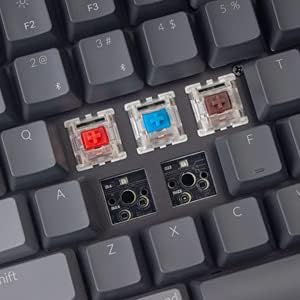
Image: This image demonstrates the hot-swappable capability of the Keychron K4, showing various Gateron switches detached from the keyboard's PCB, allowing for easy customization or replacement.
2.1. Wymiana przełączników
- Za pomocą dołączonego ściągacza nakładek klawiszy ostrożnie zdejmij wybraną nakładkę klawisza.
- Use the provided switch puller to carefully grip the switch from its top and bottom clips. Pull straight up to remove the switch from the PCB.
- Dopasuj piny nowego przełącznika do otworów w płytce PCB. Upewnij się, że piny są proste.
- Gently push the new switch into place until it clicks securely. Do not force it.
- Załóż z powrotem nakładkę klawisza.
3. Wymiana nakładek klawiszy
Keycaps can be removed and replaced using the keycap puller. This is useful for cleaning or for installing custom keycap sets. Ensure proper alignment when replacing keycaps.
Rozwiązywanie problemów
- Klawiatura nie łączy się przez Bluetooth:
- Upewnij się, że przełącznik trybu klawiatury jest ustawiony na „BT”.
- Verify the keyboard is in pairing mode (Fn + 1/2/3 key flashing).
- Sprawdź ustawienia Bluetooth swojego urządzenia i upewnij się, że Bluetooth jest włączony.
- Try forgetting the device on your computer/phone and re-pairing.
- Sprawdź, czy klawiatura jest odpowiednio naładowana.
- Bluetooth connection lag or disconnection:
- Aby zmniejszyć zakłócenia, przesuń klawiaturę bliżej urządzenia.
- Upewnij się, że żadne inne silne sygnały bezprzewodowe nie powodują zakłóceń.
- Sprawdź poziom naładowania baterii; niski poziom naładowania baterii może mieć wpływ na wydajność sieci bezprzewodowej.
- Consider using the wired USB connection for critical tasks or gaming if wireless performance is inconsistent.
- Podświetlenie nie działa lub jest zablokowane:
- Ensure the backlight is not turned off (Fn + Light Bulb key).
- Adjust brightness using Fn + Left/Right Arrow keys.
- A full charge might resolve minor power-related issues.
- Klawisze nie reagują:
- If using wireless, check battery and connection.
- If using wired, ensure the USB cable is securely connected.
- For specific keys, consider the hot-swappable feature: remove the keycap and switch, inspect the switch pins for bending, straighten if necessary, and reinsert. If the switch is faulty, replace it.
- Klawiatura nie jest rozpoznawana przez komputer:
- Spróbuj użyć innego portu USB lub kabla.
- Ensure the OS switch on the keyboard matches your computer's operating system.
- Uruchom ponownie komputer.
Specyfikacje
| Funkcja | Szczegół |
|---|---|
| Marka | Chronograf |
| Numer modelu | Keychron K4J3 |
| Układ | 96% (100 klawisze) |
| Łączność | Bluetooth 5.1 (up to 3 devices) & USB Type-C Wired |
| Przełączniki | Gateron G Pro Brown (Hot-Swappable) |
| Podświetlenie | RGB (15+ types of flashing light mode) |
| Pojemność baterii | 4000 mAh |
| Żywotność baterii | Up to 240 hours (backlight disabled) |
| N-Key Rollover (NKRO) | Wired Mode: NKRO; Wireless Mode: 6KRO |
| Zgodność z systemem operacyjnym | macOS, Windows |
| Wymiary (dł. x szer. x wys.) | 14.8 x 5.08 x 1.5 cala |
| Waga przedmiotu | 2.05 funta |
Gwarancja i wsparcie
Keychron products are designed for durability and performance. For specific warranty terms and conditions, please refer to the warranty information provided with your purchase or visit the official Keychron website. For technical support, troubleshooting assistance, or inquiries regarding your Keychron K4 keyboard, please contact Keychron customer service directly.
Oficjalny Keychron Webstrona: www.keychron.com


