1. Wprowadzenie
This manual provides instructions for the NiTHO ADONIS Wireless Controller, model MLT-ADOB-BK. This controller is designed for use with PlayStation 4 consoles and Windows 10/11 PCs (wired connection). It features wireless Bluetooth connectivity for PS4, a touch pad, 6-axis motion sensing, dual vibration, a built-in speaker, and a headset jack.

Obraz 1.1: Przód view of the NiTHO ADONIS Wireless Controller.
2. Koniec produktuview
2.1 Zawartość opakowania
- NiTHO ADONIS Wireless Controller
- USB Charging/Sync Cable
- Additional Rubber Grips
- Additional Thumb Grips
- Szybki przewodnik
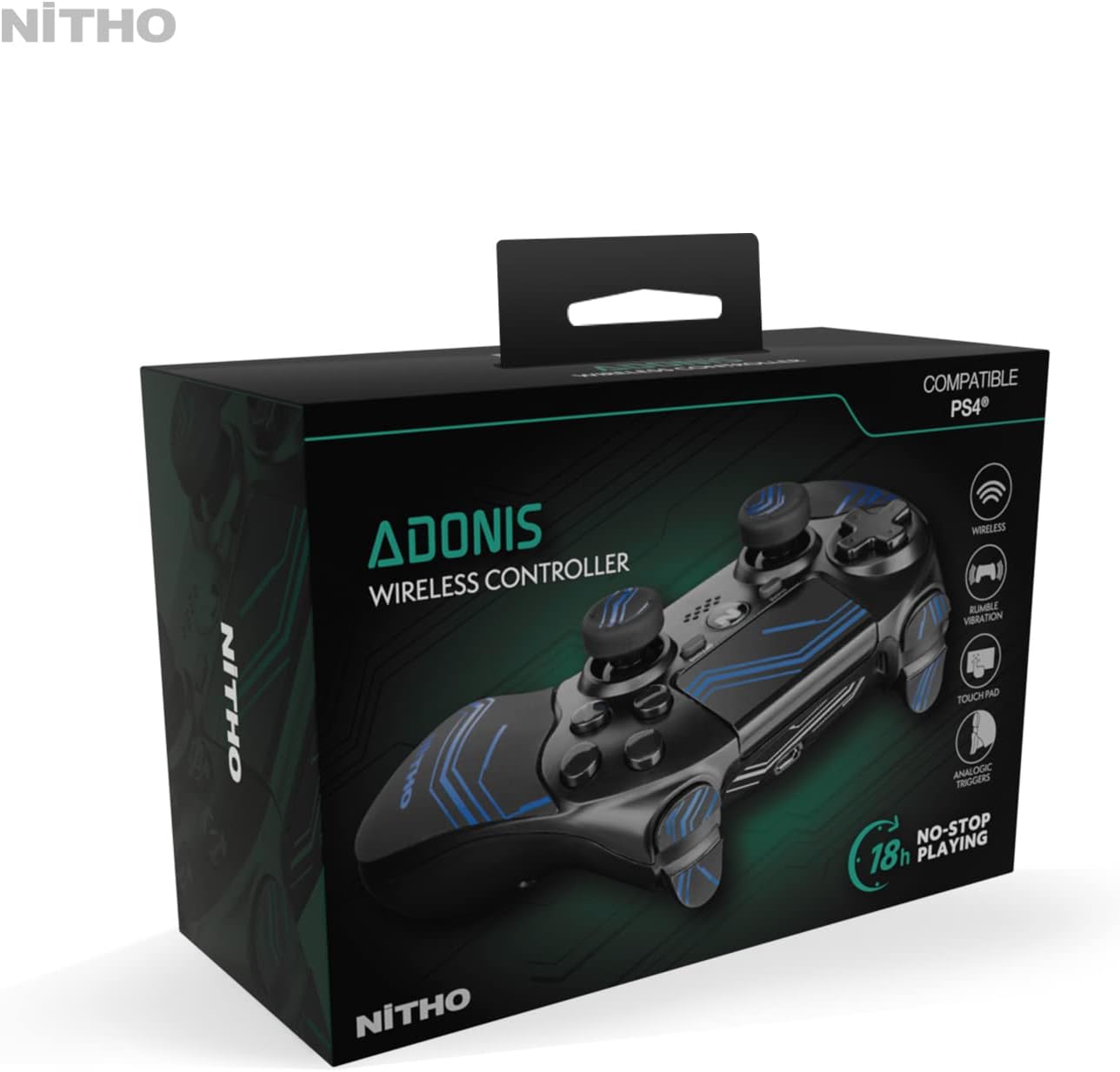
Image 2.1: The NiTHO ADONIS Wireless Controller with its included accessories, such as the USB cable, additional grips, and documentation.
2.2 Komponenty kontrolera

Image 2.2: Labeled diagram highlighting key components: USB Port, Touch Pad, Built-In Speaker, 3.5mm Headset Jack, and Ergonomic Grips.
- Klawisz kierunkowy (D-Pad): Do wprowadzania danych kierunkowych.
- Lewy drążek analogowy: Do sterowania ruchem i kamerą.
- Przycisk UDOSTĘPNIJ: For sharing gameplay content.
- Przycisk OPCJE: For in-game menus and options.
- Panel dotykowy: Multi-touch input surface with click mechanism.
- Prawy drążek analogowy: Do sterowania kamerą i celowania.
- Przyciski akcji (trójkąt, kółko, krzyżyk, kwadrat): Do działań w grze.
- Przycisk PS: To turn on the console, access the home screen, or power off.
- Wbudowany głośnik: For audio output from the controller.
- Gniazdo słuchawkowe 3.5 mm: For connecting a headset for audio and chat.
- Port USB: For charging and wired connection to PC.
- Przyciski L1/R1: Guziki na ramionach.
- Wyzwalacze L2/R2: Analog triggers.
- Pasek świetlny: Indicates player number and status.
3. Konfiguracja
3.1 Pierwsze ładowanie
Before first use, fully charge the controller. Connect the supplied USB cable to the controller's USB port and the other end to a powered USB port on your PlayStation 4 console or a USB wall adapter. The light bar will slowly pulse orange during charging and turn off when fully charged.

Image 3.1: The controller connected to a PlayStation 4 console via USB cable for charging.
3.2 Connecting to PlayStation 4 (Wireless)
- Ensure your PS4 console is powered on.
- Connect the controller to the PS4 console using the supplied USB cable.
- Naciśnij Przycisk PS on the controller. The controller will pair with the console.
- Once paired, you can disconnect the USB cable for wireless play. The light bar will glow a solid color (blue for Player 1, red for Player 2, etc.).
- To connect an already paired controller wirelessly, simply press the Przycisk PS.
3.3 Connecting to PC (Wired)
The NiTHO ADONIS controller can be used with Windows 10/11 PCs via a wired USB connection.
- Connect the controller to your PC using the supplied USB cable.
- Komputer powinien automatycznie wykryć i zainstalować niezbędne sterowniki.
- The controller will function as a standard gamepad. Some games may require specific controller configurations.

Image 3.2: The controller connected via its USB cable, suitable for PC use or charging.
4. Instrukcja obsługi
4.1 Podstawowe sterowanie
- Gałki analogowe: Use for character movement, camera control, or aiming.
- Pad kierunkowy: For menu navigation or specific in-game actions.
- Przyciski akcji: Perform various actions as defined by the game.
- L1/R1 Buttons & L2/R2 Triggers: Used for actions like shooting, blocking, or menu navigation.
4.2 panel dotykowy
The integrated touch pad supports multi-touch input and can be clicked. It is used for navigation within the PS4 user interface and for specific in-game functions.
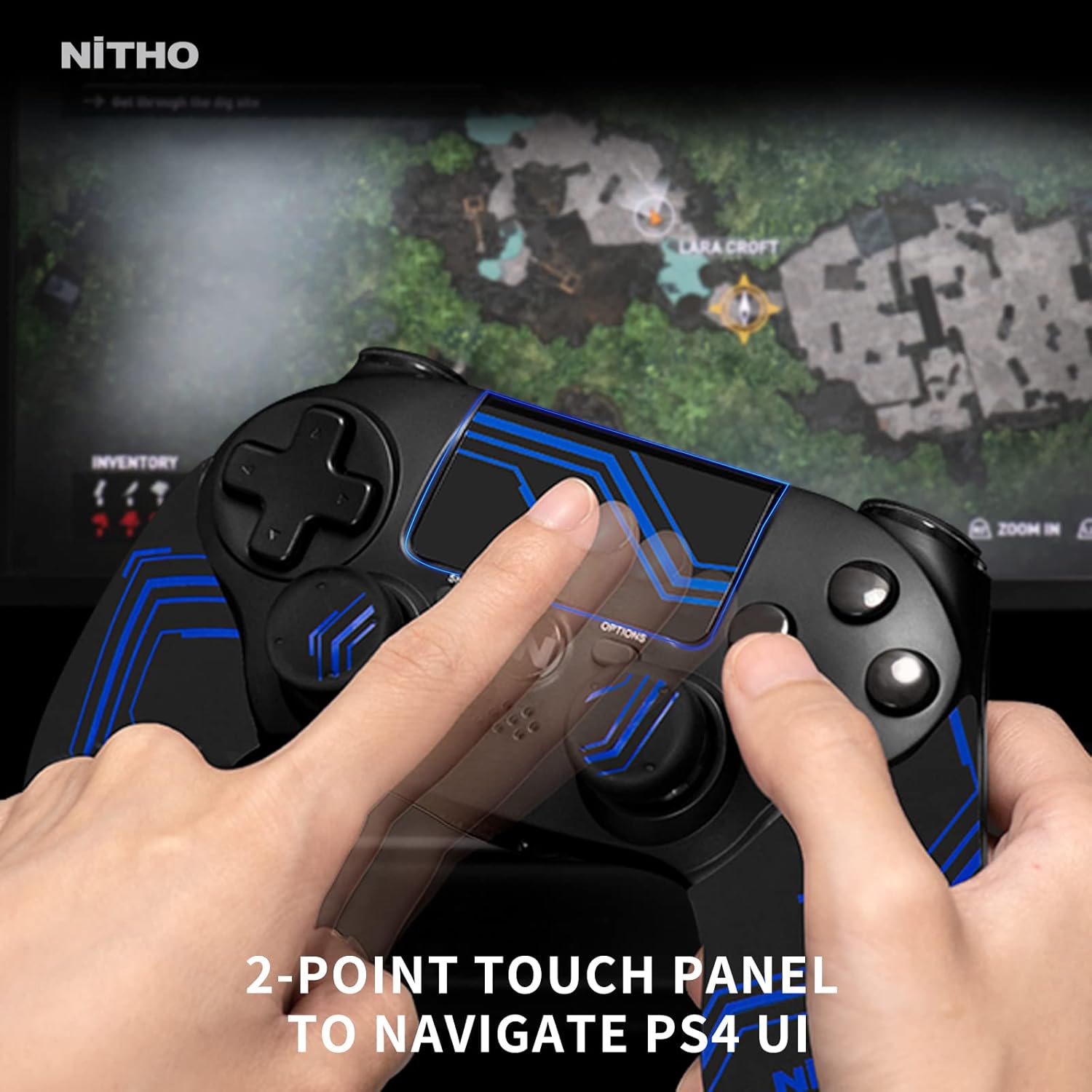
Image 4.1: A user interacting with the 2-point touch panel to navigate the PS4 user interface.
4.3 6-Axis Motion Sensor
The controller includes a 6-axis motion sensor (accelerometer and gyroscope) for motion-controlled gameplay. Tilt and rotate the controller to interact with compatible games.

Image 4.2: Visual representation of the 6-axis motion sensor functionality, showing controller movement.
4.4 Sprzężenie zwrotne wibracji
Dual vibration motors provide tactile feedback during gameplay, enhancing immersion through rumbling effects for in-game events.

Image 4.3: Illustration of the dual shocking modules providing vibration feedback.
4.5 Funkcje audio
- Wbudowany głośnik: Provides audio cues directly from the controller in compatible games.
- Gniazdo słuchawkowe 3.5 mm: Connect a compatible headset for stereo game audio and voice chat.

Image 4.4: The controller with a headset plugged into the 3.5mm headset jack.
4.6 Ergonomic Grips
The controller comes with additional rubber grips and thumb grips to enhance comfort and control during extended gaming sessions. These can be applied or removed as desired.

Obraz 4.5: Wybuch view illustrating the ergonomic enhanced handles and thumb grips.
5. Ładowanie kontrolera
The controller features a built-in rechargeable Lithium-ion battery, providing up to 10 hours of continuous gameplay on a full charge.
5.1 Procedura ładowania
- Connect the small end of the USB charging cable to the controller's USB port.
- Connect the large end of the USB cable to a USB port on your PS4 console (when powered on or in rest mode) or a compatible USB wall charger.
- The light bar on the controller will slowly pulse orange to indicate charging.
- Once fully charged, the light bar will turn off.
It is recommended to fully charge the controller before its first use and whenever the battery level is low.
6. Konserwacja
6.1 Czyszczenie
- Use a soft, dry cloth to clean the controller.
- Do not use liquid cleaners, solvents, or abrasive materials, as these can damage the surface or internal components.
- Upewnij się, że do portów i otworów nie dostanie się wilgoć.
6.2 Przechowywanie
- Przechowuj kontroler w chłodnym, suchym miejscu, z dala od bezpośredniego światła słonecznego i ekstremalnych temperatur.
- Unikaj umieszczania ciężkich przedmiotów na kontrolerze.
7. Rozwiązywanie Problemów
| Wydanie | Możliwa przyczyna | Rozwiązanie |
|---|---|---|
| Kontroler nie włącza się. | Bateria jest rozładowana. | Connect the controller to a power source using the USB cable and allow it to charge. |
| Controller does not connect wirelessly to PS4. | Nie sparowane lub poza zasięgiem. | Connect the controller to the PS4 with the USB cable and press the PS button to re-pair. Ensure no obstructions are blocking the signal. |
| Przyciski i gałki analogowe nie reagują. | Błąd oprogramowania lub przeszkoda fizyczna. | Restart the controller by pressing the PS button for 10 seconds. Ensure no debris is lodged around buttons. If wired to PC, try a different USB port. |
| Vibration feedback is not working. | Game setting or controller issue. | Check in-game settings to ensure vibration is enabled. Some games may not support vibration. |
| Dźwięk w zestawie słuchawkowym lub mikrofon nie działają. | Headset connection or settings. | Ensure the headset is fully plugged into the 3.5mm jack. Check PS4 audio settings (Devices > Audio Devices) to ensure output and input are correctly configured. |
8. Specyfikacje
- Model: MLT-ADOB-BK
- Marka: NiTHO
- Łączność: Bluetooth (PS4), USB (PC)
- Typ baterii: Litowo-jonowy (ładowalny)
- Czas pracy baterii: Do 10 godzin (w przybliżeniu).
- Wymiary (dł. x szer. x wys.): Wymiary 18 x 9 x 13 cm
- Waga: 330 gram
- Liczba przycisków: 16
- Zgodność z systemem operacyjnym: PlayStation 4, Windows 10/11 (wired)
- Kolor: Niebieski
9. Informacje dotyczące bezpieczeństwa
- Do not expose the controller to extreme temperatures, humidity, or direct sunlight.
- Unikaj upuszczania kontrolera i narażania go na silne uderzenia.
- Do not attempt to disassemble or modify the controller. This will void any warranty.
- Przechowywać w miejscu niedostępnym dla małych dzieci.
- Dispose of the battery according to local regulations. Do not dispose of in household waste.
10. Gwarancja i wsparcie
For warranty information, please refer to the documentation included with your product or visit the official NiTHO website. Information regarding spare parts availability and software updates is not provided in this manual. For further assistance, contact NiTHO customer support.


