1. Wprowadzenie
The i-tec USB-C Quattro Docking Station is designed to expand the connectivity of your USB-C enabled laptop or tablet, allowing for connection of up to four external displays, multiple USB peripherals, Gigabit Ethernet, and audio devices. It also provides up to 85W Power Delivery to charge your host device. This manual provides detailed instructions for setting up, operating, and maintaining your docking station.
2. Zawartość opakowania
Sprawdź, czy w przesyłce znajdują się wszystkie wymienione poniżej elementy:
- i-tec USB-C Quattro Docking Station
- Zasilacz
- Kabel zasilający
- Kabel USB-C do USB-C
- Szybki przewodnik

Rysunek 2.1: Package Contents. The image displays the docking station, its power adapter, a power cable, and a quick setup guide.
3. Koniec produktuview
Familiarize yourself with the ports and indicators on your i-tec USB-C Quattro Docking Station.
3.1 Panel przedni

Rysunek 3.1: Front Panel. This image shows the front of the docking station with a power button, microphone input jack, headphone output jack, one USB-C data port, and one USB 3.0 port.
- Przycisk zasilania: Włączanie/wyłączanie stacji dokującej.
- Gniazdo mikrofonowe (3.5 mm): Podłącz mikrofon.
- Gniazdo słuchawkowe (3.5 mm): Podłącz słuchawki lub głośniki.
- Port danych USB-C: For connecting USB-C peripherals.
- Port USB 3.0: For connecting USB 3.0/2.0 peripherals.
3.2 Panel tylny

Rysunek 3.2: Rear Panel. This image displays the rear of the docking station, featuring the DC 20V power input, USB-C PD host connection, two DisplayPort outputs, two HDMI outputs, a Gigabit Ethernet (LAN) port, and four additional USB 3.0 ports.
- Wejście zasilania 20 V DC: Podłącz dołączony zasilacz.
- USB-C PD Host Port: Connect to your laptop/tablet for data, video, and power delivery.
- 2x DisplayPort: Connect external monitors via DisplayPort cables.
- 2xHDMI: Connect external monitors via HDMI cables.
- GLAN (RJ-45) Port: Połącz się z siecią przewodową.
- 4 porty USB 3.0: Connect USB 3.0/2.0 peripherals.
4. Instrukcje konfiguracji
Follow these steps to set up your i-tec USB-C Quattro Docking Station:
- Podłącz zasilanie: Connect the power adapter to the DC 20V input on the rear of the docking station, then plug the power cable into a wall outlet.
- Połącz z urządzeniem hosta: Use the provided USB-C to USB-C cable to connect the docking station's USB-C PD Host Port to your laptop's USB-C port. Ensure your laptop's USB-C port supports DisplayPort Alternate Mode and Power Delivery for full functionality.
- Podłącz zewnętrzne wyświetlacze: Connect your monitors to the DisplayPort and/or HDMI ports on the rear of the docking station. You can connect up to four displays simultaneously.
- Podłącz urządzenia peryferyjne: Plug your USB devices (keyboard, mouse, external drives) into the available USB 3.0 or USB-C data ports. Connect an Ethernet cable to the GLAN port for wired network access. Connect headphones/speakers and a microphone to the respective audio jacks on the front panel.
- Włączanie: Press the power button on the front of the docking station. Your operating system should automatically detect the connected devices.
- Instalacja sterownika (jeśli to konieczne): For optimal performance or specific features, visit www.i-tec.cz/setup to download and install any required drivers for your operating system.
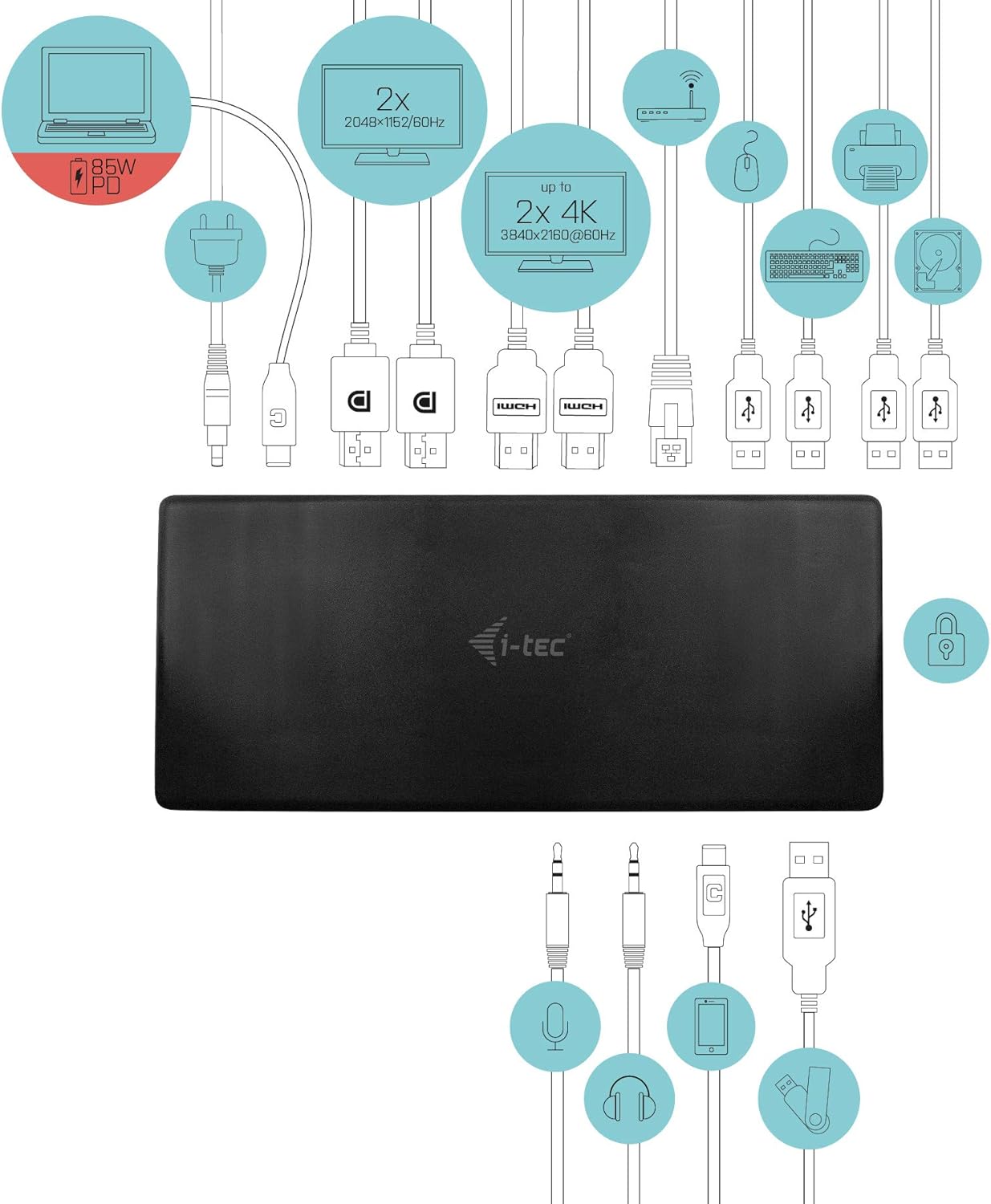
Rysunek 4.1: Connection Diagram. This diagram shows the various connections to the docking station, including power, host laptop, multiple monitors (DisplayPort and HDMI), Ethernet, and USB peripherals like a mouse, keyboard, and external storage.
5. Instrukcja obsługi
Once set up, your docking station provides enhanced functionality for your workspace.
5.1 Konfiguracja wielu wyświetlaczy
The docking station supports up to four external displays. You can configure these displays in various modes (extended, mirrored) through your operating system's display settings.
- Postanowienia: Supports up to 2x 2048x1152@60Hz and 2x 4K/60Hz, depending on your host device's capabilities and display connections.
- Okna: Right-click on the desktop, select 'Display settings' to arrange and configure your monitors.
- MacOS: Go to 'System Preferences' > 'Displays' to adjust settings.

Rysunek 5.1: Four-Display Setup Example. This image illustrates a workstation with a laptop connected to the docking station, driving four external monitors simultaneously, showcasing a multi-tasking environment.
5.2 Dostarczanie mocy
The USB-C PD Host Port provides up to 85W of power to charge your connected laptop or tablet, eliminating the need for a separate power adapter for your host device.
Łączność USB 5.3
Utilize the 5x USB 3.0 ports and 1x USB-C data port for connecting various peripherals such as external hard drives, USB flash drives, keyboards, mice, and printers. USB 3.0 ports offer high-speed data transfer.
5.4 gigabitowy Ethernet
The GLAN RJ-45 port provides a stable and high-speed wired internet connection (10/100/1000 Mbps), which is often more reliable than Wi-Fi.
5.5 Funkcjonalność audio
Connect your headphones, speakers, or microphone to the 3.5mm audio jacks on the front panel for integrated audio input and output.

Rysunek 5.2: Productivity Setup. This image shows a professional desk environment where the docking station facilitates a multi-monitor setup for enhanced productivity, displaying various applications and data across four screens.
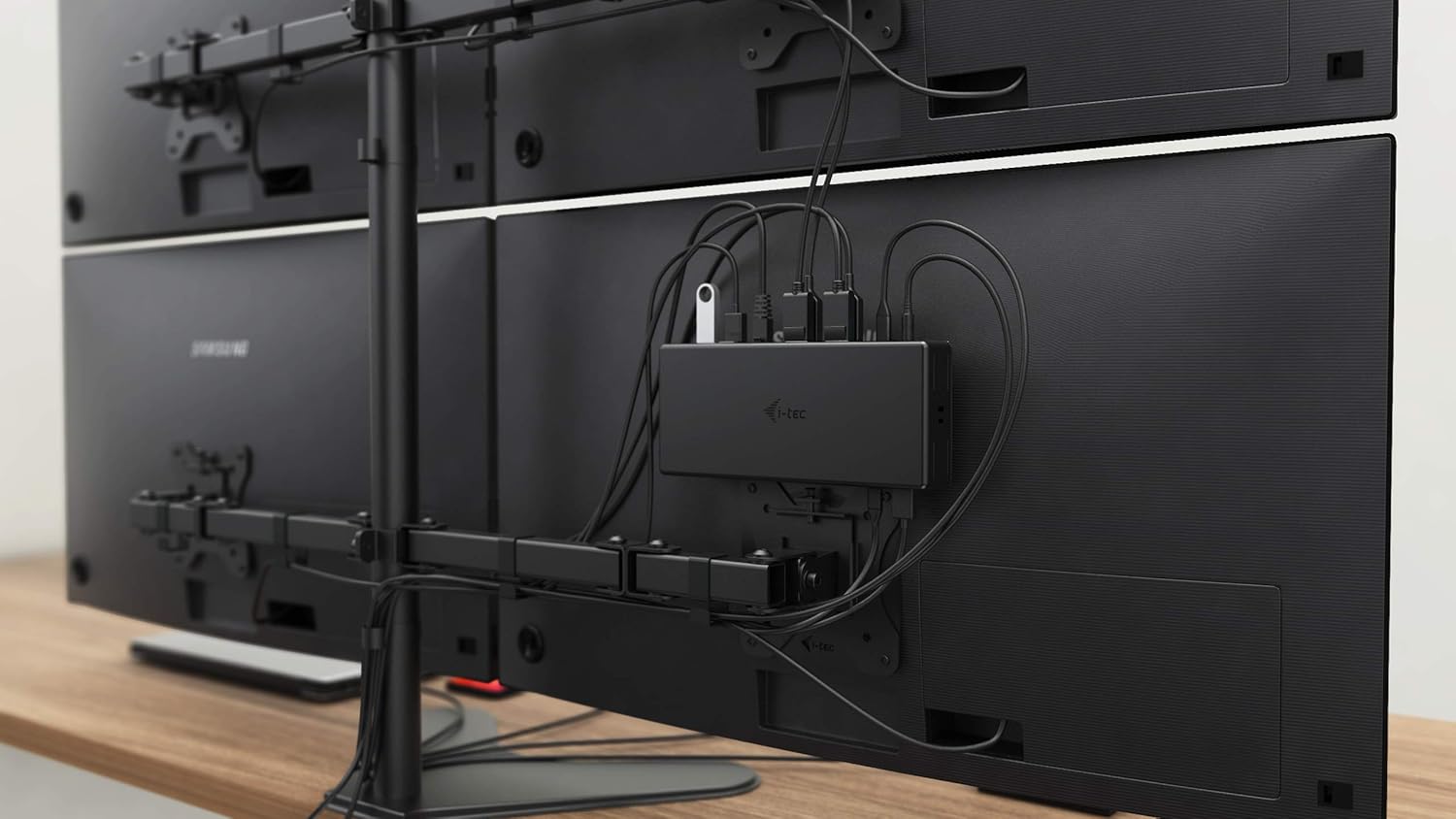
Rysunek 5.3: VESA Mounting. The docking station is shown mounted vertically on the back of a VESA-compatible monitor, demonstrating its space-saving installation capability and organized cable routing.

Rysunek 5.4: Connected Workstation. This image provides a close-up of the docking station on a desk, connected to a laptop via USB-C, and featuring various peripherals plugged into its front ports, including a USB drive and audio devices.
6. Konserwacja
Aby zapewnić długą żywotność i optymalną wydajność stacji dokującej, należy przestrzegać poniższych wskazówek dotyczących konserwacji:
- Czyszczenie: Use a soft, dry cloth to clean the exterior of the docking station. Do not use liquid cleaners or aerosols.
- Wentylacja: Upewnij się, że stacja dokująca znajduje się w dobrze wentylowanym miejscu, aby zapobiec przegrzaniu. Nie blokuj otworów wentylacyjnych.
- Obsługiwanie: Avoid dropping or subjecting the docking station to strong impacts.
- Środowisko: Trzymaj urządzenie z dala od ekstremalnych temperatur, wilgoci i bezpośredniego światła słonecznego.
- Zarządzanie kablami: Ensure cables are not excessively bent or strained to prevent damage to ports and cables.
7. Rozwiązywanie Problemów
Jeśli masz problemy ze stacją dokującą, zapoznaj się z poniższymi typowymi problemami i ich rozwiązaniami:
7.1 Brak wyjścia wyświetlacza
- Sprawdź połączenia: Ensure all display cables (HDMI/DisplayPort) are securely connected to both the docking station and the monitors.
- Połączenie hosta: Verify the USB-C cable from the docking station is firmly connected to your laptop's USB-C port.
- Moc: Confirm the docking station is powered on and receiving power from the adapter.
- Kompatybilność laptopa: Sprawdź, czy port USB-C Twojego laptopa obsługuje tryb alternatywny DisplayPort.
- Kierowcy: Install the latest drivers from www.i-tec.cz/setup.
- Ustawienia wyświetlania: Adjust your operating system's display settings to detect and extend/mirror displays.
7.2 Urządzenia USB nie działają
- Na nowo połączyć: Disconnect and reconnect the USB device to a different port on the docking station.
- Moc: Sprawdź, czy stacja dokująca jest włączona.
- Połączenie hosta: Verify the USB-C connection to your laptop.
- Pobór mocy: If connecting high-power USB devices, ensure the docking station's power adapter is correctly connected and providing sufficient power.
7.3 No Network Connection (GLAN)
- Kontrola kabla: Upewnij się, że kabel Ethernet jest prawidłowo podłączony zarówno do stacji dokującej, jak i do routera/modemu.
- Router/Modem: Sprawdź, czy router/modem działa prawidłowo.
- Kierowcy: Ensure the latest network drivers are installed for the docking station.
7.4 Laptop Not Charging (Power Delivery)
- Zasilacz: Confirm the docking station's power adapter is correctly connected and functioning.
- Kabel USB-C: Ensure the USB-C cable connecting the dock to your laptop supports Power Delivery.
- Kompatybilność laptopa: Verify your laptop's USB-C port supports Power Delivery input.
8. Specyfikacje
| Funkcja | Szczegół |
|---|---|
| Numer modelu | C31QUATTRODOCKPDUK |
| Marka | i-tec |
| Wymiary produktu | 10 x 2 x 2.7 cala (25.4 x 5.08 x 6.86 cm) |
| Waga przedmiotu | 10.2 uncji (0.29 kg) |
| Interfejs sprzętowy | DisplayPort, Ethernet, HDMI, USB, USB 3.0, USB Type C |
| Kompatybilne urządzenia | Laptop, Monitor, Tablet with USB-C (DisplayPort Alt Mode & Power Delivery support recommended) |
| Łączna liczba portów USB | 6 (5x USB 3.0, 1x USB-C Data) |
| Wszystkie porty HDMI | 2 |
| Całkowity DisplayPort | 2 |
| Sieć Ethernetowa | Gigabitowy Ethernet (RJ-45) |
| Gniazda audio | 1x Microphone (3.5mm), 1x Headphone (3.5mm) |
| Dostarczanie mocy | Up to 85W to host device |
| Kolor | Czarny |
| Systemy operacyjne | Windows 10, macOS, Android, Linux |
9. Informacje o gwarancji
The i-tec USB-C Quattro Docking Station is covered by a manufacturer's warranty. Please refer to the warranty card included in your package or visit the official i-tec webSzczegółowe warunki gwarancji znajdziesz na stronie. Zachowaj dowód zakupu na wypadek roszczeń gwarancyjnych.
10. Obsługa klienta
For further assistance, technical support, or to download the latest drivers and firmware, please visit the official i-tec support webstrona:
You may also find helpful resources and FAQs on the product's dedicated setup page: www.i-tec.cz/setup


