Wstęp
This manual provides comprehensive instructions for the setup, operation, maintenance, and troubleshooting of your Macally Wireless Bluetooth Keyboard (Model: ACEBTKEYSG). Designed for multi-device compatibility, this keyboard offers a seamless typing experience across various operating systems including Mac, PC, iOS, and Android devices. Please read this manual thoroughly to ensure optimal performance and longevity of your device.
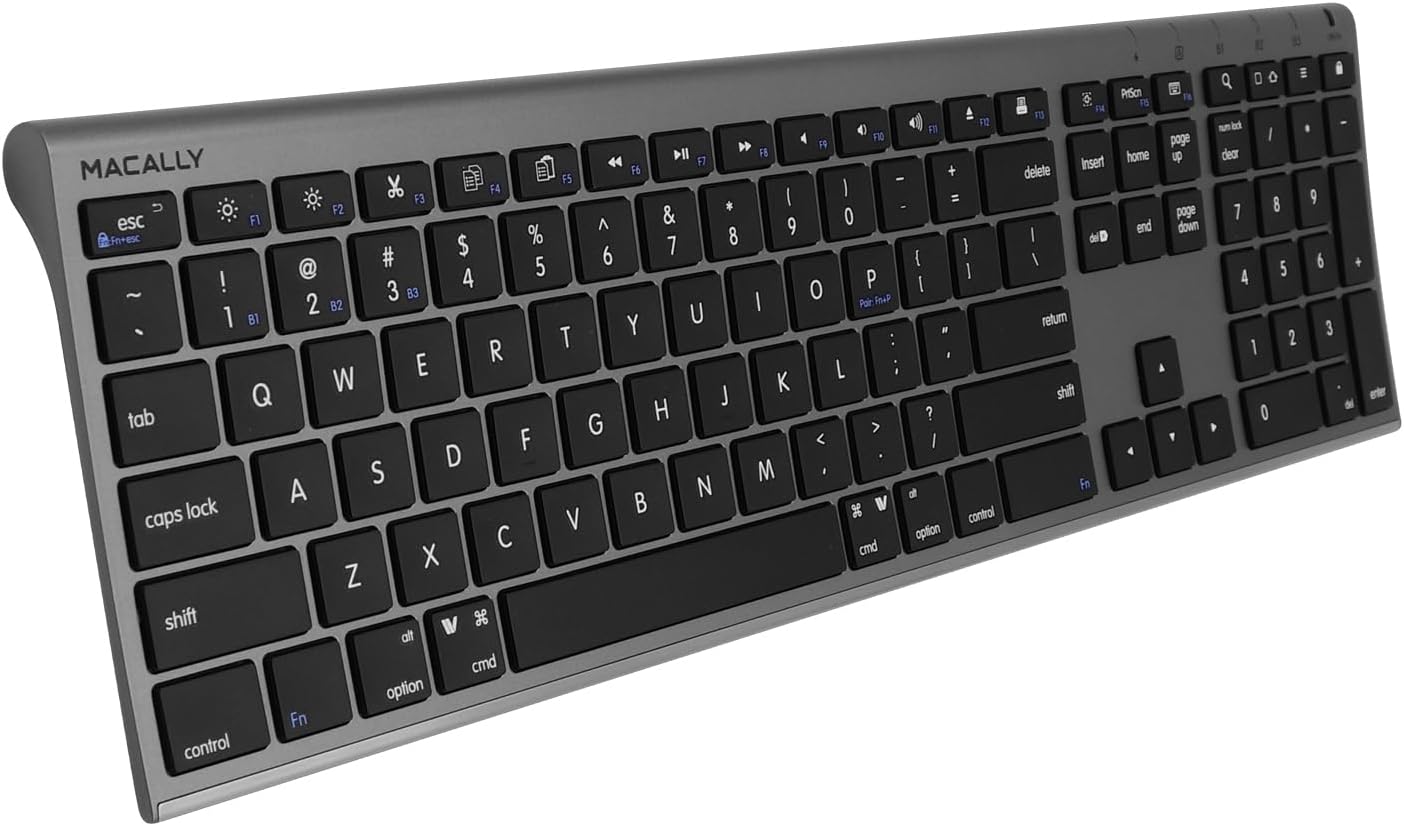
Obraz: widok z góry view of the Macally Wireless Bluetooth Keyboard, highlighting its full layout with numeric keypad and function keys.
Organizować coś
1. Ładowanie klawiatury
Before initial use, fully charge the keyboard. The keyboard features a built-in rechargeable battery that provides approximately 3 months of use on a single charge with average daily usage of 3 hours. A full charge typically takes about 1 hour.
- Connect the included USB charging cable to the micro USB port on the keyboard (located on the right side).
- Podłącz drugi koniec kabla do źródła zasilania USB (np. portu USB komputera, zasilacza ściennego USB).
- The charging LED indicator will illuminate during charging and change color (or turn off) when fully charged.
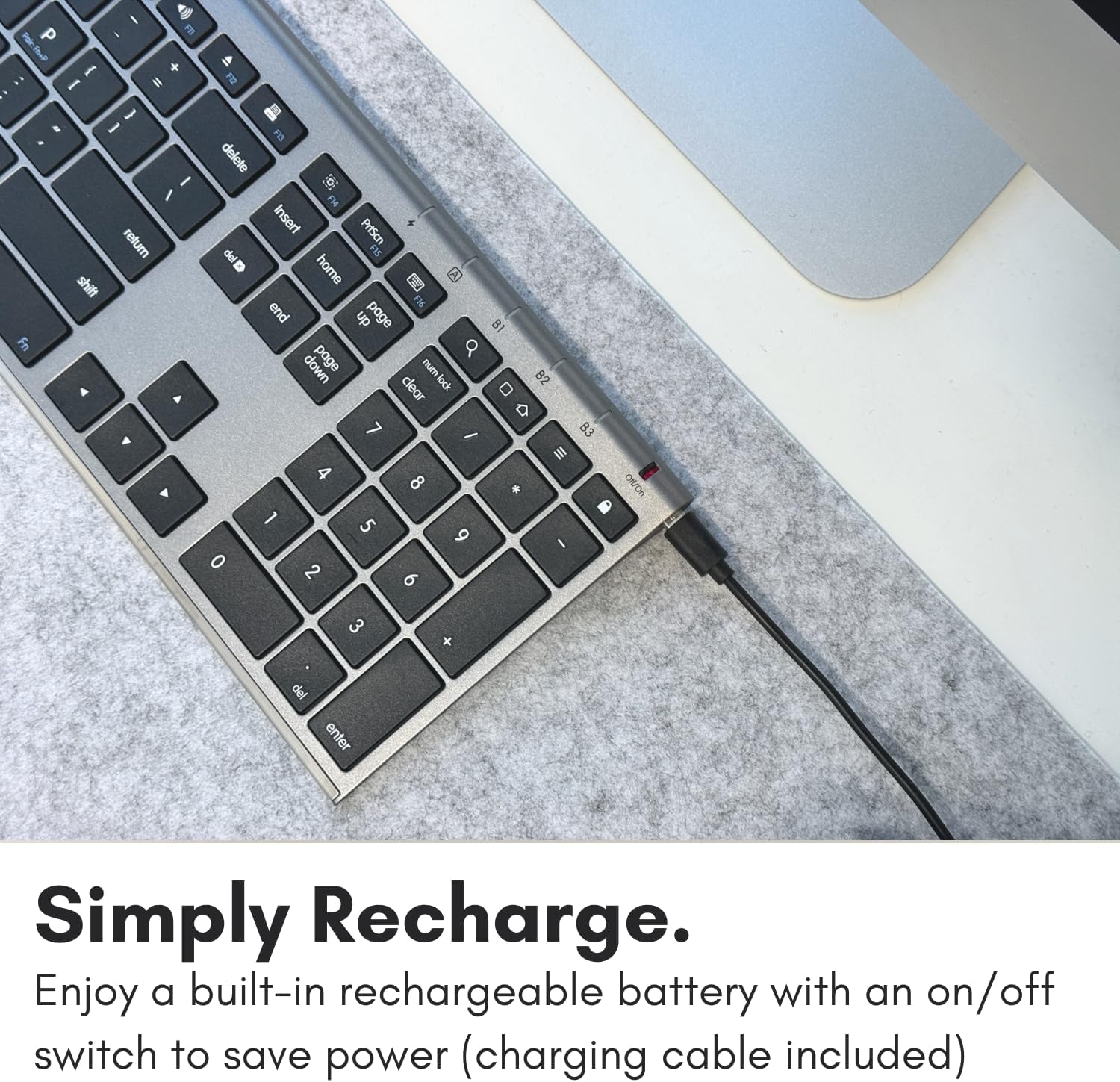
Obraz: Zbliżenie view of the Macally Wireless Bluetooth Keyboard showing the micro USB charging port on the right side, with a charging cable connected.
2. Parowanie Bluetooth
The Macally Wireless Bluetooth Keyboard supports pairing with up to three devices simultaneously, allowing for quick switching between them.
- Ensure the keyboard is charged and the power switch (located near the charging port) is in the ON position.
- Na klawiaturze naciśnij i przytrzymaj Fn key and one of the Bluetooth device keys (B1, B2, Lub B3) for 3-5 seconds until the corresponding Bluetooth LED indicator above the key starts blinking rapidly. This indicates the keyboard is in pairing mode.
- On your device (Mac, PC, iOS, Android), navigate to the Bluetooth settings.
- Szukaj available Bluetooth devices. The keyboard should appear as "Macally Keyboard" or similar.
- Select the keyboard from the list to initiate pairing. Follow any on-screen prompts, such as entering a pairing code.
- Once successfully paired, the Bluetooth LED indicator on the keyboard will stop blinking and remain solid for a few seconds before turning off, indicating a successful connection.
- Repeat steps 2-5 for additional devices, using a different Bluetooth device key (B1, B2, or B3) for each.
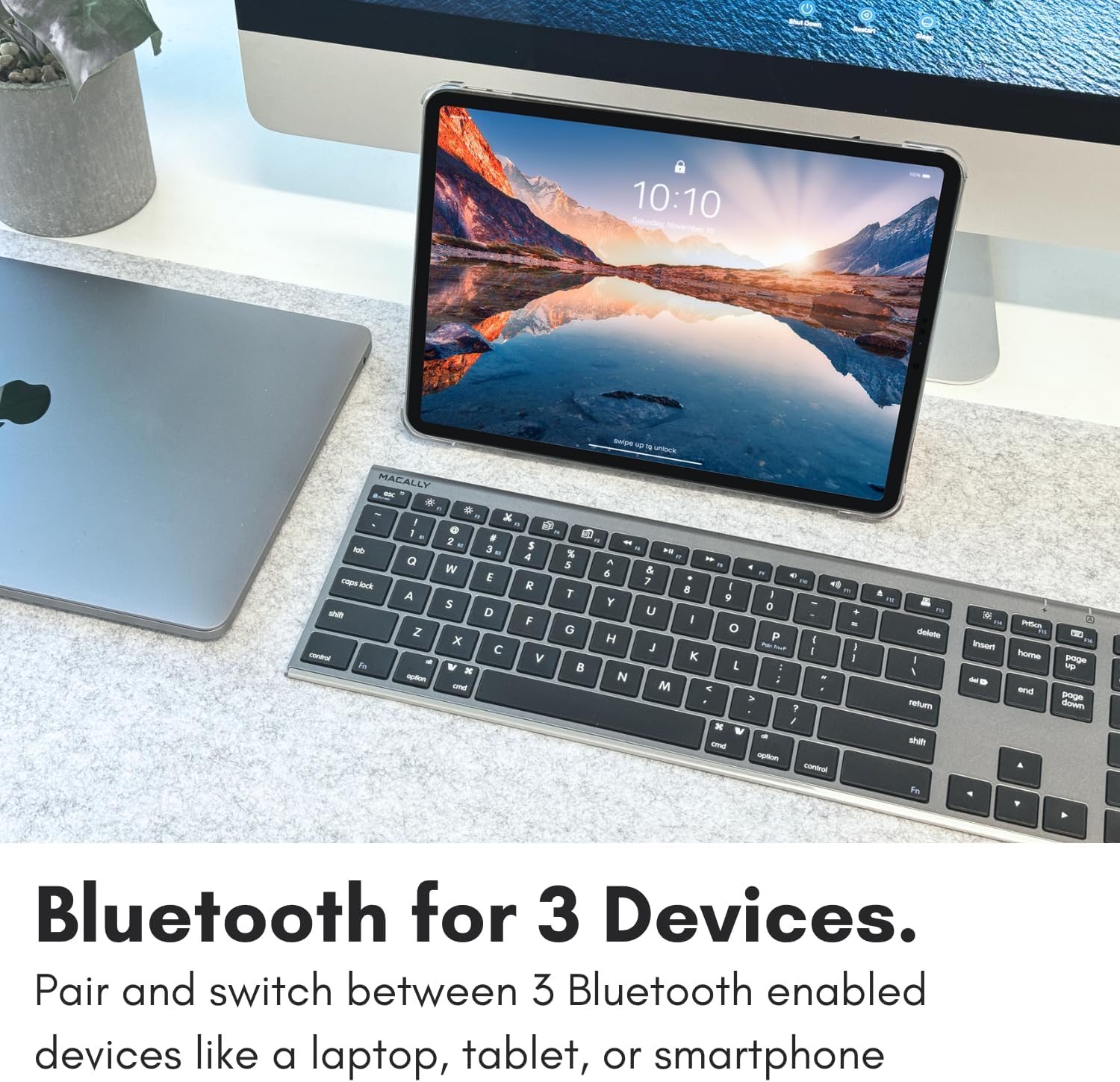
Image: The Macally Wireless Bluetooth Keyboard positioned between a MacBook and an iPad, illustrating its multi-device pairing capability.
Obsługa klawiatury
1. Przełączanie między urządzeniami
To switch between paired devices, simply press and hold the Fn key and the corresponding Bluetooth device key (B1, B2, Lub B3) for the desired device. The switch is quick, taking approximately half a second.
2. Key Functions and Shortcuts
The keyboard features 110 scissor-flex keys designed for quiet and smooth keystrokes, along with a full numeric keypad. It includes 20 MacOSX shortcuts for enhanced productivity. These shortcuts are typically activated by pressing the Fn key in combination with the relevant function key (F1-F12) or other designated keys.
- Klawisze F1-F12: These keys often have dual functions. The primary function (e.g., brightness, volume) is typically activated directly, while the secondary function (e.g., F1 for undo) requires pressing Fn + F-key. Refer to your operating system's settings for specific shortcut configurations.
- Klawiatura numeryczna: Provides a dedicated section for numerical input, essential for data entry and calculations.
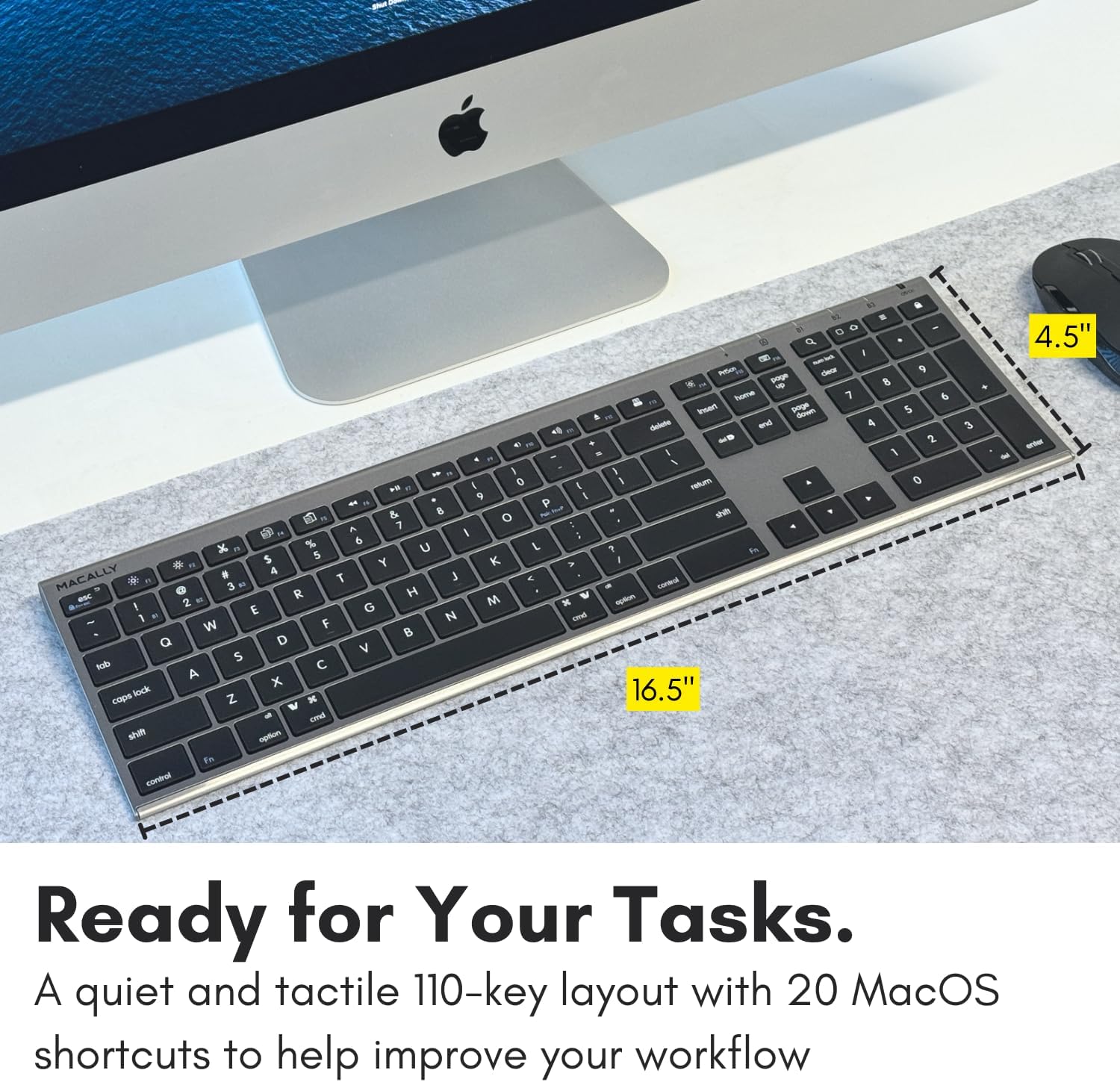
Image: The Macally Wireless Bluetooth Keyboard highlighting its full 110-key layout, including the numeric keypad and dedicated MacOS shortcuts.
3. Zgodność
This keyboard is designed for broad compatibility, working seamlessly with:
- Macintosh (macOS)
- komputer (Windows)
- iOS devices (iPhone, iPad)
- Urządzenia z Androidem
- Smart TVs with Bluetooth keyboard support
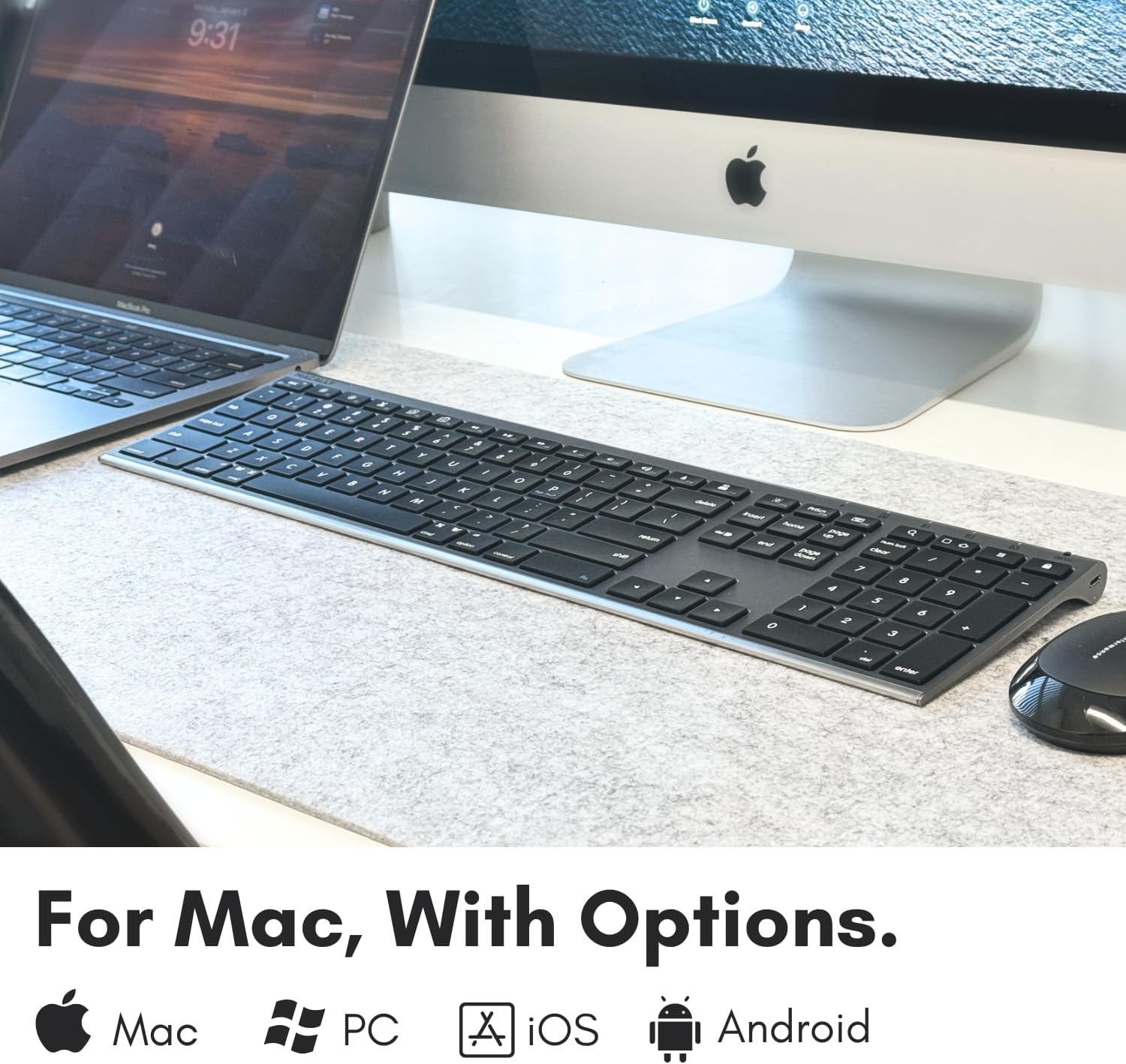
Image: Graphic illustrating the Macally Wireless Bluetooth Keyboard's compatibility with Mac, PC, iOS, and Android operating systems.
Konserwacja
Właściwa konserwacja zapewnia długowieczność i optymalną wydajność klawiatury.
- Czyszczenie: Użyj miękkiej, niestrzępiącej się ściereczki, lekko wyczyśćampPrzetrzyj powierzchnię klawiatury wodą lub łagodnym środkiem czyszczącym. Unikaj nadmiernej wilgoci. Nie rozpylaj środków czyszczących bezpośrednio na klawiaturę.
- Usuwanie kurzu: Za pomocą sprężonego powietrza usuń kurz i zanieczyszczenia spomiędzy klawiszy.
- Pielęgnacja baterii: To maximize battery life, avoid fully discharging the keyboard frequently. Recharge the keyboard when the battery indicator suggests low power. If storing the keyboard for an extended period, ensure it is partially charged (around 50%) and turn off the power switch.
- Składowanie: Przechowuj klawiaturę w chłodnym, suchym miejscu, z dala od bezpośredniego światła słonecznego i ekstremalnych temperatur.
Rozwiązywanie problemów
If you encounter issues with your Macally Wireless Bluetooth Keyboard, refer to the following common solutions:
Keyboard Not Responding or Lagging
- Sprawdź baterię: Ensure the keyboard is sufficiently charged. Connect it to a power source and allow it to charge for at least 15 minutes before attempting to use it again.
- Ponowne nawiązanie połączenia:
- Turn off the keyboard using the power switch.
- On your device, remove or "forget" the keyboard from your Bluetooth device list.
- Turn the keyboard back on and put it into pairing mode (Fn + B1/B2/B3).
- Re-pair the keyboard with your device as described in the "Bluetooth Pairing" section.
- Ingerencja: Move the keyboard closer to your device. Ensure there are no large metal objects or other wireless devices causing interference between the keyboard and your computer/device.
Function (Fn) Key Lock Issue
If your function keys are not behaving as expected (e.g., F1-F12 acting as standard function keys instead of media controls or vice-versa), the Fn lock might be engaged.

Image: Text graphic detailing the solution for the Fn lock issue: "On the top right there should be a lock symbol with an FN in the lock. See if there is a Blue LED light on the panel which is on the top right. If there is a Blue LED light on, then press and hold Fn and press ESC to shut off the Fn lock."
To toggle the Fn lock: On the top right of the keyboard, locate the lock symbol with "FN" inside. If a blue LED light is on near this symbol, press and hold the Fn klawisz i naciśnij Wyjście key to disable the Fn lock. This will switch the behavior of the function keys.
Unexpected Mouse Pointer Movement or Input
If your keyboard seems to be controlling the mouse pointer or producing unexpected input, check your system's accessibility settings.

Image: Text graphic detailing the solution for unexpected mouse movement: "Go to System Preferences, then click on accessibilities. After that scroll to pointer controls and disable enable mouse keys."
On Mac: Go to Preferencje systemowe > Dostępność > Sterowanie wskaźnikiem. Ensure "Enable Mouse Keys" is disabled.
Specyfikacje
| Funkcja | Szczegół |
|---|---|
| Numer modelu | ACEBTKEYSG |
| Wymiary produktu | 18.11 x 6.3 x 0.91 cala |
| Waga przedmiotu | 14.9 uncji |
| Baterie | 1 bateria litowo-jonowa (w zestawie) |
| Liczba kluczy | 110 |
| Technologia łączności | Bluetooth |
| Kompatybilne urządzenia | MacOS, Windows PC, iOS, Android |
| Opis klawiatury | Bezprzewodowy |
| Kolor | Kosmiczna Szarość |
| Styl | Multi Device Keyboard, Compatible Apple Keyboard Wireless, Bluetooth Keyboard Mac |
Gwarancja i wsparcie
Macally products are designed for quality and reliability. For information regarding product warranty, please refer to the warranty card included with your purchase or visit the official Macally website. For technical support or further assistance, please contact Macally customer service through their official channels.
Często można znaleźć zasoby pomocy technicznej, odpowiedzi na często zadawane pytania i informacje kontaktowe na stronie Sklep Macally na Amazonie lub ich oficjalna firma webstrona.


