1. Wprowadzenie
This manual provides essential information for the safe and efficient operation of your NEBULA by Anker Solar Portable 1080p Projector. Please read it thoroughly before using the device and retain it for future reference.

Rycina 1: Przód view of the NEBULA Solar Portable 1080p Projector.
2. Co znajduje się w pudełku
Sprawdź, czy w przesyłce znajdują się wszystkie elementy wymienione poniżej:
- NEBULA Solar Portable Projector
- Zdalne sterowanie
- Szybki przewodnik
- PD Charger (65W, output 20V/3.25A)
- Kabel USB-C do USB-C
3. Koniec produktuview
The NEBULA Solar Portable Projector is designed for versatile entertainment, offering a Full HD 1080p image with 400 ANSI lumens brightness. It supports 4K content and features autofocus and keystone correction for easy setup. The device runs on Android TV 9.0, providing access to over 5,000 applications.
Główne cechy:
- Technologia wyświetlania: 0.23DMD w rozdzielczości 1080p DLP
- Rezolucja: 1920x1080 (Pełna rozdzielczość HD)
- Jasność: Lumenów 400 ANSI
- Autofokus: 3-second autofocus for clear images.
- Korekcja Keystone'a: Auto (vertical ±40°) and Manual (horizontal ±40°, Quadrilateral ±40°).
- System operacyjny: Android TV 9.0 with Google Play Store access.
- Audio: Dual 3W speakers with Dolby Digital Plus support. Can function as a portable Bluetooth speaker.
- Łączność: HDMI, USB-A, Type-C (Power Delivery charging), Wi-Fi (2.4/5GHz), Bluetooth 4.2.
- Czas pracy baterii: Up to 3 hours of video playtime (in battery mode).
- Zintegrowana podstawka: Adjustable up to 13 degrees for optimal viewkąty.

Figure 2: Visual representation of the projector's 1080p image clarity at 400 ANSI lumens.
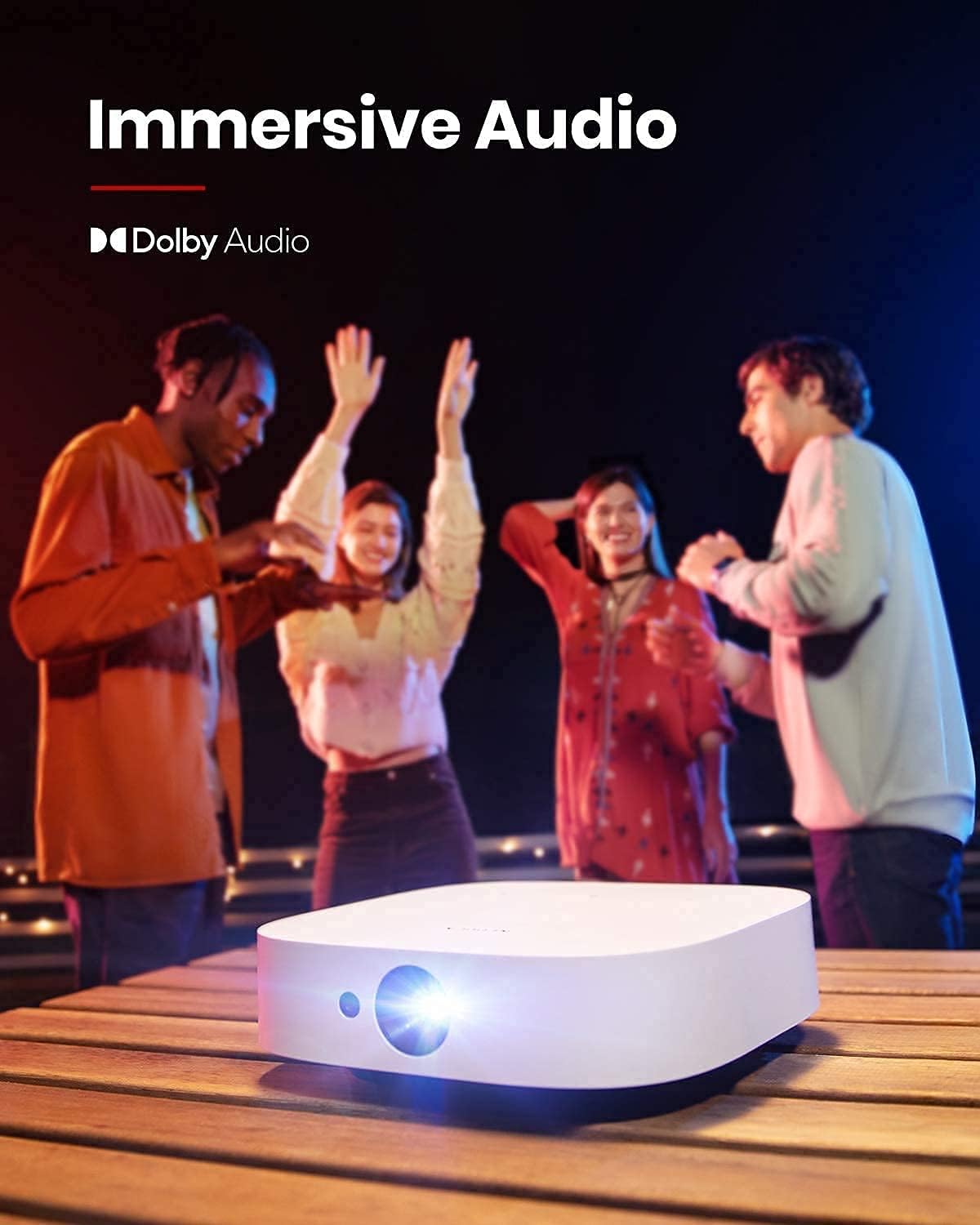
Figure 3: The projector in use for outdoor group viewing, highlighting its portability and battery life.
4. Konfiguracja
4.1 Pierwsze włączenie i ładowanie
- Connect the provided PD charger to the Type-C port on the projector.
- Plug the charger into a power outlet. The projector can be used while charging.
- Naciśnij i przytrzymaj przycisk zasilania na projektorze lub pilocie, aby go włączyć.
Video 1: A short video demonstrating the charging process and initial power-on of the projector.
4.2 Adjusting Projection Angle
The projector features an integrated stand on its base, allowing for angle adjustments up to 13 degrees. Simply adjust the stand to achieve your desired projection height and angle.
Figure 4: The adjustable stand on the bottom of the projector for angle customization.
4.3 Porty łączności
The rear of the projector provides various ports for connecting external devices:
- HDMI: Podłącz do laptopów, konsol do gier i innych urządzeń z obsługą HDMI.
- USB-A: For connecting USB flash drives or other USB accessories.
- Typ C: Primarily for Power Delivery charging.

Rysunek 5: Koniecview portów wejścia/wyjścia projektora.
5. Instrukcja obsługi
5.1 Android TV 9.0 and App Access
The projector runs on Android TV 9.0, providing access to the Google Play Store. You can download and install a wide range of streaming applications and games directly onto the device.
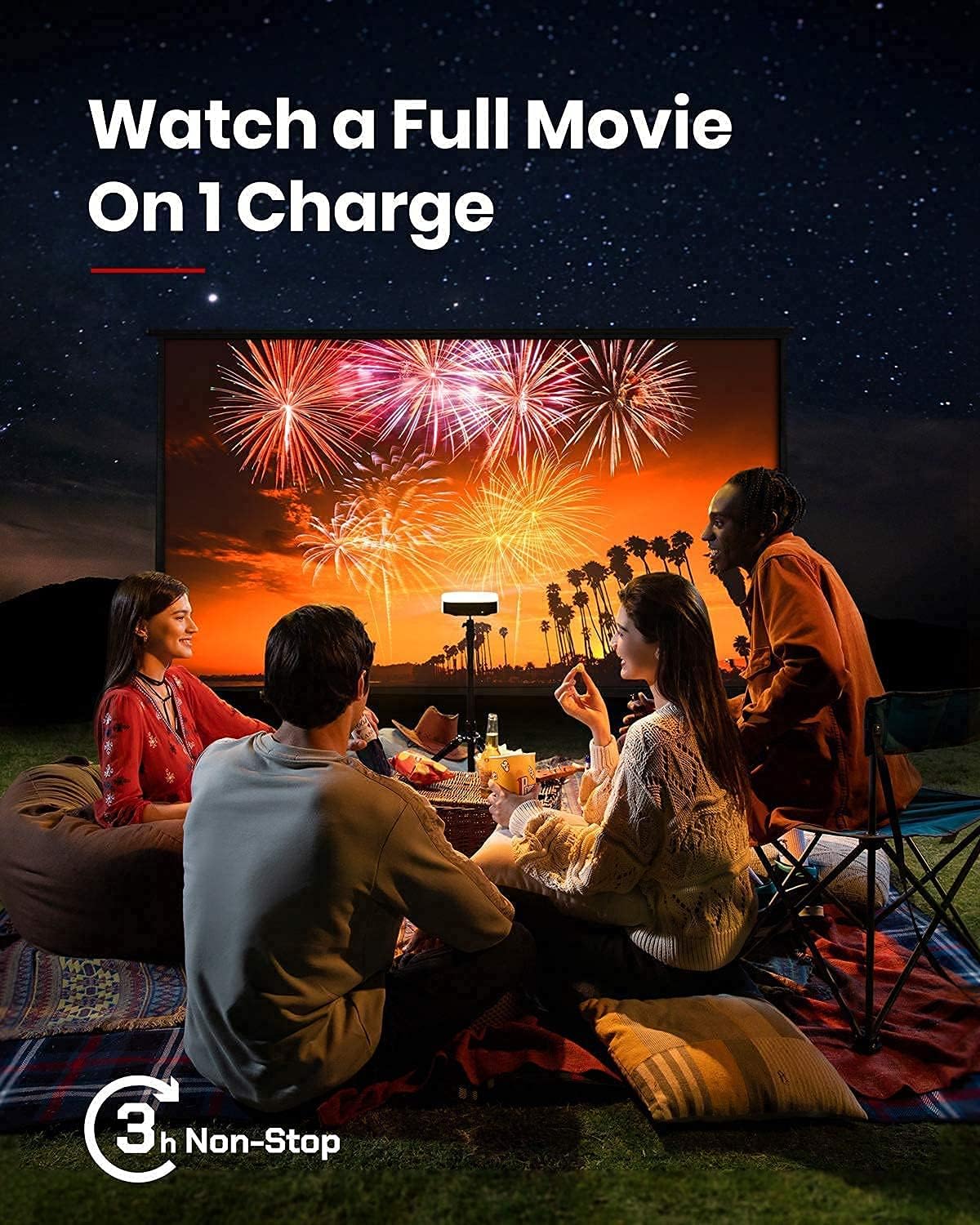
Figure 6: The Android TV 9.0 interface with access to various applications.
5.2 Installing Netflix
To install Netflix, navigate to the Google Play Store and install the "Nebula Manager" app. Within "Nebula Manager", you can then install Netflix. It is recommended to use the "Nebula Connect" app on your phone in mouse mode to control Netflix, as the remote control may have limited functionality with the mobile version of the Netflix app.
Video 2: Instructions on how to install and use Netflix on the projector.
5.3 Screen Mirroring (iOS Devices)
For iOS devices (iPhone, iPad, MacBook), install the "AirScreen" app from the Google Play Store on your projector. Ensure both your projector and iOS device are connected to the same Wi-Fi network. Then, use the "Screen Mirroring" function on your iOS device to connect to the projector.
Video 3: A guide on how to screen mirror and cast content from an iPhone to the projector.
5.4 Odtwarzanie z dysku flash USB
To play movies or media from a USB flash drive, install a file management app (e.g., File Explorer, File Manager) and a video player from the Google Play Store. Insert your USB flash drive into the USB-A port and use the file manager to access and play your content.
5.5 Autofocus and Keystone Correction
The projector features 3-second autofocus. To trigger autofocus, slightly move the device or press the dedicated "focus" button on the remote. For keystone correction, the device supports auto vertical (±40°) and manual horizontal (±40°) and quadrilateral (±40°) adjustments. If the image is tilted, disable auto keystone correction via "Settings > Projector Settings > Keystone Correction" and manually adjust both vertical and horizontal keystone correction.

Figure 7: The autofocus feature ensures a clear image automatically.

Figure 8: Keystone correction allows for adjusting the image shape to be rectangular.
6. Konserwacja
Aby zapewnić długowieczność i optymalną wydajność projektora, należy przestrzegać poniższych wskazówek dotyczących konserwacji:
- Czyszczenie: Use a soft, dry cloth to clean the exterior of the projector. For the lens, use a specialized lens cleaning cloth and solution. Avoid abrasive cleaners.
- Składowanie: Store the projector in a cool, dry place away from direct sunlight and extreme temperatures. If storing for extended periods, ensure the battery is partially charged (around 50%) to maintain battery health.
- Wentylacja: Ensure the ventilation grilles are not obstructed during operation to prevent overheating.
7. Rozwiązywanie Problemów
This section addresses common issues you might encounter with your NEBULA Solar Portable Projector.
- Netflix App Control Issues: If the remote control has limited functionality with Netflix, use the "Nebula Connect" app on your smartphone in mouse mode for better navigation.
- iOS Screen Mirroring Failure: Ensure both the projector (with "AirScreen" installed) and your iOS device are connected to the same Wi-Fi network. Some protected content may not mirror due to DRM restrictions.
- Image Tilted/Distorted: If the projected image is tilted, turn off auto keystone correction via "Settings > Projector Settings > Keystone Correction" and manually adjust both vertical and horizontal keystone correction.
- Bateria szybko się rozładowuje: The projector offers different brightness modes. "Battery Mode" (80% volume, Wi-Fi off) provides up to 3 hours. "Standard Mode" offers 2 hours. Ensure the device is fully shut down (hold power button and select "Shut down") rather than just standby to prevent battery drain.
- Hałas wentylatora: In "Normal Brightness Mode," the fan may be noticeable. For quieter operation, use the less-bright "Battery Mode."
- App Compatibility/Performance: Some apps may experience issues due to the Android TV 9.0 version. Ensure apps are updated to their latest versions.
8. Specyfikacje
| Funkcja | Szczegół |
|---|---|
| Wymiary produktu | 7.56 x 7.57 x 2.15 cala |
| Waga przedmiotu | 2.77 funta |
| Numer modelu przedmiotu | D2131 |
| Baterie | 1 bateria litowo-jonowa (w zestawie) |
| Technologia wyświetlania | 0.23DMD w rozdzielczości 1080p DLP |
| Rezolucja | 1920x1080 |
| Jasność | Lumenów 400 ANSI |
| Życie diody LED | 30,000 godziny |
| Współczynnik rzutu | 1.2 |
| Regulacja ostrości | 3-sekundowy autofokus |
| Korekcja trapezowa | Auto (vertical ±40°), Manual (horizontal ±40°, Quadrilateral ±40°) |
| HDMI | x1 |
| USB-A | x1 |
| Typ C | x 1 (Power Delivery charging) |
| BARAN | 2GB DDR |
| ROM | 8 GB eMMC |
| Bateria | 20,000mAh / 3.7v |
| Głośnik | 2×3 W |
| Wi-Fi | Podwójna częstotliwość 2.4/5 GHz |
| Bluetooth | BT4.2 |
| Hałas wentylatora | <30dB |
| OS | Android TV 9.0 |
| Chromecast | Utrzymany |
| Tryby pracy | Tryb projektora, tryb głośnika Bluetooth |
| Sklep z aplikacjami | Google Play |
| Video Playtime | 3 hours (battery mode); 2 hours (standard mode) |
| Czas ładowania | 3 hours with Power Delivery 20V-3.25A |
| Dekodowanie audio | Dolby supported |
| Dekodowanie wideo | HDR10 |
9. Gwarancja i wsparcie
Your NEBULA Solar Portable Projector is covered by a manufacturer's warranty. For detailed warranty information, technical support, or service inquiries, please visit the official NEBULA brand store or contact customer support.
Official NEBULA Store: https://www.amazon.com/stores/Nebula/page/A836DB9B-3AD4-4696-A071-A0A11B4E59A2