Wstęp
This manual provides detailed instructions for the setup, operation, and maintenance of your VOYEE Wireless Controller. Designed for compatibility with Microsoft Xbox 360/Slim and PC Windows 11/10/8/7, this controller offers an enhanced gaming experience with responsive controls and ergonomic design.
Cechy produktu
- Szeroka kompatybilność: Seamlessly connects with Microsoft Xbox 360/Slim consoles and PC running Windows 11, 10, 8, or 7. A dedicated wireless receiver is required for connection.
- Ulepszona kontrola gry: Features upgraded left and right triggers, highly sensitive joysticks, and responsive buttons for precise command execution without delay.
- Wciągające wrażenia z gry: Integrated rumble control provides automatic vibration feedback, adapting to in-game events for a more engaging experience.
- Ergonomiczna konstrukcja: Contoured grips are shaped to fit comfortably in your hands, reducing fatigue during extended gaming sessions. Enjoy freedom of movement with a wireless control distance of up to 30 feet.

Obraz: Przód view of the VOYEE Wireless Controller.

Obraz: Przezroczysty view of the VOYEE Wireless Controller highlighting the internal rumble motors.

Image: Close-up of the responsive joystick and high-precision D-pad on the VOYEE Wireless Controller.

Image: Close-up of the action buttons (A, B, X, Y) and linear triggers (LT, RT) on the VOYEE Wireless Controller.
Zawartość opakowania
Upon opening your VOYEE Wireless Controller package, you should find the following items:
- 1 x VOYEE Wireless Controller
- 1 x Odbiornik bezprzewodowy
- 1 x Instrukcja obsługi (niniejsza instrukcja)
If any items are missing or damaged, please contact VOYEE customer support immediately.
Organizować coś
1. Instalacja baterii
The VOYEE Wireless Controller requires two (2) AA batteries for operation. Follow these steps to install them:
- Znajdź komorę baterii z tyłu kontrolera.
- Press the release tab and open the battery cover.
- Włóż dwie baterie AA, upewniając się, że bieguny dodatni (+) i ujemny (-) są ustawione zgodnie z oznaczeniami wewnątrz komory.
- Zamknij pokrywę baterii, aż zatrzaśnie się na swoim miejscu.
- Press the Home button on the controller to confirm power is on.
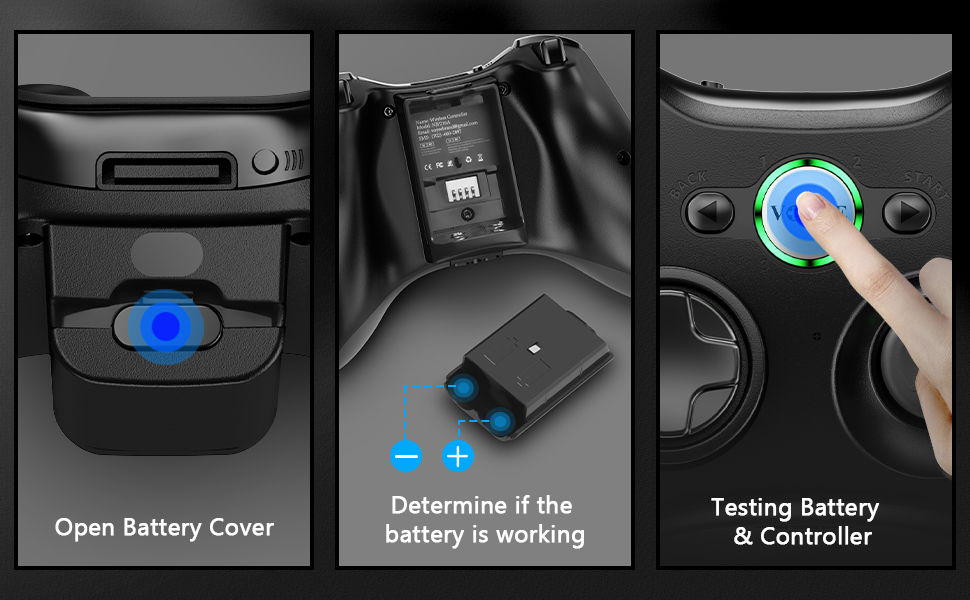
Image: Visual guide for opening the battery cover, inserting AA batteries, and testing the controller's power.
2. Connecting to Xbox 360 Console
To connect your VOYEE Wireless Controller to an Xbox 360 or Xbox 360 Slim console:
- Ensure your Xbox 360 console is powered on.
- Plug the wireless receiver into an available USB port on your Xbox 360 console. The receiver's indicator light will begin to flash.
- Press the Home button on your VOYEE controller. The indicator light on the controller will also begin to flash.
- Press and hold the sync button on the wireless receiver (usually a small button on the side or back of the receiver) until its light flashes rapidly.
- Within 20 seconds, press and hold the sync button on the top of your VOYEE controller until its lights flash rapidly.
- Once paired, the indicator light on the controller (one of the four quadrants around the Xbox button) will remain solid, indicating a successful connection.
Note: Each VOYEE wireless controller requires its own dedicated wireless receiver. If connecting multiple controllers, ensure you have enough USB ports and receivers.
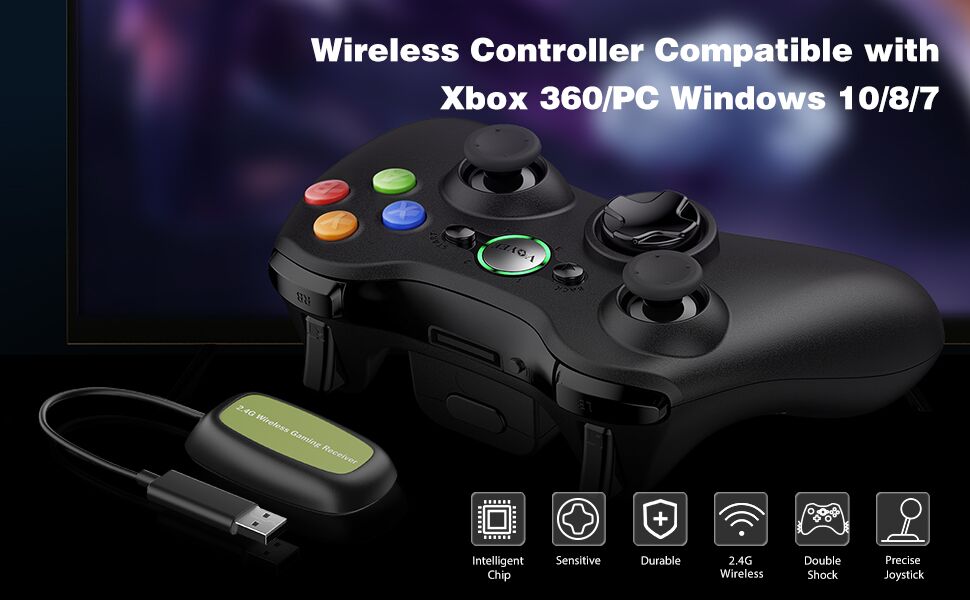
Image: Step-by-step visual instructions for connecting the VOYEE Wireless Controller to an Xbox 360 console.
3. Connecting to PC (Windows 11/10/8/7)
To connect your VOYEE Wireless Controller to a PC:
- Ensure your PC is powered on and the operating system is running.
- Plug the wireless receiver into an available USB port on your PC. The receiver's indicator light will begin to flash.
- The PC should automatically install the necessary drivers for the controller. This may take a few moments.
- Press the Home button on your VOYEE controller. The indicator light on the controller will also begin to flash.
- Press and hold the sync button on the wireless receiver until its light flashes rapidly.
- Within 20 seconds, press and hold the sync button on the top of your VOYEE controller until its lights flash rapidly.
- Once paired, the indicator light on the controller will remain solid. You can verify the connection and test the controller's functionality through your PC's Game Controllers settings (e.g., in Windows, search for "Set up USB game controllers").
Note: For Windows 7, 8, and 10 operating systems, the driver will typically install automatically. If pairing is unsuccessful, ensure your PC's Bluetooth or wireless adapter is enabled and drivers are up to date.
Image: Step-by-step visual instructions for connecting the VOYEE Wireless Controller to a PC.
Instrukcja obsługi
Podstawowe sterowanie
The VOYEE Wireless Controller features a standard layout familiar to Xbox 360 users:
- Lewy i prawy drążek analogowy: Used for movement and camera control. Press down on the sticks for additional button inputs (L3/R3).
- D-Pad (pad kierunkowy): Zapewnia precyzyjne wprowadzanie informacji kierunkowych, często wykorzystywane do nawigacji po menu lub wykonywania określonych czynności w grze.
- Przyciski A, B, X, Y: Action buttons, typically color-coded (Green A, Red B, Blue X, Yellow Y) for easy identification.
- Left and Right Bumpers (LB, RB): Buttons located on the top front edge of the controller.
- Left and Right Triggers (LT, RT): Analog triggers located below the bumpers, offering pressure-sensitive input for actions like acceleration or firing.
- Przycisk Start: Zazwyczaj używany do wstrzymywania gry lub otwierania menu w grze.
- Przycisk Wstecz: Often used to access secondary menus or return to previous screens.
- Home Button (VOYEE Logo): Powers the controller on/off, accesses the Xbox Guide menu on Xbox 360, or opens the Game Bar/similar features on PC.

Image: The VOYEE Wireless Controller shown alongside various game screenshots, illustrating its use in different gaming scenarios.
Feedback wibracji
The VOYEE Wireless Controller features dual vibration motors that provide tactile feedback during gameplay. This feedback is automatically triggered by in-game events such as explosions, collisions, or specific actions, enhancing immersion.

Obraz: Szczegółowy view of the internal vibration motor within the controller.
Oficjalny film o produkcie
Video: An official product video from VOYEE showcasing the upgraded wireless controller for Xbox 360, highlighting its features and design.
Konserwacja
Proper care and maintenance will extend the life of your VOYEE Wireless Controller:
- Czyszczenie: Regularnie przecieraj kontroler miękką, suchą ściereczką. W przypadku uporczywych zabrudzeń delikatnie przetrzyj.ampPrzetrzyj ściereczkę wodą lub delikatnym środkiem czyszczącym. Unikaj stosowania silnych środków chemicznych i materiałów ściernych.
- Składowanie: Przechowuj kontroler w chłodnym i suchym miejscu, z dala od bezpośredniego światła słonecznego, ekstremalnych temperatur i nadmiernej wilgoci.
- Pielęgnacja baterii: Remove batteries from the controller if it will not be used for an extended period to prevent battery leakage and potential damage.
- Unikaj kropli: Protect the controller from drops and impacts, which can damage internal components or external casing.
Rozwiązywanie problemów
| Problem | Możliwa przyczyna | Rozwiązanie |
|---|---|---|
| Kontroler nie włącza się. | Low or dead batteries; incorrectly inserted batteries. | Replace with fresh AA batteries. Ensure batteries are inserted with correct polarity (+/-). |
| Controller does not connect/pair. | Receiver not properly plugged in; sync process failed; interference. | Ensure wireless receiver is securely plugged into a USB port. Repeat the pairing process (see Setup section). Move closer to the console/PC. Avoid other 2.4GHz devices if possible. |
| Input lag or unresponsive buttons/joysticks. | Low battery; wireless interference; distance from receiver. | Replace batteries. Reduce distance between controller and receiver. Ensure no large metal objects are blocking the signal. |
| Wibracje nie działają. | Game does not support vibration; vibration feature disabled in game/system settings. | Check game settings and console/PC settings to ensure vibration is enabled. Not all games support vibration feedback. |
Jeśli natrafisz na problem, który nie został tutaj wymieniony, zapoznaj się z sekcją Gwarancja i wsparcie, w której znajdziesz dane kontaktowe.
Specyfikacje
| Numer modelu: | XW-360 |
| Marka: | Podglądacz |
| Wymiary (dł. x szer. x wys.): | 6.1 x 4.33 x 2.17 cala |
| Waga przedmiotu: | 8.4 uncji |
| Źródło zasilania: | 2 baterie AA (brak w zestawie) |
| Łączność: | 2.4GHz Wireless (via included receiver) |
| Zasięg bezprzewodowy: | Do 30 stóp (ok. 9 metrów) |
| Zgodne urządzenia: | Xbox 360, Xbox 360 Slim, PC (Windows 11/10/8/7) |

Image: The VOYEE Wireless Controller with its approximate dimensions indicated.
Gwarancja i wsparcie
VOYEE products are manufactured to high quality standards. For warranty information, technical support, or any inquiries regarding your VOYEE Wireless Controller, please contact our customer service team.
Informacje kontaktowe:
- E-mail: Refer to product packaging or the VOYEE official webstrona zawierająca najnowszy adres e-mail.
- Telefon: Refer to product packaging or the VOYEE official webstrona z najnowszym numerem telefonu.
- Wsparcie online: Visit the VOYEE brand store on Amazon or their official webStrona z odpowiedziami na często zadawane pytania i dodatkowymi zasobami.
Please have your product model number (XW-360) and purchase details ready when contacting support.


