1. Wprowadzenie
This manual provides essential information for setting up, operating, and maintaining your Acer Aspire 5 Slim Laptop, Model A515-54-59W2. Designed for everyday computing, this laptop combines a 15.6-inch Full HD IPS display with a 10th Generation Intel Core i5 processor, 8GB of DDR4 RAM, and a fast 256GB PCIe NVMe SSD. It features Intel Wi-Fi 6 for reliable connectivity, a fingerprint reader for secure access, and a backlit keyboard for comfortable typing in various lighting conditions.
2. Konfiguracja
2.1. Rozpakowanie i wstępna inspekcja
Ostrożnie wyjmij wszystkie elementy z opakowania. Upewnij się, że znajdują się w nim następujące elementy:
- Acer Aspire 5 Slim Laptop (Model A515-54-59W2)
- Zasilacz sieciowy
- Przewód zasilający
Sprawdź laptopa i akcesoria pod kątem ewentualnych uszkodzeń. Jeśli brakuje któregokolwiek elementu lub jest on uszkodzony, skontaktuj się natychmiast ze sprzedawcą lub działem pomocy technicznej firmy Acer.
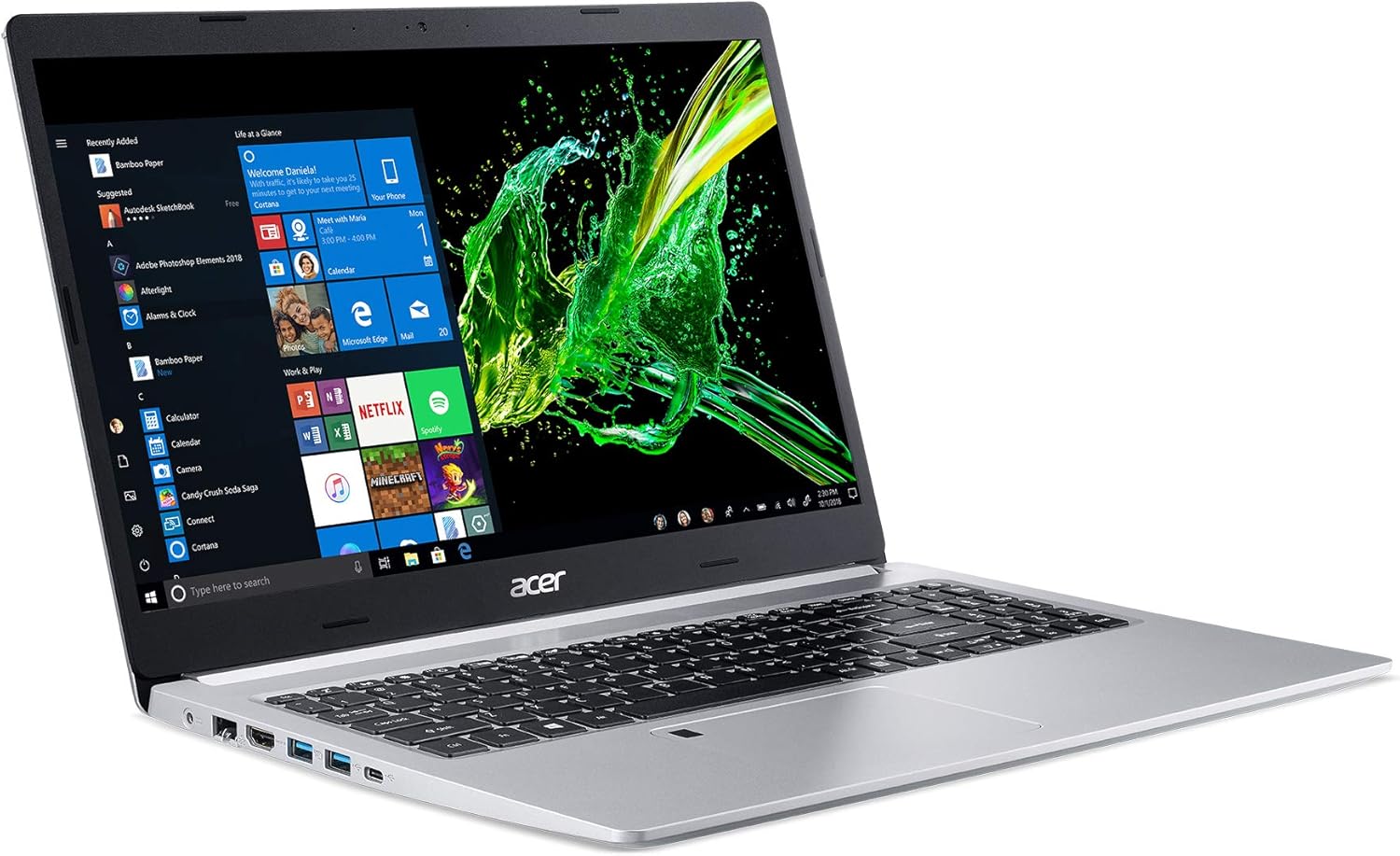
Figure 1: Acer Aspire 5 Slim Laptop
2.2. Initial Power-On and Operating System Setup
- Connect the AC adapter to the laptop's power port and then plug the power cord into an electrical outlet.
- Otwórz pokrywę laptopa. Laptop może włączyć się automatycznie lub konieczne może być naciśnięcie przycisku zasilania na klawiaturze.
- Follow the on-screen instructions to complete the Windows 10 Home setup process. This typically includes selecting your region, language, connecting to a Wi-Fi network, and creating a user account.
3. Funkcje
3.1. Wyświetl
The Acer Aspire 5 features a vibrant 15.6-inch Full HD (1920 x 1080) widescreen LED-backlit IPS display. This display technology provides wide viewing angles and accurate color reproduction, enhancing your visual experience for work and entertainment.

Rysunek 2: Funkcje wyświetlacza
3.2. Wydajność
Equipped with a 10th Generation Intel Core i5-10210U Processor, 8GB of DDR4 memory, and a 256GB PCIe NVMe SSD, the laptop delivers responsive performance for multitasking, productivity applications, and web browsing. The SSD ensures fast boot times and quick application loading.

Rysunek 3: Procesor Intel Core i5 10. generacji
3.3. Łączność
The laptop offers comprehensive connectivity options:
- Bezprzewodowy: Intel Wireless Wi-Fi 6 AX201 (802.11ax) Dual-Band (2.4GHz and 5GHz) with 2x2 MU-MIMO technology, Bluetooth 4.2
- wired: 10/100/1000 Gigabit Ethernet LAN (port RJ-45)
- Porty USB: 1 x USB 3.1 (Type-C) port (Gen 1 up to 5 Gbps), 2 x USB 3.1 Gen 1 Ports (one with Power-off Charging), 1 x USB 2.0 Port
- Wyjście wideo: 1 x HDMI Port with HDCP support

Figure 4: Extensive Connectivity Options
3.4. Czas pracy baterii
Enjoy extended productivity with up to 9.5 hours of battery life, allowing you to work or stream on the go without frequent recharging.

Rysunek 5: Żywotność baterii do 9.5 godzin
3.5. Klawiatura i touchpad
The laptop features a backlit keyboard for comfortable typing in dimly lit environments. The precision touchpad supports multi-gesture input, and an integrated Acer Fingerprint Reader provides secure and convenient login via Windows Hello.

Figure 6: Backlit Keyboard and Fingerprint Reader
3.6. 360 Degree View
Observe the design and port placement of the Acer Aspire 5 from various angles.
Video 1: Acer Aspire 5 A515-54 360 Degree View. This short video provides a comprehensive look at the laptop's exterior, showcasing its slim profile i lokalizacji portów.
4. Instrukcja obsługi
4.1. Włączanie/wyłączanie zasilania
- Włączanie: Open the lid or press the power button.
- Wyłączyć: Kliknij przycisk Start systemu Windows, a następnie wybierz Zasilanie > Wyłącz.
- Zrestartować: Kliknij przycisk Start systemu Windows, a następnie wybierz Zasilanie > Uruchom ponownie.
- Spać: Close the lid or click the Windows Start button, then select Power > Sleep.
4.2. Korzystanie z klawiatury i touchpada
- The backlit keyboard can be toggled on/off or adjusted using the dedicated function keys (Fn + F8, for example, depending on model configuration).
- The touchpad supports standard mouse functions (tap to click, two-finger scroll, pinch to zoom) and Windows gestures.
- The fingerprint reader, integrated into the touchpad, allows for quick and secure login. Follow Windows Hello setup instructions to configure.
4.3. Podłączanie urządzeń peryferyjnych
Utilize the various ports (USB, HDMI) to connect external devices such as mice, keyboards, external drives, or external monitors. For optimal performance, use USB 3.1 ports for high-speed devices.

Rysunek 7: Porty boczne po lewej stronie

Rysunek 8: Porty po prawej stronie
4.4. Using Wi-Fi and Bluetooth
- Wi-Fi: Aby połączyć się z siecią bezprzewodową, kliknij ikonę Wi-Fi na pasku zadań, wybierz żądaną sieć i wprowadź hasło, jeśli zostaniesz o to poproszony.
- Bluetooth: To pair a Bluetooth device, go to Windows Settings > Devices > Bluetooth & other devices, turn on Bluetooth, and select 'Add Bluetooth or other device'.
4.5. Dostosowywanie ustawień wyświetlania
Right-click on the desktop and select 'Display settings' to adjust resolution, scale, and orientation. For color optimization, Acer Color Intelligence technology is pre-configured.
5. Konserwacja
5.1. Czyszczenie
- Do czyszczenia ekranu i powierzchni zewnętrznych używaj miękkiej, niepozostawiającej włókien ściereczki. Unikaj silnych środków chemicznych.
- Regularnie czyść klawiaturę i touchpad, aby usunąć kurz i zanieczyszczenia.
- Ensure ventilation vents are clear of obstructions to prevent overheating.
5.2. Aktualizacje oprogramowania
Keep your operating system and drivers updated to ensure optimal performance and security. Windows Update can be accessed via Settings > Update & Security > Windows Update.
5.3. Pielęgnacja baterii
Aby przedłużyć żywotność baterii, należy unikać częstego całkowitego rozładowywania. Przechowuj laptopa w chłodnym, suchym miejscu, gdy nie jest używany przez dłuższy czas.
6. Rozwiązywanie Problemów
- Laptop się nie włącza: Upewnij się, że zasilacz sieciowy jest prawidłowo podłączony, a gniazdko elektryczne działa. Spróbuj użyć innego gniazdka.
- Niska wydajność: Close unnecessary applications, check for background updates, or restart the laptop.
- Problemy z łącznością Wi-Fi: Restart your router and modem. Ensure Wi-Fi is enabled on the laptop and drivers are updated.
- Problemy z ekranem: Adjust display settings. If the screen remains blank or distorted, contact support.
7. Specyfikacje
| Funkcja | Szczegół |
|---|---|
| Nazwa modelu | A515-54-59W2 |
| Rozmiar ekranu | 15.6 cali |
| Rozdzielczość ekranu | 1920 x 1080 pikseli (Full HD IPS) |
| Edytor | Intel Core i5-10210U 10. generacji (do 4.2 GHz) |
| BARAN | 8 GB DDR4 |
| Składowanie | Dysk SSD PCIe NVMe o pojemności 256 GB |
| Grafika | Zintegrowana karta graficzna Intel UHD 620 |
| System operacyjny | Windows 10 Home |
| Łączność bezprzewodowa | Karta Intel Wi-Fi 6 AX201 (802.11ax), Bluetooth 4.2 |
| Porty | 1x USB 3.1 Type-C, 2x USB 3.1 Gen 1, 1x USB 2.0, 1x HDMI, 1x RJ-45 Ethernet |
| Żywotność baterii | Do 9.5 godzin |
| Waga | 3.97 funtów (1.8 kg) |
| Wymiary (dł. x szer. x wys.) | 14.31 x 9.86 x 0.71 cala |
| Kolor | Srebrny |
| Funkcja specjalna | Numeric Keypad, Fingerprint Reader, Backlit Keyboard |
8. Gwarancja i wsparcie
Aby uzyskać informacje dotyczące gwarancji i pomocy technicznej, zapoznaj się z dokumentacją dołączoną do produktu lub odwiedź oficjalną stronę pomocy technicznej firmy Acer webZachowaj dowód zakupu na wypadek roszczeń gwarancyjnych.


