1. Wprowadzenie
This manual provides essential information for the installation, operation, and maintenance of your GIGABYTE GeForce GTX 1660 Ti Windforce OC 6G graphics card. Please read this manual thoroughly before installation and retain it for future reference.
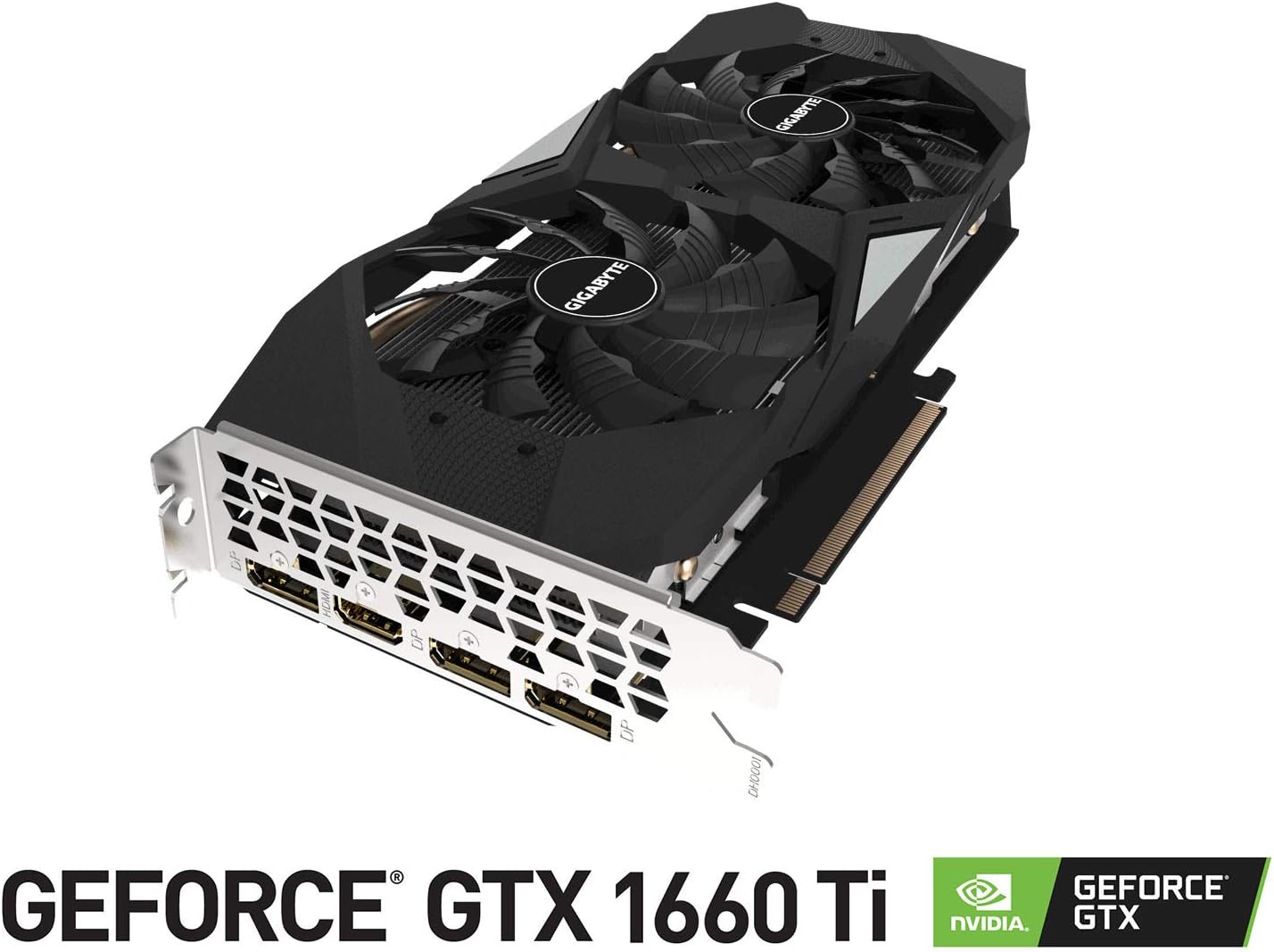
The GIGABYTE GeForce GTX 1660 Ti Windforce OC 6G is designed for enhanced graphics performance, featuring:
- Powered by GeForce GTX 1660 Ti integrated with 6GB GDDR6
- Windforce 2x cooling system with alternate spinning fans
- Intuitive controls with AORUS engine
- 6GB 192-bit GDDR6 memory interface
- Multiple display outputs: 1 x HDMI, 3 x DisplayPort
- PCI Express 3.0 x16 interface
2. Co znajduje się w pudełku
Sprawdź, czy w opakowaniu znajdują się wszystkie elementy:
- GIGABYTE GeForce GTX 1660 Ti Windforce OC 6G Graphics Card
- Instrukcja obsługi
3. Specyfikacje
| Funkcja | Specyfikacja |
|---|---|
| Jednostka przetwarzania grafiki | NVIDIA GeForce GTX 1660 Ti |
| Pamięć wideo | 6 GB pamięci GDDR6 |
| Prędkość pamięci | 12000MHz |
| Interfejs pamięci | 192-bit |
| Maksymalna rozdzielczość ekranu | 7680x4320 |
| Porty wyjściowe | 1 x HDMI 2.0B, 3 x DisplayPort 1.4 |
| Standardowy autobus | PCI Express 3.0 x16 |
| Układ chłodzenia | WINDFORCE 2X z wentylatorami obracającymi się naprzemiennie |
| Wymiary (dł. x szer. x wys.) | 10.43 x 4.76 x 1.57 cala |
| Waga przedmiotu | 15.9 uncji |
4. Konfiguracja i instalacja
Before proceeding with the installation, ensure your system meets the minimum requirements and that your power supply unit (PSU) has sufficient wattage and the necessary PCIe power connectors.
4.1 Kontrole przed instalacją
- Wyłączone: Wyłącz komputer i odłącz przewód zasilający od gniazdka ściennego.
- Otwarta sprawa: Zdejmij boczny panel obudowy komputera.
- Wyładowanie statyczne: Ground yourself by touching a metal part of your computer chassis to discharge any static electricity.
- Luz: Ensure there is enough physical space in your case for the graphics card.
4.2 Fizyczna instalacja
- Znajdź wolne gniazdo PCI Express 3.0 x16 na płycie głównej.
- Remove any expansion slot covers that correspond to the graphics card's size (typically two slots).
- Carefully align the graphics card with the PCIe slot and press down firmly until it is securely seated. A click may be heard.
- Przymocuj kartę graficzną do obudowy za pomocą śrub.
- Connect the appropriate PCIe power cable(s) from your power supply to the graphics card. This model typically requires an 8-pin connector.
- Załóż ponownie boczny panel obudowy komputera.
4.3 Instalacja sterownika
- Connect your monitor to one of the graphics card's output ports (HDMI or DisplayPort).
- Włącz komputer.
- Once the operating system loads, download the latest drivers from the official GIGABYTE or NVIDIA webstrona.
- Aby dokończyć instalację sterownika, postępuj zgodnie z instrukcjami wyświetlanymi na ekranie.
- Uruchom ponownie komputer, aby zastosować zmiany.
5. Obsługa karty graficznej
Once installed and drivers are updated, your GIGABYTE GeForce GTX 1660 Ti is ready for use. It will automatically handle graphics processing for applications and games. For optimal performance, ensure your operating system and game titles are up-to-date.
You can use NVIDIA's control panel or GIGABYTE's AORUS Engine software to monitor performance, adjust fan curves, and customize settings for specific applications or games.
6. Konserwacja
Właściwa konserwacja zapewnia długowieczność i optymalną wydajność karty graficznej.
- Czyszczenie kurzu: Regularly clean dust from the fans and heatsink using compressed air. Ensure the computer is powered off and unplugged before cleaning.
- Aktualizacje sterowników: Aktualizuj sterowniki karty graficznej, aby korzystać z ulepszeń wydajności i poprawek błędów.
- Monitorowanie temperatury: Używaj oprogramowania monitorującego, aby monitorować temperaturę procesora graficznego, szczególnie podczas dużych obciążeń. Zadbaj o odpowiedni przepływ powietrza w obudowie komputera.
- Kontrola fizyczna: Periodically check for any loose cables or connections.
7. Rozwiązywanie Problemów
Jeśli masz problemy z kartą graficzną, wypróbuj poniższe kroki rozwiązywania problemów:
- Brak wyświetlacza: Ensure the monitor cable is securely connected to the graphics card and the monitor is powered on. Verify the graphics card is fully seated in the PCIe slot and power cables are connected.
- Problemy ze sterownikiem: Reinstall the latest drivers from the official GIGABYTE or NVIDIA website. Try using Display Driver Uninstaller (DDU) to completely remove old drivers before installing new ones.
- Przegrzanie: Check for proper airflow in your PC case. Clean dust from the graphics card fans and heatsink. Ensure fan speeds are adequate using monitoring software.
- Problemy z wydajnością: Ensure your game or application settings are not excessively high for the card's capabilities. Check for background applications consuming resources.
- Niestabilność systemu: If your system crashes or freezes, ensure your power supply unit (PSU) is sufficient for the graphics card and other components. Check for any conflicts with other hardware.
8. Zdjęcia produktów



9. Filmy produktowe
10. Gwarancja i wsparcie
GIGABYTE products are covered by a limited warranty. For detailed warranty terms and conditions, please refer to the official GIGABYTE weblub kartę gwarancyjną dołączoną do produktu. Zachowaj dowód zakupu na wypadek roszczeń gwarancyjnych.
For technical support, driver downloads, and further assistance, visit the official GIGABYTE support page. You can also find FAQs and community forums for common issues and solutions.


