1. Wprowadzenie
This manual provides detailed instructions for the setup, operation, and maintenance of your CHERRY DW 5100 Wireless Keyboard and Mouse Combo. Please read this manual thoroughly before using the product to ensure optimal performance and longevity.
Zawartość opakowania
The CHERRY DW 5100 package includes the following items:
- CHERRY DW 5100 Wireless Keyboard
- CHERRY DW 5100 Wireless Mouse
- Odbiornik USB
- 4 x AAA Batteries (2 for keyboard, 2 for mouse)
- Instrukcja obsługi (ten dokument)

Image 1.1: The CHERRY DW 5100 Wireless Keyboard and Mouse Combo. The image displays the full-size black keyboard with a numeric keypad and media keys, alongside the ergonomic black wireless mouse.
2. Konfiguracja
2.1 Instalacja baterii
The CHERRY DW 5100 keyboard and mouse require AAA batteries for operation. Two AAA batteries are needed for the keyboard and two for the mouse.
- Dla klawiatury: Locate the battery compartment on the underside of the keyboard. Open the cover, insert two AAA batteries, ensuring correct polarity (+/-), and close the cover.
- Dla myszy: Locate the battery compartment on the underside of the mouse. Open the cover, insert two AAA batteries, ensuring correct polarity (+/-), and close the cover.

Image 2.1: The CHERRY DW 5100 Wireless Mouse shown with its USB receiver. The receiver is compact and designed to be plugged into a computer's USB port.
2.2 Podłączanie urządzeń
The keyboard and mouse connect wirelessly to your computer via a single USB receiver.
- Podłącz odbiornik USB do wolnego portu USB w komputerze.
- Ensure the keyboard and mouse are powered on (check for an on/off switch, usually on the underside).
- Twój komputer powinien automatycznie wykryć i zainstalować niezbędne sterowniki. Ten proces może potrwać chwilę.
- Once drivers are installed, the keyboard and mouse are ready for use.
The wireless connection operates on a 2.4 GHz frequency, providing a range of up to 10 meters (approximately 33 feet).
3. Instrukcja obsługi
3.1 Funkcje klawiatury
The CHERRY DW 5100 keyboard features a standard QWERTY layout with 10 additional keys for enhanced functionality.
Obraz 3.1: Zbliżenie view of the CHERRY DW 5100 Wireless Keyboard. This image highlights the full QWERTY layout, numeric keypad, and the additional function keys located above the numeric pad and below the spacebar.
Dodatkowe klucze:
- Sterowanie multimediami: Dedicated keys for volume up, volume down, mute, play/pause, previous track, and next track.
- Application Shortcuts: Keys for launching common applications such as email, web browser, and calculator.
- Tryb uśpienia: A key to put your computer into sleep mode.
Refer to your operating system's settings for potential customization of these additional keys.
3.2 Funkcje myszy
The CHERRY DW 5100 mouse is ergonomically designed for right-handed users and features multiple buttons for efficient navigation.

Obraz 3.2: Góra view of the CHERRY DW 5100 Wireless Mouse. This image shows the left and right click buttons, the scroll wheel, and the DPI switch button located below the scroll wheel.
- Kliknięcie lewym/prawym przyciskiem: Standardowe przyciski myszy.
- Kółko przewijania: Do przewijania w pionie i jako środkowy przycisk kliknięcia.
- Przełącznik DPI: Located below the scroll wheel, this button allows you to adjust the mouse's resolution (DPI) on the fly, changing cursor speed and precision. Press the button to cycle through available DPI settings.
- Przyciski kciuka: Two side buttons located on the left side of the mouse, typically used for "back" and "forward" navigation in web przeglądarki i file odkrywcy.
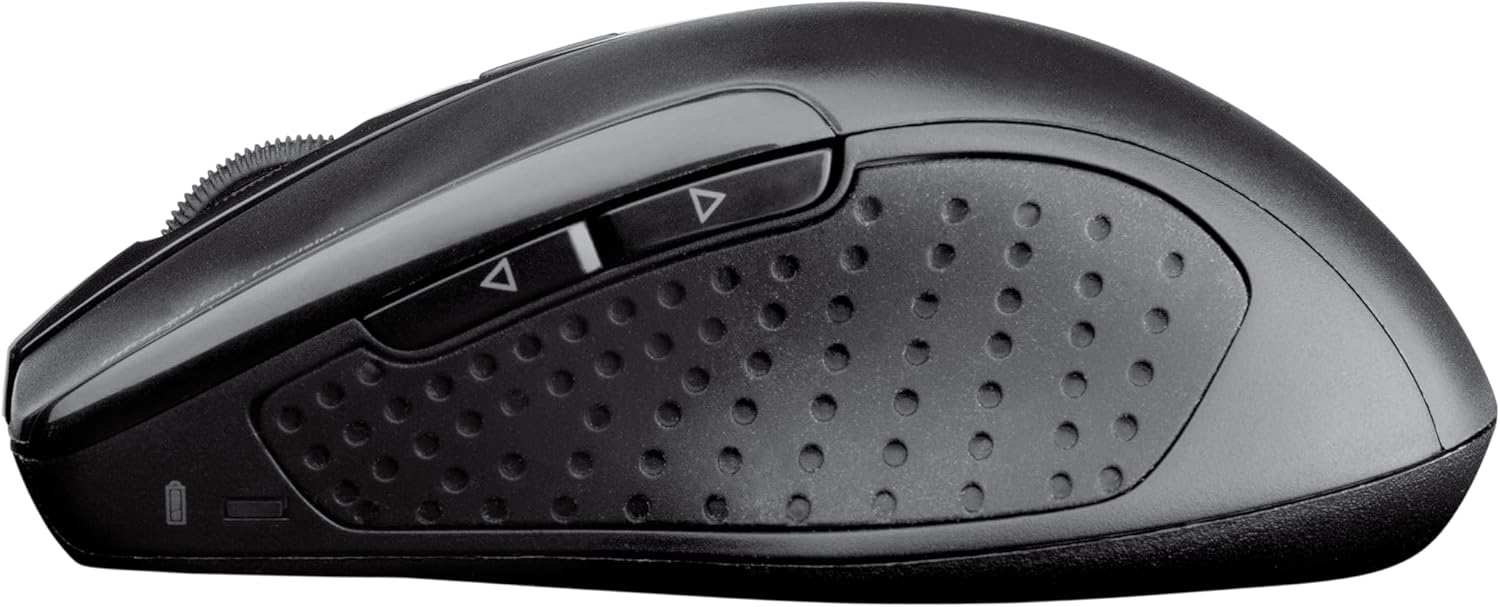
Obraz 3.3: Bok view of the CHERRY DW 5100 Wireless Mouse. This image clearly shows the two thumb buttons on the left side and the textured rubber grip for enhanced comfort and control.
4. Konserwacja
4.1 Czyszczenie
- Przed czyszczeniem odłącz odbiornik USB od komputera.
- Użyj miękkiej, niestrzępiącej się ściereczki, lekko wyczyśćampPrzetrzyj powierzchnię klawiatury i myszy wodą lub łagodnym środkiem czyszczącym.
- Avoid using harsh chemicals, abrasive cleaners, or solvents, as these can damage the product's finish.
- For cleaning between keyboard keys, use compressed air to remove dust and debris.
4.2 Wymiana baterii
The CHERRY DW 5100 is designed for a long battery life of up to two years. When batteries are low, the performance may degrade, or the devices may stop responding.
- Replace batteries as described in Section 2.1.
- Always use fresh, high-quality AAA alkaline batteries.
- Zużyte baterie należy utylizować zgodnie z lokalnymi przepisami.
5. Rozwiązywanie Problemów
| Problem | Możliwa przyczyna | Rozwiązanie |
|---|---|---|
| Klawiatura/mysz nie reaguje |
|
|
| Laggy or erratic mouse movement |
|
|
| Keyboard keys not registering |
|
|
6. Specyfikacje
| Funkcja | Szczegół |
|---|---|
| Nazwa modelu | CHERRY DW 5100 |
| Numer modelu przedmiotu | JD-0520EU-2 |
| Technologia łączności | Bezprzewodowa (2.4 GHz) |
| Zasięg bezprzewodowej | Do 10 metrów (33 stóp) |
| Układ klawiatury | EU Layout, QWERTY |
| Additional Keyboard Keys | 10 multimedia and application keys |
| Typ myszy | Ergonomic, Right-handed, 6-button with DPI switch |
| Źródło zasilania | Zasilany bateryjnie |
| Wymagane baterie | 4 x AAA (2 for keyboard, 2 for mouse) |
| Szacowana żywotność baterii | Do 2 lat |
| Kompatybilne systemy operacyjne | Windows 10, Windows 7, Windows 8 |
| Platforma sprzętowa | komputer osobisty, laptop |
| Kolor | Czarny |
| Wymiary produktu (klawiatura) | Około 18.43 x 6.7 x 0.87 cala (46.8 x 17 x 2.2 cm) |
| Waga przedmiotu | Około 2.05 funta (0.93 kg) |
| Producent | WIŚNIOWY |
7. Gwarancja i wsparcie
Aby uzyskać informacje dotyczące gwarancji i pomocy technicznej, zapoznaj się z oficjalną stroną Cherry website or contact their customer service department. Details can typically be found on the product packaging or on the manufacturer's webstrona.
Producent: WIŚNIOWY
Webstrona: www.cherry.de/en/ (General Cherry website, specific support link may vary by region)


