1. Wprowadzenie
This manual provides essential information for setting up, operating, maintaining, and troubleshooting your Alienware 17 R3 laptop. This high-performance gaming laptop features an Intel Core i7-6820HK processor, a 17.3-inch UHD (3840x2160) IPS-Panel Anti-Glare Display, NVIDIA GeForce GTX 980M graphics with 8GB GDDR5, 32GB DDR4 RAM, and a dual storage solution with a 256GB PCIe SSD and a 1TB 7200rpm HDD. It comes pre-installed with Windows 10 (64Bit) English.
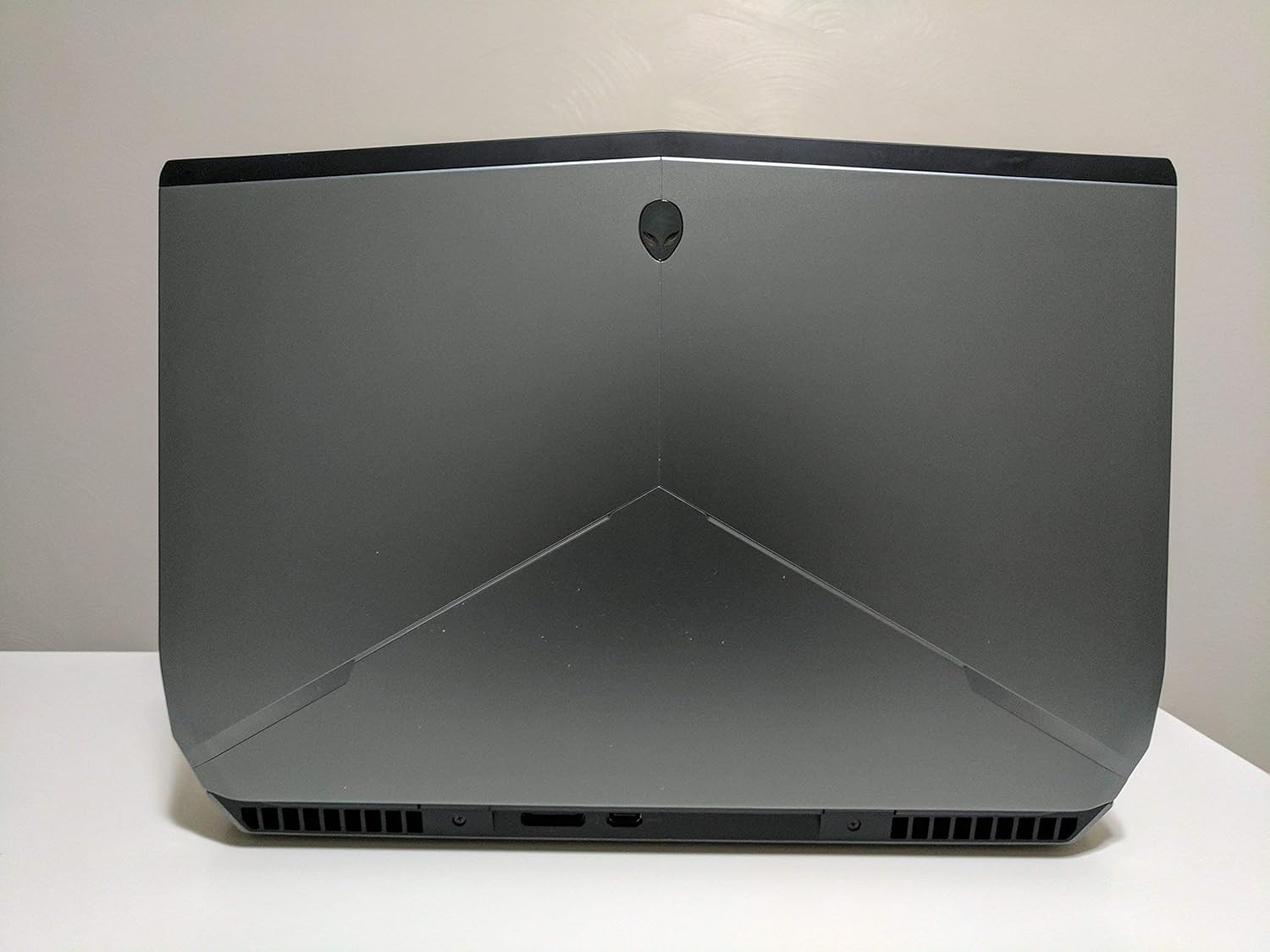
Rysunek 1: Tył view of the Alienware 17 R3 laptop, highlighting its distinctive design and cooling vents.
2. Konfiguracja
2.1 Rozpakowanie i wstępna inspekcja
Carefully remove your Alienware 17 R3 laptop and its accessories from the packaging. Ensure all components listed below are present:
- Alienware 17 R3 Laptop
- Alienware 240W AC Adapter
- Przewód zasilający
- 8 Cell 92W Hour Battery (may be pre-installed)
- Dokumentacja (skrócony przewodnik, informacje dotyczące bezpieczeństwa)
2.2 Podłączanie zasilacza
Connect the Alienware 240W AC Adapter to the power input port on the laptop, typically located at the rear or side. Plug the power cord into the AC adapter and then into a grounded electrical outlet. The laptop can be operated on battery power, but it is recommended to connect the AC adapter for initial setup and optimal performance.

Rycina 2: Przód view of the Alienware 17 R3 laptop, ready for initial power-on.
2.3 Initial Boot-up and Windows 10 Setup
Press the power button, usually located on the top right of the keyboard deck or a dedicated button. The laptop will power on and guide you through the Windows 10 initial setup process. Follow the on-screen instructions to configure language, region, network settings, and user accounts.
2.4 Łączenie się z siecią bezprzewodową
During the Windows 10 setup, you will be prompted to connect to a Wi-Fi network. Select your desired network from the list and enter the password if required. The laptop features Killer 1535 802.11ac 2x2 WiFi for robust wireless connectivity.
3. Operating Your Alienware 17 R3
3.1 Klawiatura i touchpad
The Alienware 17 R3 features an English keyboard with Alienware's signature design and backlighting. It also includes 6 programmable Macro module keys, which can be customized for various functions using Alienware's software. The precision touchpad supports multi-touch gestures for intuitive navigation.
3.2 Ustawienia wyświetlania
Your laptop is equipped with a 17.3-inch UHD (3840x2160) IPS-Panel Anti-Glare Display. To adjust display settings such as resolution, brightness, and color profiles, right-click on the desktop and select 'Display settings' or access them via the Windows Settings menu.
3.3 Podłączanie urządzeń zewnętrznych
The Alienware 17 R3 offers various ports for connecting peripherals:
- Porty USB: For connecting external storage, mice, keyboards, and other USB devices.
- HDMI/DisplayPort: For connecting external monitors or projectors.
- Port Ethernet: Do przewodowych połączeń sieciowych.
- Gniazda audio: For headphones, microphones, or external speakers.

Figure 3: Left side of the Alienware 17 R3, illustrating available connectivity ports.

Figure 4: Right side of the Alienware 17 R3, showing additional connectivity options.
4. Konserwacja
4.1 Czyszczenie laptopa
Aby zachować optymalną wydajność i wygląd laptopa, regularnie czyść go. Używaj miękkiej, niepozostawiającej włókien ściereczki, delikatnie przecierając.ampened with water or a specialized screen cleaner for the display. For the chassis and keyboard, use a dry, soft cloth. Avoid harsh chemicals or abrasive materials.
4.2 Pielęgnacja baterii
The Alienware 17 R3 is equipped with an 8 Cell 92W Hour Battery. To prolong battery life, avoid extreme temperatures and allow the battery to discharge partially before recharging. For long-term storage, ensure the battery is charged to approximately 50%.
4.3 Aktualizacje oprogramowania
Regularly update your Windows 10 operating system and device drivers to ensure security, stability, and optimal performance. Windows Update can be accessed through the Settings menu. Alienware Command Center or Dell SupportAssist can help manage driver updates.
4.4 Zarządzanie magazynem
Your laptop features a 256GB PCIe SSD for fast boot times and application loading, complemented by a 1TB 7200rpm SATA HDD for mass storage. Regularly manage your files, uninstall unused programs, and consider disk cleanup tools to maintain storage efficiency.
5. Rozwiązywanie Problemów
This section addresses common issues you might encounter with your Alienware 17 R3.
5.1 Problemy z zasilaniem
- Laptop się nie włącza: Ensure the AC adapter is securely connected to both the laptop and a working power outlet. Check if the power outlet is functional. Try a different power outlet.
- Bateria nie ładuje się: Verify the AC adapter connection. Check the battery status in Windows. If the issue persists, contact support.
5.2 Problemy z wyświetlaniem
- Brak obrazu na ekranie: Ensure the laptop is powered on. Try connecting an external monitor to check if the issue is with the laptop's display or the graphics card.
- Incorrect resolution or flickering: Zaktualizuj sterowniki karty graficznej. Dostosuj ustawienia wyświetlania w systemie Windows.
5.3 Problemy z łącznością sieciową
- Nie można połączyć się z Wi-Fi: Ensure Wi-Fi is enabled. Restart your router and modem. Check network adapter drivers.
- Slow internet speed: Check your internet service provider. Ensure no other devices are consuming excessive bandwidth.
5.4 Problemy z wydajnością
- Laptop jest wolny: Close unnecessary applications. Check for background processes consuming high CPU or RAM. Ensure sufficient free space on the SSD.
- Przegrzanie: Ensure ventilation grilles are not blocked. Clean dust from vents. Consider using a cooling pad.
6. Specyfikacje
Detailed technical specifications for the Alienware 17 R3 (Model 6820HK):
| Funkcja | Specyfikacja |
|---|---|
| Edytor | Intel Core i7-6820HK (8M Cache, unlocked up to 4.10 GHz) |
| Wyświetlacz | 17.3-inch UHD (3840x2160) IPS-Panel Anti-Glare Display |
| Grafika | NVIDIA GeForce GTX 980M with 8GB GDDR5 |
| BARAN | 32GB Dual Channel DDR4 2133MHz (2 x 16GB) |
| Składowanie | 256GB PCIe SSD + 1TB 7200rpm SATA 6Gb/s HDD |
| System operacyjny | Windows 10 (64Bit) English |
| Łączność bezprzewodowa | Killer 1535 802.11ac 2x2 WiFi and Bluetooth 4.1 |
| Bateria | 8 Cell 92W Hour Battery |
| Zasilacz | Alienware 240W AC Adapter |
| Klawiatura | English Keyboard with 6 programmable Macro module keys |
| Waga przedmiotu | Około 15 funta (6.8 kg) |
| Wymiary | Approximately 7.87 x 6.69 x 1.97 inches (20 x 17 x 5 cm) - Package Dimensions |
7. Gwarancja i wsparcie
7.1 Ograniczona gwarancja
Your Alienware 17 R3 comes with a 1 rok ograniczonej gwarancji. This warranty covers manufacturing defects and hardware failures under normal use conditions. Please refer to the warranty documentation included with your product for full terms and conditions.
7.2 Serwis i wsparcie
Produkt zawiera:
- In-Home Service after Remote Diagnosis: Parts and Labor On-Site Response, Initial Year.
- Dell Hardware Warranty Plus On-Site Service: Initial Year.
- Wsparcie gwarancyjne: Initial Year.
For technical assistance, troubleshooting, or to initiate a warranty claim, please visit the official Alienware or Dell support website. You will typically need your service tag or express service code, found on a label on your laptop, to access personalized support resources.
Notatka: W udostępnionych danych, które można osadzić w niniejszej instrukcji, nie ma oficjalnych filmów produktowych.


