Wstęp
The ASTRO Gaming A40 TR Headset and MixAmp Pro TR are designed to provide a high-fidelity audio experience for gaming on PlayStation 4 and PC. The A40 TR headset offers user customization, allowing transformation from an open-back to a closed-back noise-canceling headset with optional Mod Kits. The MixAmp Pro TR features all-digital components for clear, interference-free audio and voice communication, with customizable settings via the ASTRO Command Center software.

Image: The ASTRO Gaming A40 TR Headset and MixAmp Pro TR, showcasing both components together. The headset is black with gold accents, and the MixAmp is a compact black unit with control dials.
Zawartość opakowania
Sprawdź, czy w opakowaniu Twojego produktu znajdują się wszystkie elementy wymienione poniżej:
- ASTRO A40 TR Headset
- ASTRO MixAmp Pro TR
- A40 TR Inline Mute Cable (2.0m)
- TOSlink Optical Cable (3.0m)
- Micro-USB Cable (3.0m)
- Digital Daisy Chain Cable (0.5m)
- Swappable Microphone
Organizować coś
Łączenie z PlayStation 4 (PS4)
- Połącz TOSlink Optical Cable from the MixAmp Pro TR's OPTICAL port to the PS4's Optical Out port.
- Połącz Kabel micro-USB from the MixAmp Pro TR's USB port to an available USB port on the PS4.
- Połącz A40 TR Inline Mute Cable from your A40 TR Headset to the headset port on the front of the MixAmp Pro TR.
- On your PS4, navigate to Settings > Sound and Screen > Audio Output Settings.
- Ustawić Główny port wyjściowy Do Cyfrowe wyjście optyczne).
- Wybierać Dolby Digital (Bitstream) for the audio format.
- Idź do Ustawienia > Urządzenia > Urządzenia audio.
- Ustawić Urządzenie wejściowe Do USB Headset (ASTRO MixAmp Pro TR).
- Ustawić Urządzenie wyjściowe Do USB Headset (ASTRO MixAmp Pro TR).
- Regulować Regulacja głośności (słuchawki) do maksimum.
- Ustawić Wyjście na słuchawki Do Dźwięk na czacie or Wszystkie audio as preferred.
Łączenie z komputerem
- Połącz Kabel micro-USB from the MixAmp Pro TR's USB port to an available USB port on your PC.
- Połącz A40 TR Inline Mute Cable from your A40 TR Headset to the headset port on the front of the MixAmp Pro TR.
- On your PC, ensure the MixAmp Pro TR is selected as the default playback and recording device in your sound settings.
- Pobierz i zainstaluj ASTRO Command Center software from the official ASTRO Gaming website to customize settings, update firmware, and manage EQ presets.
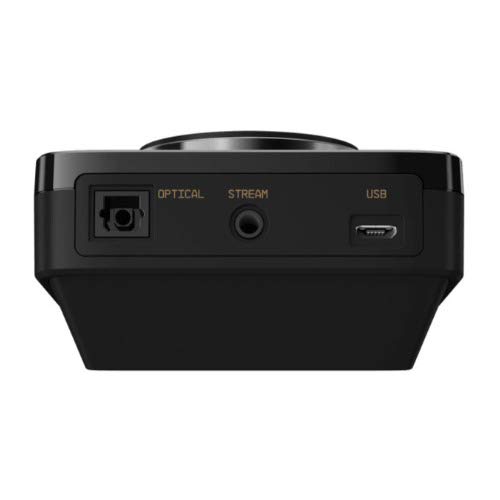
Obraz: Tył view of the ASTRO MixAmp Pro TR, highlighting the Optical, USB, AUX, and Stream ports for various connections.
Operating the MixAmp Pro TR
MieszankaAmp Pro TR provides intuitive controls for managing your audio experience:
- Pokrętło głośności głównej: The large dial on the left controls the overall volume of your headset. Rotate clockwise to increase volume, counter-clockwise to decrease.
- Game/Voice Balance Dial: The smaller dial on the right allows you to adjust the balance between game audio and voice chat.
- Rotate towards "GAME" to prioritize game audio.
- Rotate towards "VOICE" to prioritize voice chat.
- EQ Presets Button: Located in the center, this button cycles through four customizable equalizer presets. The active preset is indicated by the illuminated icon (star, headphone, etc.). These presets can be configured using the ASTRO Command Center software.
- Dolby Button: Activates or deactivates Dolby Surround Sound. When active, the Dolby logo will illuminate.
- Przycisk wyciszenia mikrofonu: Located on the A40 TR Inline Mute Cable, this switch mutes or unmutes your microphone. When muted, the MixAmp's volume dials will typically glow red.
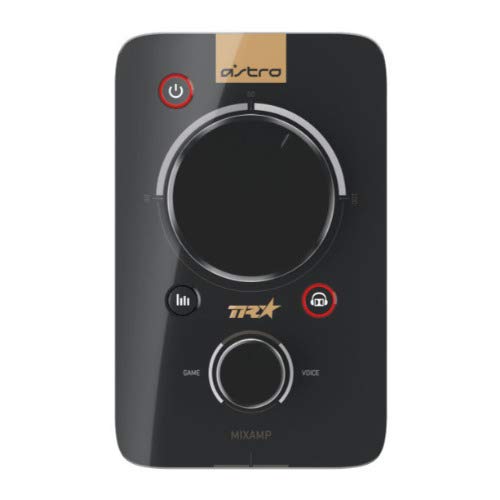
Obraz: Góra view of the ASTRO MixAmp Pro TR, showing the large master volume dial, the smaller game/voice balance dial, and the EQ preset buttons.
Konserwacja
- Czyszczenie: Use a soft, dry cloth to clean the headset and MixAmpUnikaj środków czyszczących o właściwościach ściernych i rozpuszczalników.
- Składowanie: Store the headset and MixAmp w chłodnym i suchym miejscu, z dala od bezpośredniego światła słonecznego i ekstremalnych temperatur.
- Pielęgnacja kabli: Obchodź się z kablami ostrożnie, aby zapobiec ich uszkodzeniu. Unikaj ostrego zginania i nadmiernego ciągnięcia.
- Poduszki nauszne: Periodically check ear cushions for wear and tear. Replacement cushions are available from ASTRO Gaming.
Rozwiązywanie problemów
If you encounter issues with your ASTRO Gaming A40 TR Headset or MixAmp Pro TR, try the following solutions:
| Problem | Rozwiązanie |
|---|---|
| Brak dźwięku w zestawie słuchawkowym. |
|
| Mikrofon nie działa. |
|
| Zniekształcona lub słaba jakość dźwięku. |
|
For more detailed troubleshooting, please refer to the official ASTRO Gaming support resources.
Specyfikacje
- Numer modelu: 939-001511
- Pasmo przenoszenia: 20 - 20,000 Hz
- Impedancja nominalna: 48 omy
- Ciśnienie pałąka: 2.6N
- Wymiary produktu: 9.06 x 13.87 x 4.33 cala
- Waga przedmiotu: 1.06 funta
- Łączność: Optyczny, USB
- Zgodność: PlayStation 4, komputer
Gwarancja i wsparcie
For detailed warranty information and product support, please visit the official ASTRO Gaming webodwiedź witrynę lub zapoznaj się z udostępnioną dokumentacją:
Ensure you register your product on the ASTRO Gaming website for the latest updates and support.


