Wstęp
This manual provides essential information for the operation and maintenance of your Visual Land Prestige ELITE 7Q-KC tablet. Please read this manual thoroughly before using your device to ensure proper functionality and longevity.
The Prestige ELITE 7Q-KC is a 7-inch Quad Core Android tablet designed for portable use, offering smooth performance for streaming, web browsing, and various applications. It features a 7-inch screen with 5-point capacitive multi-touch and 8GB of internal storage.
Organizować coś
1. Rozpakowanie i wstępna kontrola
Ostrożnie wyjmij wszystkie elementy z opakowania. Sprawdź, czy wszystkie wymienione poniżej elementy są obecne i nieuszkodzone:
- Prestige ELITE 7Q-KC Tablet
- Osłona na klawiaturę
- Zasilacz
- Kabel USB
- Instrukcja obsługi (ten dokument)
2. Ładowanie tabletu
Before first use, fully charge the tablet. Connect the power adapter to the tablet's charging port and plug it into a power outlet. The charging indicator will illuminate. A full charge typically takes approximately 3-4 hours.
3. Attaching the Keyboard Case
Align the tablet with the designated slot in the keyboard case. Gently press the tablet into place until it is securely seated. The keyboard connects via a USB port on the tablet.
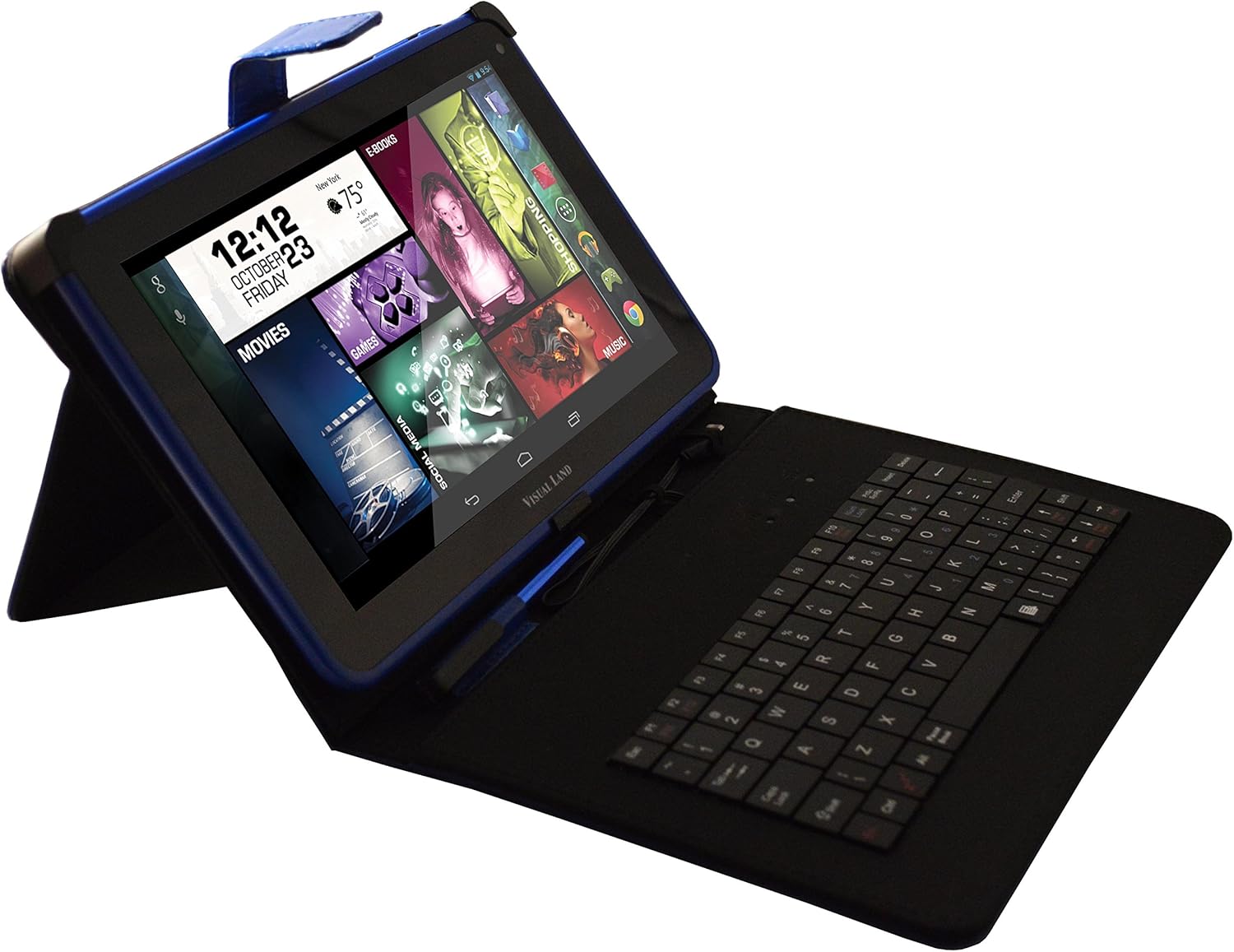
Image: Prestige ELITE 7Q-KC tablet inserted into its matching blue keyboard case, viewed from an angle, showing the tablet screen and the physical keyboard.
4. Włączanie i konfiguracja początkowa
Press and hold the power button located on the side of the tablet until the screen illuminates. Follow the on-screen prompts to complete the initial setup, including language selection, Wi-Fi connection, and Google account setup.
Instrukcja obsługi
1. Podstawowa nawigacja
The tablet operates on Android 4.4 KitKat. Use touch gestures for navigation:
- Uzyskiwać: Wybierz element lub otwórz aplikację.
- Trzepnąć: Przewijaj ekrany lub listy.
- Powiększanie za pomocą szczypania: Powiększ lub pomniejsz obrazy lub web stron.
- Długie naciśnięcie: Uzyskaj dostęp do menu kontekstowych i przenieś ikony.
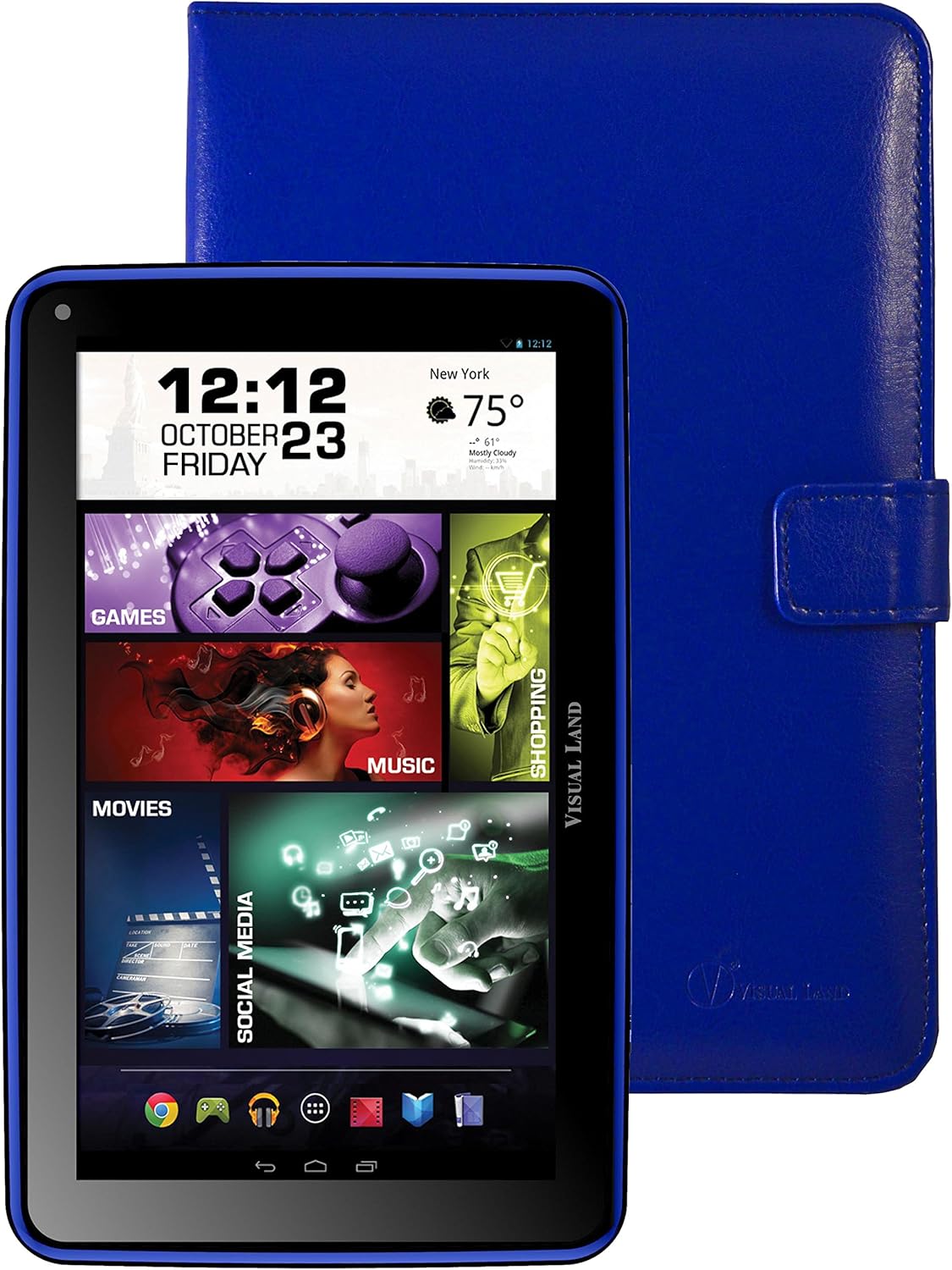
Obraz: Przód view of the Prestige ELITE 7Q-KC tablet displaying the Android home screen with various app icons and widgets, including a clock, weather, and media shortcuts.
2. Łączenie z Wi-Fi
- Idź do Ustawienia.
- Wybierać Wi-Fi.
- Przełącz Wi-Fi On.
- Wybierz żądaną sieć z listy i wprowadź hasło, jeśli jest wymagane.
3. Using the Keyboard Case
Once connected, the keyboard case functions as a standard external keyboard. Ensure the tablet is properly seated and the USB connection is firm. The keyboard allows for faster typing and navigation within applications.
4. Accessing Google Play Store
The tablet comes with Google Play pre-installed. Tap the Sklep Play icon to browse and download applications, games, movies, music, and books. A Google account is required for full access.
Konserwacja
1. Czyszczenie tabletu
Do czyszczenia ekranu i obudowy tabletu używaj miękkiej, niepozostawiającej włókien ściereczki. W przypadku uporczywych plam delikatnie przetrzyj.ampen the cloth with water or a screen cleaner specifically designed for electronics. Avoid using harsh chemicals or abrasive materials.
2. Pielęgnacja baterii
- Unikaj wystawiania tabletu na działanie ekstremalnych temperatur.
- Nie należy dopuszczać do częstego całkowitego rozładowania akumulatora.
- Charge the tablet regularly to maintain battery health.
3. Aktualizacje oprogramowania
Regularnie sprawdzaj dostępność aktualizacji systemu, aby zapewnić optymalną wydajność i bezpieczeństwo. Przejdź do Ustawienia > O tablecie > Aktualizacje systemu.
Rozwiązywanie problemów
| Problem | Możliwa przyczyna | Rozwiązanie |
|---|---|---|
| Tablet się nie włącza. | Niski poziom naładowania baterii; awaria systemu. | Ładuj tablet przez co najmniej 30 minut. Jeśli nadal nie reaguje, naciśnij i przytrzymaj przycisk zasilania przez 10–15 sekund, aby wymusić ponowne uruchomienie. |
| Problemy z połączeniem Wi-Fi. | Nieprawidłowe hasło; poza zasięgiem; problem z routerem. | Verify Wi-Fi password. Move closer to the router. Restart the router and the tablet. |
| Ekran dotykowy nie reaguje. | Tymczasowy błąd oprogramowania; zakłócenia ze strony ochrony ekranu. | Restart the tablet. Ensure the screen is clean. If using a screen protector, ensure it is properly applied or temporarily remove it to test. |
| Klawiatura nie działa. | Loose connection; tablet not recognizing. | Ensure the tablet is securely connected to the keyboard case via the USB port. Restart the tablet. |
If problems persist, refer to the support section or contact customer service.
Specyfikacje
| Funkcja | Szczegół |
|---|---|
| Numer modelu | ME-7Q-KC-8GB-BLU |
| System operacyjny | Android 4.4 KitKat |
| Edytor | 1.2 GHz Quad Core (Allwinner chipset) |
| BARAN | 1 GB DDR3 |
| Pamięć wewnętrzna | 8 GB |
| Rozmiar ekranu | 7 cali |
| Rozdzielczość ekranu | 1024x600 pikseli |
| Łączność bezprzewodowa | 802.11bgn Wi-Fi |
| Porty USB | 1 (USB 2.0) |
| Żywotność baterii | Approximately 8 Hours (average use) |
| Wymiary (dł. x szer. x wys.) | 7.5 x 0.4 x 4.7 cala |
| Waga przedmiotu | 10.6 uncji |
| Kolor | Niebieski |

Obraz: Tył view of the Prestige ELITE 7Q-KC tablet, showing the blue textured back panel and port labels for USB, MicroSD, DC, and Mic, along with the "Prestige ELITE 7Q" branding.
Gwarancja i wsparcie
For warranty information and technical support, please refer to the documentation included with your purchase or visit the official Visual Land webZachowaj dowód zakupu na wypadek roszczeń gwarancyjnych.
Visual Land Official Store: Sklep Visual Land na Amazon


