1. Wprowadzenie
The SteelSeries Sensei Laser Gaming Mouse is designed for precision and customization, catering to both casual and competitive gamers. It features an advanced laser sensor, an ambidextrous design, and extensive customization options through its dedicated software. This manual provides detailed instructions for setup, operation, maintenance, and troubleshooting to ensure optimal performance of your device.

Obraz 1: Widok z góry na dół view of the SteelSeries Sensei Laser Gaming Mouse, showcasing its sleek grey finish and central scroll wheel.
2. Zawartość opakowania
Sprawdź, czy w przesyłce znajdują się wszystkie elementy:
- SteelSeries Sensei Laser Gaming Mouse
- Szybki przewodnik (jeśli dołączony)

Image 2: Retail packaging for the SteelSeries Sensei Laser Gaming Mouse, displaying the product name and brand logo.
3. Konfiguracja
3.1 Połączenie sprzętowe
- Unpack the SteelSeries Sensei Laser Gaming Mouse from its packaging.
- Connect the USB cable of the mouse to an available USB port on your computer. The mouse is plug-and-play compatible, and your operating system should automatically detect and install the necessary basic drivers.
3.2 Software Installation (SteelSeries Engine)
For full customization and advanced features, it is recommended to install the SteelSeries Engine software:
- Visit the official SteelSeries webStrona (steelseries.com/silnik) to download the latest version of the SteelSeries Engine software.
- Aby zainstalować oprogramowanie, postępuj zgodnie z instrukcjami wyświetlanymi na ekranie.
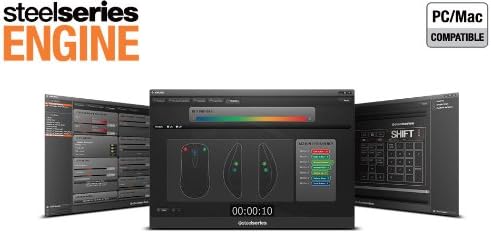
- Once installed, launch the SteelSeries Engine to configure your mouse settings, including CPI, button assignments, macros, and lighting effects.
Obraz 3: Dół view of the SteelSeries Sensei Laser Gaming Mouse, showing the laser sensor and product information label.
4. Korzystanie z myszy
4.1 Konstrukcja oburęczna
The Sensei mouse features an ambidextrous shape, making it comfortable for both left-handed and right-handed users. The side buttons are mirrored on both sides to accommodate different grip styles and preferences.
4.2 programowalne przyciski
The mouse is equipped with 7 programmable buttons. These buttons can be customized using the SteelSeries Engine software to perform various functions, including:
- Standard mouse clicks (left, right, middle)
- Keyboard key assignments
- Complex macros
- CPI switching

Obraz 4: Bok view of the SteelSeries Sensei Laser Gaming Mouse, highlighting the two programmable side buttons.
4.3 CPI Adjustment
The Sensei mouse allows for on-the-fly CPI (Counts Per Inch) adjustment. The dedicated CPI indicator button, typically located behind the scroll wheel, allows you to cycle between two user-defined CPI settings. These settings can be configured within the SteelSeries Engine software to match your preferred sensitivity levels for different tasks or games.
4.4 Oświetlenie
The mouse features three-zone illumination: the scroll wheel, the CPI indicator, and the SteelSeries logo. The color and lighting effects (e.g., steady, pulse) for these zones can be customized through the SteelSeries Engine software.
5. SteelSeries Engine Software
The SteelSeries Engine is a powerful software suite that unlocks the full potential of your Sensei mouse. Key functionalities include:
- Mapowanie przycisków: Assign any function, keyboard key, or macro to any of the 7 programmable buttons.
- CPI Settings: Fine-tune and save multiple CPI profiledla różnych aplikacji i gier.
- Edytor makr: Create and manage complex macros for in-game actions or productivity tasks.
- Częstotliwość sondowania: Dostosuj częstotliwość sondowania myszy, aby uzyskać optymalną reakcję.
- Kontrola oświetlenia: Customize LED colors and effects for the scroll wheel, CPI indicator, and logo.
- Zawodowiecfile Kierownictwo: Utwórz i zapisz wiele profiles, allowing you to switch between different configurations quickly.
- Aktualizacje oprogramowania układowego: Keep your mouse's firmware up-to-date for improved performance and new features.

Image 5: Screenshot of the SteelSeries Engine software interface, showing options for button mapping, CPI adjustment, and lighting customization.
6. Konserwacja
To ensure the longevity and optimal performance of your SteelSeries Sensei mouse, follow these maintenance guidelines:
- Czyszczenie: Do przecierania powierzchni myszy użyj miękkiej, suchej ściereczki. W przypadku uporczywych zabrudzeń, delikatnie przetrzyj powierzchnię.amp Można użyć ściereczki, ale należy uważać, aby wilgoć nie dostała się do myszy. Unikaj silnych środków chemicznych i ściernych środków czyszczących.
- Pielęgnacja czujnika: Keep the laser sensor on the bottom of the mouse clean and free from dust or debris. Use a cotton swab or compressed air if necessary.
- Zarządzanie kablami: Aby zapobiec uszkodzeniom kabla USB, należy unikać jego ostrego zginania i nadmiernego ciągnięcia.
7. Rozwiązywanie Problemów
If you encounter issues with your SteelSeries Sensei mouse, refer to the following common solutions:
- Mysz nie odpowiada:
- Sprawdź, czy kabel USB jest prawidłowo podłączony do komputera.
- Spróbuj podłączyć mysz do innego portu USB.
- Uruchom ponownie komputer.
- Niespójne śledzenie:
- Wyczyść czujnik laserowy znajdujący się na spodzie myszy.
- Upewnij się, że używasz myszy na odpowiedniej powierzchni (np. podkładce pod mysz).
- Check for dust or debris on your mouse pad.
- Przyciski nie działają:
- Verify button assignments in the SteelSeries Engine software.
- Ensure the software is running correctly and profiles są załadowane.
- Problemy z oprogramowaniem:
- Update the SteelSeries Engine software to the latest version.
- Reinstall the SteelSeries Engine software.
- Check for any available firmware updates for your mouse within the software.
8. Specyfikacje
| Funkcja | Szczegół |
|---|---|
| Marka | Stalowa seria |
| Numer modelu | 62150 |
| Technologia wykrywania ruchu | Laser |
| Technologia łączności | USB |
| Kolor | Szary |
| Platforma sprzętowa | PC |
| Zgodność z systemem operacyjnym | All Major PC Operating Systems |
| Waga przedmiotu | 14.6 uncji |
| Wymiary produktu (dł. x szer. x wys.) | 7.9 x 6.8 x 2.3 cala |
| Programowalne przyciski | 7 |
| Illumination Zones | 3 (Scroll Wheel, CPI Indicator, Logo) |
9. Gwarancja i wsparcie
The SteelSeries Sensei Laser Gaming Mouse is covered by a manufacturer's warranty. For detailed information regarding warranty terms, conditions, and duration, please refer to the warranty card included with your product or visit the official SteelSeries website. For technical support, driver downloads, and frequently asked questions, please visit the SteelSeries support page.
SteelSeries Official Webstrona: steelseries.com.
SteelSeries Support: support.steelseries.com