Wstęp
This manual provides essential information for setting up, operating, and maintaining your Xbox 360 4GB Console with Kinect. The Kinect sensor brings games and entertainment to life in extraordinary new ways, requiring no controller for certain interactions. The console features built-in Wi-Fi for easy connection to Xbox LIVE, offering access to HD movies, TV, and games. It also includes an Xbox 360 Wireless Controller and multiple ports for accessories.
The bundle includes the Xbox 360 4GB S Console, Kinect Sensor for Xbox 360, Kinect Adventures game, Xbox 360 Black Wireless Controller, and an Xbox 360 Composite A/V cable.
Organizować coś
Proper setup ensures optimal performance and an immersive experience with your Xbox 360 and Kinect sensor.
1. Rozpakowanie i ustawienie
Carefully unpack all components. Place your Kinect sensor on a stable surface, centered either on top of or in front of your TV. It can be anywhere from 2 feet to 6 feet off the floor. For smaller spaces, higher placement is generally better. Ensure the sensor is close to the front edge of the surface to allow it to see your full body. Avoid placing the sensor in direct sunlight or near speakers/vibrating surfaces to prevent interference.

Image: Xbox 360 4GB Console with Kinect sensor, wireless controller, power supply, and Kinect Adventures game.
2. Connecting the Console and Sensor
Ensure your Xbox 360 console is plugged into a power outlet.
New Xbox 360 (S Model) with Kinect Bundle:
- Connect the composite A/V cable (or HDMI cable) from your Xbox 360 to your TV.
- Plug the Kinect sensor cable directly into the specially shaped port on the back of your Xbox 360 console.
Original Xbox 360 with Separately Purchased Kinect Sensor:
- If you have a wireless networking adapter, disconnect it.
- Connect the wireless networking adapter cable to the white USB extension cable provided with your Kinect sensor.
- Plug the other end of the extension cable into a USB port on the front of your Xbox 360.
- Plug the Kinect sensor's power USB cable into a USB port on the back of your Xbox 360 console and into a power outlet.
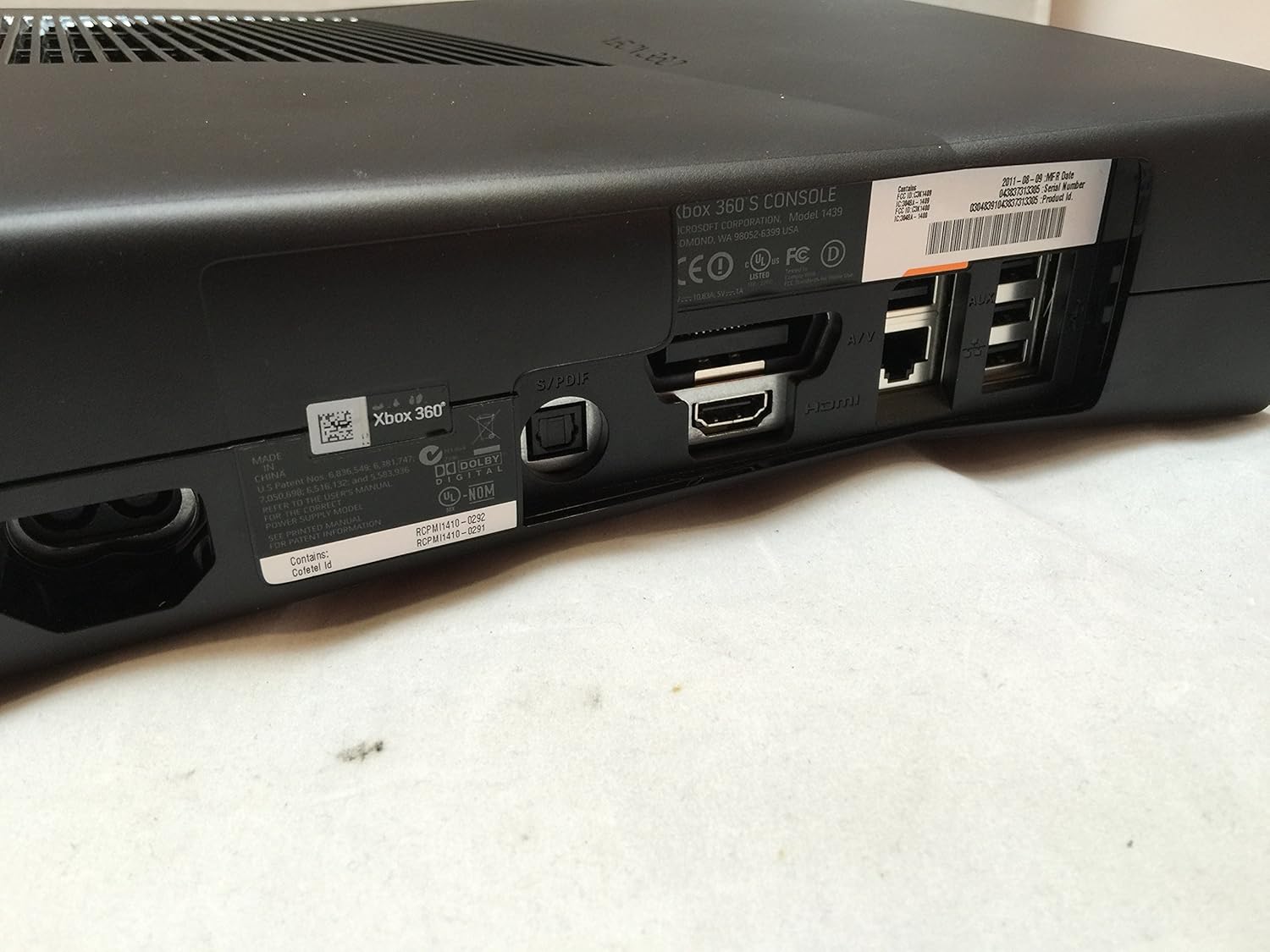
Obraz: Tył view of the Xbox 360 console, highlighting the various connection ports including HDMI, Ethernet, and USB.
3. Włączanie i ustawienia początkowe
Turn on your Xbox 360 console by lightly touching the power button on the front or by pressing and holding the silver Guide button on your wireless controller for half a second.
Video: This video demonstrates the initial hardware setup and power-on process for the Xbox 360 and Kinect.
Follow the on-screen instructions to configure initial settings:
- Wybór języka: Wybierz preferowany język.
- Locale Selection: Select your geographical location.
- Ustawienia wyświetlania: Confirm or adjust your display resolution (e.g., 720p).
- Console Safety: Configure parental controls, including game/movie/TV ratings and family timer settings. You can set a pass code to manage these controls.
4. Network and Xbox LIVE Setup
To maximize your Xbox 360 experience, connect to the internet and Xbox LIVE.
- Połączenie przewodowe: Plug an Ethernet cable into the back of your console.
- Połączenie bezprzewodowe: Select your wireless network from the available networks list and enter your WPA2 pass phrase (password).
Once connected, you can join Xbox LIVE for free. You will be prompted to:
- Join Xbox LIVE: Create a new account by providing an email address and creating a password. An automatic Gamertag will be assigned, which can be customized later.
- Recover Account: If you are an existing Xbox LIVE member.
- Join Later: Skip this step for now.
You may also be offered an upgrade to an Xbox LIVE Gold membership, which provides online multiplayer, early access to demos, exclusive discounts, and access to various online entertainment apps.
5. Kinect Speech Recognition & Chat Setup
The Kinect sensor includes a built-in microphone for voice commands and chat. Follow the on-screen prompts to calibrate it:
- Background Noise Test: Remain as quiet as possible while Kinect tests the ambient noise levels in your room.
- Speaker Volume Check: Ensure your TV speaker volume is at your usual gaming level. Kinect will play a sound to check.
- Microphone Calibration: Kinect will calibrate its microphone. Remain quiet during this process.
- Chat Microphone: Choose to turn the built-in chat microphone on or off for games and Xbox LIVE Parties.
Video: This video guides you through setting up console preferences, network connections, Xbox LIVE accounts, and Kinect's speech recognition.
Operating the Kinect Sensor
The Kinect sensor allows for controller-free interaction with your Xbox 360.
1. Kinect Navigation Gestures
- Waving: To get Kinect's attention, wave your right or left hand. This will often bring up the Kinect Hub in the Xbox dashboard.
- Wybieranie elementów: Move your hand to hover over the item you wish to select. Hold your hand still until a ring forms around the hand icon and completes.
- Guide Gesture: To pause a game or movie, or access the game menu/Kinect Guide, hold your left hand out to the side (approx. 45 degrees from your body) while keeping your right hand down. A guide icon will appear, and a ring will form around it to confirm selection.
2. Polecenia głosowe
You can control your Xbox 360 using voice commands. Say "Xbox" to see available commands at the bottom of your screen. For example, you can say "Xbox Kinect" to open the Kinect Hub, or say the name of any item you see in the hub to select it (e.g., "Xbox Zune"). Remember to say "Xbox" before most commands.
3. Kinect Tuner
The Kinect Tuner helps ensure your system is perfectly calibrated for the best Kinect experience. If you encounter any issues with Kinect's responsiveness, access the Kinect Tuner from the Kinect Hub page by navigating left or right and selecting "Kinect Tuner."
Video: This video demonstrates how to navigate the Xbox 360 dashboard and interact with Kinect using gestures and voice commands.
Konserwacja
To ensure the longevity and optimal performance of your Xbox 360 console and Kinect sensor, follow these general maintenance guidelines:
- Czyszczenie: Use a soft, dry cloth to gently wipe down the console and sensor. Avoid abrasive cleaners or solvents.
- Wentylacja: Ensure the console has adequate ventilation. Do not block the air vents or place the console in an enclosed space.
- Kontrola zapylenia: Regularly dust the console and sensor to prevent dust buildup, which can affect performance and lead to overheating.
- Zarządzanie kablami: Utrzymuj kable w porządku, bez zagięć i nadmiernego naprężenia, aby zapobiec ich uszkodzeniom.
Rozwiązywanie problemów
If you encounter issues with your Xbox 360 or Kinect sensor, consider the following:
- Kinect Sensor Not Responding: Ensure the sensor is properly connected and its view is unobstructed. Run the Kinect Tuner for calibration.
- Problemy z łącznością sieciową: Verify your internet connection and Wi-Fi password. For wired connections, check the Ethernet cable.
- Console Freezing/Crashing: Ensure the console has proper ventilation. Try restarting the console.
- Problemy z wyświetlaniem: Check your A/V or HDMI cable connections and confirm display settings.
For more detailed troubleshooting steps and solutions, please visit the official Xbox support webstrona.
Specyfikacje
| Funkcja | Szczegół |
|---|---|
| ASIN | B003O6EE4U |
| Data wydania | 4 listopada 2010 r. |
| Wymiary produktu | 12 x 13 x 7.25 cala |
| Waga przedmiotu | 10.53 funta |
| Numer modelu przedmiotu | S4G-00001 |
| Producent | Microsoft |
| Baterie | 1 Lithium Ion batteries required (for wireless controller) |
| Łączność | Built-in 802.11n Wi-Fi, Ethernet, 5 USB ports (3 back/2 front), HDMI output, integrated optical audio out port |
Gwarancja
The Xbox 360 4GB Console with Kinect includes a 1-roczna ograniczona gwarancja on the console. Please refer to the warranty documentation included with your product for full terms and conditions.
Wsparcie
For additional assistance, troubleshooting, or product information, please visit the official Xbox support webstrona:


