Wstęp
The EyeClops BioniCam Video Microscope is designed to open up a world of microscopic exploration. This device allows users to easily capture digital pictures and video of magnified objects. It is suitable for inquisitive individuals aged eight and up, providing an engaging way to observe the world around us in detail.

Figure 1: The EyeClops BioniCam, showing its main unit with a magnified coin on the screen and its external battery pack.
Co jest w pudełku
Upon unboxing your EyeClops BioniCam, please ensure all the following components are present:
- BioniCam Unit: The main handheld video microscope.
- I.R.I.S. Lens Attachment: For focusing the image.
- Removable USB Drive: For saving and transferring images and videos.
- Kabel wideo: For connecting the BioniCam to a television.
Organizować coś
- Montaż baterii: Insert five (5) AA batteries (not included) into the belt clip battery pack. Ensure correct polarity.
- Pamięć USB: Insert the included USB memory stick into the designated slot at the top of the BioniCam unit.
- Włączanie: Turn the unit on using the power button. The LCD screen should illuminate.
- Optional TV Connection: Do view images on a television, connect the included video cable from the BioniCam to the video input ports on your TV. When connected, the BioniCam's LCD screen will turn off, but all functions remain accessible.
Instrukcja obsługi
Exploring and Magnifying
Hold the BioniCam's ergonomically shaped handle and position the lens over any object you wish to examine. The magnified image will appear in real-time and full color on the LCD screen.
- Poziomy powiększenia: Use the zoom dial to select between 100x, 200x, or 400x magnification.
- Skupienie: Twist the I.R.I.S. lens attachment until you achieve a crisp image. Achieving a clear focus, especially at higher magnifications, may require some practice. The focusing gauge can assist in this process.
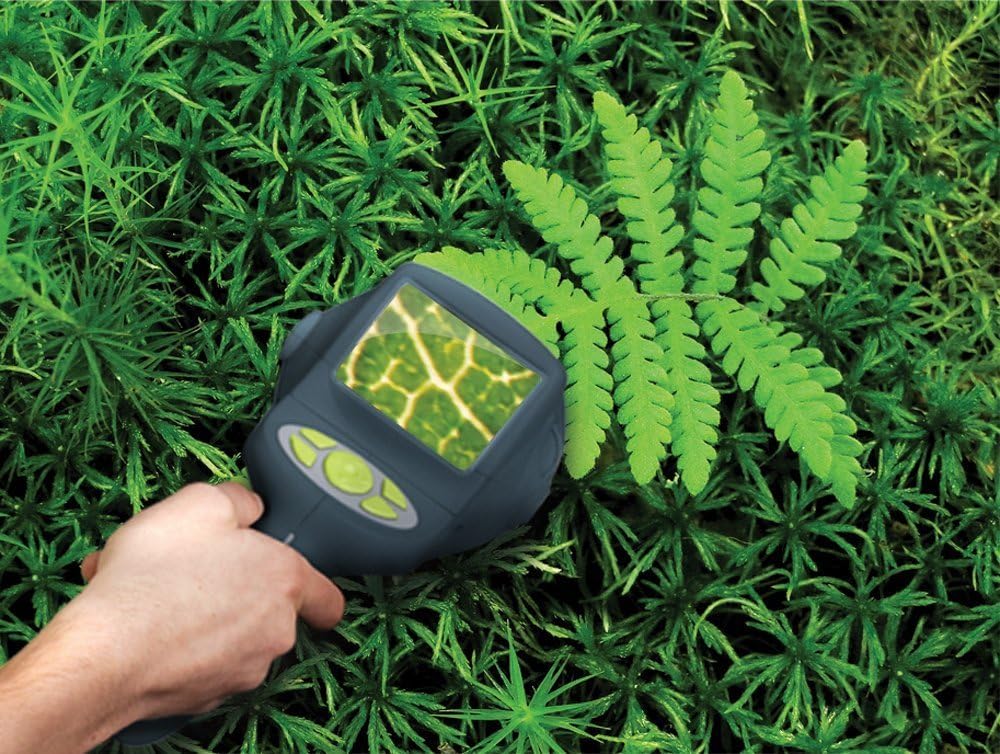
Figure 2: Observing a plant with the BioniCam, demonstrating real-time magnification.
Capturing and Reviewwchodzenie
Below the LCD screen, you will find buttons for navigation, selecting video or photo options, reviewing your gallery, and deleting unwanted images.
- Robienie zdjęć/filmów: Select the desired mode (photo or video) and press the capture button. For photos, hold steady for 2-3 seconds.
- Reviewing Gallery: Navigate to the gallery option to view captured images and videos directly on the BioniCam's screen or a connected TV.

Rysunek 3: Powiększenie view of crystals displayed on a television screen via the BioniCam.
Transferring and Sharing Discoveries
The BioniCam is designed for easy sharing of your observations:
- Połączenie z komputerem: Remove the USB memory stick from the BioniCam and plug it directly into your computer's USB port. The images and videos can then be accessed, saved, edited, or uploaded to share with others. No special software installation is required.
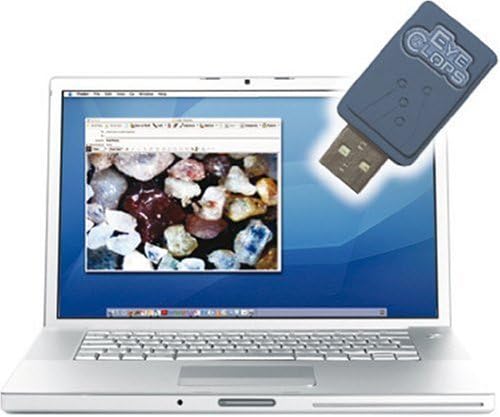
Figure 4: Transferring captured images from the BioniCam's USB drive to a computer.
Oficjalny film o produkcie
Video 1: An official product video demonstrating the features and usage of the EyeClops BioniCam, including its portability, magnification capabilities, and ability to capture and share images and videos.
Konserwacja
To ensure the longevity and optimal performance of your BioniCam, follow these simple maintenance guidelines:
- Czyszczenie: Use a soft, dry cloth to clean the exterior of the unit. For the lens, use a lens cleaning cloth and solution specifically designed for optical devices. Avoid abrasive materials or harsh chemicals.
- Składowanie: Store the BioniCam in a cool, dry place away from direct sunlight and extreme temperatures.
- Pielęgnacja baterii: Aby zapobiec wyciekowi baterii, wyjmij je, jeśli urządzenie nie będzie używane przez dłuższy czas.
- Obsługiwanie: The unit is made of durable plastic, but avoid dropping it or subjecting it to strong impacts to prevent damage to internal components or the screen.
Rozwiązywanie problemów
| Problem | Możliwa przyczyna | Rozwiązanie |
|---|---|---|
| Difficulty Focusing Image | Object not close enough to lens; I.R.I.S. lens not adjusted correctly; high magnification setting. | Ensure the object is directly in front of or touching the lens. Slowly twist the I.R.I.S. lens attachment until the image is clear. Practice focusing at lower magnifications (100x) before moving to higher ones. |
| Images appear too bright/unclear (especially lighter objects) | LEDs are too bright for the object at lower magnification settings. | Adjust the lighting settings on the BioniCam's menu screen to a lower setting, particularly when viewing light-colored or crystalline objects. This issue is less common at higher magnifications. |
| LCD screen difficult to read outdoors | Direct sunlight interfering with screen visibility. | Move to a shaded area or position yourself to minimize direct sunlight on the screen. |
| Device not powering on or short battery life | Batteries are dead or incorrectly installed; high power consumption. | Check battery polarity and replace with fresh AA batteries. The device consumes power, especially with continuous use; consider having spare batteries or using rechargeable ones. |
Specyfikacje
| Funkcja | Szczegół |
|---|---|
| Marka | Klapki na oczy |
| Nazwa modelu | EyeClops BioniCam |
| Numer modelu przedmiotu | 61081 |
| Wymiary produktu | 4.3 x 12 x 15.7 cala |
| Waga przedmiotu | 2.05 funta |
| Zalecany wiek producenta | 8 lata i więcej |
| Wymagane baterie | 5 baterie AA (brak w zestawie) |
| Typ źródła światła | PROWADZONY |
| Tworzywo | Plastikowy |
| Kolor | Czarny |
| Kąt rzeczywisty View | 30 stopni |
| Maksymalne powiększenie | 400x |
| Opis obiektywu | 100x, 200x, 400x magnification |
| Kompatybilne urządzenia | Telewizja, Komputer osobisty |
Gwarancja i wsparcie
Please note the following information regarding warranty and support for this product:
- Gwarancja: This item is sold as a final sale, with no returns accepted.
- Stan produktu: The item is new but has not been tested.
- For any inquiries or assistance, please refer to the original point of purchase or the manufacturer's official webAby uzyskać więcej informacji na temat opcji pomocy, odwiedź naszą witrynę.


