
1. Wprowadzenie
This manual provides detailed instructions for the setup, operation, and maintenance of your Tera D5100 Wireless 1D 2D QR Barcode Scanner. The D5100 is a versatile scanning device designed for efficiency and durability, supporting both 1D and 2D barcode symbologies, including QR codes. It offers flexible connectivity options (2.4 GHz wireless and USB wired) and is compatible with Windows, Mac, and Linux operating systems.
2. Konfiguracja
2.1 Zawartość opakowania
- Skaner kodów kreskowych Tera D5100
- Odbiornik USB 2.4 GHz
- Kabel USB do ładowania/danych danych
- Instrukcja obsługi (ten dokument)
2.2 Ładowanie skanera
The scanner features a 2000mAh battery. A unique LED indicator displays the remaining battery level with four lights, each representing 500mAh of charge. When a 500mAh segment is used, one light turns off. A full charge provides over 40 hours of continuous scanning and over 60 days of standby time.

Figure 1: Battery Level Indicator on the Tera D5100 Scanner.
2.3 Podłączanie skanera
The Tera D5100 offers two connection methods: 2.4 GHz wireless via the included USB receiver, or direct USB 2.0 wired connection. Both methods are plug-and-play, requiring no additional driver installation. The scanner is compatible with Windows, Mac, and Linux systems. The wireless range extends up to 300 feet in open areas.
- Tryb bezprzewodowy 2.4 GHz: Insert the USB receiver into an available USB port on your computer. The scanner will automatically connect.
- Tryb przewodowy USB: Podłącz skaner bezpośrednio do komputera za pomocą dołączonego kabla USB.
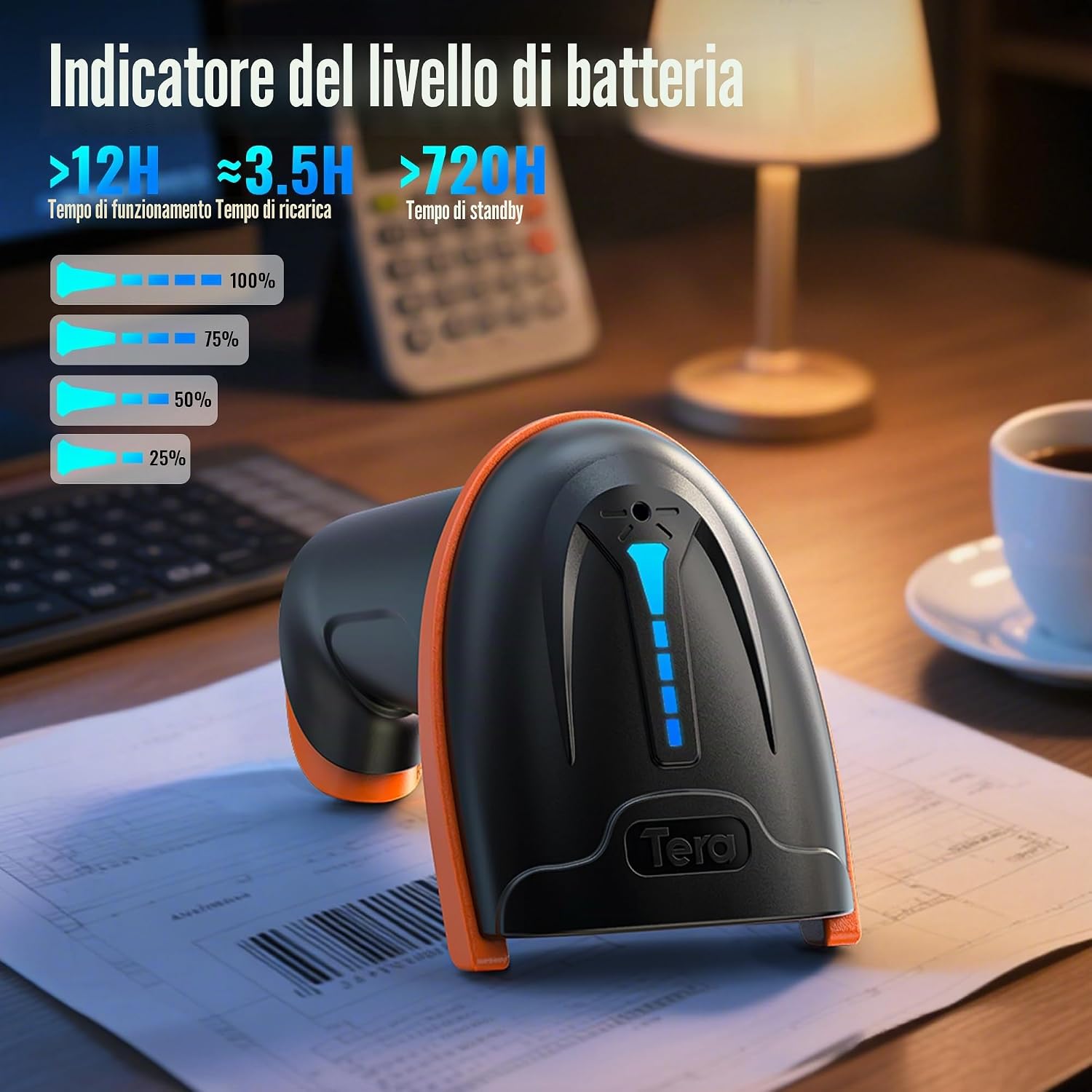
Figure 2: Two Connectivity Options: USB Wired and 2.4GHz Wireless.
3. Instrukcja obsługi
3.1 Skanowanie kodów kreskowych
To scan, aim the scanner at the barcode and press the trigger. The D5100 can read a wide range of 1D, 2D, and QR codes, whether displayed digitally on a screen or printed on physical labels.

Figure 3: Scanning Digital and Printed 1D/2D Barcodes.
3.2 Tryby przesyłania danych
Skaner obsługuje dwa tryby przesyłania danych: Tryb natychmiastowego przesyłania for immediate data transfer, and Tryb przechowywania for saving scanned data internally to be uploaded at a later time. This allows for flexible operation in various environments.
- Tryb błyskawicznego przesyłania: Scanned data is transmitted directly to the connected device as it is read.
- Tryb przechowywania: Scanned data is stored in the scanner's internal memory. To upload, scan the 'Upload Data' configuration barcode (refer to the full programming guide).
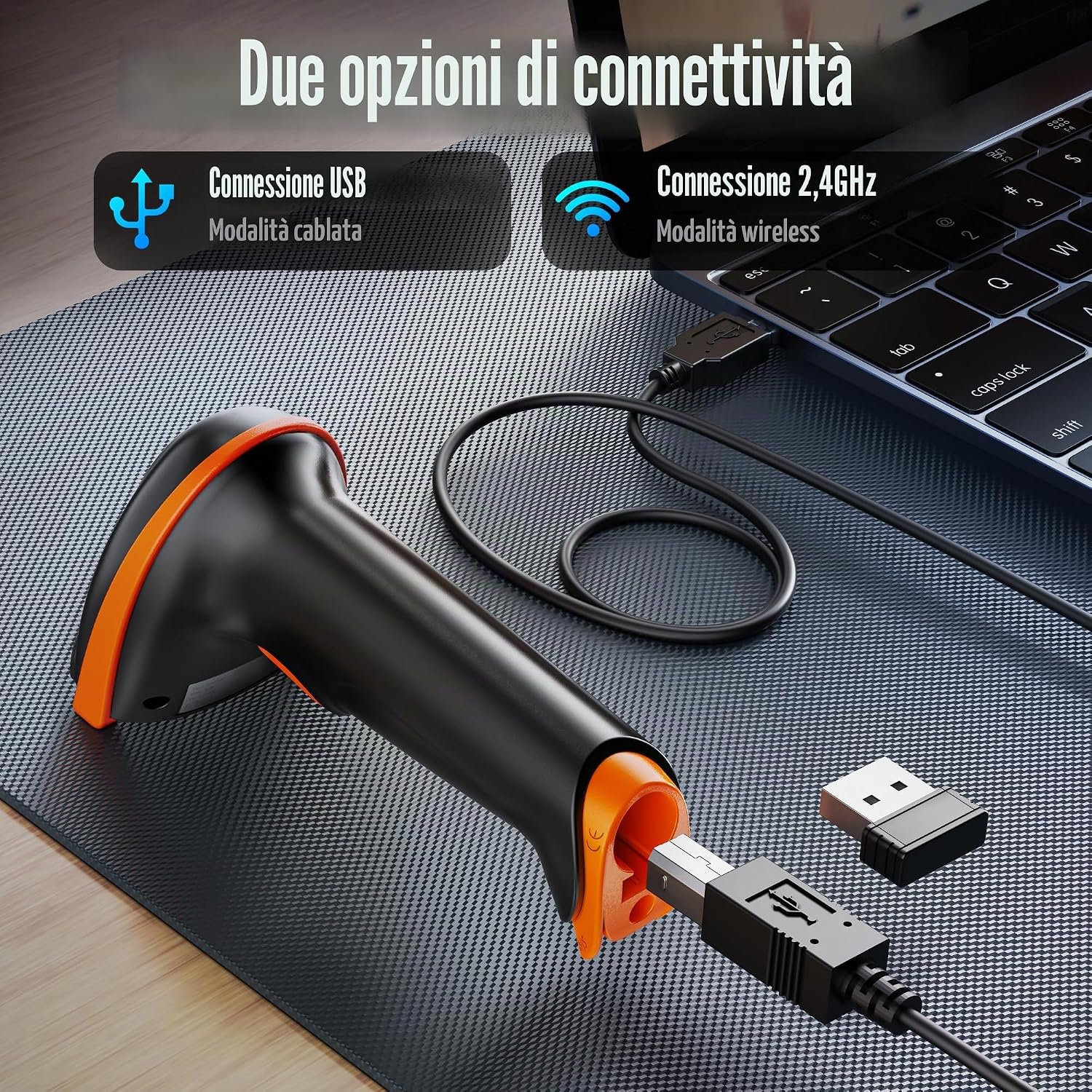
Figure 4: Instant and Storage Data Upload Modes.
3.3 Obsługa języków klawiatury
The Tera D5100 supports multiple keyboard languages, including English, Italian, German, Japanese, Spanish, and French, ensuring compatibility with diverse international systems. To change the keyboard language, scan the appropriate configuration barcode from the full programming guide.

Figure 5: Multi-Language Keyboard Support.
3.4 Customizing Scanned Data
The scanner can be configured to add or hide digits from scanned barcode data. This feature is useful for customizing output to fit specific software or inventory systems, such as adding prefixes or suffixes to scanned codes. Consult the detailed programming manual for configuration steps.
4. Konserwacja i pielęgnacja
4.1 Cechy trwałości
The Tera D5100 is designed for durability, featuring an anti-shock orange silicone protective casing that helps prevent damage from drops up to 2 meters. Its IP54 rating provides protection against dust ingress, ensuring reliable performance in various work environments.

Figure 6: Robust Design with Fall and Dust Resistance.
4.2 Ergonomiczna konstrukcja
The scanner features an ergonomic design with an extended and thickened curved handle, providing a comfortable and secure grip during prolonged use. The trigger is designed to be smooth and flat for enhanced user experience.

Figure 7: Ergonomic Handle Design for Comfortable Grip.
5. Rozwiązywanie Problemów
5.1 Typowe problemy i rozwiązania
- Skaner nie łączy się:
Ensure the USB receiver is properly inserted into your computer or the USB cable is securely connected. Verify the scanner has sufficient battery charge. Try a different USB port on your device. - Scanning Incorrect Barcode:
The D5100 uses a camera-based sensor. If multiple barcodes are in close proximity, the scanner may read an unintended code. Physically cover or isolate the unwanted barcodes to ensure only the target barcode is visible to the scanner. - Brak wyników skanowania:
Confirm the scanner is in the correct operating mode (e.g., not in a configuration mode). Ensure the barcode is not damaged, smudged, or poorly printed. Check for adequate lighting conditions. - Zgodność z Square POS:
Please note that the Tera D5100 scanner is niekompatybilny with Square POS systems. - USB-C Connectivity for MacBooks:
The scanner uses a standard USB-A connector. For devices with only USB-C ports, such as some MacBooks, a separate USB-A to USB-C adapter will be required.
6. Specyfikacje
| Funkcja | Szczegół |
|---|---|
| Numer modelu | D5100 |
| Marka | Tera |
| Kompatybilne urządzenia | Desktop Computer, Laptop, Smartphone, Tablet |
| Technologia łączności | 2.4 GHz Wireless, USB 2.0 Wired |
| Źródło zasilania | Zasilany bateryjnie |
| Liczba baterii | 1 (12V type needed) |
| Pojemność baterii | 2000 mAh |
| Prędkość skanowania | 300 klatek na sekundę (fps) |
| Liczba jednostek | 1.0 Liczba |
| Producent | Tera |
| Stopień ochrony IP | IP54 (Dust Protection) |
7. Gwarancja i wsparcie
7.1 Gwarancja na produkt
The Tera D5100 Barcode Scanner comes with a 1-year product warranty. Please retain your proof of purchase for warranty claims.
7.2 Obsługa klienta
For further assistance, technical support, or to explore other Tera products, please visit the official Tera store: