
1. Wprowadzenie
This manual provides essential information for the safe and efficient use of your Kyocera ECOSYS MZ3201ix A3 Laser Multifunction Printer. Please read this manual thoroughly before operating the device and keep it for future reference.
Produkt ponadview
The Kyocera ECOSYS MZ3201ix is a versatile A3 laser multifunction printer designed for both office and home office environments. It offers high-resolution printing, copying, scanning, and faxing capabilities, ensuring efficient document management.
Główne cechy:
- Print resolution up to 1200 dpi.
- Print speed up to 32/17 pages A4/A3 per minute in black and white.
- 100-sheet universal feeder and 500-sheet cassette.
- Duplex unit for double-sided printing (DIN A5 - DIN A3).
- Integrated high-level security features.
- Automatic Document Feeder (ADF).
- Network-ready with Ethernet and USB connectivity.
- Scan to email functionality.
- Intuitive touch screen interface.
2. Informacje dotyczące bezpieczeństwa
Aby zapobiec obrażeniom ciała lub uszkodzeniu urządzenia, należy zawsze przestrzegać poniższych środków ostrożności.
- Zasilanie: Connect the printer only to a grounded power outlet with the correct voltage. Nie przeciążaj gniazdek elektrycznych.
- Umieszczenie: Place the printer on a stable, level surface. Ensure adequate ventilation around the device. Avoid placing it near water or heat sources.
- Obsługiwanie: Nie próbuj demontować ani modyfikować drukarki. Wszelkie prace serwisowe powierzaj wykwalifikowanemu personelowi.
- Materiały eksploatacyjne: Use only genuine Kyocera toner and parts. Keep toner cartridges out of reach of children.
- Przenoszenie urządzenia: The printer is heavy (49 kg). Use appropriate lifting techniques or assistance when moving it to prevent injury.
3. Co znajduje się w pudełku
Ostrożnie rozpakuj pudełko i upewnij się, że znajdują się w nim wszystkie elementy:
- Kyocera ECOSYS MZ3201ix Multifunction System
- Kaseta z tonerem
- Pojemnik na zużyty toner
- Kabel zasilający
- Instrukcje bezpieczeństwa
- Szybki przewodnik
If any items are missing or damaged, please contact your vendor or Kyocera support.
4. Konfiguracja
4.1 Rozpakowywanie i umieszczanie
- Usuń z drukarki wszystkie materiały opakowaniowe, taśmy i folie ochronne.
- Place the printer on a sturdy, level surface capable of supporting its weight (approximately 49 kg). Ensure there is sufficient space around the printer for ventilation and access to trays and covers.
4.2 Podłączanie kabla zasilającego
- Connect the power cable to the power input on the rear of the printer.
- Podłącz drugi koniec kabla zasilającego do uziemionego gniazdka elektrycznego.
4.3 Installing Toner and Waste Toner Container
- Otwórz przednią pokrywę drukarki.
- Insert the toner cartridge according to the instructions provided on the cartridge and inside the printer.
- Insert the waste toner container into its designated slot.
- Zamknij dokładnie przednią pokrywę.
4.4 Ładowanie papieru
- Pull out the paper cassette (standard 500-sheet tray or 100-sheet universal feeder).
- Dopasuj prowadnice papieru do rozmiaru ładowanego papieru (obsługuje formaty od A5 do A3).
- Załaduj stos papieru, upewniając się, że nie przekracza on linii maksymalnego zapełnienia.
- Delikatnie wsuń kasetę z papierem z powrotem do drukarki.
4.5 Sieć i połączenie USB
- For Network Connection (Ethernet): Connect an Ethernet cable from your network router/switch to the LAN port on the printer.
- For Direct Connection (USB): Connect a USB 2.0 cable from your computer to the USB port on the printer.
4.6 Instalacja oprogramowania
- Włącz drukarkę za pomocą przycisku zasilania.
- Follow the on-screen instructions on the printer's touch screen for initial setup, including language and network settings.
- On your computer, insert the driver CD (if provided) or download the latest drivers and utility software from the official Kyocera webstrona.
- Run the installer and follow the prompts to install the printer drivers and software.
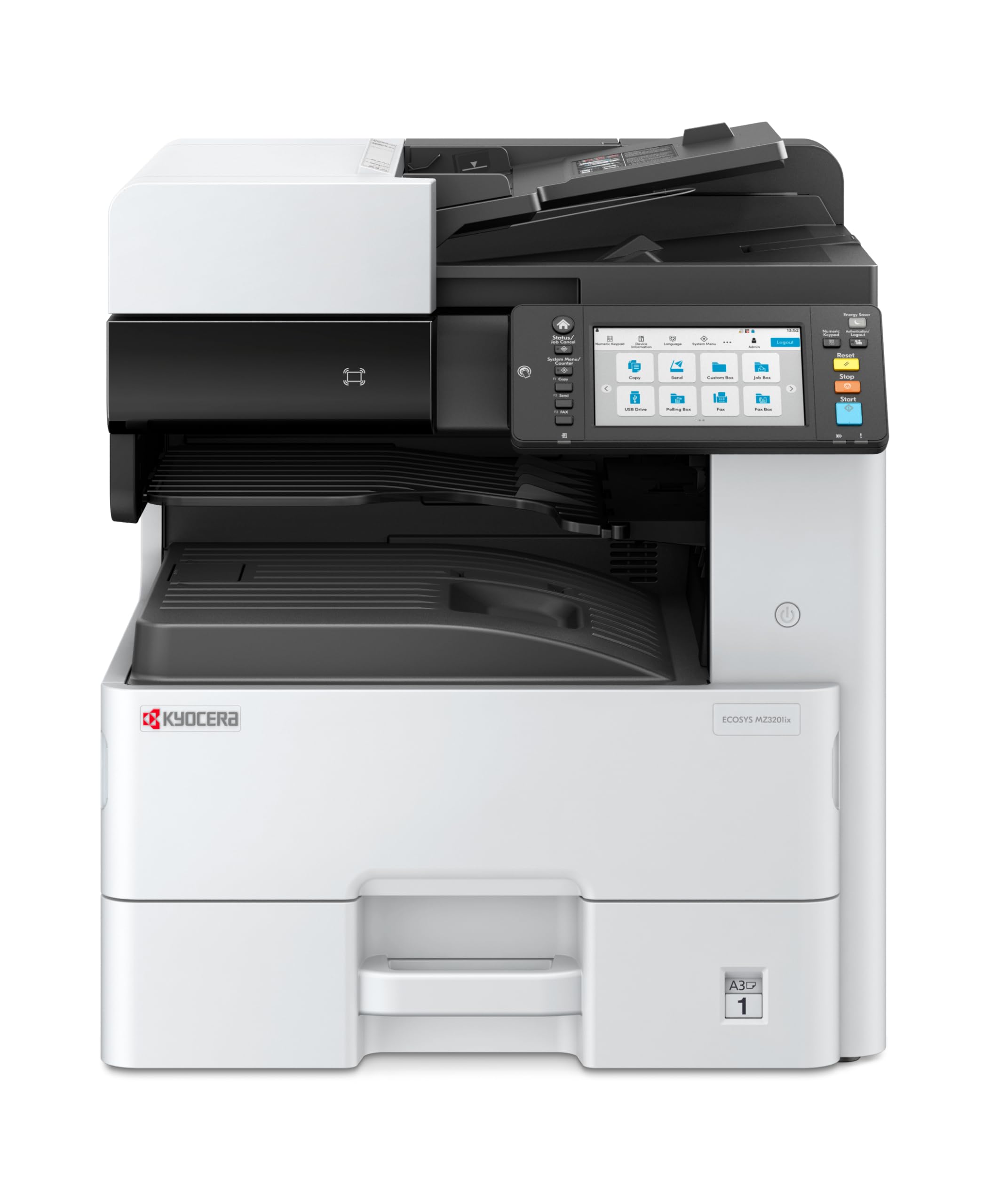
Image 1: Kyocera ECOSYS MZ3201ix A3 Laser Multifunction Printer. This image shows the front view of the printer, highlighting its compact design and the integrated touch screen panel.
5. Instrukcja obsługi
5.1 Podstawowe drukowanie
- Otwórz na komputerze dokument, który chcesz wydrukować.
- Wybierać File > Drukuj.
- Choose the Kyocera ECOSYS MZ3201ix from the list of available printers.
- W razie potrzeby dostosuj ustawienia drukowania (np. liczbę kopii, rozmiar papieru, drukowanie dwustronne).
- Trzask Wydrukować.
5.2 Kopiowanie dokumentów
- Umieść dokument stroną zadrukowaną do dołu na szybie skanera lub stroną zadrukowaną do góry w automatycznym podajniku dokumentów (ADF).
- On the printer's touch screen, select the Kopia funkcjonować.
- Adjust settings such as number of copies (up to 999), zoom, and paper type.
- Naciśnij Start przycisk, aby rozpocząć kopiowanie.
5.3 Skanowanie dokumentów
- Umieść dokument na szybie skanera lub w podajniku ADF.
- On the printer's touch screen, select the Skandować funkcjonować.
- Choose your desired scan destination (e.g., Scan to PC, Scan to Email, Scan to USB).
- Configure scan settings such as resolution (up to 1200 x 1200 dpi), color mode, and file format.
- Naciśnij Start przycisk, aby rozpocząć skanowanie.
5.4 Faksowanie dokumentów
(Note: Fax functionality requires a telephone line connection, not detailed in this manual.)
- Umieść dokument na szybie skanera lub w podajniku ADF.
- On the printer's touch screen, select the Faks funkcjonować.
- Wprowadź numer faksu odbiorcy za pomocą klawiatury.
- Dostosuj wszelkie niezbędne ustawienia faksu.
- Naciśnij Start przycisk , aby wysłać faks.
6. Konserwacja
Regularna konserwacja zapewnia optymalną wydajność i wydłuża żywotność drukarki.
6.1 Czyszczenie drukarki
- Zewnętrzny: Przetrzyj zewnętrzne powierzchnie miękką, damp, ściereczka niepozostawiająca włókien. Nie używaj środków czyszczących o właściwościach ściernych ani rozpuszczalników.
- Szyba skanera: Gently clean the scanner glass with a soft cloth and a non-abrasive glass cleaner.
- Rolki ADF: Okresowo czyść rolki podajnika ADF przy użyciu niepylącej ściereczki.ampened with isopropyl alcohol to prevent paper jams.
6.2 Wymiana wkładu z tonerem
- When the printer indicates low toner, order a new Kyocera toner cartridge.
- Otwórz przednią pokrywę drukarki.
- Wyjmij pusty wkład z tonerem, pociągając go.
- Rozpakuj nowy wkład z tonerem i delikatnie nim potrząśnij, aby rozprowadzić toner.
- Insert the new toner cartridge firmly into its slot until it clicks into place.
- Zamknij przednią pokrywę.
6.3 Replacing Waste Toner Container
- When the printer indicates the waste toner container is full, prepare a new one.
- Open the cover that provides access to the waste toner container.
- Carefully remove the full waste toner container. Seal it in a plastic bag for proper disposal.
- Insert the new waste toner container into its slot.
- Zamknij pokrywę.
7. Rozwiązywanie Problemów
W tej sekcji opisano typowe problemy, które mogą wystąpić podczas korzystania z drukarki.
7.1 Zacięcia papieru
- Objaw: Printer stops, and an error message indicates a paper jam.
- Rozwiązanie: Turn off the printer. Open all covers and trays. Carefully remove any jammed paper, pulling in the direction of the paper path. Ensure no small pieces of paper remain. Close all covers and restart the printer.
7.2 Słaba jakość wydruku
- Objaw: Faded prints, streaks, or spots on pages.
- Rozwiązanie: Check toner level and replace if low. Perform a print head cleaning or calibration from the printer's maintenance menu. Ensure you are using appropriate paper for your print job.
7.3 Drukarka nie odpowiada
- Objaw: Printer is online but does not print documents sent from the computer.
- Rozwiązanie: Check all cable connections (USB/Ethernet). Restart both the printer and your computer. Verify that the correct printer driver is installed and selected. Check the printer's network settings if connected via Ethernet.
7.4 Kody błędów
If an error code appears on the touch screen, refer to the comprehensive user manual (available on the Kyocera website) for specific instructions related to that code. Many codes indicate specific issues like open covers, paper jams, or consumable replacement needs.
8. Specyfikacje
| Funkcja | Specyfikacja |
|---|---|
| Marka | Kyocera |
| Nazwa modelu | ECOSYS MZ3201ix |
| Numer modelu | 110C2V3NL0 |
| Technologia łączności | Ethernet, USB 2.0 |
| Technologia druku | Laser |
| Cechy specjalne | Automatic Document Feeder, Auto-Duplex, Network Ready, Scan to Email, Touch Screen |
| Wyjście drukarki | Monochromia |
| Max Print Speed Black & White | 32 Pages per minute (A4) |
| Waga przedmiotu | 49 kilograma |
| Wymiary produktu (gł. x szer. x wys.) | 58.5P x 59l x 68.8H cm |
| Max Print Resolution Black & White | 1200 x 1200 dpi |
| Rozdzielczość skanera | 1200 x 1200 dpi |
| Drukowanie dwustronne | Automatyczny |
| Max Copy Count | 999 |
| Czas wydruku pierwszej strony | 5.2 sekund |
| Max Supported Paper Size | A3 |
| Maksymalna pojemność arkuszy wejściowych | 1600 |
| Printing Media Type | Zwykły papier |
| Funkcje | Copy, Fax, Scan, Print |
9. Gwarancja i wsparcie
Your Kyocera ECOSYS MZ3201ix printer comes with a standard manufacturer's warranty. For detailed information regarding warranty terms, duration, and coverage, please refer to the warranty card included with your product or visit the official Kyocera webstrona.
Obsługa klienta:
If you encounter any issues that cannot be resolved using this manual or require technical assistance, please contact Kyocera customer support. You can find contact information on the Kyocera webstronie internetowej lub w dokumentacji dostarczonej wraz z drukarką.
When contacting support, please have your printer's model name (ECOSYS MZ3201ix) and serial number ready. The serial number is typically located on a label on the back or bottom of the printer.