
1. Wprowadzenie
This manual provides essential information for setting up, operating, and maintaining your TCL 50-inch Q51K QLED 4K UHD HDR+ Google TV. Please read this manual thoroughly before using your television to ensure proper and safe operation. Keep this manual for future reference.
The TCL Q51K series offers an enhanced viewing experience with Quantum Dot technology for vibrant colors, 4K UHD resolution, HDR PRO+ with Dolby Vision, and the intelligent AIPQ Processor. Enjoy seamless entertainment with Google TV, Dolby Atmos, and DTS Virtual:X audio.
2. Informacje dotyczące bezpieczeństwa
Aby zmniejszyć ryzyko pożaru, porażenia prądem elektrycznym lub obrażeń ciała, należy zawsze przestrzegać podstawowych zasad bezpieczeństwa podczas korzystania z telewizora.
- Źródło zasilania: Connect the TV to an AC 110V 60Hz power supply. Do not overload power outlets.
- Wentylacja: Zapewnij odpowiednią wentylację wokół telewizora. Nie blokuj otworów wentylacyjnych.
- Woda i wilgoć: Nie wystawiaj telewizora na działanie deszczu ani wilgoci. Nie stawiaj na nim przedmiotów wypełnionych płynami, takich jak wazony.
- Czyszczenie: Odłącz telewizor od zasilania przed czyszczeniem. Użyj miękkiej, suchej ściereczki. Nie używaj środków czyszczących w płynie ani aerozolu.
- Montowanie: If wall-mounting, ensure the wall mount is securely installed and can support the TV's weight. Follow the wall mount instructions carefully.
- Dzieci: Nie pozwalaj dzieciom wspinać się na telewizor ani na niego stać.
- Błyskawica: Odłączaj telewizor od zasilania podczas burzy z piorunami lub jeśli nie używasz go przez dłuższy czas.
3. Co znajduje się w pudełku
Ostrożnie rozpakuj pudełko i sprawdź, czy wszystkie elementy są obecne i nieuszkodzone.
- TCL 50-inch Q51K QLED 4K UHD HDR+ Google TV
- Zdalne sterowanie
- Kabel zasilający
- Uchwyt ścienny
- Szybki przewodnik (nie jest zawarty w tym podręczniku)

Rysunek 3.1: Dołączone komponenty i wymiary telewizora.
4. Konfiguracja
4.1 Fizyczna instalacja
Your TCL Q51K TV comes with a wall bracket for mounting. Alternatively, you can use a compatible TV stand (sold separately if not included in your specific package).
Montaż na ścianie (zalecany)
The included wall bracket allows for flexible placement. Ensure the wall can support the TV's weight (19.8 lbs without stand). The VESA mount standard for this TV is 300 x 200 mm. Follow the specific instructions provided with the wall bracket for safe and secure installation.
Montaż stojaka (opcjonalnie)
If using a stand, carefully attach the stand legs to the designated slots at the bottom of the TV, securing them with the provided screws. Place the TV on a stable, level surface.

Rycina 4.1: Przód view of the TCL 50Q51K TV.

Rysunek 4.2: Strona view of the TCL 50Q51K TV.
4.2 Podłączanie urządzeń
Telewizor wyposażono w wiele portów umożliwiających podłączanie urządzeń zewnętrznych.
- Porty HDMI (x3): Connect Blu-ray players, game consoles, cable boxes, etc.
- Port USB (x1): Podłącz dyski USB w celu odtwarzania multimediów.
- Optyczne wyjście audio: Do podłączenia do soundbarów lub systemów kina domowego.
- Wejście antenowe/kablowe: Do podłączenia anteny lub telewizji kablowej.

Rysunek 4.3: Tył view z portami łączności.
4.3 Połączenie zasilania
Po podłączeniu wszystkich niezbędnych urządzeń podłącz kabel zasilający do wejścia zasilania telewizora, a następnie do gniazdka ściennego.
4.4 Initial Setup (Google TV)
Upon first power-on, the TV will guide you through the Google TV setup process. This includes:
- Wybór języka.
- Łączenie z siecią Wi-Fi.
- Logowanie przy użyciu konta Google.
- Installing essential apps.
5. Obsługa telewizora
5.1 Pilot zdalnego sterowania
The included Bluetooth remote control allows for easy navigation and control of your TV. Ensure batteries are inserted correctly.
- Przycisk zasilania: Włącza/wyłącza telewizor.
- Przycisk Asystenta Google: Aktywuje polecenia głosowe.
- Panel nawigacyjny: Do nawigacji po menu.
- Zwiększanie/zmniejszanie głośności: Reguluje poziom dźwięku.
- Kanał w górę/w dół: Zmienia kanały.
- Przycisk Home: Powrót do ekranu głównego Google TV.
- Przyciski skrótów aplikacji: Szybki dostęp do popularnych serwisów streamingowych.
5.2 Interfejs Google TV
Google TV organizes your favorite content from various streaming services into one personalized home screen. You can browse recommendations, access your apps, and manage your watch list.

Figure 5.1: Google TV home screen.

Figure 5.2: Google TV applications.
6. Łączność
6.1 Łączność bezprzewodowa
- Wi-Fi: Połącz się z domową siecią bezprzewodową, aby uzyskać dostęp do Internetu i strumieniowania.
- Bluetooth 5.1: Podłącz bezprzewodowe słuchawki, soundbary i inne urządzenia obsługujące technologię Bluetooth.
6.2 Kopiowanie ekranu
The TV supports various screen mirroring technologies:
- Google Cast: Cast content from compatible apps on your smartphone or tablet.
- Zabawa powietrzna 2: Przesyłaj strumieniowo treści z urządzeń Apple.
- SmartShare: Share content from other compatible devices.
7. Ustawienia obrazu i dźwięku
7.1 Funkcje jakości obrazu
- Kolor QLED Quantum Dot: Experience over a billion vibrant shades for richer, more realistic colors.
- High Brightness LED Backlighting: Tworzy jaśniejsze obrazy, co zapewnia lepszą jakość viewing experience, even in well-lit rooms.
- HDR PRO+ with Dolby Vision, HDR10+, and HLG: Enjoy enhanced contrast, accurate colors, and sharp details with support for leading HDR formats.
- TCL AIPQ Processor: Optimizes every scene in real-time for brightness, contrast, color, clarity, motion, and upscaling.
- Szybkość ruchu 240 z wstawianiem ramki MEMC: Provides exceptional motion clarity for fast-paced content.

Figure 7.1: QLED Quantum Dot Color enhancement.

Figure 7.2: High Brightness LED Backlight in action.

Figure 7.3: The AiPQ Processor.

Figure 7.4: HDR PRO+ with Dolby Vision, HDR10+, and HLG.
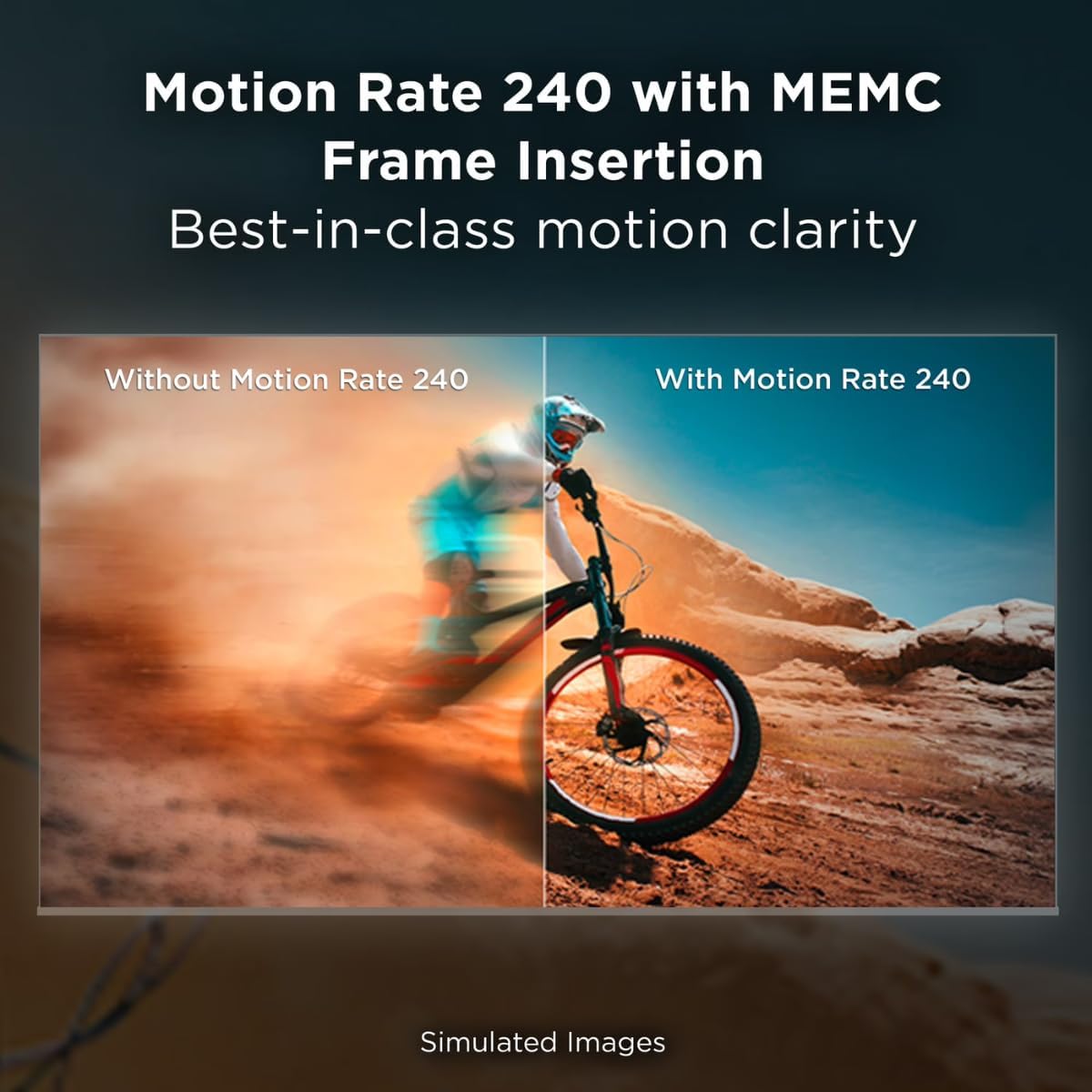
Figure 7.5: Motion Rate 240 with MEMC Frame Insertion.
7.2 Funkcje audio
- Dolby Atmos: Delivers immersive, multi-dimensional sound that moves around you.
- Wirtualny DTS:X: Provides an immersive audio experience without the need for additional speakers.
8. Konserwacja
8.1 Czyszczenie ekranu telewizora
Delikatnie przetrzyj ekran miękką, niepozostawiającą włókien ściereczką. W przypadku uporczywych zabrudzeń delikatnie przetrzyjampPrzetrzyj ściereczkę wodą lub specjalnym środkiem do czyszczenia ekranów. Nigdy nie spryskuj ekranu bezpośrednio płynem.
8.2 Czyszczenie obudowy telewizora
Use a soft, dry cloth to wipe the TV's frame and back. Avoid abrasive materials or harsh chemicals.
8.3 Ogólna opieka
- Unikaj umieszczania ciężkich przedmiotów na telewizorze.
- Trzymaj telewizor z dala od bezpośredniego światła słonecznego i źródeł ciepła.
- Aby zapobiec przegrzaniu, należy zapewnić odpowiednią wentylację.
9. Rozwiązywanie Problemów
Jeśli masz problemy z telewizorem, zapoznaj się z poniższymi typowymi rozwiązaniami:
- Brak zasilania: Sprawdź, czy kabel zasilający jest prawidłowo podłączony do telewizora i gniazdka ściennego. Spróbuj użyć innego gniazdka.
- Brak obrazu/dźwięku: Upewnij się, że wybrano prawidłowe źródło sygnału. Sprawdź wszystkie połączenia kablowe (HDMI, antena).
- Pilot nie działa: Wymień baterie w pilocie. Upewnij się, że między pilotem a telewizorem nie ma żadnych przeszkód. W razie potrzeby ponownie sparuj pilota Bluetooth.
- Słaba jakość obrazu: Check the signal source. Adjust picture settings (brightness, contrast, color). For streaming, check your internet connection speed.
- Brak połączenia z internetem: Verify your Wi-Fi network is active and other devices can connect. Restart your router and modem. Reconnect the TV to the Wi-Fi network in the settings.
- Aplikacje się nie ładują: Ensure the TV is connected to the internet. Try restarting the TV. Clear the cache of the problematic app in the TV settings.
If the problem persists after trying these steps, please contact TCL customer support.
10. Specyfikacje
| Nazwa modelu | 50Q51K |
| Rozmiar ekranu | 50 inches (49.5" diagonal) |
| Technologia wyświetlania | QLED |
| Rezolucja | 4K UHD (3840 x 2160) |
| Częstotliwość odświeżania | 60 Hz (częstotliwość ruchu 240 z MEMC) |
| Edytor | AIPQ Processor |
| Obsługa HDR | HDR PRO+ (Dolby Vision, HDR10+, HLG) |
| Technologia audio | Dolby Atmos, DTS Virtual:X |
| System operacyjny | Telewizja Google |
| Łączność | 3 x HDMI, 1 x USB, Wi-Fi, Bluetooth 5.1, Optical Audio Out |
| Dublowanie ekranu | AirPlay 2, Google Cast, SmartShare |
| Product Dimensions (WxDxH, without stand) | 43.7" x 3.2" x 25.4" |
| Waga (bez stojaka) | 19.8 funtów |
| Standard mocowania VESA | 300x200mm |
| Zasilacz | 110 V AC 60 Hz |
| Zawarte komponenty | Power Cable, Remote Control, Wall Bracket |
11. Gwarancja i wsparcie
11.1 Informacje o gwarancji
This TCL 50Q51K television, being a renewed product, comes with a 90-dniowa ograniczona gwarancja. Please refer to the warranty card included with your product for specific terms and conditions. This warranty covers manufacturing defects and does not cover damage caused by misuse, accidents, or unauthorized modifications.
11.2 Obsługa klienta
For technical assistance, troubleshooting beyond this manual, or warranty claims, please contact TCL Customer Support. You can typically find contact information (phone number, website) on the manufacturer's official webznajdziesz na stronie internetowej lub w skróconej instrukcji dołączonej do telewizora.
When contacting support, please have your TV's model number (50Q51K) and serial number ready. The serial number is usually located on a sticker on the back of the TV.