
1. Wprowadzenie
The EMEET PIXY Wireless is a 4K dual-lens AI tracking PTZ streaming camera designed for various video capture and live streaming applications. It features artificial intelligence for automatic subject tracking, gesture control, and supports multi-camera setups. This manual provides instructions for setting up, operating, and maintaining your PIXY Wireless camera.
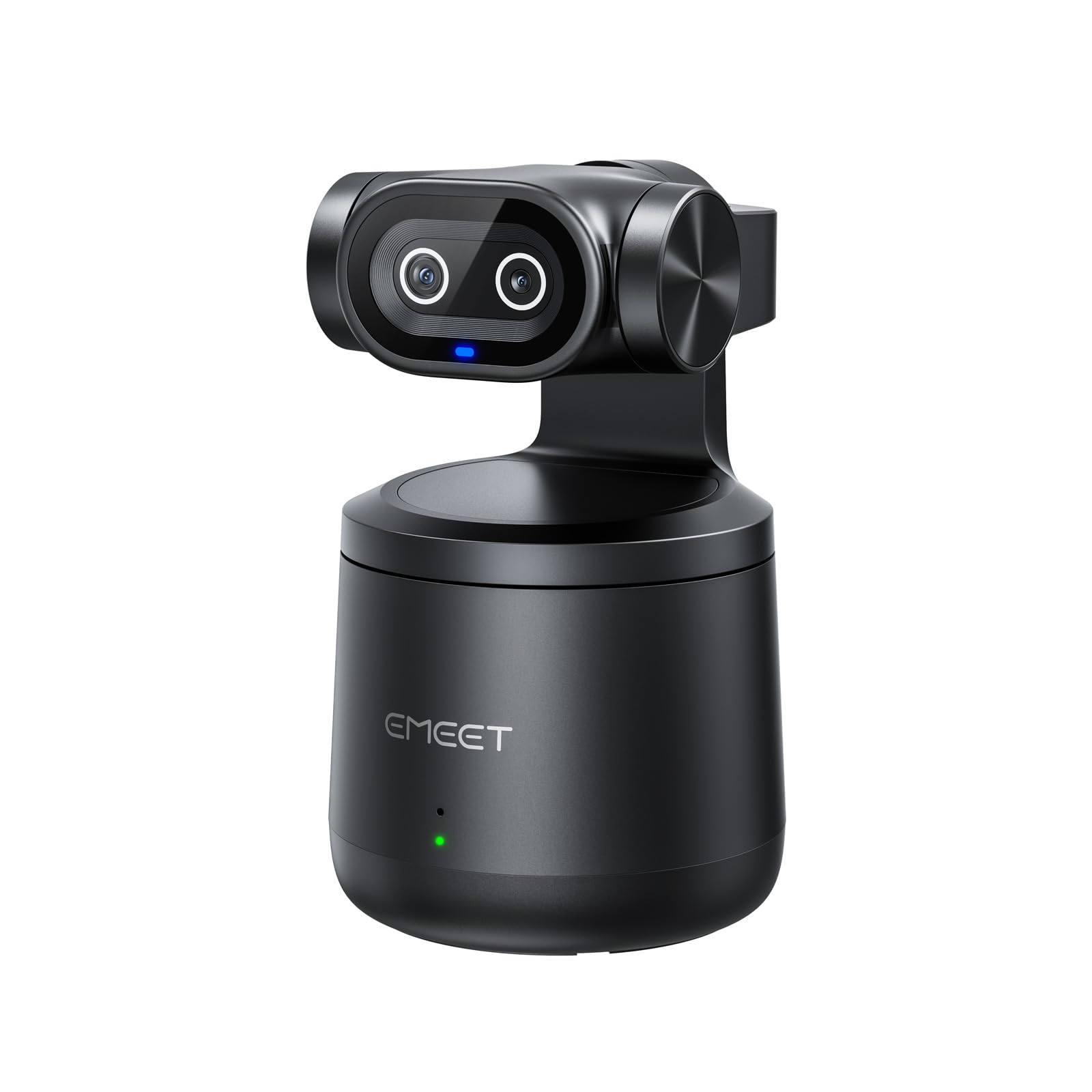
Figure 1.1: EMEET PIXY Wireless Camera Overview
2. Co znajduje się w pudełku
Sprawdź, czy w opakowaniu znajdują się wszystkie elementy:
- PIXY Wireless Camera
- Kabel USB
- Pudełko do przechowywania
- Instrukcja obsługi
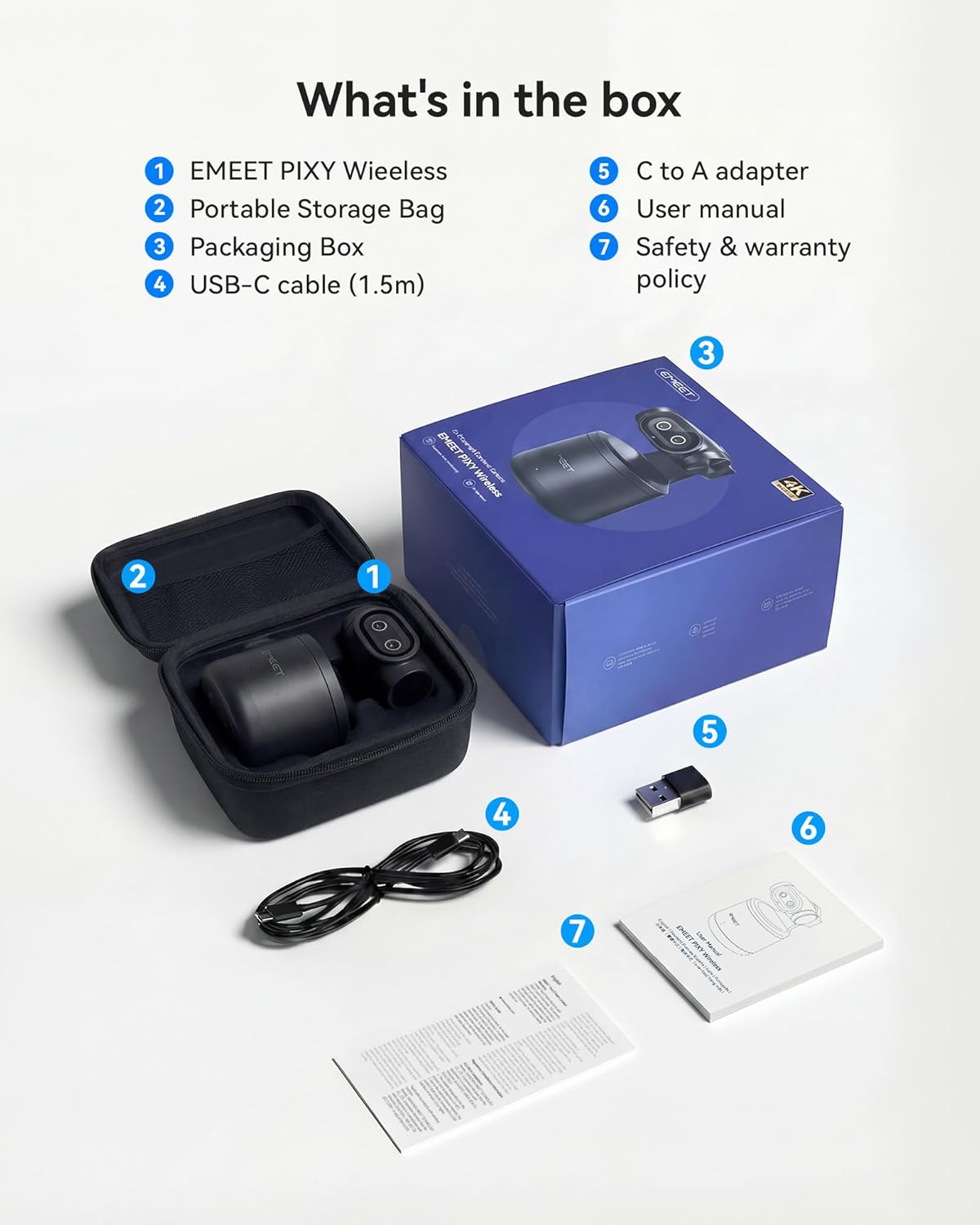
Figure 2.1: Included components with the PIXY Wireless camera.
3. Funkcje ponadview
- UHD 4K Quality & AI Enhancement: Records in 4K resolution. The dual-camera design, featuring one video lens and one AI tracking lens, enhances recognition accuracy and stability, even during dynamic movement.
- AI Auto Tracking & Gesture Control: Utilizes intelligent tracking algorithms to follow movement in real-time. Gesture control allows for instant activation or deactivation of AI tracking.
- Wireless Connection & Multi-Platform Streaming: Connects wirelessly to phones or PCs. Supports simultaneous live streaming to platforms like YouTube, Twitch, and Facebook via EMEET STUDIO software.
- Effortless MultiCam Setup: Allows wireless setup and switching between multiple cameras using a phone or PC. Compatible with Android, iOS, Windows, and macOS.
- Wide 97° Field of View (FOV) & HDR Support: Provides a broad perspective suitable for various content creation. HDR maintains detail in both bright and dark areas.
- 48kHz Built-in Microphone & External Mic Support: Features an integrated 48kHz microphone and a 3.5mm jack for connecting an external microphone.
- Long Battery Life & Portable Design: Equipped with a 5200mAh battery, providing up to 8 hours of live streaming. Compact design with an included carrying case for portability.

Figure 3.1: The PIXY Wireless camera supports 4K resolution and HDR for improved image quality.

Figure 3.2: The camera offers a wide 97-degree field of view.

Figure 3.3: The PIXY Wireless includes a built-in 48kHz microphone.
4. Konfiguracja
4.1 Ładowanie urządzenia
Before first use, fully charge the PIXY Wireless camera using the provided USB cable. Connect the USB-C end to the camera's USB-C port and the other end to a power adapter (not included) or a computer's USB port. The battery indicator lights will show charging status.
4.2 Connecting to a Computer (Wired)
For 4K resolution and optimal performance, connect the PIXY Wireless camera directly to your computer via the USB cable. The camera will be recognized as a standard webkamera
4.3 Connecting Wirelessly (Wi-Fi)
The PIXY Wireless camera can connect to your phone or PC wirelessly. This requires the EMEET STUDIO application. Follow the in-app instructions to connect the camera to your Wi-Fi network.

Figure 4.1: Wireless connection and control via the EMEET STUDIO app.
4.4 Installing EMEET STUDIO Software/App
Download and install the EMEET STUDIO application on your smartphone (Android/iOS) or computer (Windows/macOS). This software is essential for advanced features, multi-camera control, and live streaming.

Figure 4.2: EMEET STUDIO software interface for camera control.
4.5 Wkładanie karty SD
Locate the SD card slot on the camera. Insert a compatible Micro SD card (up to 1TB, not included) for local video recording. Ensure the card is inserted correctly until it clicks into place.

Figure 4.3: Multiple connectivity options including USB-C, SD card slot, and tripod mount.
5. Działanie
5.1 Włączanie/wyłączanie
Press and hold the power button for a few seconds to turn the camera on or off. Indicator lights will confirm the power status.
5.2 Initiating AI Tracking
The PIXY Wireless uses AI to automatically track subjects. To activate or deactivate AI tracking, use a simple hand gesture (e.g., an open palm). Refer to the EMEET STUDIO app for specific gesture details and customization.

Figure 5.1: AI Auto Tracking in action, following a moving subject.

Figure 5.2: Gesture control for activating or deactivating AI tracking.
5.3 Nagrywanie wideo
You can record video directly to an inserted SD card or through the EMEET STUDIO application to your connected device. Use the app for more control over recording settings like resolution and frame rate.
5.4 Transmisja na żywo
Utilize the EMEET STUDIO software to stream live to various platforms. The software supports one-click streaming to multiple RTMP platforms simultaneously, including YouTube, Twitch, and Facebook.

Figure 5.3: Live streaming to multiple platforms simultaneously.
5.5 Sterowanie wieloma kamerami
With the EMEET STUDIO app, you can connect and manage up to three PIXY Wireless cameras simultaneously. This allows for switching between different camera angles and controlling each device from a single interface.

Rysunek 5.4: Example of a multi-camera setup controlled via the EMEET STUDIO app.
5.6 Using an External Microphone
Connect an external microphone to the 3.5mm audio jack on the PIXY Wireless camera for enhanced audio quality. Ensure the external microphone is compatible and properly connected.
6. Konserwacja
- Czyszczenie: Use a soft, dry cloth to clean the camera body. For lenses, use a specialized lens cleaning cloth and solution. Avoid abrasive materials or harsh chemicals.
- Składowanie: Store the camera in its provided storage box in a cool, dry place away from direct sunlight and extreme temperatures.
- Pielęgnacja baterii: Aby przedłużyć żywotność baterii, unikaj częstego całkowitego rozładowywania baterii. Regularnie ładuj aparat, nawet jeśli nie jest używany przez dłuższy czas.

Figure 6.1: The PIXY Wireless camera and its portable carrying case.
7. Rozwiązywanie Problemów
- Kamera nie włącza się: Ensure the camera is fully charged. Connect it to a power source using the USB cable and allow it to charge for at least 30 minutes before attempting to power on again.
- Nie można połączyć się bezprzewodowo: Verify that the camera is within range of your Wi-Fi network and that the Wi-Fi credentials entered in the EMEET STUDIO app are correct. Ensure your device's Wi-Fi is enabled.
- AI tracking is inconsistent or loses subject: Ensure the subject is well-lit and not obscured. Avoid rapid, erratic movements. Update the EMEET STUDIO software to the latest version, as tracking algorithms may be improved with updates.
- Video quality is not 4K wirelessly: When connected wirelessly, the camera typically operates at 1080p resolution at 30fps. To achieve 4K resolution, a direct wired USB connection to a computer is required.
- Problemy z dźwiękiem: Check if the built-in microphone is enabled in the EMEET STUDIO app. If using an external microphone, ensure it is securely connected to the 3.5mm jack and selected as the audio input source in the software.
- App settings not saving: Ensure the EMEET STUDIO app is updated. Restarting the app or camera may resolve temporary issues.
8. Specyfikacje
| Funkcja | Specyfikacja |
|---|---|
| Marka | Spotkanie |
| Numer modelu | PIXY Wireless |
| Rozdzielczość przechwytywania wideo | 4K |
| Efektywna rozdzielczość wideo | 3840 XNUMX pikseli |
| Technologia czujnika fotograficznego | CMOS |
| Technologia łączności | USB, Wi-Fi |
| Funkcja specjalna | Low Light, AI Tracking, Gesture Control, HDR |
| Typ fokusu | Autofokus |
| Wbudowane media | PIXY Wireless Camera, Storage Box, USB Cable, User Manual |
| Typ pamięci flash | SD (Supports up to 1TB) |
| Średnia żywotność baterii | 8 godzin (5200 mAh) |
| Waga przedmiotu | 131.54 gramów |
| Kompatybilne urządzenia | Smartfon, komputer |
9. Gwarancja i wsparcie
The EMEET PIXY Wireless camera comes with a Roczna gwarancja producenta. For technical support, troubleshooting assistance, or warranty claims, please contact EMEET customer service. Refer to the official EMEET website or the contact information provided in the packaging for support details.