
1. Koniec produktuview
The SOLAKAKA A75 PRO is a 75% layout wireless mechanical keyboard designed for versatile use across various operating systems. It features tri-mode connectivity (2.4GHz, Bluetooth 5.0, USB-C), a customizable LCD screen, a multi-function knob, gasket-mounted construction for enhanced acoustics, hot-swappable switches, durable PBT keycaps, and vibrant RGB backlighting.
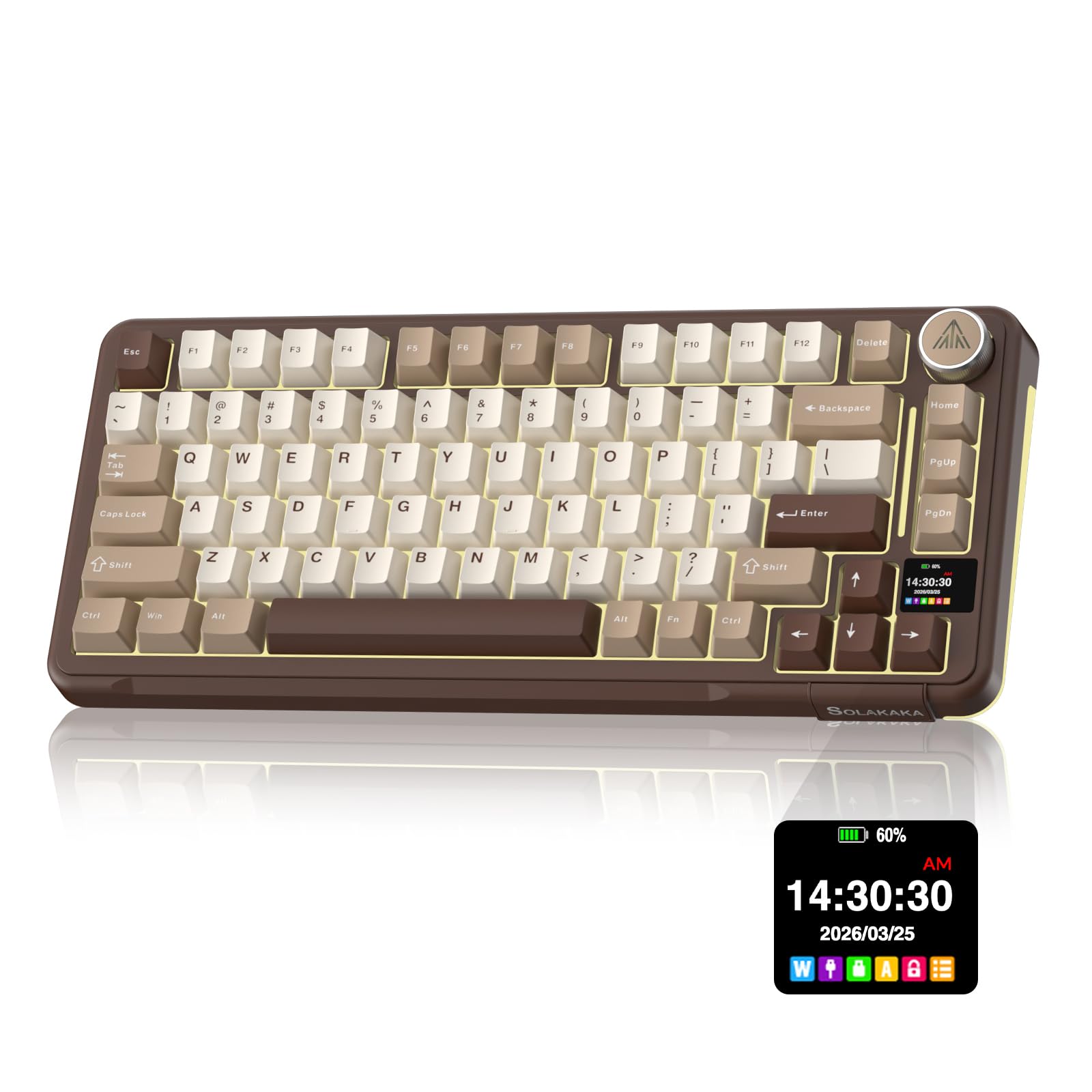
Image 1.1: The SOLAKAKA A75 PRO keyboard, showcasing its compact layout and integrated screen and knob.
2. Przewodnik konfiguracji
2.1 Zawartość opakowania
- SOLAKAKA A75 PRO Mechanical Keyboard
- Kabel USB-C do USB-A
- 2.4GHz Wireless Dongle (if applicable)
- Ściągacz nasadek klawiszy
- Przełącznik ściągacza
- Spare Switches (2)
- Instrukcja obsługi
2.2 Pierwsze ładowanie
Before first use, connect the keyboard to a USB power source using the provided USB-C cable. The keyboard features a 4,000mAh rechargeable battery. The LCD screen will indicate charging status.
2.3 Tryby łączności
The A75 PRO supports three connection modes: 2.4GHz wireless, Bluetooth 5.0, and wired USB-C. A switch located on the side of the keyboard allows selection between these modes.

Image 2.1: The side panel of the keyboard showing the switch for selecting 2.4GHz, Bluetooth, or wired USB-C connection modes.
2.3.1 Połączenie bezprzewodowe 2.4 GHz
- Locate the 2.4GHz USB dongle, typically stored in a slot on the keyboard.
- Podłącz klucz sprzętowy do wolnego portu USB w komputerze.
- Set the keyboard's mode switch to the 2.4GHz position. The keyboard should connect automatically.
2.3.2 Połączenie Bluetooth 5.0
- Set the keyboard's mode switch to the Bluetooth position.
- On your device (PC, Mac, Smartphone, Tablet), enable Bluetooth and search for new devices.
- Select "SOLAKAKA A75 PRO" from the list of available devices to pair.
- Klawiatura obsługuje wiele technologii Bluetoothfiles. Refer to the LCD screen for switching between paired devices.
2.3.3 Połączenie przewodowe USB-C
- Podłącz dołączony kabel USB-C do portu USB-C klawiatury.
- Podłącz drugi koniec kabla do portu USB w komputerze.
- Set the keyboard's mode switch to the USB-C position. The keyboard will function as a wired device and charge simultaneously.
3. Instrukcja obsługi
3.1 LCD Smart Display and Multifunction Knob
The integrated LCD screen and rotary knob provide quick access to various settings and information.
- Ekran LCD: Displays custom GIFs, system status (e.g., battery level, connection mode), time, and RGB lighting controls.
- Pokrętło: Provides instant control over volume and media playback. Pressing the knob typically mutes/unmutes, while rotating adjusts volume. It can also be used to navigate menus on the LCD screen.

Obraz 3.1: Examples of information and settings displayed on the LCD screen, including home screen, lighting modes, and brightness controls.
3.2 Sterowanie podświetleniem RGB
The keyboard features 16.8 million color RGB backlighting with various dynamic modes. South-facing LEDs ensure optimal illumination.
| Funkcjonować | Kombinacja klawiszy |
|---|---|
| Backlight Mode Cycle | Fn + \ |
| Zwiększenie jasności podświetlenia | Fn+F5 |
| Zmniejszenie jasności podświetlenia | Fn+F6 |
| Backlight Color Cycle | Fn + D |
| Side Backlight Lighting Effects | Fn + P |
| Side Backlight Brightness Up | Fn + Strzałka w górę |
| Side Backlight Brightness Down | Fn + strzałka w dół |
| Side Backlight Color Cycle | Fn + Tab |

Image 3.2: Visual representation of various backlight modes and their control keys.
3.3 Oprogramowanie programowalne
The SOLAKAKA A75 PRO is compatible with dedicated software for advanced customization. This software allows for:
- Complete key remapping
- Nagrywanie makro
- Layered RGB profiles
- Per-game configuration storage
- Custom GIF/image upload to the LCD screen
The software is primarily designed for Windows operating systems. Please visit the official SOLAKAKA webwitryna umożliwiająca pobranie najnowszego oprogramowania.

Image 3.3: Screenshots of the SOLAKAKA programmable software interface, showing options for lighting effects, key assignments, and macro programming.
3.4 Oficjalny film o produkcie
Video 3.4: An official product video from SOLAKAKA demonstrating the A75 Pro wireless mechanical keyboard with its screen and knob features.
4. Konserwacja
4.1 Przełączniki z możliwością wymiany na gorąco
The A75 PRO features hot-swappable sockets, allowing you to change mechanical switches without soldering. This enables customization of typing feel and sound.
- Za pomocą dołączonego ściągacza klawiszy ostrożnie zdejmij wybrany klawisz.
- Za pomocą dołączonego ściągacza do przełączników ostrożnie chwyć przełącznik i pociągnij go prosto do góry, aby wyjąć go z płytki PCB.
- Dopasuj piny nowego przełącznika do otworów w płytce drukowanej i mocno dociśnij, aż zatrzaśnie się na miejscu. Upewnij się, że piny nie są wygięte.
- Załóż z powrotem nakładkę klawisza.

Obraz 4.1: Zbliżenie view of the hot-swappable switch design and durable PBT keycaps.
4.2 Nakładki na klawisze PBT
The keyboard is equipped with durable PBT double-shot keycaps. These keycaps are resistant to shine, oil buildup, and wear, ensuring legends remain crisp and the textured surface stays dry over extended use.
4.3 Czyszczenie
- Do czyszczenia powierzchni klawiatury należy używać miękkiej, suchej szmatki.
- Aby uzyskać dokładniejsze czyszczenie, użyj sprężonego powietrza w puszce, aby usunąć kurz i zanieczyszczenia spomiędzy klawiszy.
- Keycaps can be removed for thorough cleaning using the keycap puller. Clean with mild soap and water, then ensure they are completely dry before reattaching.
4.4 Struktura uszczelki
The keyboard features a gasket-mounted structure with multi-layer dampening materials. This design contributes to a softer typing feel and a deeper, more satisfying sound profile. No specific user maintenance is required for the gasket structure itself.

Obraz 4.2: Wybuch view diagram illustrating the multi-layer gasket structure of the keyboard.
5. Rozwiązywanie Problemów
5.1 Klawiatura nie odpowiada
- Sprawdź połączenie: Ensure the mode switch is set correctly for your chosen connection type (2.4GHz, BT, or USB-C).
- Poziom naładowania baterii: Connect the keyboard via USB-C to charge it. A low battery can cause connectivity issues.
- Port USB: If using wired or 2.4GHz dongle, try a different USB port on your computer.
- Dongle Seating: For 2.4GHz, ensure the dongle is fully seated in the USB port.
- Parowanie Bluetooth: For Bluetooth, ensure the keyboard is in pairing mode and correctly paired with your device. Try unpairing and re-pairing if issues persist.
5.2 RGB Lights Not Working or Incorrect
- Jasność: Adjust brightness using Fn + F5/F6.
- Tryb: Cycle through lighting modes using Fn + \.
- Oprogramowanie: Jeśli używasz niestandardowego profiles, ensure the programmable software is running and the profile jest aktywny.
5.3 LCD Screen Issues
- Cykl zasilania: Wyłącz i włącz klawiaturę.
- Oprogramowanie: Ensure the programmable software is correctly installed and updated if you are trying to display custom GIFs or images.
5.4 Software Not Detecting Keyboard (Windows Only)
- Tryb przewodowy: Ensure the keyboard is connected via USB-C and the mode switch is set to USB-C. Some software requires a wired connection for initial detection or firmware updates.
- Ponowna instalacja oprogramowania: Uninstall and reinstall the latest version of the SOLAKAKA programmable software.
6. Specyfikacje
| Funkcja | Szczegół |
|---|---|
| Marka | SOLAKKA |
| Model | A75PRO |
| Technologia łączności | Łączność bezprzewodowa 2.4 GHz, Bluetooth 5.0, przewodowy port USB-C |
| Opis klawiatury | Mechaniczny |
| Układ | 75% (QWERTY) |
| Cechy specjalne | Backlit (RGB), Hot-Swappable, LCD Screen & Knob, PBT Keycaps, Rechargeable Battery |
| Kolor | CreamBrown |
| Tworzywo | Plastikowy |
| Źródło zasilania | Zasilany bateryjnie (4,000mAh) |
| Typ przełącznika | Mechaniczny |
| Kompatybilne urządzenia | Konsola do gier, laptop, komputer, smartfon, tablet |
| Kompatybilne systemy operacyjne | Mac OS 10.14 Mojave+, Ubuntu 22.04+, Windows 10+ |
7. Gwarancja i wsparcie
The SOLAKAKA A75 PRO keyboard comes with a manufacturer's warranty. Please refer to your purchase documentation or the official SOLAKAKA website for specific warranty terms, duration, and support contact information.
For technical assistance or inquiries, please contact SOLAKAKA customer support through their official channels.

