
1. Wprowadzenie
Dziękujemy za zakupasing the VIBOX 49-inch 120Hz Curved Ultra-Wide Gaming Monitor. This manual provides essential information for setting up, operating, and maintaining your monitor. Please read it thoroughly before use to ensure optimal performance and safety.
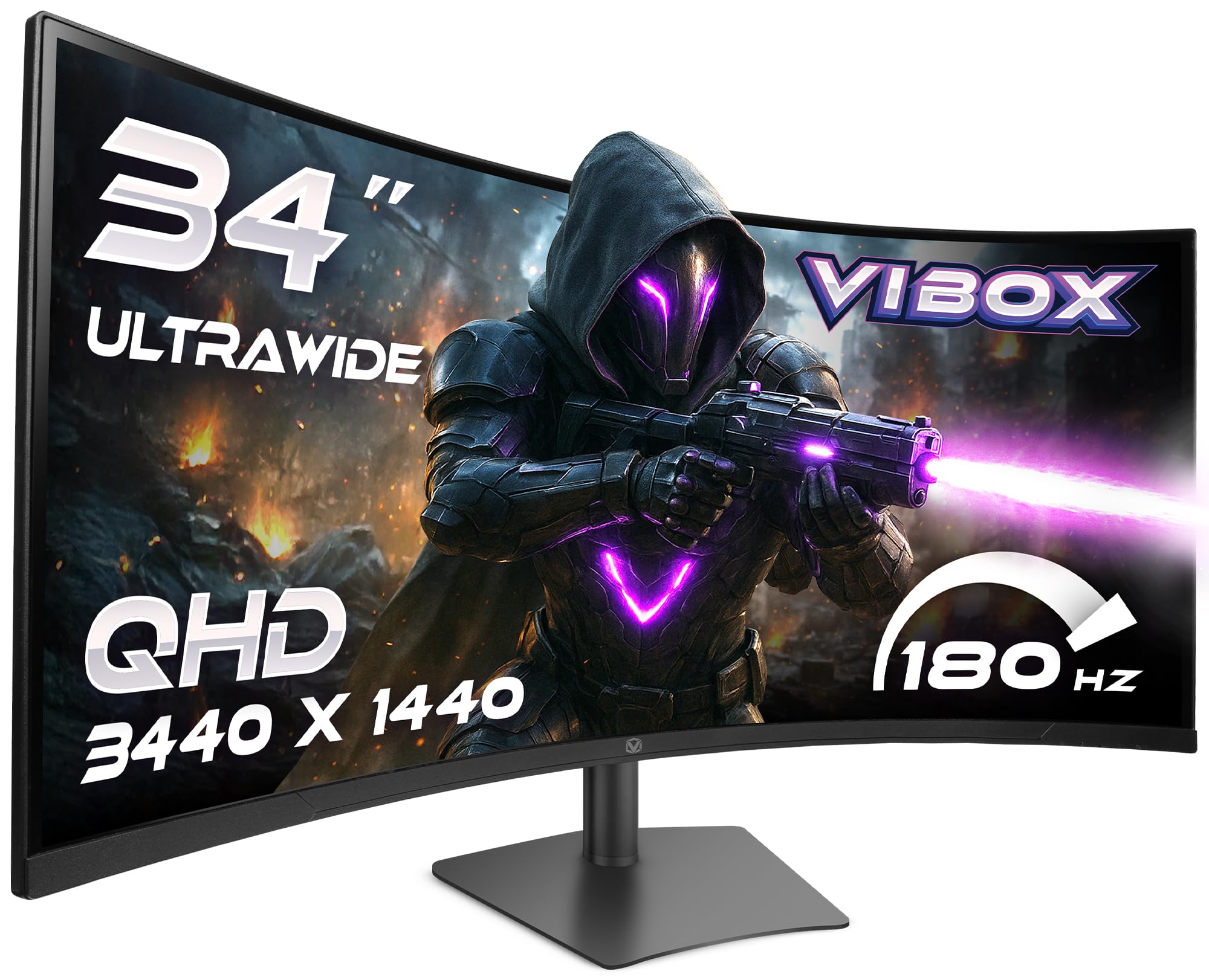
Image: The VIBOX 49-inch Curved Ultra-Wide Gaming Monitor, showcasing its expansive display.
2. Informacje dotyczące bezpieczeństwa
Aby zapobiec uszkodzeniom i zapewnić bezpieczną eksploatację, należy przestrzegać następujących środków ostrożności:
- Nie wystawiaj monitora na działanie deszczu, wilgoci ani ekstremalnych temperatur.
- Unikaj umieszczania monitora w pobliżu źródeł ciepła lub w bezpośrednim świetle słonecznym.
- Zapewnij odpowiednią wentylację, nie blokuj żadnych otworów wentylacyjnych.
- Należy używać wyłącznie zasilacza dołączonego do monitora.
- Disconnect the power cable during lightning storms or when unused for extended periods.
- Nie próbuj samodzielnie demontować ani naprawiać monitora. Wszelkie czynności serwisowe powierzaj wykwalifikowanemu personelowi.
3. Zawartość opakowania
Sprawdź, czy w przesyłce znajdują się wszystkie elementy:
- VIBOX 49-inch Curved Ultra-Wide Gaming Monitor
- Stojak na monitor (podstawa i szyjka)
- Zasilacz i kabel
- Kabel HDMI
- Kabel DisplayPort
- Instrukcja obsługi
4. Koniec produktuview
4.1. Panel tylny i porty
The rear panel of your monitor features various ports for connectivity and power. Familiarize yourself with these connections before setup.

Obraz: Tył view of the VIBOX monitor, highlighting the power input, 2x HDMI 2.0 ports, 2x DisplayPort, and 3.5mm audio port, along with RGB lighting around the stand connection.
- Pobór mocy: Łączy się z zasilaczem.
- Porty HDMI 2.0 (x2): Podłącz do urządzeń obsługujących wyjście HDMI.
- DisplayPort (x2): Podłącz do urządzeń obsługujących wyjście DisplayPort.
- Port audio 3.5 mm: Do podłączenia zewnętrznych słuchawek lub głośników.
- Przyciski sterujące: Typically located on the rear or bottom for navigating the On-Screen Display (OSD) menu.
5. Konfiguracja
5.1. Montaż stojaka
- Ostrożnie wyjmij monitor i elementy stojaka z opakowania.
- Attach the stand neck to the monitor panel, ensuring it clicks securely into place or is fastened with screws as indicated in the quick start guide.
- Przymocuj podstawę stojaka do szyjki stojaka, mocując ją za pomocą dołączonej śruby.
- Zmontowany monitor należy umieścić na stabilnej, płaskiej powierzchni.
5.2. Łączenie z urządzeniem
- Connect one end of the HDMI or DisplayPort cable to the corresponding port on your computer or gaming console.
- Connect the other end of the cable to an available HDMI or DisplayPort on the monitor's rear panel.
- Podłącz zasilacz do wejścia zasilania monitora, a następnie podłącz kabel zasilający do gniazdka ściennego.
5.3. Regulacja podstawy monitora
The monitor stand offers ergonomic adjustments for optimal viewkomfort.

Image: A diagram illustrating the adjustable height, tilt, and swivel capabilities of the VIBOX monitor stand, allowing for a customized viewkąt.
- Regulacja wysokości: Delikatnie pchnij lub pociągnij monitor w górę lub w dół, aż do uzyskania żądanej wysokości.
- Regulacja nachylenia: Tilt the monitor screen forward or backward to find the best viewkąt.
- Regulacja obrotu: Obróć monitor na podstawie w lewo lub w prawo.
6. Instrukcja obsługi
6.1. Włączanie/wyłączanie zasilania
Press the power button, usually located on the rear or bottom of the monitor, to turn it on or off. The power indicator light will illuminate when the monitor is active.
6.2. Menu ekranowe (OSD)
Use the control buttons to navigate the OSD menu and adjust various settings:
- Ustawienia obrazu: Jasność, kontrast, ostrość, temperatura barwowa.
- Wybór wejścia: Ręczne przełączanie pomiędzy wejściami HDMI i DisplayPort.
- Ustawienia audio: Volume control for built-in speakers or connected headphones.
- Funkcje gier: Adaptive Sync, Response Time overdrive, Crosshair.
- Ustawienia systemowe: Language, OSD Transparency, Reset to Factory Defaults.
7. Główne cechy
7.1. Super Ultrawide 49-inch DQHD Display
Experience an expansive 32:9 aspect ratio with a DQHD (5120 x 1440) resolution, offering a vast workspace and immersive gaming environments.

Image: A visual comparison demonstrating the difference between a standard QHD (2560x1080) display and the VIBOX Ultrawide QHD (5120x1440) VA panel, showcasing enhanced resolution and detail.
7.2. 1500R Curved Design
The 1500R curvature matches the natural field of view, reducing eye strain and enhancing immersion, especially in gaming and cinematic content.

Image: The VIBOX 49-inch curved monitor displaying a racing game, illustrating the 1500R curvature that brings the action closer to the user for ultimate immersion.
7.3. Ultra-Smooth 120Hz Refresh Rate & 1ms Response Time
Enjoy fluid motion and rapid pixel transitions with a 120Hz refresh rate and a 1ms (MPRT) response time, crucial for fast-paced gaming.

Image: A comparison showing a 60Hz monitor with significant motion blur on the left, contrasted with the VIBOX monitor (120Hz, 1ms MPRT) on the right, demonstrating superior clarity and smoothness in fast-moving scenes.
7.4. Technologia synchronizacji adaptacyjnej
Compatible with AMD FreeSync, this technology synchronizes the monitor's refresh rate with your GPU's frame rate, eliminating screen tearing and stuttering for a seamless visual experience.

Image: A split image illustrating the effect of Adaptive Sync. The left side shows screen tearing and stuttering when sync is off, while the right side displays a fluid and responsive visual experience with sync enabled.
7.5. Frameless Design
The ultra-thin bezels enhance the aesthetic of your setup and provide a more immersive viewing experience, especially in multi-monitor configurations.

Obraz: panoramiczny view from an airplane cockpit simulator displayed on the VIBOX monitor, emphasizing the elegant frameless design that maximizes screen real estate.
8. Rozwiązywanie Problemów
Jeśli masz problemy z monitorem, zapoznaj się z poniższymi typowymi problemami i ich rozwiązaniami:
| Problem | Możliwe rozwiązanie |
|---|---|
| Brak obrazu na ekranie | Ensure power cable is securely connected. Check video cable (HDMI/DisplayPort) connections. Select correct input source via OSD. |
| Obraz jest niewyraźny lub zniekształcony | Adjust resolution and refresh rate settings on your computer. Check video cable for damage. Perform OSD factory reset. |
| Brak dźwięku z głośników/słuchawek | Check audio cable connection (if external speakers). Adjust volume in OSD and on your computer. Ensure audio output is set to the monitor on your computer. |
| Migotanie lub rozrywanie ekranu | Ensure Adaptive Sync is enabled in the OSD and on your graphics card settings. Update graphics drivers. |
9. Specyfikacje
Detailed technical specifications for the VIBOX 49-inch 120Hz Curved Ultra-Wide Gaming Monitor:
| Funkcja | Specyfikacja |
|---|---|
| Marka | VIBOX |
| Numer modelu | 49Z120UWQHDC |
| Rozmiar ekranu | 49 cali |
| Rezolucja | DQHD Ultra Wide 1440p (5120 x 1440 Pixels) |
| Proporcje obrazu | 32:9 |
| Opis powierzchni ekranu | Matowy |
| Czas reakcji | 1 milisekunda (MPRT) |
| Częstotliwość odświeżania | 120 Hz |
| Typ wyświetlacza | VA |
| Technologia łączności | DisplayPort, HDMI (2x HDMI 2.0, 2x DisplayPort) |
| Cechy specjalne | Built-in Speaker, Curved, Ultra-Wide Screen |
| Poprawa jakości obrazu | Adaptive Sync (FreeSync compatible) |
| Wymiary przedmiotu (gł. x szer. x wys.) | 17.8D x 118.9W x 54.4H centymetrów |
| Waga przedmiotu | 7.95 kilograma |
| Kolor | Czarny |
| Typ mocowania VESA | Uchwyt biurkowy |
10. Konserwacja
10.1. Czyszczenie ekranu
Aby wyczyścić ekran monitora, delikatnie przetrzyj go miękką, niepozostawiającą włókien ściereczką. W przypadku uporczywych zabrudzeń delikatnie przetrzyj.ampPrzetrzyj ściereczkę wodą lub specjalnym środkiem do czyszczenia ekranów. Unikaj stosowania silnych środków chemicznych, środków ściernych ani spryskiwania ekranu płynem bezpośrednio.
10.2. Czyszczenie Casing
Wytrzyj monitor casinPrzetrzyj miękką, suchą ściereczką. W razie potrzeby użyj lekkoamp cloth. Do not use any solvents or abrasive materials.
11. Gwarancja i wsparcie
Your VIBOX 49-inch 120Hz Curved Ultra-Wide Gaming Monitor is covered by a 2-letnia gwarancja producenta from the date of purchase. This warranty covers manufacturing defects and ensures repair or replacement of faulty components.
For technical support, warranty claims, or further assistance, please contact VIBOX customer service through the retailer where you purchased the product or visit the official VIBOX webwitryna do informacji kontaktowych.
Zachowaj dowód zakupu w celu potwierdzenia gwarancji.