
1. Wprowadzenie
The ORGBRO Z3 Label Maker Machine is a versatile and portable thermal label printer designed for various labeling needs in home, office, and small business environments. It supports a wide range of label sizes and types, offering high-quality, ink-free printing via Bluetooth or USB connection.
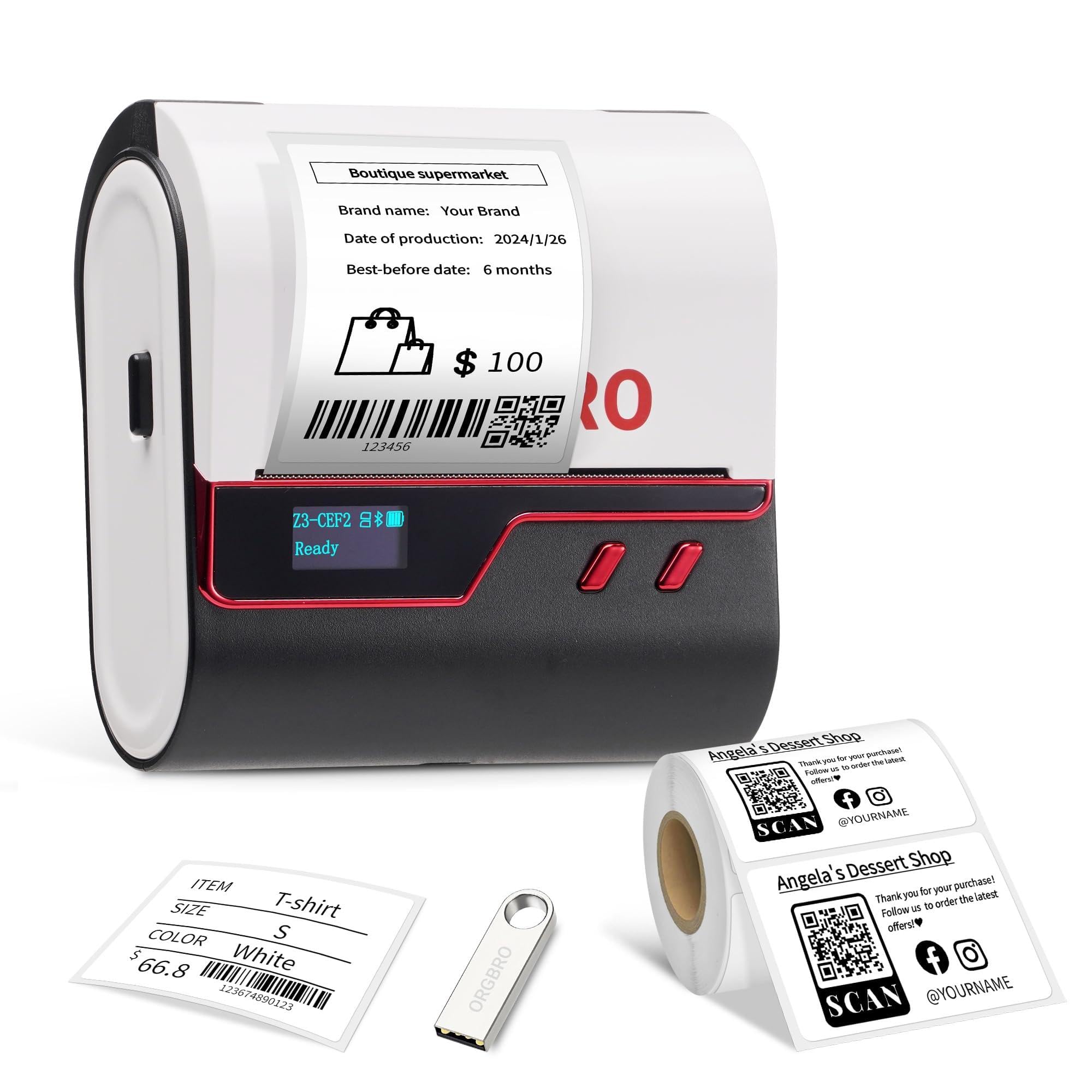
Image: The ORGBRO Z3 Label Maker Machine, featuring a sleek red and black design, ready for use.
2. Co znajduje się w pudełku
- Kabel ładujący 1x typu C.
- 1x ORGBRO Z3 Label Maker Machine
- 1x 50x30mm Roll of white labels (230 Pcs)
- 1x Instrukcja obsługi
- 1x Drive USB
3. Przewodnik konfiguracji
3.1. Ładowanie etykiet
- Press the Open-Cover Button on the left side of the printer to open the cover.
- Pull the red lock buckle on the paper baffle to the "open" position.
- Adjust the paper baffle to match the width of your label roll.
- Load the paper roll into the paper compartment with the printing side facing down.
- Slide the paper baffle to fix the paper roll and push the lock buckle to the "close" position.
- Pull out a part of the label to the paper outlet, and then close the cover.
- Naciśnij i przytrzymaj przycisk zasilania, aby włączyć drukarkę.

Image: Hands demonstrating how to open the printer cover and adjust the internal paper baffle to fit the label roll.

Image: A hand inserting a white label roll into the open compartment of the ORGBRO Z3 Label Maker, ensuring the printing side faces down.
3.2. Pobieranie aplikacji i połączenie Bluetooth
The ORGBRO Z3 Label Maker connects to your smartphone or tablet via Bluetooth using the "4BarCode" app.
- Download the "4BarCode" app from your mobile app store (available for Android and iOS).
- Upewnij się, że Bluetooth jest włączony w Twoim urządzeniu mobilnym.
- Open the "4BarCode" app and follow the in-app instructions to connect to your Z3 Label Maker. The printer will typically appear as "Z3-XXXX" in the device list.

Image: A smartphone displaying the "4BarCode" app, showcasing multiple label templates and customization options.

Image: The ORGBRO Z3 Label Maker positioned next to a smartphone, indicating a successful Bluetooth connection for wireless printing.
3.3. USB Connection (for PC)
For Windows, Mac, Chrome OS, and Linux computers, connect the printer via USB.
- Connect the Z3 printer to your computer using the provided USB cable.
- Włącz drukarkę.
- Plug the included USB drive into your computer to install the necessary drivers.
- Otwórz sterownik file, select your operating system, and follow the on-screen instructions to complete the installation.
- Once drivers are installed, you can open a label design file (e.g., PDF) and select "ORGBRO Z3" as your printer.

Image: The ORGBRO Z3 Label Maker connected to a laptop using a USB cable, demonstrating its wired connectivity option.
Video: A detailed guide on how to set up and use the ORGBRO Z3 label printer, including loading labels, connecting via Bluetooth, and installing drivers for PC connection.
4. Instrukcja obsługi
4.1. Tworzenie i drukowanie etykiet
Using the "4BarCode" app, you can design and print custom labels:
- Personalizacja: The app offers over 80 fonts, 150+ frames, and 670+ icons. You can also import images from your mobile device.
- Redagowanie: Adjust text, graphics, barcodes, and QR codes. Modify font size, style (bold, italic, underline), and alignment.
- Druk: Once your design is complete, select the print option in the app. You can adjust printing density and the number of copies. The printer will produce crisp 203dpi resolution labels at speeds up to 50mm/s.

Image: A collection of labels printed by the ORGBRO Z3, showcasing different designs, text, and graphics for various applications.
4.2. Screen Setting Functions
The ORGBRO Z3 features an LED screen that displays battery life, Bluetooth status, and print progress. You can also access various settings directly from the device:
- Typ etykiety: Select the type of label being used (e.g., Gap, Continuous, Black Mark).
- Autotest: Perform a self-test to check printer functionality and print a diagnostic report.
- Label Calibration: Calibrate the printer to ensure accurate label detection and printing alignment.
- Czas na spanie: Adjust the time before the printer enters sleep mode to conserve battery.
- Czas wyłączenia: Configure the automatic shutdown time.
- Ustawienia fabryczne: Reset the printer to its default factory settings.
To navigate these settings, short press the function button to switch between options, and long press to confirm your selection.
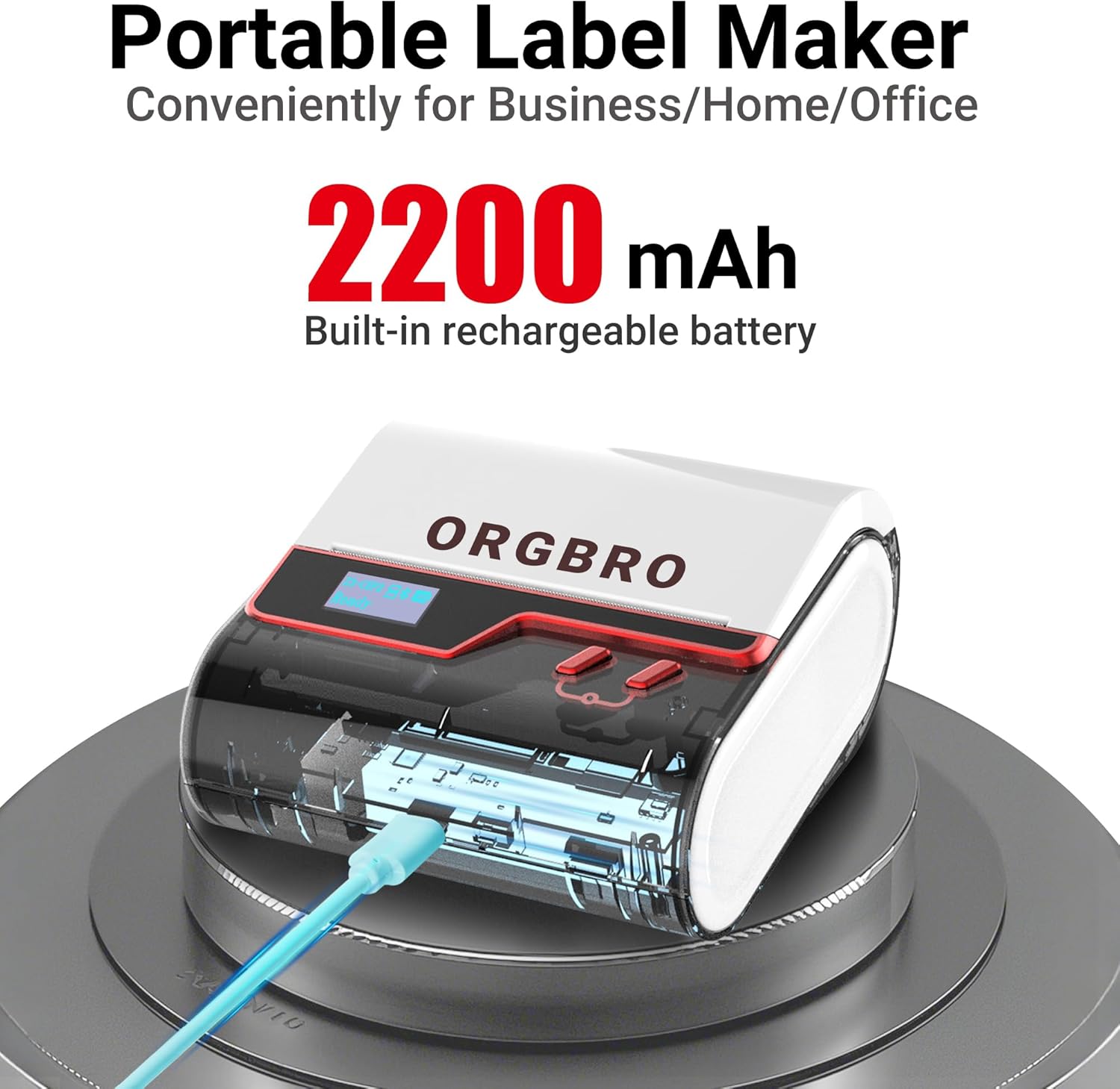
Image: The ORGBRO Z3 Label Maker's display screen showing options like "Label Type," "Self-test," "Label calibration," "Sleep Time," "Shutdown Time," and "Factory Settings."
5. Obsługiwane typy i rozmiary etykiet
The ORGBRO Z3 Label Maker is compatible with thermal labels ranging from 0.8 to 3.15 inches (20-80mm) in width. It supports various label shapes and materials, including:
- Square labels
- Round labels
- Transparent labels
- File etykiety
Ensure you use thermal paper brands compatible with the printer for optimal results.

Image: An assortment of labels, including square, circular, and transparent designs, demonstrating the versatility of the ORGBRO Z3 Label Maker.
6. Konserwacja
The ORGBRO Z3 Label Maker is designed for low maintenance. It operates without ink or toner, simplifying its upkeep. Regularly ensure the label compartment is free of debris and dust. If print quality degrades, perform a self-test and label calibration via the device's screen settings.
7. Rozwiązywanie Problemów
If you encounter issues with your ORGBRO Z3 Label Maker, consider the following:
- Brak zasilania: Ensure the device is fully charged. The 2200mAh rechargeable battery provides a 4-week runtime on a full charge.
- Problemy z połączeniem: For Bluetooth, verify Bluetooth is enabled on your device and you are connected within the "4BarCode" app, not directly through your phone's Bluetooth settings. For USB, confirm drivers are correctly installed and the cable is securely connected.
- Słaba jakość druku: Check that the label roll is inserted correctly with the printing side down. Perform a "Label Calibration" from the device's screen settings. Adjust printing density in the app if available.
- Etykiety nie są podawane prawidłowo: Ensure the paper baffle is adjusted snugly to the label roll width. Perform a "Self-test" to check the feeding mechanism.
8. Specyfikacje
| Funkcja | Specyfikacja |
|---|---|
| Marka | ORGBO |
| Nazwa modelu | Z3 Label Maker |
| Technologia łączności | Bluetooth, USB-Type-C |
| Technologia druku | Termiczny |
| Wyjście drukarki | Monochromia |
| Rezolucja | 203 x 203 dpi (203 Dots Per Inch) |
| Maksymalna prędkość drukowania (monochromatyczna) | 30 ppm (50 mm/s) |
| Maksymalny rozmiar nośnika | 3.14 cala (80 mm) |
| Compatible Label Widths | 0.8-3.15 cala |
| Bateria | Akumulator 2200 XNUMX mAh |
| Kompatybilne urządzenia | iOS, Android, Windows 7 and above, Chrome OS, Mac OS 10 and above, Linux |
| Wymiary produktu | 4.2" gł. x 4.4" szer. x 2.4" wys. |
9. Informacje o gwarancji
The ORGBRO Z3 Label Maker Machine comes with a Lifetime Warranty. For any warranty claims or support, please refer to the contact information provided with your purchase or visit the official ORGBRO webstrona.