
MIKUSO KB-C026 Wireless Keyboard and Mouse Combo User Manual
1. Wprowadzenie
This manual provides instructions for the setup, operation, and maintenance of your MIKUSO KB-C026 Wireless Keyboard and Mouse Combo. This combo set offers a reliable 2.4G wireless connection, providing a full-size keyboard with a numeric keypad and an ergonomic mouse for efficient computing tasks. It is designed for ease of use and a clutter-free workspace.
2. Informacje dotyczące bezpieczeństwa
- Do not expose the devices to liquids or excessive moisture.
- Unikaj ekstremalnych temperatur.
- Nie próbuj samodzielnie demontować ani naprawiać urządzeń. Skontaktuj się z wykwalifikowanym personelem serwisowym.
- Przechowywać w miejscu niedostępnym dla dzieci.
- Zutylizuj baterie zgodnie z lokalnymi przepisami.
3. Zawartość opakowania
Proszę sprawdzić, czy w paczce znajdują się następujące elementy:
- MIKUSO Full-Size Wireless Keyboard
- MIKUSO Ergonomic Wireless Mouse
- Odbiornik bezprzewodowy USB 2.4G
- Instrukcja obsługi (ten dokument)
4. Konfiguracja
Follow these steps to set up your MIKUSO Wireless Keyboard and Mouse Combo:
- Włóż baterie: Open the battery compartments on the underside of both the keyboard and the mouse. Insert the required batteries (typically AA or AAA, not included) according to the polarity indicators.
- Podłącz odbiornik USB: Locate an available USB port on your computer. Plug the USB 2.4G wireless receiver into the USB port.
- Włączanie: Turn on the keyboard and mouse using their respective power switches, usually located on the underside of each device.
- Automatyczne połączenie: The keyboard and mouse should automatically connect to your computer. No additional software installation is required. Your computer will recognize the devices and install necessary drivers.
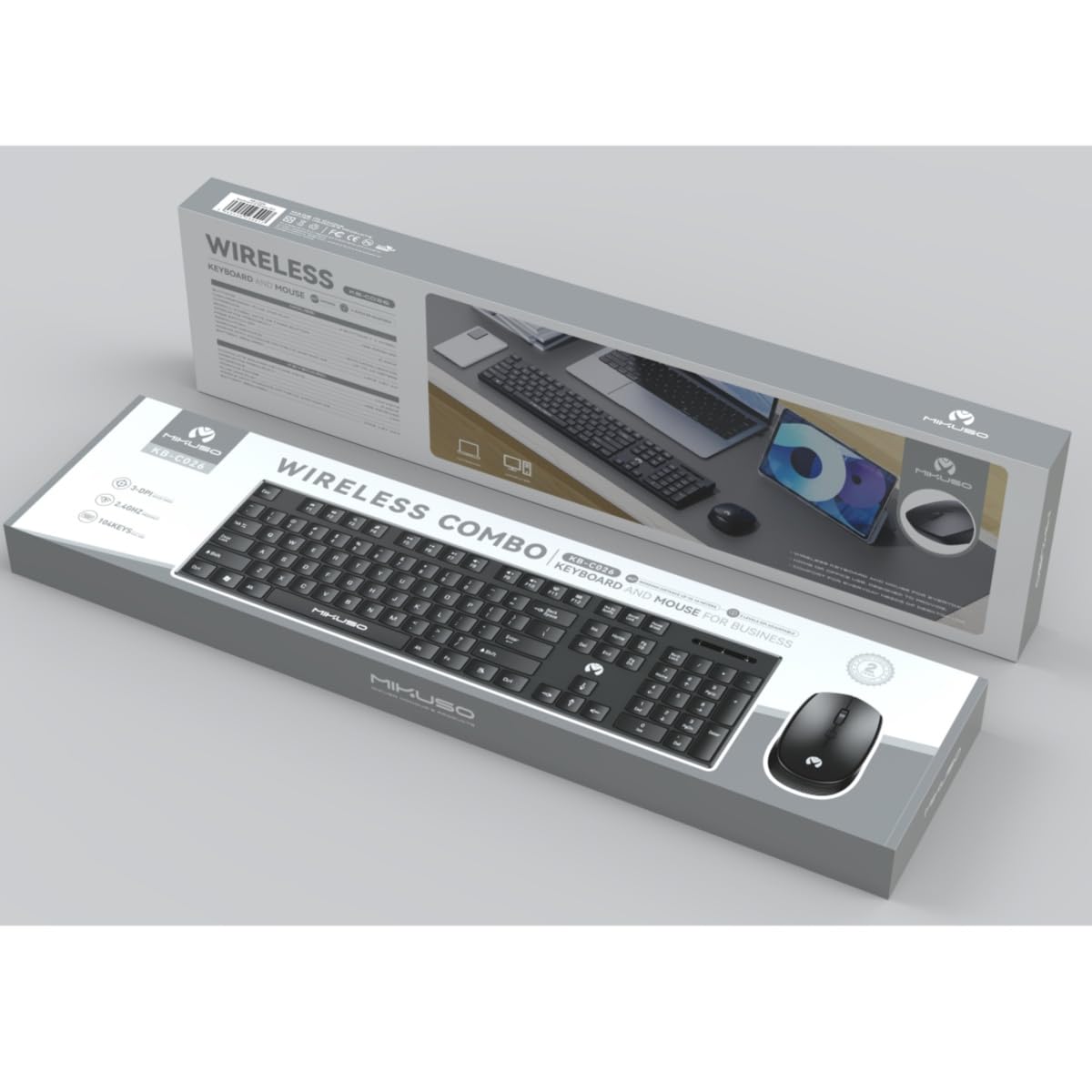
Image 1: MIKUSO KB-C026 Wireless Keyboard and Mouse Combo. This image displays the full-size keyboard, ergonomic mouse, and the compact USB receiver, illustrating the components included in the set.
5. Instrukcja obsługi
5.1. Korzystanie z klawiatury
- Pisanie na maszynie: Use the full QWERTY layout for standard typing.
- Klawiatura numeryczna: The dedicated numeric keypad on the right side is ideal for data entry and calculations. Ensure the 'Num Lock' key is active if numbers are not registering.
- Klawisze funkcyjne (F1-F12): These keys perform various functions, often in combination with the 'Fn' key, depending on your operating system and software.
5.2. Korzystanie z myszy
- Lewy przycisk myszy: Podstawowa akcja: selekcja.
- Kliknij prawym przyciskiem myszy: Otwiera menu kontekstowe.
- Kółko przewijania: Przewiń dokumenty i web pages. The scroll wheel may also function as a middle click.
- Ruch: Przesuwaj myszkę po płaskiej powierzchni, aby sterować kursorem na ekranie.
6. Konserwacja
- Czyszczenie: Do czyszczenia powierzchni klawiatury i myszy używaj miękkiej, suchej ściereczki. W przypadku uporczywych zabrudzeń, delikatnie przetrzyj powierzchnię.amp Można używać ściereczki zwilżonej łagodnym mydłem, upewniając się, że do wnętrza urządzenia nie dostanie się żaden płyn.
- Wymiana baterii: When the devices become unresponsive or exhibit delayed input, replace the batteries. Ensure correct polarity.
- Składowanie: Jeśli nie używasz urządzenia przez dłuższy czas, wyłącz je, aby oszczędzać baterię. Przechowuj w chłodnym, suchym miejscu.
7. Rozwiązywanie Problemów
| Problem | Rozwiązanie |
|---|---|
| Klawiatura/mysz nie reaguje |
|
| Opóźnienie lub przerywane połączenie |
|
| Klawiatura numeryczna nie działa |
|
8. Specyfikacje
- Model: KB-C026
- Łączność: Bezprzewodowa sieć 2.4G
- Zasięg bezprzewodowy: Do 10 metrów (33 stóp)
- Układ klawiatury: Full-size QWERTY with Numeric Keypad
- Typ myszy: Ergonomic, Optical
- Odbiornik: Odbiornik USB Nano
- Zgodność: Windows 7, Windows 8, Windows 10, Windows 11 (Desktop and Laptop Computers)
- Źródło zasilania: Batteries (not included, typically AA/AAA for devices)
9. Gwarancja i wsparcie
This product is covered by a standard manufacturer's warranty. For specific warranty terms and conditions, please refer to the documentation provided at the time of purchase or contact your retailer. If you encounter any issues or require technical assistance, please contact the seller or manufacturer's customer support through the details provided on your purchase receipt or the product packaging.