
1. Wprowadzenie
Thank you for choosing the UXD A5 Android Tablet. This manual provides essential information for setting up, operating, and maintaining your new device. Please read it thoroughly to ensure optimal performance and longevity of your tablet.
The UXD A5 is a versatile 10-inch Android 15 tablet featuring an Octa-Core CPU, 12GB RAM, and 512GB internal storage, designed for productivity and entertainment. It supports WiFi 6 and 4G LTE connectivity.
2. Zawartość opakowania
Sprawdź, czy w przesyłce znajdują się wszystkie elementy:
- UXD A5 Android Tablet
- Igła
- Odłączana klawiatura
- Mysz precyzyjna
- Folia ochronna na ekran (wstępnie nałożona lub osobno)
- Adapter OTG
- Składana obudowa
- Rumak
- Kabel USB
3. Koniec produktuview
The UXD A5 tablet features a 10-inch HD IPS display. Key components include:
- Przednia kamera: Typically located at the top center when held vertically, used for video calls and selfies. (5MP)
- Kamera tylna: Located on the back of the tablet, used for high-resolution photography. (15MP)
- Przycisk zasilania: Usually on the side, used to turn the tablet on/off or put it to sleep.
- Przyciski głośności: Adjacent to the power button, used to adjust audio levels.
- Port USB-C: Do ładowania i przesyłania danych.
- Gniazdo karty SIM/MicroSD: For inserting a 4G SIM card and expanding storage with a microSD card (up to 1TB).
- Prelegenci: Do wyjścia audio.
- Mikrofon: Do wprowadzania głosowego.
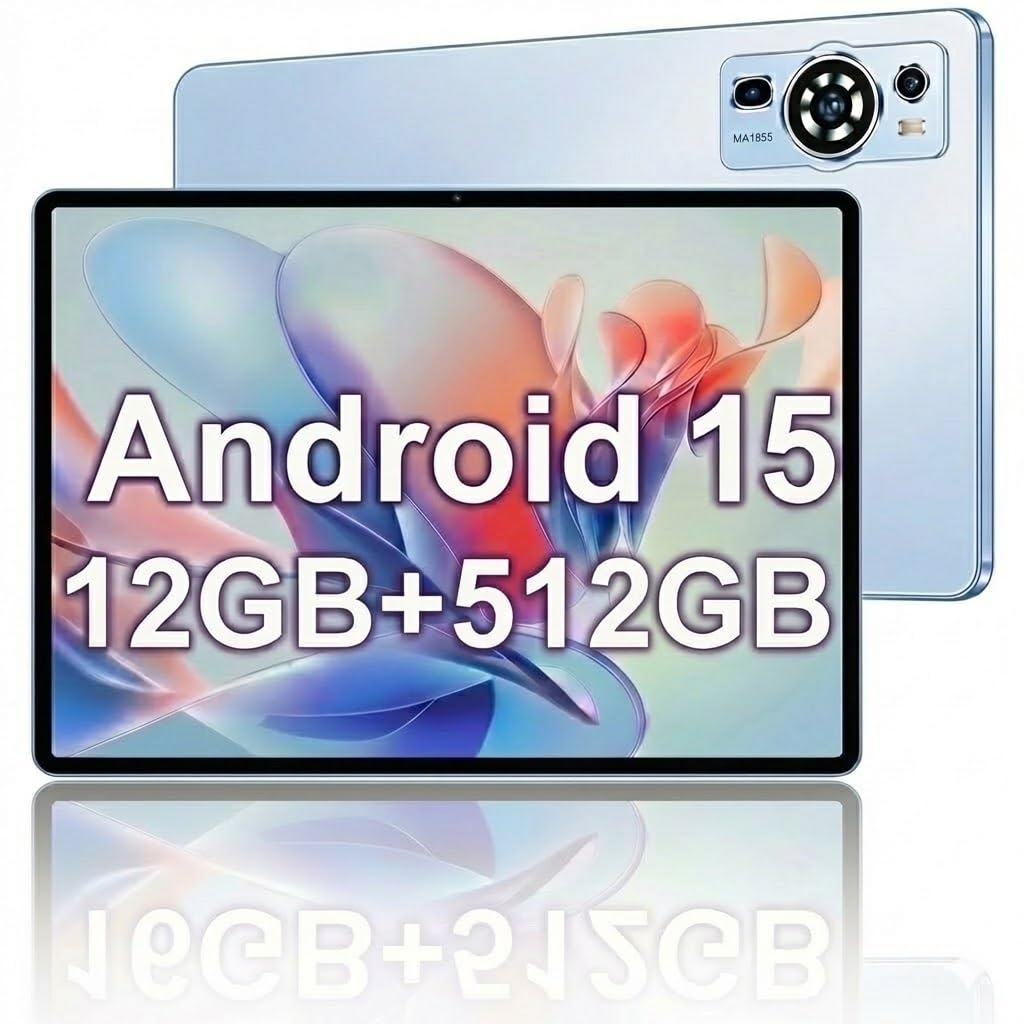
Image: The UXD A5 Android Tablet shown with its included accessories, such as the detachable keyboard, mouse, and stylus, highlighting its comprehensive package.
4. Konfiguracja
4.1 Pierwsze ładowanie
Before first use, fully charge the tablet using the provided charger and USB cable. Connect the USB cable to the tablet's USB-C port and the charger to a power outlet. The battery indicator on the screen will show charging status.
4.2 Włączanie/wyłączanie
- Włączanie: Press and hold the Power button until the UXD logo appears.
- Aby wyłączyć: Naciśnij i przytrzymaj przycisk zasilania, aż pojawią się opcje zasilania, a następnie wybierz opcję „Wyłącz”.
- Aby zasnąć/obudzić się: Krótko naciśnij przycisk zasilania.
4.3 Łączenie z Wi-Fi
- Idź do Ustawienia > Sieć i internet > Wi-Fi.
- Przełącz Wi-Fi On.
- Wybierz żądaną sieć Wi-Fi z listy.
- Wprowadź hasło, jeśli zostaniesz o to poproszony, a następnie stuknij Łączyć.
4.4 Inserting SIM Card (4G LTE)
If your model supports 4G LTE, locate the SIM card slot on the side of the tablet. Use the provided SIM ejector tool (if applicable) to open the tray. Insert a nano-SIM card into the designated slot with the gold contacts facing down, then reinsert the tray. Ensure the tablet is powered off before inserting or removing a SIM card.
4.5 Rozszerzanie pamięci za pomocą karty MicroSD
The tablet supports microSD cards up to 1TB. Locate the SIM/MicroSD card slot. Insert the microSD card into the appropriate slot with the gold contacts facing down. The tablet will detect the card and prompt you for formatting options if necessary.
4.6 Podłączanie akcesoriów
- Myszka klawiaturowa: These typically connect via Bluetooth. Go to Ustawienia > Podłączone urządzenia > Bluetooth. Turn Bluetooth on, put the accessory in pairing mode, and select it from the list of available devices.
- Rysik: The stylus is generally passive or connects automatically via Bluetooth. Refer to the stylus's specific instructions for pairing if required.
- Adapter OTG: Connect the OTG adapter to the tablet's USB-C port to connect USB devices like flash drives.
5. Instrukcja obsługi
5.1 Podstawowa nawigacja
The UXD A5 tablet uses a capacitive touchscreen. Use gestures such as tap, swipe, pinch-to-zoom, and long-press to navigate the interface, open apps, and interact with content.
5.2 System operacyjny Android 15
Your tablet runs on Android 15, offering enhanced privacy features, improved notifications, and a refined user interface. Explore the Ustawienia menu to customize your tablet's behavior, appearance, and security options.
5.3 Zarządzanie magazynem
The tablet comes with 512GB of internal storage. To manage your storage, go to Ustawienia > SkładowanieTutaj możesz view wykorzystana przestrzeń, zwolnij przestrzeń i zarządzaj nią files on your internal storage and microSD card.
5.4 Korzystanie z kamery
Open the Camera app to take photos and videos. The tablet features a 5MP front camera and a 15MP rear camera. Tap the screen to focus, and use the on-screen shutter button to capture images. Switch between front and rear cameras using the icon on the screen.
5.5 Optymalizacja baterii
Bateria o pojemności 6000 mAh zapewnia dłuższe użytkowanie. Aby zmaksymalizować czas pracy baterii:
- Dostosowanie jasności ekranu.
- Wyłącz Wi-Fi, Bluetooth i GPS, gdy nie są używane.
- Zamknij nieużywane aplikacje działające w tle.
- Włącz tryb oszczędzania baterii w Ustawienia > Bateria.
6. Konserwacja
6.1 Czyszczenie tabletu
Do czyszczenia ekranu i obudowy tabletu używaj miękkiej, niepozostawiającej włókien ściereczki. W przypadku uporczywych plam delikatnie przetrzyj.ampPrzetrzyj ściereczkę wodą lub płynem do czyszczenia ekranów. Unikaj stosowania silnych środków chemicznych i materiałów ściernych.
6.2 Aktualizacje oprogramowania
Regularnie sprawdzaj dostępność aktualizacji oprogramowania, aby mieć pewność, że Twój tablet ma najnowsze funkcje i poprawki zabezpieczeń. Przejdź do Ustawienia > System > Aktualizacja systemu aby sprawdzić i zainstalować dostępne aktualizacje.
6.3 Pielęgnacja baterii
To prolong battery lifespan, avoid extreme temperatures and do not let the battery completely drain frequently. It is recommended to keep the battery charge between 20% and 80% for optimal long-term health.
7. Rozwiązywanie Problemów
- Tablet się nie włącza: Upewnij się, że tablet jest naładowany. Podłącz ładowarkę i odczekaj kilka minut przed ponownym włączeniem.
- Problemy z łącznością Wi-Fi: Uruchom ponownie tablet i router Wi-Fi. Upewnij się, że jesteś w zasięgu sygnału Wi-Fi i podałeś prawidłowe hasło.
- Niska wydajność: Close unused apps, clear cache, or restart the tablet. Consider uninstalling rarely used applications to free up resources.
- Ekran dotykowy nie reaguje: Uruchom ponownie tablet. Jeśli problem nadal występuje, upewnij się, że ekran jest czysty i wolny od zanieczyszczeń.
- Akcesoria niepodłączane: Ensure Bluetooth is enabled on the tablet and the accessory is in pairing mode. Check the accessory's battery level.
8. Specyfikacje
| Marka | UXD |
| Nazwa modelu | A5 |
| System operacyjny | Android 15 |
| Rozmiar ekranu | 10.1 cali |
| Rozdzielczość wyświetlacza | 1280x800 Pixels (HD IPS) |
| Edytor | Procesor ośmiordzeniowy |
| Pamięć RAM | 12 GB |
| Pamięć wewnętrzna | 512 GB |
| Możliwość rozbudowy pamięci masowej | Do 1 TB (MicroSD) |
| Technologia bezprzewodowa | Wi-Fi 6, Bluetooth 5.0 |
| Technologia komórkowa | 4G LTE |
| Przednia kamera | 5 MP |
| Kamera tylna | 15 MP |
| Pojemność baterii | 6000 mAh (litowo-polimerowy) |
| Średnia żywotność baterii | Do 72 godzin (czuwanie) |
| Wymiary (dł. x szer. x gł.) | 9.4" dł. x 6.3" szer. x 2.7" gł. |
| Kolor | Niebieski |
9. Gwarancja i wsparcie
The UXD A5 Android Tablet comes with a 1-year limited warranty. For warranty claims or technical support, please refer to the contact information provided with your purchase or visit the official UXD support webstrona.
Prosimy zachować dowód zakupu w celach gwarancyjnych.