
1. Wprowadzenie
This manual provides detailed instructions for the setup, operation, and maintenance of your Bmax Mini PC B6 Turbo. This compact desktop computer features an Intel Core i5-8257U processor, 16GB DDR4 RAM, and a 512GB NVMe SSD, designed for various applications including home, office, and educational use.

Figure 1: Bmax Mini PC B6 Turbo, front view pokazujący porty USB i przycisk zasilania.
2. Co znajduje się w pudełku
Sprawdź, czy w opakowaniu znajdują się wszystkie elementy:
- 1x B6 Turbo Intel i5-8257U MINI PC
- 1x zasilacz (wtyczka amerykańska)
- 1x User Guide (Multi-language)
- 1x VESA Mount (with Screws)
- 1x HDMI Cable (1.5m)
3. Przewodnik konfiguracji
3.1 Podłączanie urządzeń peryferyjnych
Before powering on your Mini PC, connect your monitor, keyboard, and mouse.
- Connect your monitor(s) to the HDMI and/or DisplayPort (DP) outputs. The B6 Turbo supports dual 4K displays.
- Podłącz klawiaturę i mysz do dostępnych portów USB 3.2 lub USB 2.0.
- Connect the power adapter to the DC-in port on the Mini PC, then plug it into a power outlet.

Rysunek 2: Tył view of the Mini PC showing HDMI, DisplayPort, Ethernet, USB 2.0, and Power In ports.

Figure 3: Diagram illustrating the front and rear ports of the B6 Turbo Mini PC.
3.2 First Boot and Operating System
Press the power button located on the front of the Mini PC. The system comes with Windows 11 Pro pre-installed. Follow the on-screen instructions to complete the initial Windows setup.

Figure 4: The B6 Turbo Mini PC supports Windows 11 Pro, Ubuntu, and other Linux operating systems.
3.3 Łączność sieciowa i Bluetooth
The Mini PC supports Wi-Fi 6 and Bluetooth 5.2 for wireless connectivity, as well as a Gigabit Ethernet port for wired connections.
- Wi-Fi: After initial setup, Windows will prompt you to connect to a Wi-Fi network. Select your network and enter the password.
- Ethernet: For a wired connection, connect an Ethernet cable from your router or modem to the Ethernet port on the Mini PC.
- Bluetooth: Aby sparować urządzenia Bluetooth, przejdź do Ustawień systemu Windows > Bluetooth i urządzenia i postępuj zgodnie z instrukcjami, aby dodać nowe urządzenie.

Figure 5: The B6 Turbo Mini PC features Wi-Fi 6 and Bluetooth 5.2 for fast and stable wireless connections.
3.4 Montaż za pomocą uchwytu VESA
The included VESA mount allows you to attach the Mini PC to the back of a compatible monitor or to a wall, saving desk space.
- Attach the VESA bracket to the back of your monitor using the provided screws. Ensure your monitor has VESA mounting holes.
- Slide the B6 Turbo Mini PC onto the mounted bracket until it clicks securely into place.

Figure 6: The B6 Turbo Mini PC can be VESA mounted behind a monitor for a clean workspace.
4. Instrukcja obsługi
4.1 Podstawowa obsługa
Once powered on and Windows is set up, you can use your Bmax Mini PC like any standard desktop computer. The Intel Core i5-8257U processor with 8 threads and 16GB DDR4 RAM provides smooth performance for multitasking, web browsing, office applications, and multimedia consumption.

Figure 7: The B6 Turbo Mini PC is suitable for various uses including office work, education, meetings, home theater, and light gaming.
4.2 Konfiguracja podwójnego wyświetlacza
To utilize the dual 4K display capability, connect two monitors to the HDMI and DisplayPort outputs. Windows will automatically detect the second display. You can configure display settings (extend, duplicate, or second screen only) by right-clicking on the desktop and selecting "Display settings."
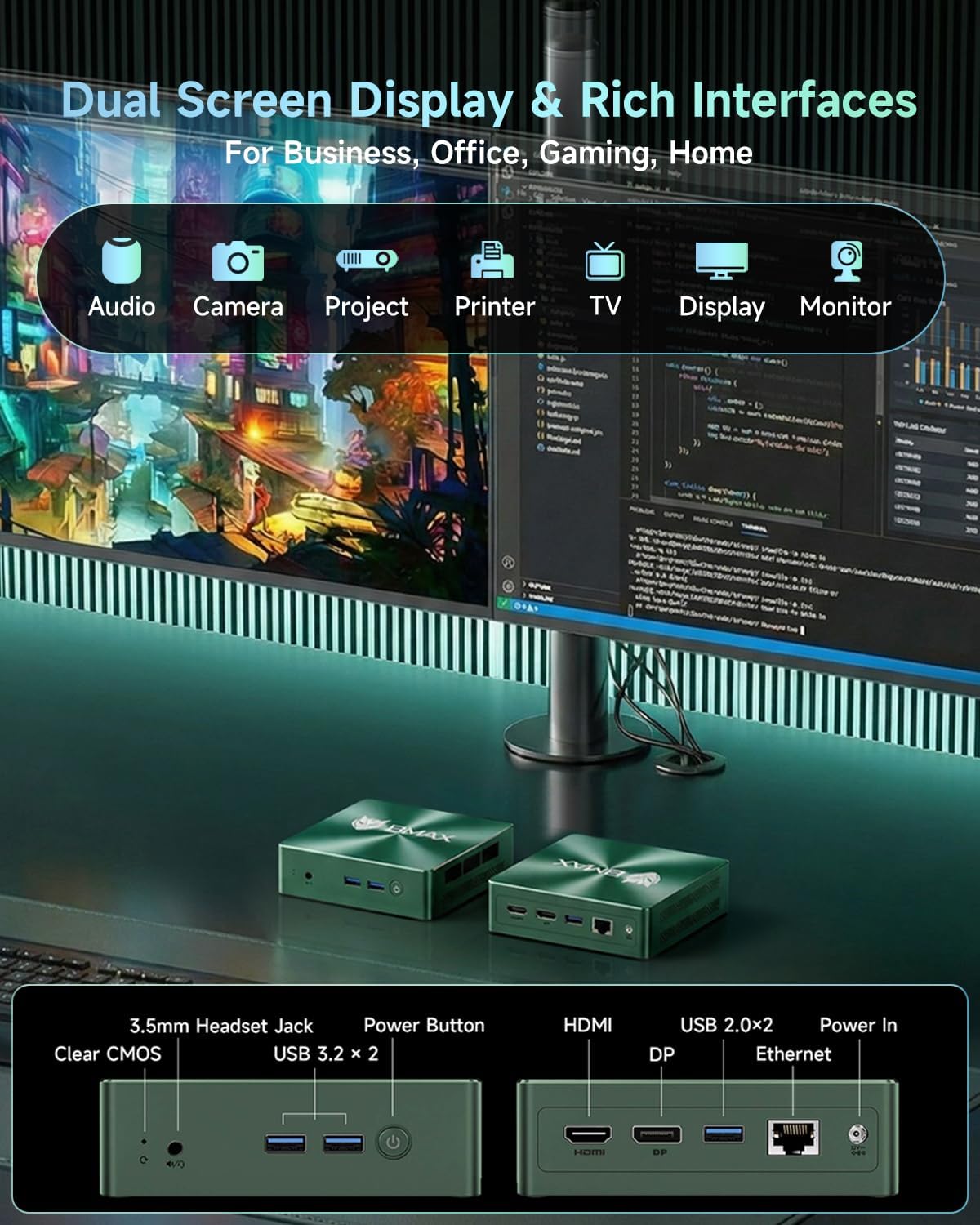
Figure 8: Dual 4K display setup with the B6 Turbo Mini PC, enhancing productivity.
4.3 Rozszerzenie pamięci masowej
The B6 Turbo Mini PC allows for storage expansion. It features an additional M.2 slot for NVMe or SATA SSDs, supporting up to 4TB.
- To install an additional M.2 SSD, carefully open the Mini PC casing.
- Locate the empty M.2 slot and insert the new SSD.
- Secure the SSD with the provided screw (if applicable).
- Zamknij casing and power on the device. You may need to initialize and format the new drive in Windows Disk Management.
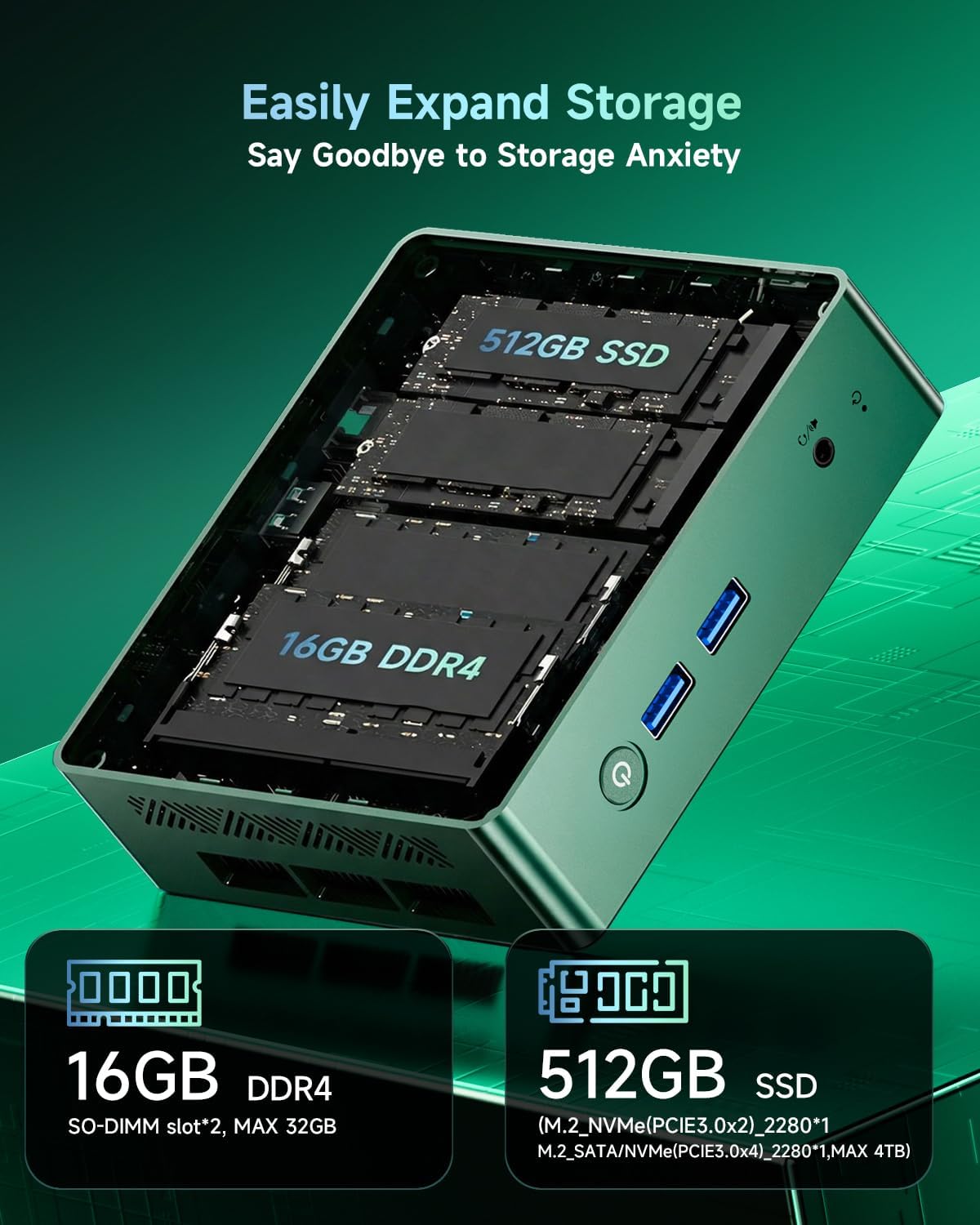
Rysunek 9: Wewnętrzne view highlighting the 16GB DDR4 RAM and 512GB M.2 SSD, with an additional M.2 slot for expansion.
4.4 BMAX Factory Reset
The B6 Turbo includes a "Smart Recovery" feature for factory resetting your Windows system.
- To access Smart Recovery, power on the PC and repeatedly press the designated key (refer to the on-screen prompt during boot, usually F7 or F11) to enter the boot menu.
- Select the "Smart Recovery" option.
- Follow the on-screen instructions to perform a factory reset. Warning: This will erase all data on your primary drive. Back up important files przed kontynuowaniem.

Figure 10: The BMAX Smart Recovery interface for performing a factory reset.
5. Konserwacja
5.1 Układ chłodzenia
The B6 Turbo Mini PC features a Copper Heat Pipe Cooling System with an intelligent cooling fan and direct air exhaust to maintain optimal operating temperatures and ensure quiet operation.
- Ensure the ventilation openings on the Mini PC are not obstructed to allow for proper airflow.
- Periodically clean dust from the exterior vents using a soft brush or compressed air.

Rysunek 11: Eksplodowany view of the B6 Turbo's cooling system, showing dual copper strips, intelligent fan, and air exhaust.
5.2 Ogólna opieka
- Przechowuj Mini PC w czystym i suchym miejscu, z dala od bezpośredniego światła słonecznego i ekstremalnych temperatur.
- Unikaj umieszczania ciężkich przedmiotów na komputerze Mini PC.
- Oczyść z zewnątrz miękką, damp płótno. Nie używaj ostrych chemikaliów.
6. Rozwiązywanie Problemów
| Problem | Możliwa przyczyna | Rozwiązanie |
|---|---|---|
| Brak zasilania | Power adapter not connected, power outlet issue | Upewnij się, że zasilacz jest prawidłowo podłączony do komputera i do sprawnego gniazdka elektrycznego. Spróbuj użyć innego gniazdka. |
| Brak obrazu na monitorze | Luźny kabel monitora, na monitorze wybrano nieprawidłowe wejście | Check HDMI/DP cable connections. Ensure monitor is on and set to the correct input source. |
| Brak połączenia Wi-Fi | Wi-Fi wyłączone, nieprawidłowe hasło, problem z routerem | Sprawdź ustawienia Wi-Fi w systemie Windows. Zweryfikuj hasło Wi-Fi. Uruchom ponownie router. |
| System jest powolny lub nie odpowiada | Too many applications running, system overheating | Close unnecessary applications. Ensure proper ventilation. Restart the PC. |
If you encounter issues not listed here or if the suggested solutions do not resolve the problem, please contact Bmax customer support.
7. Specyfikacje
| Funkcja | Szczegół |
|---|---|
| Edytor | Intel Core i5-8257U (4 Cores, 8 Threads, up to 3.9GHz) |
| Grafika | Karta graficzna Intel Iris Plus 645 |
| BARAN | 16GB DDR4 (2400 MHz), expandable to 64GB |
| Składowanie | 512GB M.2 NVMe 2280 SSD, expandable with additional M.2 slot (up to 4TB) |
| System operacyjny | Windows 11 Pro |
| Łączność bezprzewodowa | Wi-Fi 6 (802.11ax), Bluetooth 5.2 |
| Łączność przewodowa | Port Gigabit Ethernet |
| Wyjście wideo | 1x HDMI 1.4b, 1x DisplayPort 1.2 (Dual 4K UHD @ 60Hz support) |
| Porty USB | 2x USB 3.2, 2x USB 2.0 |
| Audio | Gniazdo słuchawkowe 3.5 mm |
| Wymiary | 4.9 x 4.4 x 1.3 cala (125 x 112 x 33 mm) |
| Waga | 1.5 funta |
| Układ chłodzenia | Smart Copper Heat Pipe Cooling System |
8. Gwarancja i wsparcie
Bmax offers a 12-Month Satisfaction Warranty for your B6 Turbo Mini PC. Additionally, lifetime technical support is available to assist you with any setup, operating system, or hardware-related inquiries.
For technical assistance or warranty claims, please contact Bmax customer service. Refer to the contact information provided in your product packaging or on the official Bmax webstrona.