
Wstęp
This manual provides detailed instructions for the GOWENIC Wireless Keyboard, model GOWENICryt20kq5je. This compact 61-key keyboard offers versatile connectivity options including 2.4G wireless, Bluetooth, and USB wired modes, designed for various computing environments.
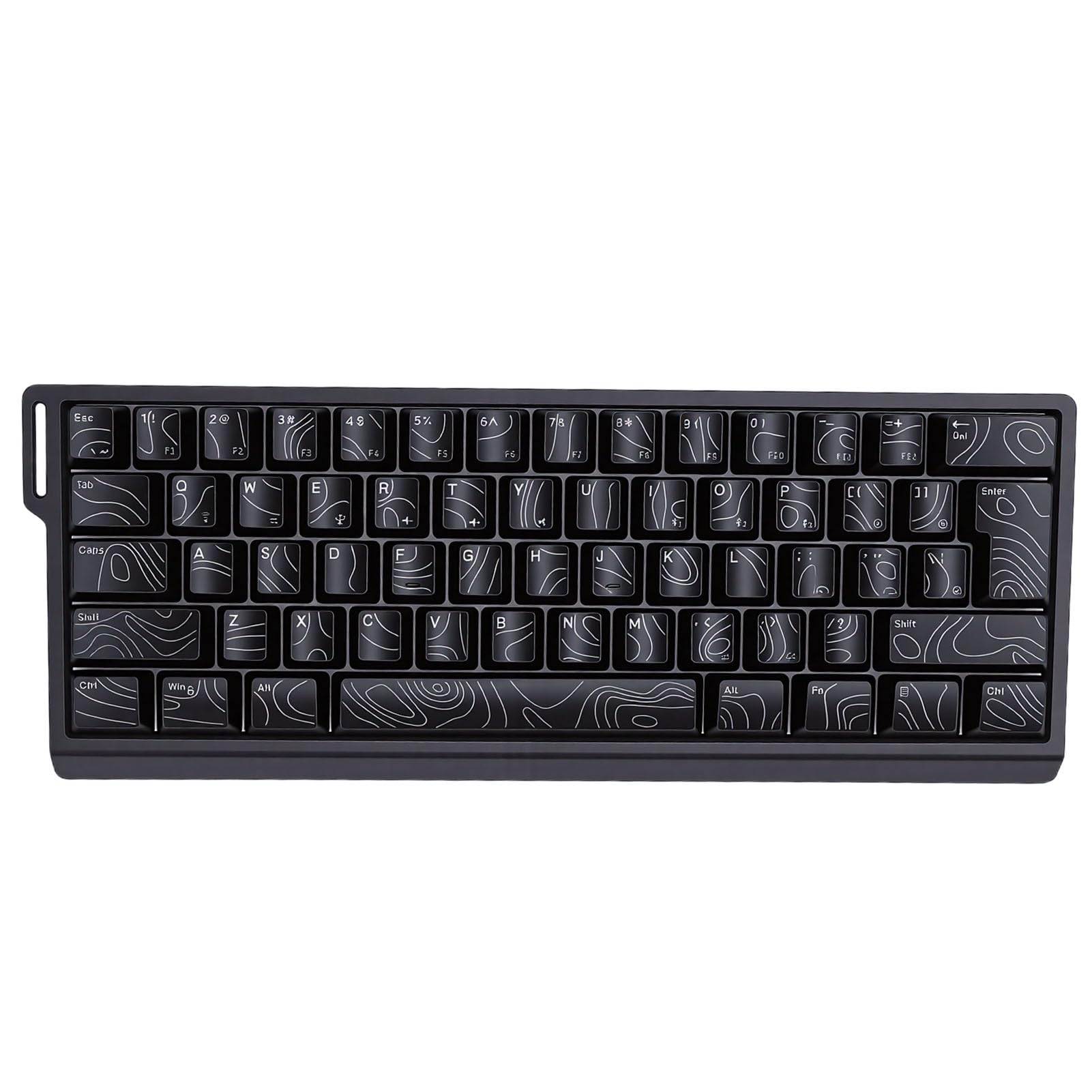
Image: GOWENIC Wireless Keyboard demonstrating its tri-mode connection capability with multiple devices like a laptop, desktop, and tablet.
Zawartość opakowania
Sprawdź, czy w przesyłce znajdują się wszystkie elementy wymienione poniżej:
- 1 x GOWENIC Wireless Keyboard
- 1 x odbiornik USB (do połączenia bezprzewodowego 2.4G)
- 1 x USB Cable (for wired connection and charging)
- 1 x Instrukcja obsługi
- 1 x Ribbon (Lanyard)

Image: The GOWENIC Wireless Keyboard displayed with its USB cable, USB receiver, and ribbon lanyard.
Specyfikacje
| Nazwa modelu | GOWENICryt20kq5je |
| Klawiatura | 61 klucze |
| Łączność | 2.4G Wireless, Bluetooth, USB Wired |
| Tworzywo | ABS |
| Bateria | Built-in 2000mAh Li-Ion Polymer Battery |
| Przewijanie kluczy | 25-Key Anti-ghosting |
| Zgodność | PC (98SE, Me, 2000, XP, VISTA, Win 7, Win10), OS X systems |
| Opis klawiatury | Mechaniczny |

Image: Diagram illustrating the internal structure of the keyboard, including ABS keycaps, positioning plate, silicone conductive film, light-emitting board, and ABS bottom shell.
Instrukcje konfiguracji
The GOWENIC Wireless Keyboard supports three connection modes: 2.4G wireless, Bluetooth, and USB wired. Choose the mode that best suits your device and needs.
1. Połączenie przewodowe USB
- Connect the provided USB cable to the keyboard's USB port.
- Podłącz drugi koniec kabla USB do wolnego portu USB w komputerze.
- Klawiatura zostanie automatycznie rozpoznana i będzie gotowa do użycia. Ten tryb ładuje również wewnętrzną baterię klawiatury.
2. Połączenie bezprzewodowe 2.4G
- Znajdź odbiornik USB dołączony do zestawu.
- Podłącz odbiornik USB do dostępnego portu USB w komputerze.
- Ensure the keyboard is powered on and in 2.4G wireless mode (refer to keyboard's mode switch, if present, or combination keys for mode selection).
- Klawiatura powinna połączyć się automatycznie.
3. Połączenie Bluetooth
- Ensure the keyboard is powered on and in Bluetooth pairing mode (refer to keyboard's mode switch or combination keys for Bluetooth mode selection and pairing initiation).
- On your device (PC, laptop, tablet, etc.), enable Bluetooth and search for new devices.
- Select "GOWENIC Keyboard" or a similar name from the list of available devices to pair.
- Postępuj zgodnie ze wskazówkami wyświetlanymi na ekranie, aby dokończyć proces parowania.

Image: The GOWENIC Wireless Keyboard positioned on a desk, highlighting its 60% compact layout and portability, suitable for various setups.
Instrukcja obsługi
Once connected, the GOWENIC Wireless Keyboard functions as a standard keyboard. Below are some key operational aspects:
Funkcje kluczowe
- Standardowe pisanie: Use the keys for text input as you would with any conventional keyboard.
- Klawisze funkcyjne: Due to the 60% compact layout, some function keys (F1-F12) and navigation keys may be accessed via a combination with the Fn key. Refer to the keycap legends for specific combinations.
- 25-klawiszowy Anti-Ghosting: This feature ensures that up to 25 keys can be pressed simultaneously without input conflicts, providing accurate and responsive input, especially beneficial for gaming and fast typing.
- Ergonomic Keycaps: The contoured keycap design is intended to provide a comfortable typing experience, fitting the natural curve of your fingertips.
Ładowanie klawiatury
The keyboard is equipped with a built-in rechargeable battery. To charge:
- Connect the provided USB cable to the keyboard's charging port.
- Plug the other end into a USB power source (e.g., computer USB port, USB wall adapter).
- An indicator light on the keyboard will typically show charging status and turn off or change color when fully charged.

Obraz: szczegółowy view of the keyboard's keycaps, highlighting the clear and transparent characters and contoured design for improved readability and comfort.
Konserwacja
Proper maintenance ensures the longevity and optimal performance of your GOWENIC Wireless Keyboard.
- Czyszczenie: Do czyszczenia powierzchni klawiatury użyj miękkiej, suchej ściereczki. W przypadku uporczywych zabrudzeń delikatnie przetrzyjampPrzetrzyj szmatkę wodą lub delikatnym, nieściernym środkiem czyszczącym. Unikaj nadmiernej wilgoci.
- Usuwanie kurzu: Usuń kurz i zanieczyszczenia spomiędzy klawiszy za pomocą sprężonego powietrza.
- Składowanie: Jeśli klawiatura nie będzie używana przez dłuższy czas, należy ją przechowywać w chłodnym, suchym miejscu, z dala od bezpośredniego światła słonecznego i ekstremalnych temperatur.
- Pielęgnacja baterii: To preserve battery life, avoid fully discharging the keyboard frequently. Charge it regularly, especially if it will be stored for a long time.
Rozwiązywanie problemów
If you encounter issues with your GOWENIC Wireless Keyboard, refer to the following common solutions:
Klawiatura nie odpowiada
- Sprawdź moc: Ensure the keyboard is powered on and has sufficient battery charge. Connect it via USB cable to charge.
- Tryb połączenia: Verify that the keyboard is in the correct connection mode (2.4G, Bluetooth, or Wired) for your device.
- USB Receiver (2.4G): For 2.4G mode, ensure the USB receiver is securely plugged into a working USB port on your computer. Try a different USB port.
- Parowanie Bluetooth: For Bluetooth mode, ensure the keyboard is properly paired with your device. If not, unpair and re-pair the keyboard. Ensure Bluetooth is enabled on your device.
- Połączenie przewodowe: If using wired mode, ensure the USB cable is firmly connected to both the keyboard and the computer. Try a different USB cable if available.
Klawisze nie działają prawidłowo
- Czyste klucze: Remove any debris or dust that might be stuck under the keycaps using compressed air.
- Problemy z oprogramowaniem: Restart your computer to rule out any temporary software glitches.
- Przetestuj na innym urządzeniu: If possible, test the keyboard on another computer or device to determine if the issue is with the keyboard or the original device.
Gwarancja i wsparcie
The GOWENIC Wireless Keyboard (Model: GOWENICryt20kq5je) comes with a manufacturer warranty for 90 days from the date of purchase.
For technical support, warranty claims, or further assistance, please refer to the contact information provided with your purchase documentation or visit the official GOWENIC webStrona. Kontaktując się z pomocą techniczną, przygotuj numer modelu i dane dotyczące zakupu.