
1. Wprowadzenie
This manual provides essential information for the proper setup, operation, and maintenance of your MESWAO 15.6-inch Android 14 Tablet (Model MES-B3). Please read this manual thoroughly before using the device to ensure optimal performance and longevity. Keep this manual for future reference.
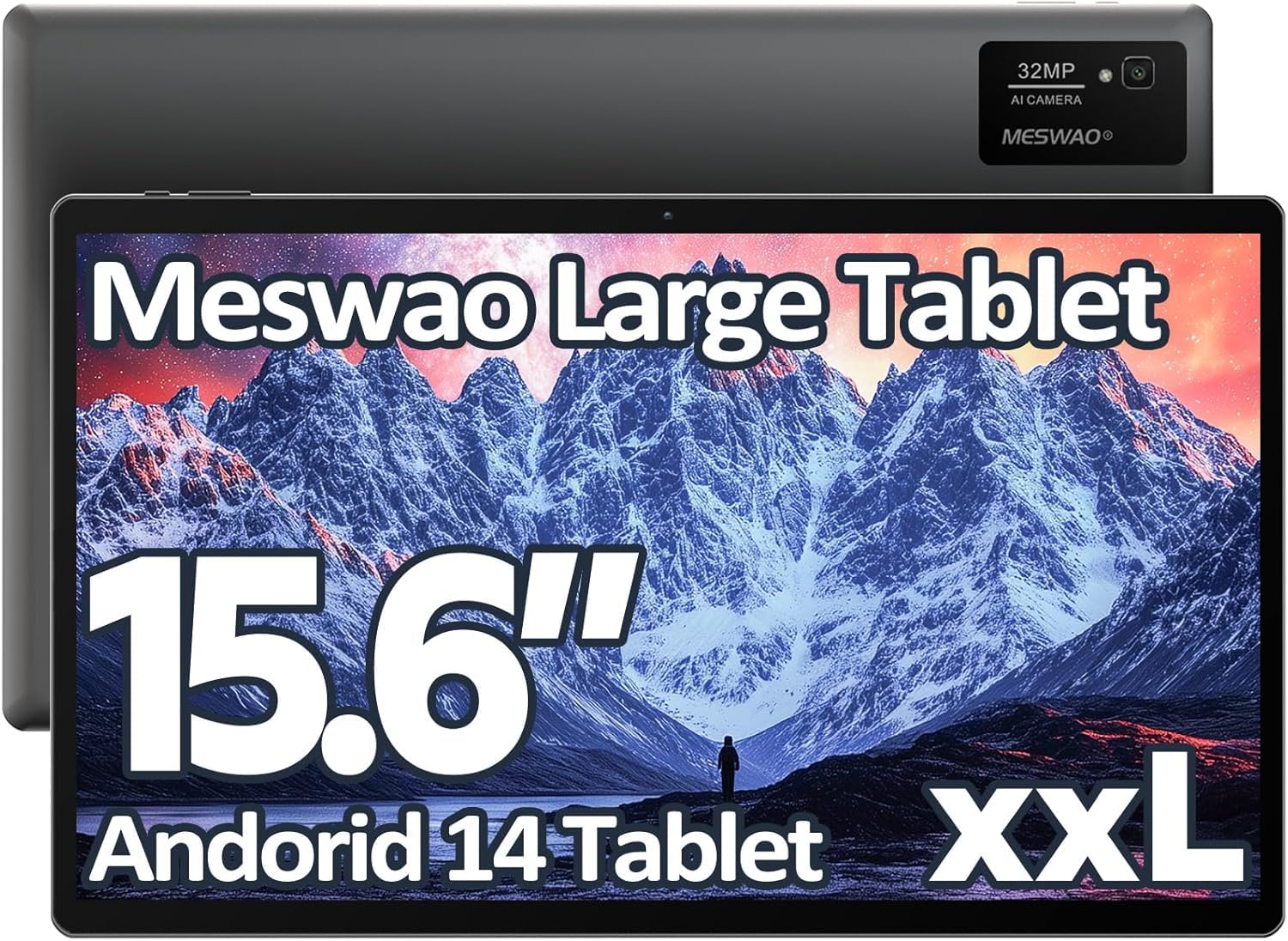
Image: The MESWAO 15.6-inch Android 14 Tablet, showcasindzięki dużemu wyświetlaczowi i eleganckiemu wzornictwu.
2. Konfiguracja
2.1 Rozpakowanie i wstępna inspekcja
Carefully remove all components from the packaging. Verify that all items listed in the package contents are present and undamaged. If any items are missing or damaged, contact customer support immediately.
2.2 Ładowanie tabletu
Before first use, fully charge the tablet. Connect the provided USB-C cable to the tablet's charging port and the other end to the power adapter. Plug the power adapter into a wall outlet. The charging indicator will illuminate. A full charge typically takes approximately 3 hours with the 30W fast charging capability.
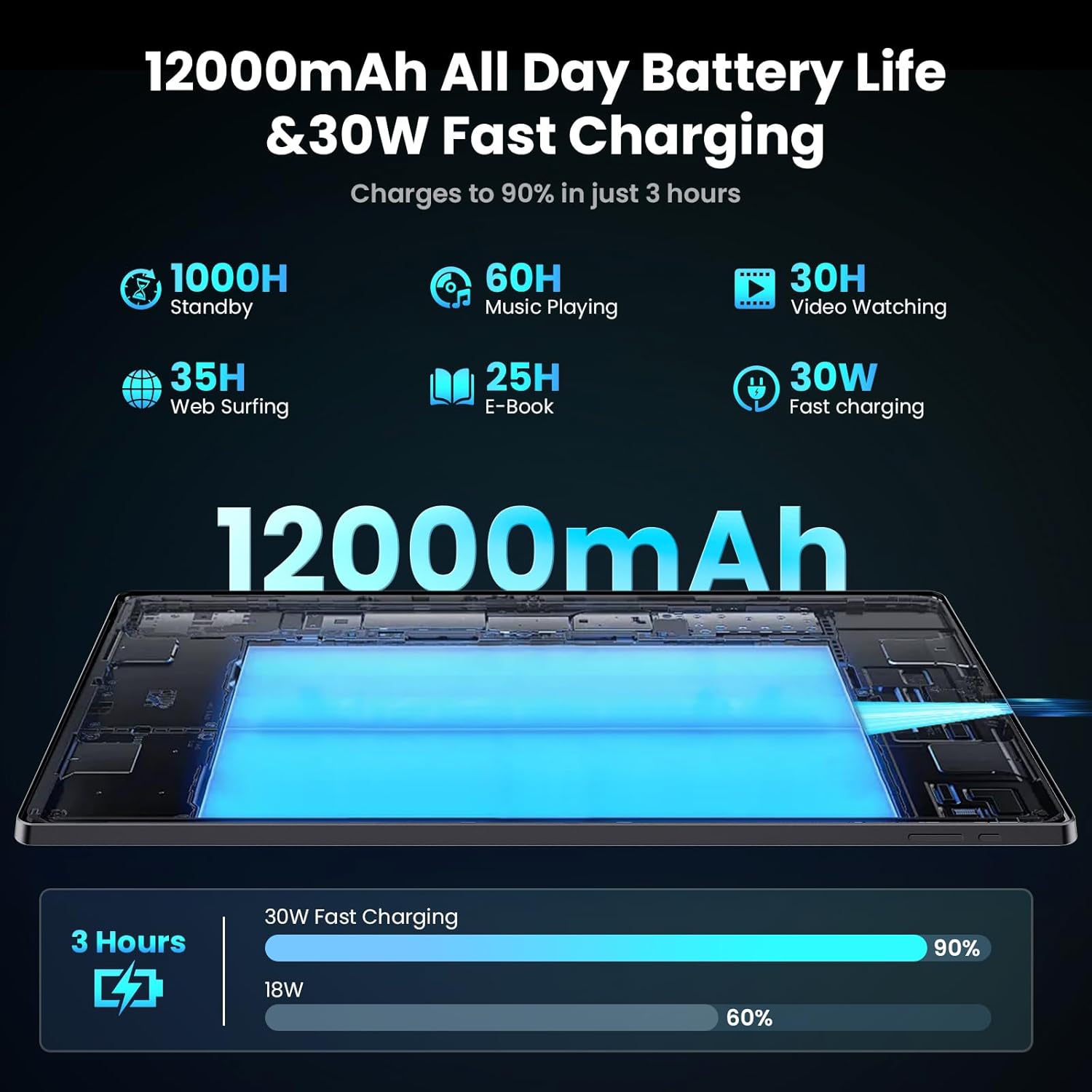
Image: Diagram illustrating the 12000mAh battery capacity and 30W fast charging feature, showing a charge to 90% in 3 hours.
2.3 Włączanie i konfiguracja początkowa
- Press and hold the Power button until the MESWAO logo appears.
- Postępuj zgodnie z instrukcjami wyświetlanymi na ekranie, aby wybrać język i region, a następnie nawiązać połączenie z siecią Wi-Fi.
- Zaloguj się na swoje konto Google lub utwórz nowe, aby uzyskać dostęp do sklepu Google Play i innych usług.
- Complete any remaining setup steps, such as setting up a screen lock (PIN, pattern, or password) and reviewustawienia prywatności.
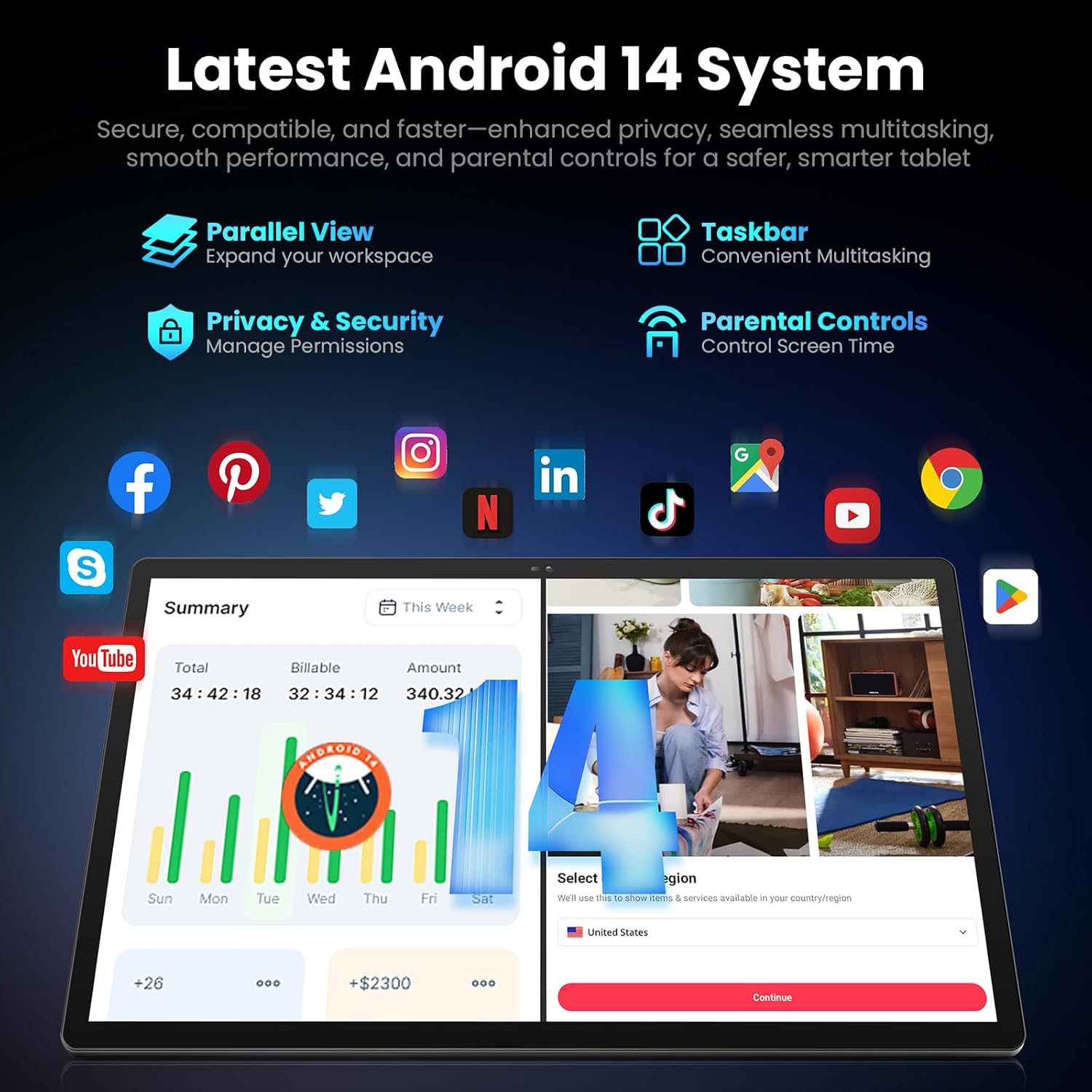
Image: Screenshot of the Android 14 system interface on the MESWAO tablet, highlighting features like Parallel View, Taskbar, Privacy & Security, and Parental Controls.
3. Instrukcja obsługi
3.1 Podstawowa nawigacja
- Gesty dotykowe: Dotknij, aby wybrać, przesuń, aby przewijać, uszczypnij, aby powiększyć.
- Ekran główny: Uzyskaj dostęp do aplikacji, widżetów i powiadomień.
- Panel powiadomień: Przesuń palcem w dół od góry ekranu do view powiadomienia i szybkie ustawienia.
- Szuflada aplikacji: Przesuń palcem w górę od dołu ekranu, aby uzyskać dostęp do wszystkich zainstalowanych aplikacji.
3.2 Wyświetlacz i wrażenia wizualne
The 15.6-inch Full HD (1920x1080) IPS display offers vivid colors and wide viewing angles. Adjust brightness and display settings in the Settings menu under "Display" for optimal viewing comfort. The large screen is ideal for multitasking and immersive media consumption.

Image: The MESWAO tablet displaying a high-definition image, emphasizing the 1920x1080P Full HD IPS display with eye protection features.
3.3 Wydajność i przechowywanie
Equipped with an Octa-Core Helio G99 processor and Android 14, the tablet provides smooth performance for various applications. It includes 8GB RAM and 256GB internal storage, expandable up to 1TB via a TF (microSD) card. To insert a TF card, locate the card slot on the side of the tablet, open the tray, and carefully place the card into the designated slot before reinserting the tray.
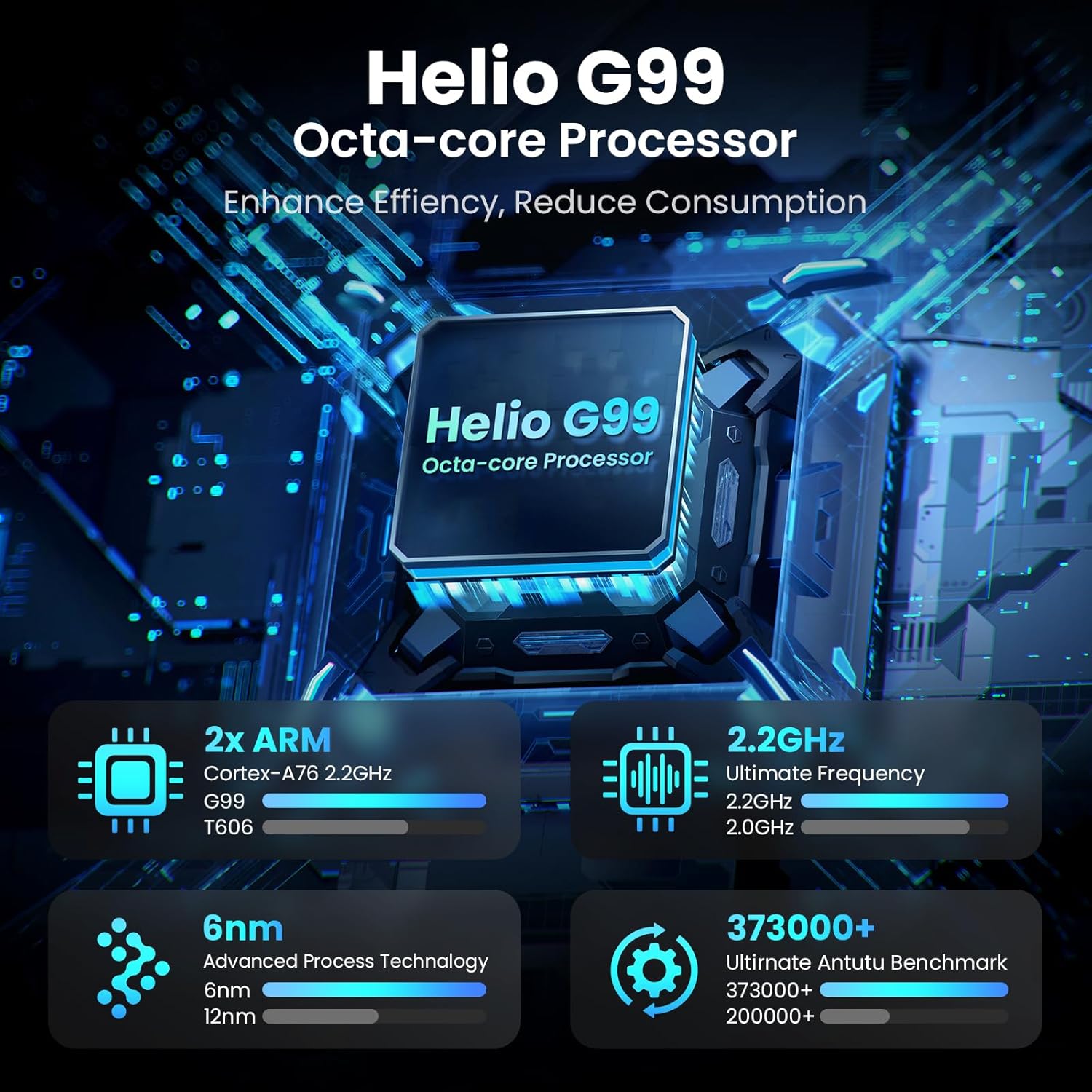
Image: Visual representation of the Helio G99 Octa-core Processor, detailing its architecture and performance metrics like 2.2GHz frequency and 6nm process technology.

Image: The MESWAO tablet screen showing multiple open applications and storage capacity details: 8GB RAM, 256GB ROM, and support for up to 1TB external storage.
3.4 Korzystanie z kamery
The tablet features a 32MP rear camera with flash and a 5MP front camera. Open the Camera application to capture photos, record videos, or engage in video calls. Ensure good lighting for best results.

Image: A visual demonstrating the MESWAO tablet's 5MP front camera and 32MP rear camera, showing a family photo being taken and a video call in progress.
3.5 Łączność
The tablet supports dual-band Wi-Fi (2.4GHz & 5GHz) for stable internet connectivity. Bluetooth is also available for connecting wireless accessories. Access these settings via the Notification Panel or the main Settings app.
4. Konserwacja
4.1 Czyszczenie tabletu
Do czyszczenia ekranu i obudowy tabletu używaj miękkiej, niepozostawiającej włókien ściereczki. W przypadku uporczywych plam delikatnie przetrzyj.ampPrzetrzyj ściereczkę wodą lub środkiem czyszczącym do ekranów. Unikaj stosowania silnych środków chemicznych i materiałów ściernych.
4.2 Aktualizacje oprogramowania
Regularnie sprawdzaj dostępność aktualizacji systemu i instaluj je, aby mieć pewność, że Twój tablet ma najnowsze funkcje, poprawki zabezpieczeń i udoskonalenia wydajności. Przejdź do Ustawienia > System > Aktualizacja systemu aby sprawdzić dostępność aktualizacji.
4.3 Pielęgnacja baterii
- Unikaj ekstremalnych temperatur, gdyż mogą one skrócić żywotność baterii.
- Nie należy dopuszczać do zbyt częstego całkowitego rozładowania akumulatora.
- Należy używać wyłącznie dołączonej ładowarki lub certyfikowanej, kompatybilnej ładowarki.
5. Rozwiązywanie Problemów
5.1 Tablet się nie włącza
- Upewnij się, że tablet jest wystarczająco naładowany. Podłącz go do ładowarki na co najmniej 30 minut przed ponownym włączeniem.
- Aby wymusić ponowne uruchomienie, naciśnij i przytrzymaj przycisk zasilania przez 10–15 sekund.
5.2 Problemy z łącznością Wi-Fi
- Check if Wi-Fi is enabled in the Quick Settings or Settings menu.
- Uruchom ponownie router Wi-Fi i tablet.
- Zapomnij o sieci w ustawieniach Wi-Fi i połącz się ponownie.
- Upewnij się, że znajdujesz się w zasięgu sygnału Wi-Fi.
5.3 Niska wydajność
- Zamknij niepotrzebne aplikacje działające w tle.
- Wyczyść dane pamięci podręcznej często używanych aplikacji (Ustawienia > Aplikacje > [Nazwa aplikacji] > Pamięć i pamięć podręczna > Wyczyść pamięć podręczną).
- Ensure sufficient free storage space. Delete unused files lub aplikacje.
- Okresowo należy ponownie uruchamiać tablet.
5.4 Ekran nie reaguje
- Wykonaj wymuszone ponowne uruchomienie (przytrzymaj przycisk zasilania przez 10–15 sekund).
- Upewnij się, że ekran jest czysty i wolny od wilgoci i zanieczyszczeń.
6. Specyfikacje
| Funkcja | Szczegół |
|---|---|
| Nazwa modelu | MES-B3 |
| Rozmiar wyświetlacza | 15.6 cali |
| Maksymalna rozdzielczość ekranu | 1920 x 1080 pikseli (Full HD IPS) |
| System operacyjny | Android 14 |
| Edytor | Octa-Core Helio G99 (up to 2.2 GHz) |
| BARAN | 8 GB |
| Pamięć wewnętrzna (ROM) | 256 GB |
| Możliwość rozbudowy pamięci masowej | Do 1TB (karta TF) |
| Pojemność baterii | 12000mAh |
| Ładowanie | Szybkie ładowanie 30 W |
| Kamera tylna | 32 MP z lampą błyskową |
| Przednia kamera | 5MP |
| Łączność | Dual-band Wi-Fi (2.4GHz & 5GHz), Bluetooth |
| Wymiary (dł. x szer. x wys.) | 14.53 x 8.78 x 0.43 cala |
| Waga przedmiotu | 3.84 funta |
7. Gwarancja i wsparcie
7.1 Informacje o gwarancji
MESWAO products are covered by a limited warranty. Please refer to the warranty card included in your product packaging for specific terms and conditions. Keep your proof of purchase for warranty claims.
7.2 Obsługa klienta
For technical assistance, troubleshooting, or warranty inquiries, please contact MESWAO customer support. Contact information can typically be found on the official MESWAO webmiejscu lub na karcie gwarancyjnej.
Online resources such as FAQs and support forums may also be available on the MESWAO webstrona.