
1. Konfiguracja
1.1 Zawartość opakowania
Przed montażem należy sprawdzić, czy w opakowaniu znajdują się wszystkie elementy:
- KTC H24F7 24 Inch 240Hz Monitor
- Podstawa monitora
- Podstawa monitora
- Zasilacz
- Kabel HDMI
- Skrócona instrukcja obsługi (QSG)
1.2 Instrukcja montażu
Aby złożyć monitor, wykonaj następujące czynności:
- Ostrożnie wyjmij monitor i wszystkie elementy z opakowania.
- Attach the monitor stand to the monitor base. Ensure it clicks securely into place.
- Connect the assembled stand and base to the back of the monitor. The stand is designed for easy snap-in installation.
- Umieść monitor na stabilnej, płaskiej powierzchni.

1.3 Montaż za pomocą uchwytu VESA
The KTC H24F7 monitor supports VESA 100mm x 100mm mounting for alternative stand or wall mount solutions. Ensure you use M4-0.7 x 10mm screws (not included) for secure installation.

1.4 Łączenie się z urządzeniami
Podłącz komputer lub inne urządzenie do monitora za pomocą odpowiednich kabli.
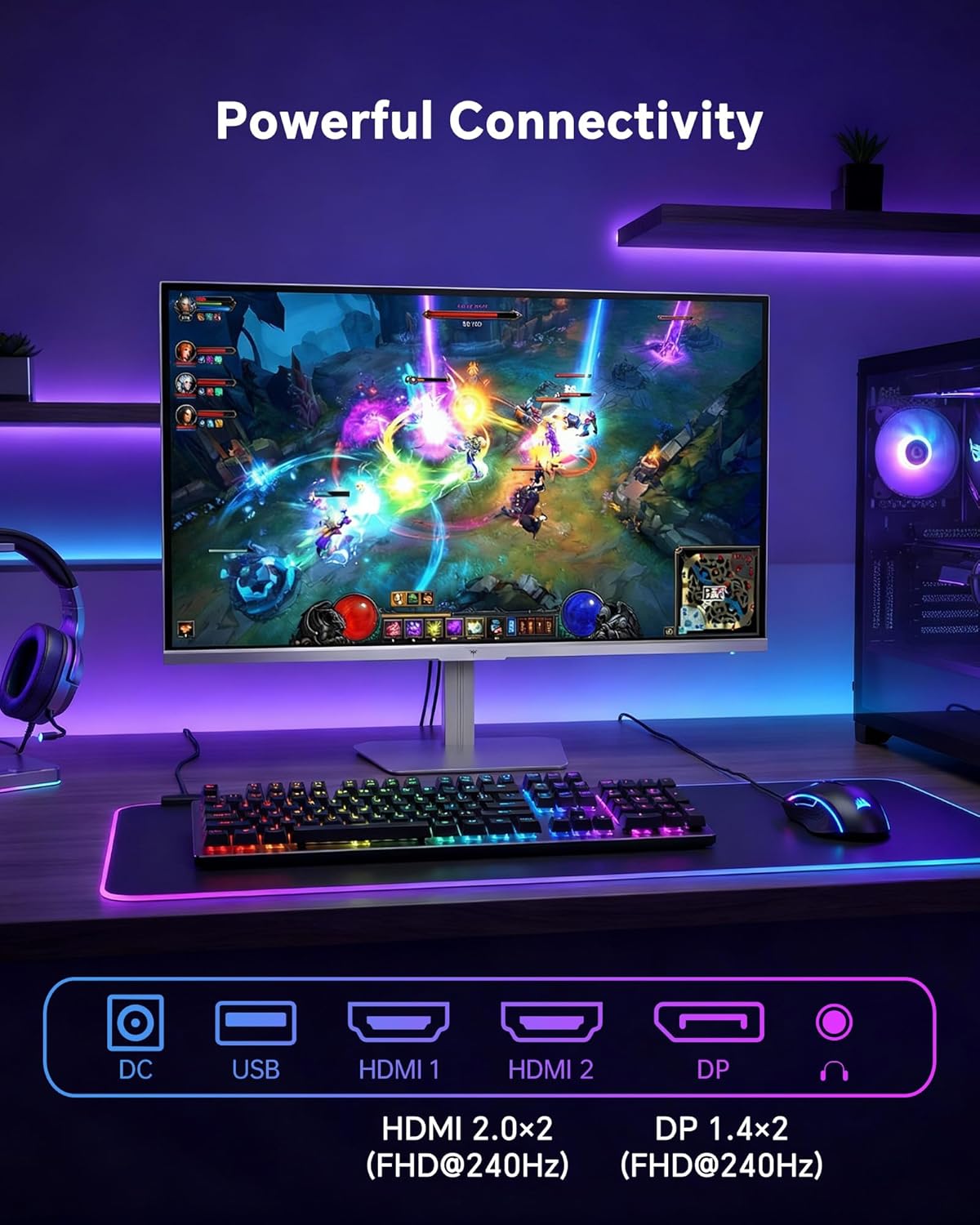
- HDMI: Use an HDMI cable to connect to devices with HDMI output. The monitor has two HDMI 2.0 ports, supporting FHD at 240Hz.
- DisplayPort: Use a DisplayPort cable for devices with DisplayPort output. The monitor has one DisplayPort 1.4, supporting FHD at 240Hz.
- Moc: Connect the power adaptor to the DC input on the monitor and then to a power outlet.
- USB: A USB 2.0 port is available for connecting peripherals.
- Wyjście dzwięku: A 3.5mm audio jack is available for connecting headphones or external speakers.
2. Instrukcja obsługi
2.1 Włączanie/wyłączanie zasilania
Naciśnij przycisk zasilania znajdujący się na monitorze, aby go włączyć lub wyłączyć. Kontrolka zasilania zaświeci się, gdy monitor jest aktywny.
2.2 Menu ekranowe (OSD)
The OSD menu allows you to adjust various monitor settings. Use the control buttons (typically located on the back or bottom of the monitor) to navigate the menu and select options. Refer to the Quick Start Guide for specific button functions.
2.3 Ustawienia wyświetlania
Zoptymalizuj swoje viewdoświadczenie poprzez dostosowanie następujących ustawień:
- Częstotliwość odświeżania: The monitor supports a 240Hz refresh rate for smooth motion. Ensure your graphics card settings are configured to utilize this rate.

- Synchronizacja adaptacyjna: This technology synchronizes the monitor's refresh rate with your graphics card's frame rate to eliminate screen tearing and stuttering. Enable Adaptive Sync in the OSD menu and ensure it is also enabled in your graphics card control panel (FreeSync/G-Sync compatible).

- HDR400: High Dynamic Range 400 provides enhanced contrast and color accuracy, delivering brighter highlights and deeper shadows. Activate HDR in the OSD menu and your operating system display settings for compatible content.

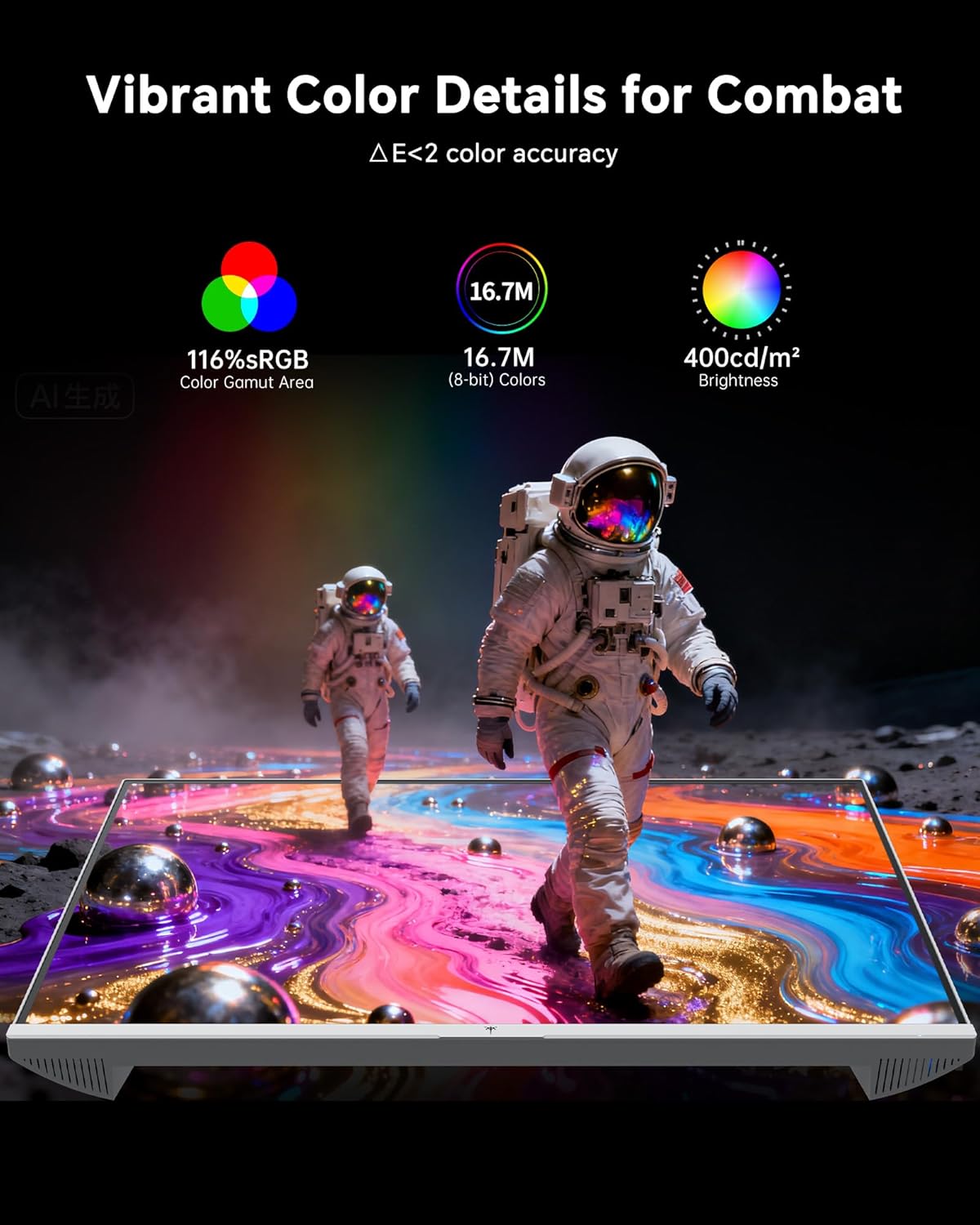
- Ustawienia kolorów: The monitor offers 116% sRGB color gamut and 16.7 million colors. Adjust brightness (up to 400 cd/m²) and color temperature through the OSD menu to suit your preference.
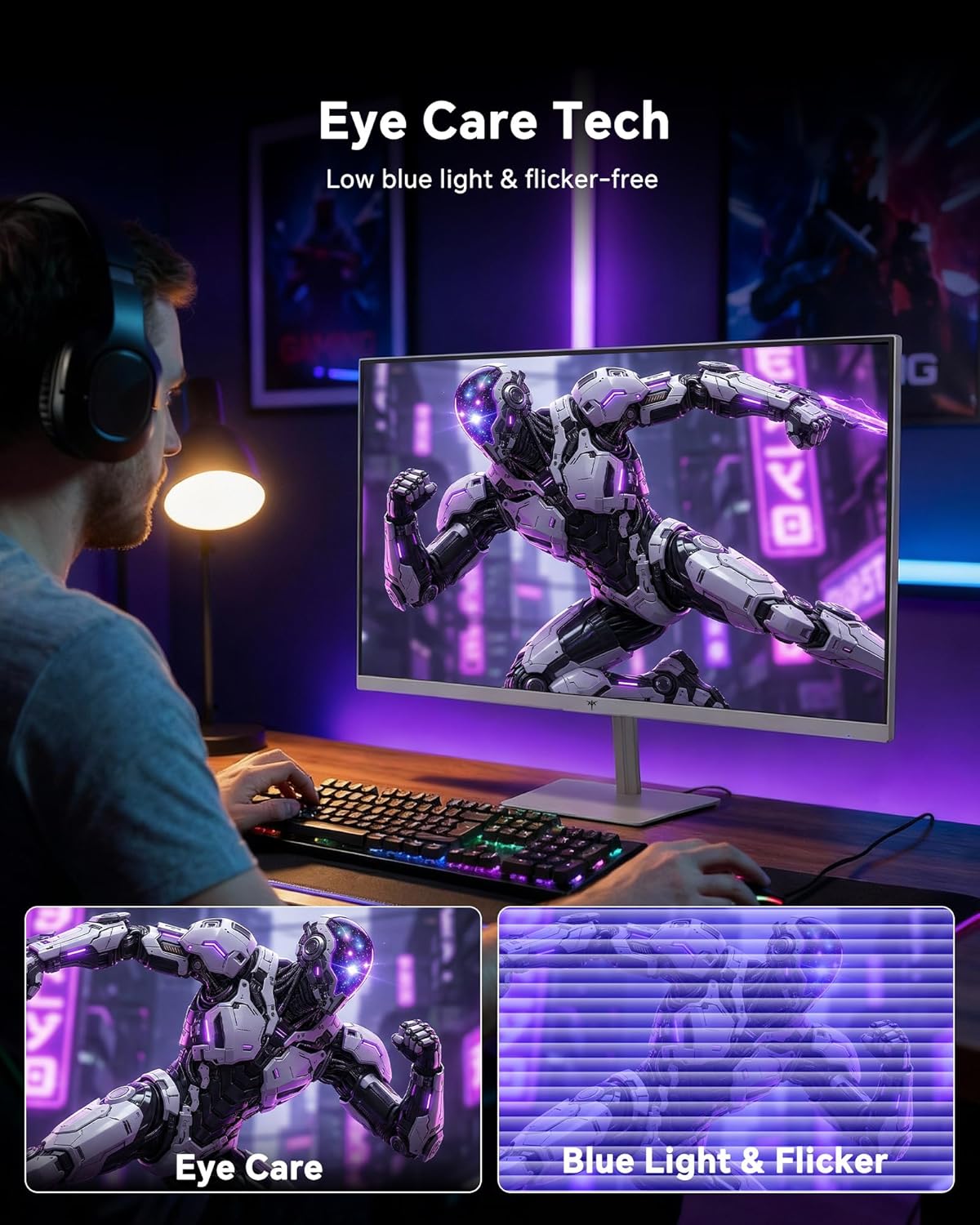
- Technologia pielęgnacji oczu: The monitor features low blue light and flicker-free technology to reduce eye strain during prolonged use. These settings can typically be adjusted or enabled within the OSD menu.
2.4 Monitor Tilt Adjustment
The monitor supports tilt adjustment from -5° to 15° (±3°). Gently adjust the monitor panel to your desired viewkąt.
3. Konserwacja
3.1 Czyszczenie monitora
Aby wyczyścić ekran monitora iasing:
- Przed czyszczeniem należy zawsze wyłączyć monitor i odłączyć przewód zasilający.
- Użyj miękkiej, niestrzępiącej się ściereczki, lekko wyczyśćampspłukać wodą lub łagodnym, nieściernym środkiem do czyszczenia ekranów.
- Delikatnie przetrzyj ekran, aby usunąć kurz i smugi. Unikaj nadmiernego nacisku.
- dla casing, use a dry, soft cloth. Do not use alcohol, ammonia, or abrasive cleaners, as these can damage the surface.
3.2 Ogólna opieka
- Unikaj umieszczania ciężkich przedmiotów na monitorze i jego kablach.
- Nie wystawiaj monitora na bezpośrednie działanie promieni słonecznych, nadmiernego ciepła ani ekstremalnego zimna.
- Trzymaj monitor z dala od płynów i wilgoci.
- Aby zapobiec przegrzaniu, należy zapewnić odpowiednią wentylację wokół monitora.
4. Rozwiązywanie Problemów
If you encounter issues with your KTC H24F7 monitor, refer to the following common problems and solutions:
| Problem | Możliwa przyczyna | Rozwiązanie |
|---|---|---|
| Brak obrazu na ekranie | Odłączony kabel zasilający; Odłączony lub poluzowany kabel wideo; Wybrano nieprawidłowe źródło sygnału wejściowego; Monitor jest wyłączony. | Ensure power cable is securely connected and monitor is on. Check video cable connections (HDMI/DisplayPort) at both the monitor and computer. Press the input source button on the monitor to cycle through inputs. |
| Migotanie lub rozrywanie obrazu | Adaptive Sync not enabled; Graphics card driver issues; Faulty video cable. | Enable Adaptive Sync in the OSD menu and your graphics card control panel. Update graphics card drivers. Try a different video cable. If using DisplayPort 1, try DisplayPort 2 or HDMI if available, as some units may experience issues with specific ports. |
| Kolory są nieprawidłowe lub wyblakłe | Color settings incorrect; HDR not properly configured; Faulty video cable. | Adjust color settings (brightness, contrast, color temperature) in the OSD menu. Ensure HDR is enabled in both the OSD and your operating system for HDR content. Try a different video cable. |
| Monitor not reaching 240Hz | Graphics card limitations; Incorrect display settings in OS; Cable bandwidth limitations. | Ensure your graphics card supports 240Hz at 1080p. Verify display settings in your operating system (e.g., Windows Display Settings or NVIDIA/AMD control panel) are set to 240Hz. Use the provided HDMI cable or a certified DisplayPort 1.4 cable. |
| Stuck or dead pixels | Wada produkcyjna. | A small number of stuck or dead pixels (typically 1-3) may be considered normal for LCD panels. If the issue is severe or persistent, contact customer support. |
5. Specyfikacje
| Funkcja | Szczegół |
|---|---|
| Marka | KTC |
| Numer modelu | H24F7 |
| Rozmiar ekranu | 24 cali |
| Rezolucja | FHD 1080p (1920 x 1080 pikseli) |
| Typ panelu | Prawie IPS |
| Częstotliwość odświeżania | 240 Hz |
| Czas reakcji | 1 milisekunda (MPRT) |
| Proporcje obrazu | 16:9 |
| Jasność | 400 kandeli na metr kwadratowy |
| Współczynnik kontrastu | 1000:1 |
| Gama kolorów | 116% sRGB |
| Obsługa HDR | HDR400 |
| Adaptacyjna synchronizacja | Zgodność z FreeSync i G-Sync |
| Łączność | 2x HDMI 2.0, 1x DisplayPort 1.4, 1x USB 2.0, 1x Audio Out (3.5mm) |
| Funkcje pielęgnacji oczu | Low Blue Light, Flicker-Free, Anti-Glare Screen |
| Dostosowania | Pochylenie (-5° do 15°) |
| Mocowanie VESA | 100mm x 100mm |
| Wymiary (gł. x szer. x wys.) | 5.39" gł. x 21.25" szer. x 15.74" wys. |
| Waga przedmiotu | 3.2 kilograma |
| Kolor | Biały |
6. Gwarancja i pomoc techniczna
6.1 Informacje o gwarancji
The KTC H24F7 monitor comes with a trzyletnia gwarancja producentaNiniejsza gwarancja obejmuje wady materiałowe i wykonawcze powstałe w wyniku normalnego użytkowania.
Proszę zachować dowód zakupu na potrzeby roszczeń gwarancyjnych.
6.2 Obsługa klienta
For technical assistance, warranty claims, or any questions regarding your KTC H24F7 monitor, please contact KTC customer support. KTC aims to provide responsive customer support and typically responds within 12 hours.
You can usually find contact information on the official KTC website or through the retailer where you purchased the product. When contacting support, please have your monitor model number (H24F7) and purchase details ready.