
1. Wprowadzenie
The Lemorele 13-in-1 USB-C Docking Station (Model TC500) is designed to significantly expand the connectivity of your USB-C enabled laptop. This versatile docking station provides multiple ports for external displays, various peripherals, network access, and power delivery, offering a comprehensive solution to enhance your workspace and productivity. It supports triple monitor setups, making it ideal for users requiring extensive display configurations.
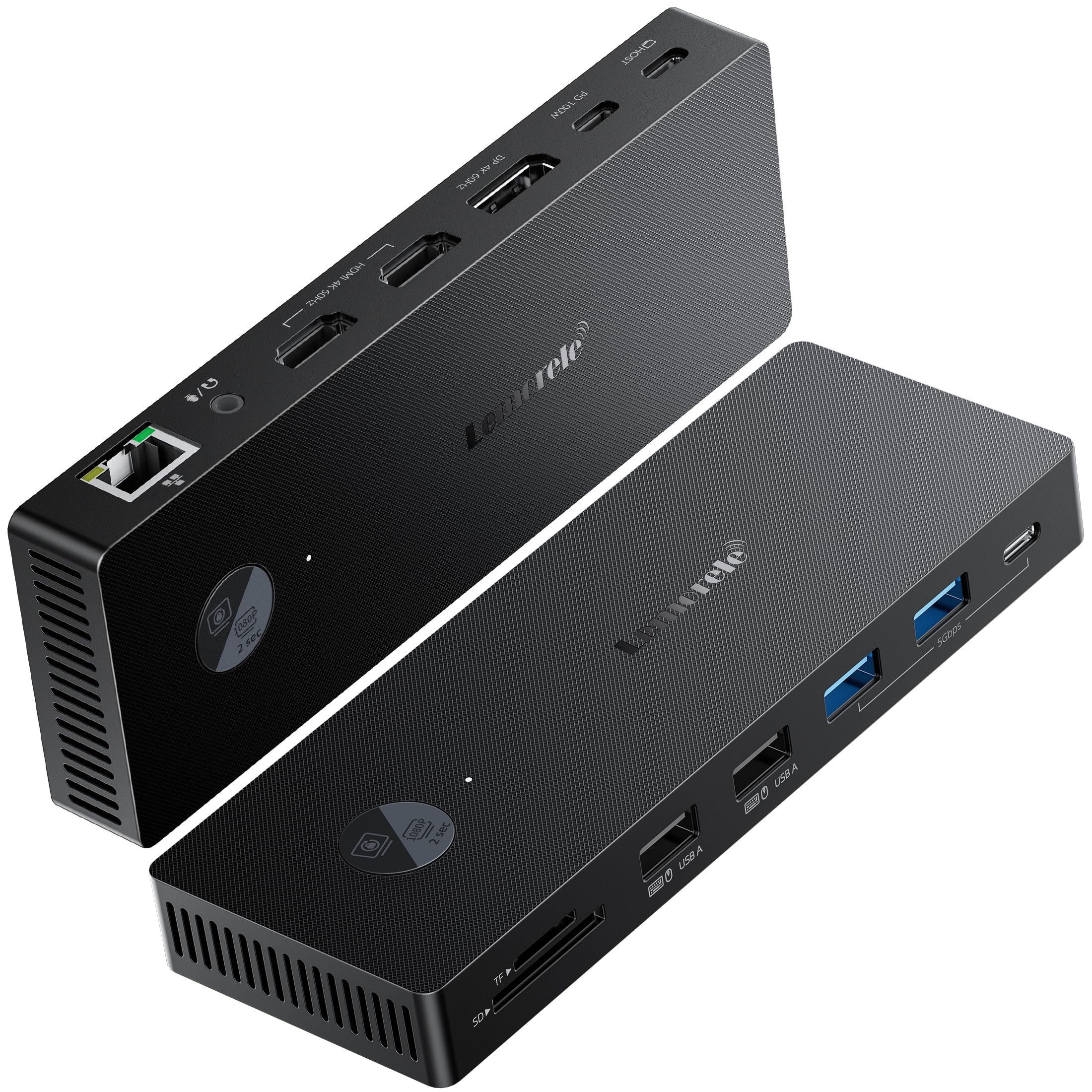
Figure 1: Lemorele 13-in-1 USB-C Docking Station (Model TC500)
2. Product Features and Port Layout
The TC500 docking station integrates a wide array of ports to meet diverse connectivity needs:
- Wyjście wideo: 2x HDMI 2.0 ports (up to 4K@60Hz) and 1x DisplayPort 1.2 (up to 4K@60Hz). Supports triple monitor extended display configurations. Note: For triple 4K@30Hz output, DisplayPort requires Display Stream Compression (DSC) support from the host device.
- Dostawa energii: 1x USB-C Power Delivery port, supporting up to 100W charging for your laptop (requires a compatible USB-C power adapter, not included).
- Transfer danych: Multiple USB ports including 1x USB-C 3.0 and 3x USB-A ports (mix of USB 3.0 and USB 2.0 for various peripherals).
- Sieć: 1x Gigabit Ethernet (RJ45) port for stable and high-speed wired internet connection.
- Czytnik kart: Integrated SD and TF (Micro SD) card slots for convenient data transfer from memory cards.
- Audio: 1x 3.5mm Audio/Microphone combo jack for headphones or speakers.
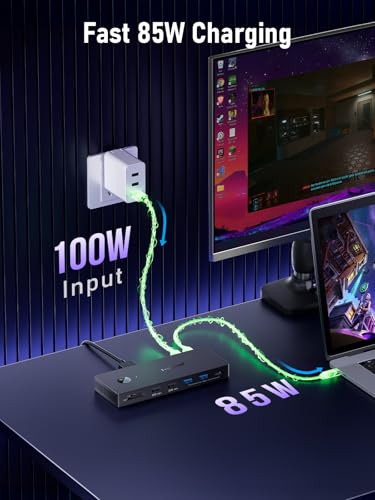
Figure 2: Port layout of the Lemorele TC500 Docking Station
3. Zawartość opakowania
Proszę sprawdzić, czy w paczce znajdują się następujące elementy:
- 1x Lemorele 13-in-1 USB-C Docking Station (Model TC500)
- 1x USB-C to USB-C Cable (1.0 meter)
- 1x Instrukcja obsługi
4. Instrukcje konfiguracji
Aby skonfigurować stację dokującą, wykonaj następujące czynności:
- Podłącz zasilanie (opcjonalne, ale zalecane): If your laptop requires charging via the docking station, connect your laptop's original USB-C power adapter (or a compatible 100W USB-C PD charger) to the USB-C PD input port on the docking station.
- Połącz z laptopem: Use the provided 1.0-meter USB-C to USB-C cable to connect the docking station's host port to a full-featured USB-C port on your laptop. Ensure your laptop's USB-C port supports video output (DisplayPort Alternate Mode) and power delivery for full functionality.
- Podłącz wyświetlacze: Podłącz zewnętrzne monitory do wyjść HDMI i/lub DisplayPort w stacji dokującej za pomocą odpowiednich kabli.
- Podłącz urządzenia peryferyjne: Plug in your USB devices (keyboard, mouse, external hard drives, etc.) into the available USB-A and USB-C data ports. Connect your Ethernet cable to the RJ45 port for wired network access. Insert SD/TF cards as needed.
- Podłącz dźwięk: W razie potrzeby podłącz słuchawki lub głośniki do gniazda audio 3.5 mm.
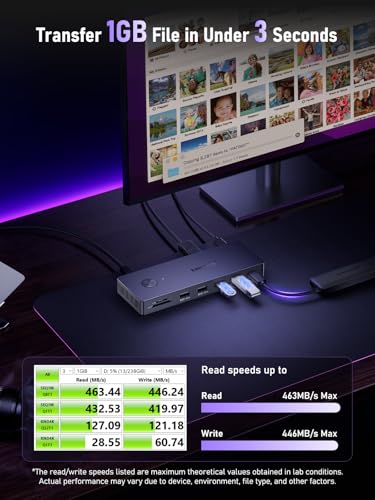
Figure 3: Typical connection diagram for the docking station
5. Instrukcja obsługi
5.1. Konfiguracja wyświetlacza
After connecting your monitors, your operating system should automatically detect them. You may need to adjust display settings:
- Okna: Right-click on the desktop, select 'Display settings'. Here you can arrange your displays, choose between 'Extend these displays' or 'Duplicate these displays', and set resolutions and refresh rates.
- MacOS: Go to 'System Settings' (or 'System Preferences') > 'Displays'. You can arrange displays, set resolutions, and choose between 'Mirror Displays' or 'Use as separate displays'. Note that macOS may have limitations on the number of extended displays, especially with certain MacBook models.
The docking station supports single, dual, and triple monitor setups. Ensure your laptop's graphics card and USB-C port support the desired display configuration and resolutions.
Rysunek 4: Example of a triple display setup with the docking station
5.2. Dostarczanie mocy
When a compatible USB-C power adapter is connected to the PD port, the docking station will pass through up to 100W of power to charge your connected laptop. This allows you to power your laptop and use all connected peripherals with a single USB-C cable connection.
5.3. Przesyłanie danych
The USB 3.0 ports offer high-speed data transfer for external storage devices, while the USB 2.0 ports are suitable for keyboards, mice, and other low-bandwidth peripherals. The SD/TF card slots allow for quick access to data from memory cards.
6. Rozwiązywanie Problemów
Jeśli napotkasz problemy, zapoznaj się z poniższymi typowymi krokami rozwiązywania problemów:
- Brak wyjścia wyświetlacza:
- Ensure the USB-C cable is securely connected to both the docking station and your laptop.
- Verify that your laptop's USB-C port supports DisplayPort Alternate Mode.
- Check that monitor cables are correctly connected and monitors are powered on and set to the correct input source.
- Spróbuj zaktualizować sterowniki graficzne laptopa.
- Uruchom ponownie laptopa i podłącz stację dokującą.
- Brak zasilania laptopa:
- Ensure your USB-C power adapter is connected to the PD input port on the docking station and is functional.
- Sprawdź, czy port USB-C Twojego laptopa obsługuje technologię Power Delivery.
- Check the power rating of your adapter; it should be sufficient for your laptop's charging requirements (up to 100W supported by the dock).
- Urządzenia USB nie działają:
- Podłącz urządzenie USB do innego portu w stacji dokującej.
- Ensure the device is properly powered, if applicable.
- Spróbuj podłączyć urządzenie USB bezpośrednio do laptopa, aby wykluczyć problemy ze sprzętem.
- Problemy z połączeniem Ethernet:
- Sprawdź połączenie kabla Ethernet zarówno ze stacją dokującą, jak i z routerem/modemem.
- Sprawdź ustawienia sieciowe na swoim laptopie.
- Try connecting your laptop directly to the router/modem to confirm internet functionality.
- Stacja dokująca jest ciepła:
It is normal for the docking station to become warm during operation, especially when multiple high-power devices or displays are connected. Ensure adequate ventilation around the device.
7. Specyfikacje
| Funkcja | Specyfikacja |
|---|---|
| Marka | Lemorele |
| Numer modelu | TC500 |
| Interfejs sprzętowy | USB-C, HDMI, DisplayPort, USB-A, RJ45, SD/TF, 3.5mm Audio |
| Wyjście wideo | 2x HDMI 2.0 (4K@60Hz), 1x DisplayPort 1.2 (4K@60Hz) |
| Obsługa trzech wyświetlaczy | Yes (DP requires DSC for 4K@30Hz in triple mode) |
| Porty USB | 1x USB-C 3.0, 3x USB-A (mix of 3.0/2.0) |
| Dostarczanie mocy | Up to 100W (via USB-C PD input) |
| Sieć Ethernetowa | Gigabit (RJ45) |
| Czytnik kart | SD, TF (Micro SD) |
| Audio | 3.5mm Audio/Mic Combo Jack |
| Waga przedmiotu | 240g |
| Kompatybilne urządzenia | Laptops with full-featured USB-C ports (Windows, macOS) |
| Długość kabla | 1.0m USB-C to USB-C |
8. Konserwacja
Aby zapewnić długą żywotność i optymalną wydajność stacji dokującej:
- Czyszczenie: Use a soft, dry cloth to clean the exterior of the docking station. Avoid liquid cleaners or solvents.
- Składowanie: Przechowywać urządzenie w chłodnym i suchym miejscu, z dala od bezpośredniego światła słonecznego i ekstremalnych temperatur.
- Obsługiwanie: Unikaj upuszczania urządzenia i narażania go na silne uderzenia. Nie próbuj samodzielnie demontować ani naprawiać urządzenia.
9. Gwarancja i wsparcie
This Lemorele TC500 USB-C Docking Station comes with a 2-letnia gwarancja producenta.
For technical support, warranty claims, or further assistance, please contact Lemorele customer service through the retailer where you purchased the product or visit the official Lemorele webwitryna do informacji kontaktowych.