
1. Koniec produktuview
The KCEVE Triple Monitor KVM Switch (Model KC-203CDHX) allows you to control two computers (one laptop and one desktop) using a single set of keyboard, mouse, and three monitors. This device is ideal for optimizing your workspace by reducing cable clutter and enabling seamless switching between systems. It supports high-resolution video output, fast data transfer, and power delivery for compatible laptops.
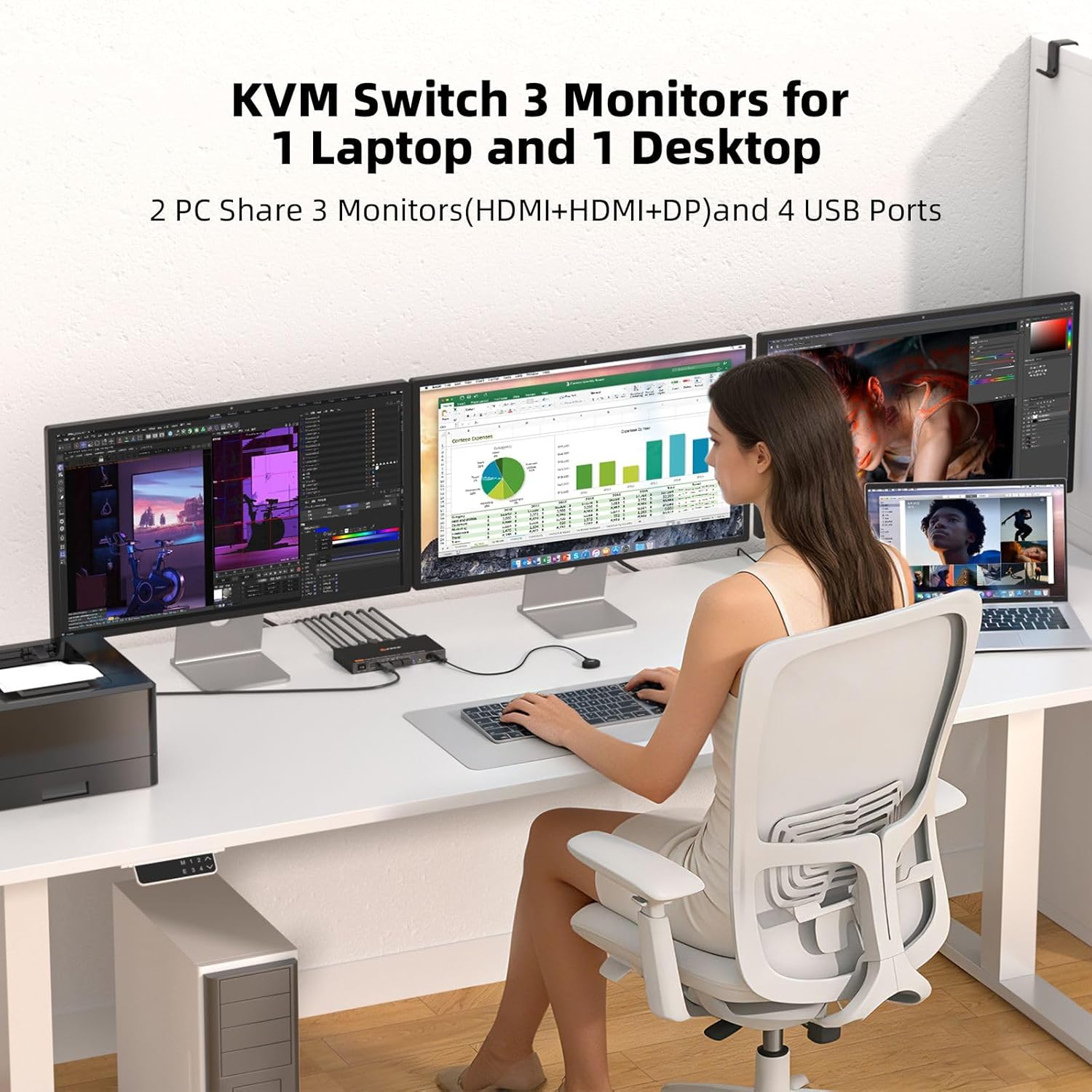
The KCEVE KVM Switch enables a single user to operate two computers (laptop and desktop) across three shared monitors, keyboard, and mouse.
2. Zawartość opakowania
Sprawdź, czy w przesyłce znajdują się wszystkie elementy:
- 1 x KCEVE Triple Monitor KVM Switch (Model KC-203CDHX)
- 1 x kabel USB-C do USB-C
- 1 x USB-A to USB-B Cable
- 1 x zasilacz prądu stałego 12 V
- 1 x Wired Remote Control (1.5m)
- 1 x Instrukcja obsługi

Contents included in the KVM Switch package.
3. Schemat produktu
Familiarize yourself with the ports and indicators on the KVM switch:

Front and rear panel layout of the KVM Switch with port labels.
Panel przedni:
- Przełącznik włącz / wyłącz: Power toggle for the KVM switch.
- Porty USB 3.1 (4x): Connect USB peripherals such as keyboard, mouse, USB drives, and printers. Supports up to 10Gbps data transfer.
- Laptop/Desktop Indicators: LEDs to show which computer is currently selected.
- Przycisk WYBIERZ: Ręczne przełączanie między podłączonymi komputerami.
- Wired Remote Port: Connect the included wired remote control.
Tylny panel:
- Monitor Outputs (3x): Connect to your three monitors (1x DisplayPort, 2x HDMI).
- PC 2 Input (Desktop): Connect to your desktop PC (1x DisplayPort, 1x USB-B 3.1).
- PC 1 Input (Laptop): Connect to your laptop (1x USB-C 3.1 with PD, 1x USB-C for video/data).
- Wejście zasilania 12 V DC: Podłącz dołączony zasilacz 12 V.
4. Instrukcje konfiguracji
Follow these steps to connect your KVM switch:
- Podłączenie zasilania: Connect the DC 12V power adapter to the KVM switch's DC 12V input port and plug it into a power outlet.
- Połączenia monitora: Connect your three monitors to the KVM switch's Monitor Output ports (1x DisplayPort, 2x HDMI). Ensure your monitors are powered on.
- Desktop PC Connection (PC 2):
- Connect a DisplayPort cable from your desktop PC's graphics card to the KVM switch's PC 2 DisplayPort input.
- Connect the USB-A to USB-B cable from your desktop PC's USB-A port to the KVM switch's PC 2 USB-B input.
- Laptop Connection (PC 1):
- Connect a USB-C cable from your laptop's USB-C port (which supports video output and Power Delivery) to the KVM switch's PC 1 USB-C input. This single cable handles video, data, and power delivery to your laptop.
- Notatka: Ensure your laptop's USB-C port supports DisplayPort Alternate Mode (DP Alt Mode) and Power Delivery for full functionality.
- Połączenia peryferyjne: Connect your keyboard, mouse, and any other USB peripherals (e.g., USB drive, printer) to the USB 3.1 ports on the front panel of the KVM switch.
- Pilot przewodowy (opcjonalnie): Connect the wired remote control to its dedicated port on the front panel for convenient switching.
- Włączanie: Turn on the KVM switch using the ON/OFF switch. Power on both your desktop PC and laptop.
The KVM switch is plug-and-play and typically does not require driver installation for Windows, macOS, Chrome OS, Linux, Unix, and Ubuntu systems.
5. Instrukcja obsługi
Przełączanie się między komputerami:
You can switch between your connected laptop and desktop using two methods:
- Fizyczny przycisk: Press the 'SELECT' button on the front panel of the KVM switch. The LED indicators will show which computer is active.
- Pilot przewodowy: Press the button on the wired remote control. This allows for convenient switching if the KVM unit is out of reach.

Two methods for switching between connected computers.
Display Modes (Extended & Mirror):
The KVM switch supports both extended and mirror display modes for your monitors. You can switch between these modes using your operating system's display settings.
- Tryb rozszerzony: Each monitor displays independent content, expanding your desktop workspace.
- Tryb lustrzany: All monitors display the same content, duplicating your desktop.
For Windows users, press Okna + P to quickly access display mode options.

Visual representation of Extended Mode and Mirror Mode for triple monitor setups.
Multi-Stream Transport (MST) Functionality:
This KVM switch supports MST, which simplifies connecting multiple displays. For laptops, a single USB-C port can drive all three displays. For desktops, a single DisplayPort connection can manage all three displays.
- Okna: Windows computers can output three different screens (extended mode) with MST.
- MacOS: macOS computers typically output three identical screens (mirror mode) as macOS does not natively support Multi-Stream Transport (MST) for extended displays across multiple external monitors from a single port.

MST functionality for Windows and macOS systems.
Power Delivery (PD) for Laptops:
The KVM switch's USB-C input for PC 1 (Laptop) supports 100W Power Delivery, allowing it to charge your compatible laptop while connected. This eliminates the need for a separate laptop charger.
Laptop charging via the KVM switch's 100W Power Delivery port.
6. Konserwacja
To ensure optimal performance and longevity of your KVM switch:
- Czyszczenie: Do czyszczenia zewnętrznej części urządzenia używaj miękkiej, suchej ściereczki. Unikaj płynnych środków czyszczących i materiałów ściernych.
- Wentylacja: Ensure the KVM switch is placed in a well-ventilated area to prevent overheating. Do not block any ventilation openings.
- Zarządzanie kablami: Utrzymuj kable w porządku, unikając zagięć i nadmiernego zginania, aby zapobiec ich uszkodzeniom.
- Wyłączone: If the device will not be used for an extended period, it is recommended to power it off and disconnect the power adapter.
7. Rozwiązywanie Problemów
Jeśli napotkasz problemy, zapoznaj się z poniższymi wskazówkami dotyczącymi rozwiązywania problemów:
- Brak obrazu na monitorach:
- Ensure all video cables (HDMI, DisplayPort, USB-C) are securely connected to both the KVM switch and your computers/monitors.
- Verify that the KVM switch is powered on and the correct computer is selected (check LED indicators).
- Check your computer's display settings to ensure the monitors are detected and configured correctly (e.g., extended or duplicate mode).
- Sprawdź, czy port USB-C Twojego laptopa obsługuje tryb alternatywny DisplayPort.
- If connecting to a desktop, ensure your graphics card supports the required resolution and refresh rate for three monitors.
- Notatka: For triple 4K@60Hz output from a desktop, your computer needs to support 8K signal output. Otherwise, the resolution may decrease.
- Klawiatura/mysz nie odpowiada:
- Ensure your keyboard and mouse are connected to the USB 3.1 ports on the KVM switch's front panel.
- Verify the USB cables connecting your computers to the KVM switch are securely plugged in.
- Try connecting the peripherals directly to your computer to confirm they are functional.
- Restart the KVM switch and your computers.
- Laptop się nie ładuje:
- Upewnij się, że port USB-C Twojego laptopa obsługuje technologię Power Delivery (PD).
- Verify the USB-C cable used is rated for 100W PD.
- Confirm the KVM switch's DC 12V power adapter is connected and receiving power.
- Intermittent Connection/Unstable Operation:
- Ensure the DC 12V power adapter is connected and providing stable power to the KVM switch.
- Sprawdź wszystkie połączenia kablowe pod kątem luzu i uszkodzeń.
- Reduce the number of high-bandwidth USB devices connected if experiencing issues.
8. Specyfikacje
Detailed technical specifications for the KCEVE Triple Monitor KVM Switch:
| Funkcja | Specyfikacja |
|---|---|
| Numer modelu | KC-203CDHX |
| Input Ports (PC 1 Laptop) | 1x USB-C (Video, Data, 100W PD) |
| Input Ports (PC 2 Desktop) | 1x DisplayPort, 1x USB-B 3.1 |
| Output Ports (Monitors) | 1x DisplayPort, 2x HDMI |
| Porty peryferyjne USB | 4x USB 3.1 (10 Gb/s) |
| Video Resolution (Desktop) | Triple 4K@60Hz (requires 8K signal output from PC) |
| Video Resolution (Laptop) | 2x 4K@60Hz + 1x 1080P@60Hz |
| Szybkość przesyłania danych USB | Do 10 Gb/s (USB 3.1) |
| Dostarczanie mocy | 100W (for laptop charging via USB-C) |
| Metody przełączania | Physical Button, Wired Remote Control |
| Zgodność z systemem operacyjnym | Windows 7/8/10/11/XP/Vista, Mac OS, Chrome OS, Linux, Unix, Ubuntu |
| Wymiary (dł. x szer. x wys.) | 6.3 x 3.2 x 0.8 cala (160 x 81.2 x 19.2 mm) |
| Waga przedmiotu | 10.9 uncji |
| Tworzywo | Metal |
| Objętość operacyjnatage | 12 wolty |
| Obecna ocena | 1 Amps |

The KVM switch supports 4K@60Hz resolution for an enhanced visual experience.

USB 3.1 ports provide ultra-fast 10Gbps data transfer speeds.
9. Gwarancja i wsparcie
The KCEVE Triple Monitor KVM Switch comes with a 12-month after-sale support period. If you encounter any problems or have questions regarding the product, please contact KCEVE customer support for assistance. Our team is dedicated to resolving any issues you may experience.
For technical support or warranty claims, please refer to the contact information provided on the KCEVE official webwitryny lub dokumentacji zakupu.