
Wstęp
The SVBONY SVN O1 Conference Microphone is designed to provide clear and efficient audio communication for various meeting environments, from personal home offices to medium-sized conference rooms. Featuring advanced noise cancellation, 360-degree audio capture, and versatile connectivity options, this device ensures high-quality sound for all participants.
Zawartość opakowania
Sprawdź, czy w przesyłce znajdują się wszystkie elementy wymienione poniżej:
- SVN O1 Conference Microphone x 1
- Kabel USB typu C x 1
- USB-A to USB-C Adapter x 1
- Wireless Dongle x 1
- Instrukcja obsługi x 1
- Torba transportowa x 1

Figure 1: Contents of the SVBONY SVN O1 package.
Produkt ponadview
The SVN O1 features a compact, circular design with intuitive controls. It integrates a 4-microphone array and a 5W Hi-Fi speaker for comprehensive audio coverage.

Figure 2: SVBONY SVN O1 Conference Microphone.
Elementy sterujące i wskaźniki
- Przycisk zasilania: Naciśnij i przytrzymaj, aby włączyć/wyłączyć.
- Zwiększanie/zmniejszanie głośności: Dostosuj głośność głośnika.
- Przycisk wyciszenia: Wycisz/wyłącz wyciszenie mikrofonu.
- Przycisk AI: Activates AI transcription features (USB mode only).
- Wskaźnik Bluetooth: Pokazuje stan połączenia Bluetooth.
- Wskaźnik baterii: Wyświetla aktualny poziom naładowania baterii.
Organizować coś
The SVN O1 offers multiple plug-and-play connection methods for quick setup.
1. Połączenie USB
- Connect the provided USB Type-C cable to the SVN O1 and your computer's USB port. Use the USB-A to USB-C adapter if necessary.
- The device will be automatically recognized as an audio input and output device.
- Select "SVN O1" as your microphone and speaker in your operating system's sound settings or conferencing software.
2. Wireless Dongle Connection
- Insert the wireless dongle into an available USB port on your computer.
- Power on the SVN O1. The device and dongle will automatically pair.
- Select "SVN O1" as your microphone and speaker in your operating system's sound settings or conferencing software.
3. Połączenie Bluetooth 5.0
- Power on the SVN O1. The Bluetooth indicator will flash, indicating pairing mode.
- On your device (e.g., laptop, tablet), enable Bluetooth and search for available devices.
- Select "SVN O1" from the list to pair. The Bluetooth indicator will turn solid when connected.
- Select "SVN O1" as your microphone and speaker in your operating system's sound settings or conferencing software.

Figure 3: Instant setup via USB-C, Dongle, or Wireless 5.0.
Instrukcja obsługi
Podstawowa obsługa
- Włączanie/wyłączanie: Naciśnij i przytrzymaj przycisk zasilania przez 3 sekundy.
- Regulacja głośności: Use the volume up (+) and volume down (-) buttons on the device.
- Wyciszenie mikrofonu: Press the mute button to toggle the microphone on or off. The indicator light will change to show mute status.
360-Degree Audio Capture
The SVN O1 features a 4-microphone array designed to capture sound from all directions, ensuring every voice in the room is heard clearly. Position the device centrally on your meeting table for optimal performance.
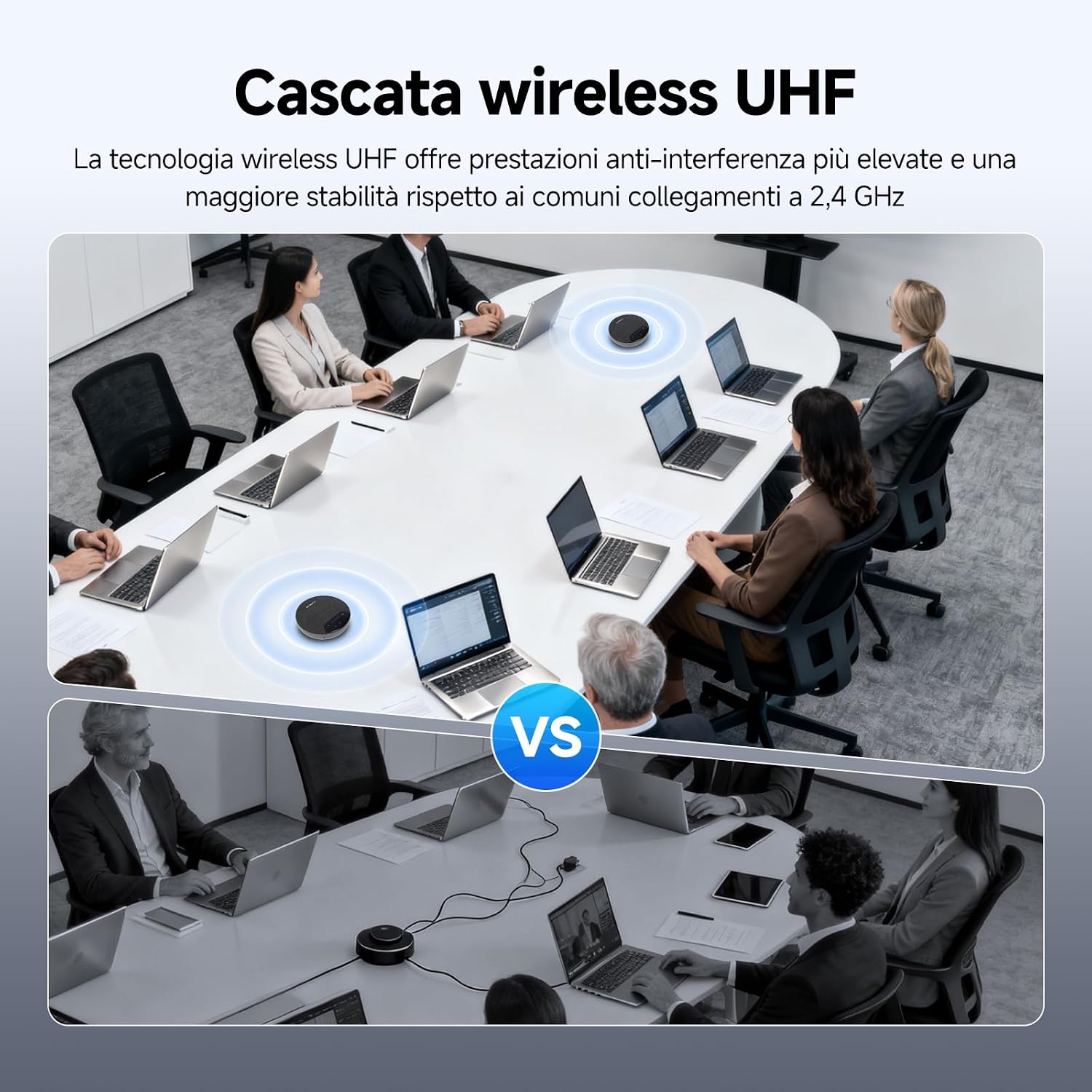
Figure 4: 360-degree omnidirectional audio capture.
Full-Duplex Communication
The SVN O1 supports full-duplex communication, allowing participants to speak and listen simultaneously without interruption, facilitating natural and fluid conversations.

Figure 5: Full-Duplex Communication for natural conversations.
Zaawansowane funkcje
AI Noise Reduction (3A)
The SVN O1 incorporates 3A noise cancellation technology (Acoustic Echo Cancellation, Automatic Noise Suppression, Automatic Gain Control) combined with AI noise reduction up to 65dB. This intelligently filters out common background noises such as keyboard clicks, table taps, and echoes, ensuring crystal-clear audio.

Figure 6: AI Noise Reduction for clear audio.
Wireless Expansion (UHF Cascade)
For larger meeting spaces, two SVN O1 units can be wirelessly connected via UHF cascade technology. This expands the audio coverage up to 10 meters between units, allowing for seamless audio in extended conference setups without additional cabling.
Figure 7: UHF Wireless Cascade for larger rooms.
Smart AI Button for Transcription
When connected via USB, the dedicated AI button supports real-time transcription and summary tools. This open-source integration allows for customized shortcuts, enhancing productivity during meetings. Note: This feature is available only when connected via USB.

Figure 8: AI Transcription for smarter meetings.
Szeroka kompatybilność
The SVN O1 is compatible with major conferencing platforms and operating systems, including Zoom, Microsoft Teams, Google Meet, WebEx, Windows, and macOS, ensuring seamless integration into your existing setup.

Figure 9: Wide compatibility with leading platforms.
Długotrwała bateria
Equipped with a 2400 mAh battery, the SVN O1 provides up to 5 hours of continuous playback and up to 8 hours of regular use, supporting your meetings throughout the day without frequent recharging.
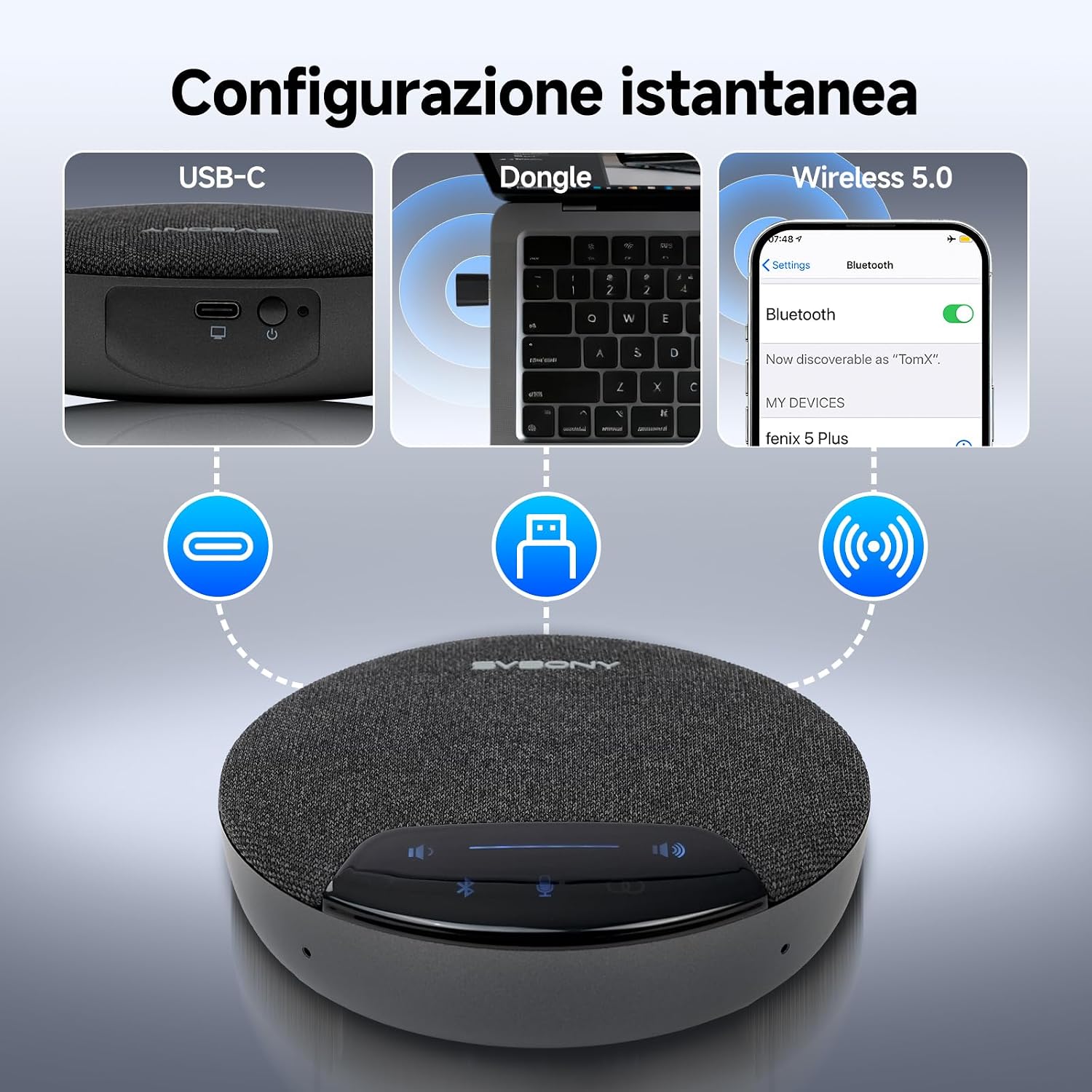
Figure 10: 2400 mAh battery for extended use.
Konserwacja
To ensure the longevity and optimal performance of your SVBONY SVN O1 Conference Microphone, follow these maintenance guidelines:
- Czyszczenie: Do czyszczenia zewnętrznej części urządzenia należy używać miękkiej, suchej ściereczki. Unikaj stosowania płynnych środków czyszczących i materiałów ściernych.
- Składowanie: When not in use, store the microphone in the provided carrying pouch to protect it from dust and scratches.
- Temperatura: Unikaj wystawiania urządzenia na działanie ekstremalnych temperatur lub bezpośredniego światła słonecznego.
- Wilgoć: Trzymaj urządzenie z dala od wody i dużej wilgotności.
- Ładowanie: Do ładowania należy używać wyłącznie dołączonego kabla USB i kompatybilnego zasilacza.
Rozwiązywanie problemów
If you encounter issues with your SVN O1, refer to the following common solutions:
| Problem | Możliwa przyczyna | Rozwiązanie |
|---|---|---|
| Brak dźwięku z głośnika | Volume too low; device not selected as output; device not powered on. | Increase volume; select SVN O1 as default output in system settings; ensure device is powered on. |
| Mikrofon nie odbiera dźwięku | Microphone muted; device not selected as input; connection issue. | Unmute microphone; select SVN O1 as default input; check USB/Bluetooth/dongle connection. |
| Połączenie Bluetooth niestabilne | Distance too far; interference; low battery. | Move closer to the paired device (within 11 meters); reduce interference sources; charge the device. |
| Urządzenie się nie ładuje | Faulty cable/adapter; port issue. | Try a different USB cable or power adapter; ensure the USB port is functional. |
| AI button not working | Not connected via USB. | Ensure the device is connected to your computer via USB cable. |
Specyfikacje
| Funkcja | Szczegół |
|---|---|
| Nazwa modelu | SVN O1 |
| Technologia łączności | USB, Bluetooth 5.0, Wireless Dongle |
| Moc wyjściowa głośnika | 5 watów |
| Odpowiedź częstotliwościowa | 50 Hz - 20 kHz |
| Tryb wyjścia audio | Mononukleoza |
| Cechy specjalne | Noise Cancellation (3A + AI), 360° Audio Capture, Full-Duplex Communication, Wireless Cascade |
| Kompatybilne urządzenia | Zoom, Microsoft Teams, Google Meet, WebEx, Windows, macOS |
| Pojemność baterii | 2400 mAh |
| Żywotność baterii | Up to 5 hours (playback), 8 hours (regular use) |
| Zasięg bezprzewodowej | Up to 11 meters (Bluetooth), 10 meters (UHF cascade) |
| Wymiary (dł. x szer. x wys.) | Wymiary: 12 cm x 12 cm x 3.8 cm |
| Waga | 240 gram |
Gwarancja i wsparcie
Gwarancja na produkt
The SVBONY SVN O1 Conference Microphone comes with a 1-letnia gwarancja od daty zakupu. Dodatkowo oferujemy 30-dniowa polityka zwrotu bez podania przyczyny. Zachowaj dowód zakupu na wypadek roszczeń gwarancyjnych.
Serwis pogwarancyjny
Even after the warranty period, we continue to offer maintenance services. Buyers are responsible for any corresponding costs. We aim to process all service requests as simply as possible.
Obsługa klienta
For any questions, technical assistance, or warranty claims, please contact us through Amazon. We commit to responding to your inquiries within 12 hours.


