
1. Koniecview
The Ulefone Tab A9 Pro is an 8.68-inch kids learning tablet designed for children aged 3-12. It features an 8.68" TÜV SÜD Eye Comfort Display, runs on Android 15 with a MediaTek G91 Octa-Core processor, and includes 8GB RAM and 128GB storage (expandable up to 2TB). This tablet is equipped with built-in learning apps, parental controls, and dual SIM support for connectivity on the go. It comes with a durable, shockproof EVA case and a DIY creativity kit.
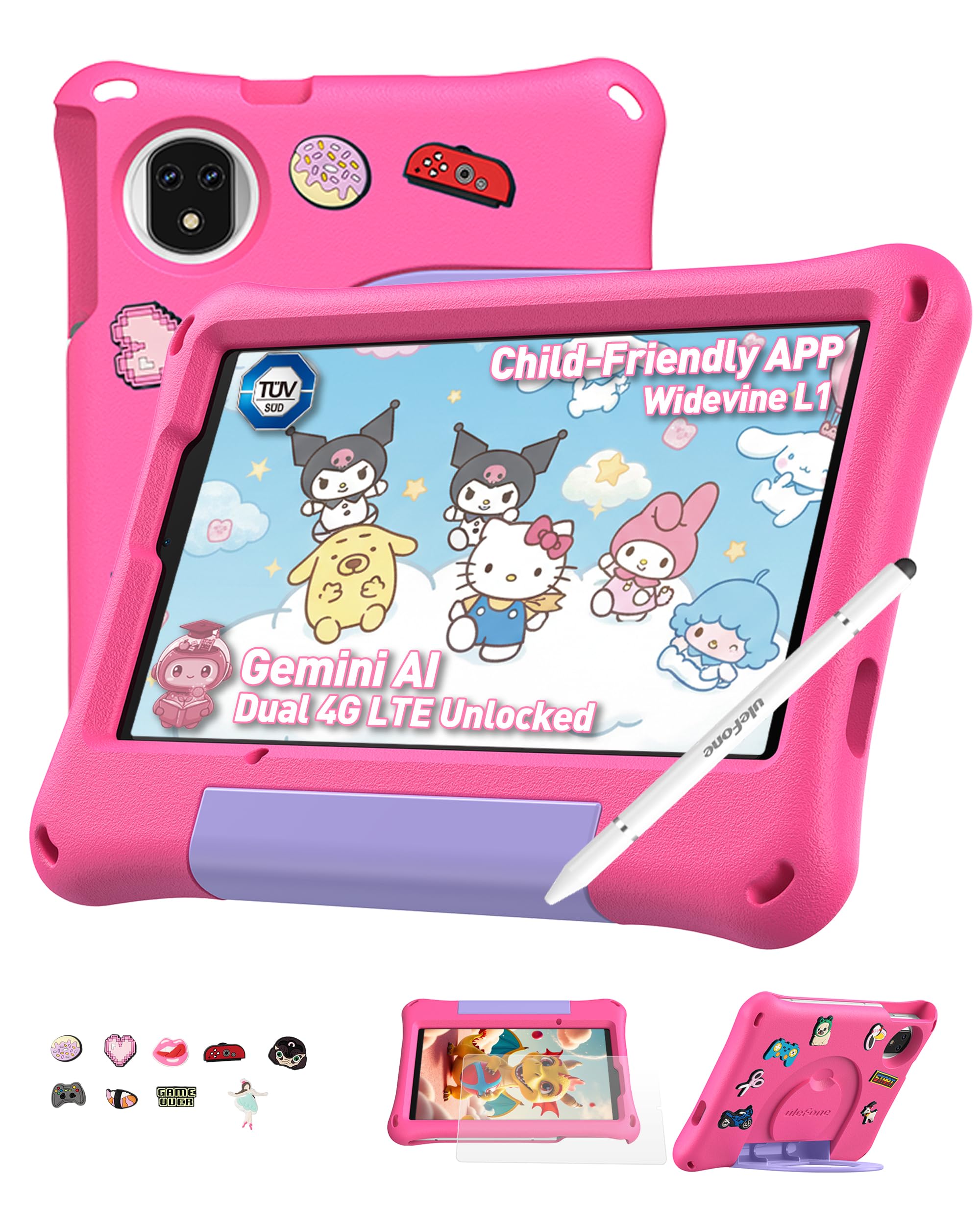
Figure 1: Ulefone Tab A9 Pro Kids Learning Tablet (Pink Edition) with its protective case and various features highlighted.
2. Co jest zawarte
The Ulefone Tab A9 Pro package contains the following items:
- 1x Ulefone Tab A9 Pro Tablet
- 1x Type-C to Type-C Charging Cable (1M)
- 1x Tempered Glass Screen Protector (pre-applied)
- 1x Cartoon Decor Kit (15 random accessories)
- 1x EVA Protective Case with adjustable stand
- 1x Capacitive Stylus
- 1x igła SIM
- 1x AC Power Charger
- 1x Safety Prompt Statement
- 1x Karta instrukcji ładowania
- 1x Wielojęzyczna instrukcja obsługi

Figure 2: All items included in the Ulefone Tab A9 Pro Kids Learning Tablet package.
Film 1: Rozpakowywanie i koniecview of the Ulefone Tab A9 Pro Kids Learning Tablet, demonstrating its components and initial setup.
3. Główne cechy
- Zero Subscription & Parental Controls: The tablet provides a safe digital environment with no monthly fees. Advanced parental controls allow content filtering, screen time limits, and a secure space for children. It comes preloaded with GMS-certified educational apps.

Figure 3: The tablet features built-in parental control mode for a supervised experience.
Video 2: Demonstration of the advanced parental control features available on the Ulefone Tab A9 Pro Kids Tablet.
- Powerful Android 15 Performance: Equipped with Android 15 OS and a MediaTek G91 Octa-Core processor, 8GB RAM (4+4GB), and 128GB storage (expandable to 2TB). It includes Google Gemini AI for instant answers and supports demanding educational games and 3D applications.
- Ekran chroniący oczy: The 8.68-inch IPS display features a 90Hz refresh rate and TÜV SÜD low blue light certification to reduce eye strain. Widevine L1 certification allows streaming HD content from platforms like Disney+ and Netflix.

Figure 4: The 8.68-inch 90Hz display with TÜV SÜD low blue light certification for eye comfort.
- Durable Case & DIY Gift Set: Comes with a rugged, shockproof EVA case with an adjustable stand. The DIY Creativity Kit includes 15 random cartoon accessories for case decoration and a stylus pen for interactive use.

Figure 5: The tablet's double protection with a pre-applied tempered glass screen protector and a soft silicone protective case.
- Travel Essentials: Features Dual SIM support and Dual-band Wi-Fi for connectivity. A 5040mAh battery provides extended use. Includes 12MP+13MP rear cameras and an 8MP front camera with Face Unlock.

Figure 6: The tablet is designed for use at home and on-the-go, with dual SIM and Wi-Fi capabilities.

Figure 7: The tablet is equipped with 12MP + 13MP rear cameras and an 8MP front camera.
4. Przewodnik konfiguracji
4.1 Pierwsze włączenie zasilania
- Ensure the tablet is fully charged using the provided Type-C cable and AC power charger.
- Press and hold the Power button (usually located on the side) until the Ulefone logo appears on the screen.
- Postępuj zgodnie z instrukcjami wyświetlanymi na ekranie, aby wybrać swój język i region oraz zaakceptować regulamin.
4.2 Łączenie z Wi-Fi
- During initial setup or via Settings, navigate to "Network & internet".
- Włącz Wi-Fi.
- Wybierz żądaną sieć Wi-Fi z listy.
- Enter the Wi-Fi password if prompted and tap "Connect".
4.3 Konfigurowanie kontroli rodzicielskiej
The Ulefone Tab A9 Pro includes robust parental control features to manage your child's usage:
- Access the dedicated "Kids Mode" application or navigate to "Settings > Digital Wellbeing & parental controls".
- Utwórz profesjonalistę dziecięcegofile and set up a parental password.
- Configure screen time limits, content restrictions, and app access permissions.
- Monitor activity and adjust settings as needed to ensure a safe and educational experience.
5. Korzystanie z tabletu
5.1 Poruszanie się po interfejsie
- Ekran główny: Swipe left or right to access different pages of apps.
- Powiadomienia: Przesuń palcem w dół od góry ekranu do view powiadomienia i szybkie ustawienia.
- Ostatnie aplikacje: Tap the square icon (or swipe up and hold from the bottom) to see recently used applications.
- Z powrotem: Tap the triangle icon (or swipe from the left/right edge) to go back to the previous screen.
5.2 Using the Stylus
The included capacitive stylus can be used for drawing, writing, and precise navigation. Simply touch the stylus tip to the screen as you would with your finger. The stylus has two ends for versatile use.
5.3 Instalowanie i zarządzanie aplikacjami
- Preloaded Apps: The tablet comes with various educational and entertainment apps.
- Sklep Google Play: Access the Google Play Store to download additional apps, games, and content. Ensure parental controls are configured to manage downloads.
- Odinstalowywanie aplikacji: To remove an app, long-press its icon on the home screen or app drawer, then drag it to the "Uninstall" option, or go to "Settings > Apps > See all apps" and select the app to uninstall.
6. Konserwacja i pielęgnacja
- Czyszczenie: Do czyszczenia ekranu i obudowy używaj miękkiej, niepozostawiającej włókien ściereczki. Unikaj stosowania silnych środków chemicznych i materiałów ściernych.
- Pielęgnacja baterii: To prolong battery life, avoid extreme temperatures. Charge the tablet regularly, but do not leave it plugged in for extended periods after it's fully charged.
- Składowanie: Store the tablet in a cool, dry place. When not in use, keep it in its protective EVA case.
- Aktualizacje oprogramowania: Periodically check for system updates in "Settings > System > System update" to ensure optimal performance and security.
7. Rozwiązywanie typowych problemów
| Problem | Rozwiązanie |
|---|---|
| Tablet nie włącza się. | Upewnij się, że bateria jest naładowana. Podłącz ładowarkę i odczekaj kilka minut przed ponownym uruchomieniem. Jeśli urządzenie nie reaguje, wymuś ponowne uruchomienie, przytrzymując przycisk zasilania przez 10–15 sekund. |
| Ekran nie reaguje. | Uruchom ponownie tablet. Jeśli problem nadal występuje, upewnij się, że ekran jest czysty i wolny od zanieczyszczeń. |
| Problemy z połączeniem Wi-Fi. | Sprawdź, czy Wi-Fi jest włączone w ustawieniach. Uruchom ponownie router i tablet. Upewnij się, że jesteś w zasięgu sygnału Wi-Fi. |
| Aplikacje się zawieszają lub działają wolno. | Close background apps. Clear the cache of the problematic app (Settings > Apps > [App Name] > Storage & cache > Clear cache). Ensure sufficient storage space is available. Restart the tablet. |
| Kontrola rodzicielska nie działa zgodnie z oczekiwaniami. | Verify that the parental control settings are correctly configured in the Kids Mode app or system settings. Ensure the parental password is secure and not shared. |
8. Specyfikacje produktu
| Funkcja | Specyfikacja |
|---|---|
| Marka | Ulefone |
| Nazwa modelu | Ulefone A9 Pro Kids Tablet Pink |
| Pojemność pamięci masowej | 128 GB (z możliwością rozszerzenia do 2 TB) |
| Rozmiar ekranu | 8.68 cali |
| Maksymalna rozdzielczość wyświetlacza | 800×1340 |
| System operacyjny | Android 15 |
| Edytor | MediaTek G91 Octa-Core |
| Zainstalowana pamięć RAM | 8 GB (4+4 GB) |
| Pojemność baterii | 5040 mlnampgodzina (mAh) |
| Kamery tylne | 12MP + 13MP |
| Przednia kamera | 8MP (with Face Unlock) |
| Technologia bezprzewodowa | Bluetooth, Dual-band Wi-Fi |
| Technologia komórkowa | 4G (Note: Not compatible with AT&T or Cricket) |
| Gniazdo słuchawkowe | 3.5 mm |
| Wymiary przedmiotu (dł. x szer. x grubość) | 8.37" dł. x 0.31" szer. x 4.93" gł. |
9. Gwarancja i obsługa klienta
Ulefone zapewnia 2-letnia gwarancja for non-human damage. For any questions or support regarding your Ulefone Tab A9 Pro Kids Learning Tablet, please contact customer service via email at: support@ulefone.com.
Proszę zachować dowód zakupu na potrzeby roszczeń gwarancyjnych.