
1. Wprowadzenie
Thank you for choosing the ELECROW 5-inch IPS Touch Screen Monitor. This compact display offers a high-definition visual experience with responsive touch functionality, designed for a wide range of applications including single-board computers and mini PCs. This manual provides essential information for the proper installation, operation, and care of your device.

The ELECROW 5-inch IPS Touch Screen Monitor, a versatile display solution.
Główne cechy obejmują:
- HD Display Experience: 5-inch IPS capacitive touchscreen with a 1024 x 600 resolution, 178° viewing angle, and support for up to 1080P signal input.
- Responsive Touch: Supports 5-point multi-touch on Windows and single-touch on Raspberry Pi/Jetson Nano.
- Łatwa obsługa typu Plug-and-Play: No additional drivers required for most compatible systems.
- Funkcje zawodowe: Features a headphone jack for audio output and a built-in OSD menu for display adjustments.
2. Co znajduje się w pudełku
Sprawdź, czy w przesyłce znajdują się wszystkie elementy wymienione poniżej:
- 1x 5-calowy monitor dotykowy
- 1x HD Cable (1m)
- 1x USB-A to USB-C Cable (1m)
- 1x Micro-HD Adapter (for Raspberry Pi 4B & 5)
- 4x Hexagonal Copper Standoff Kit (M2.5)
- 2x Pro Stand
- 1x Śrubokręt
- 1x Instrukcja obsługi (Szybki przewodnik)
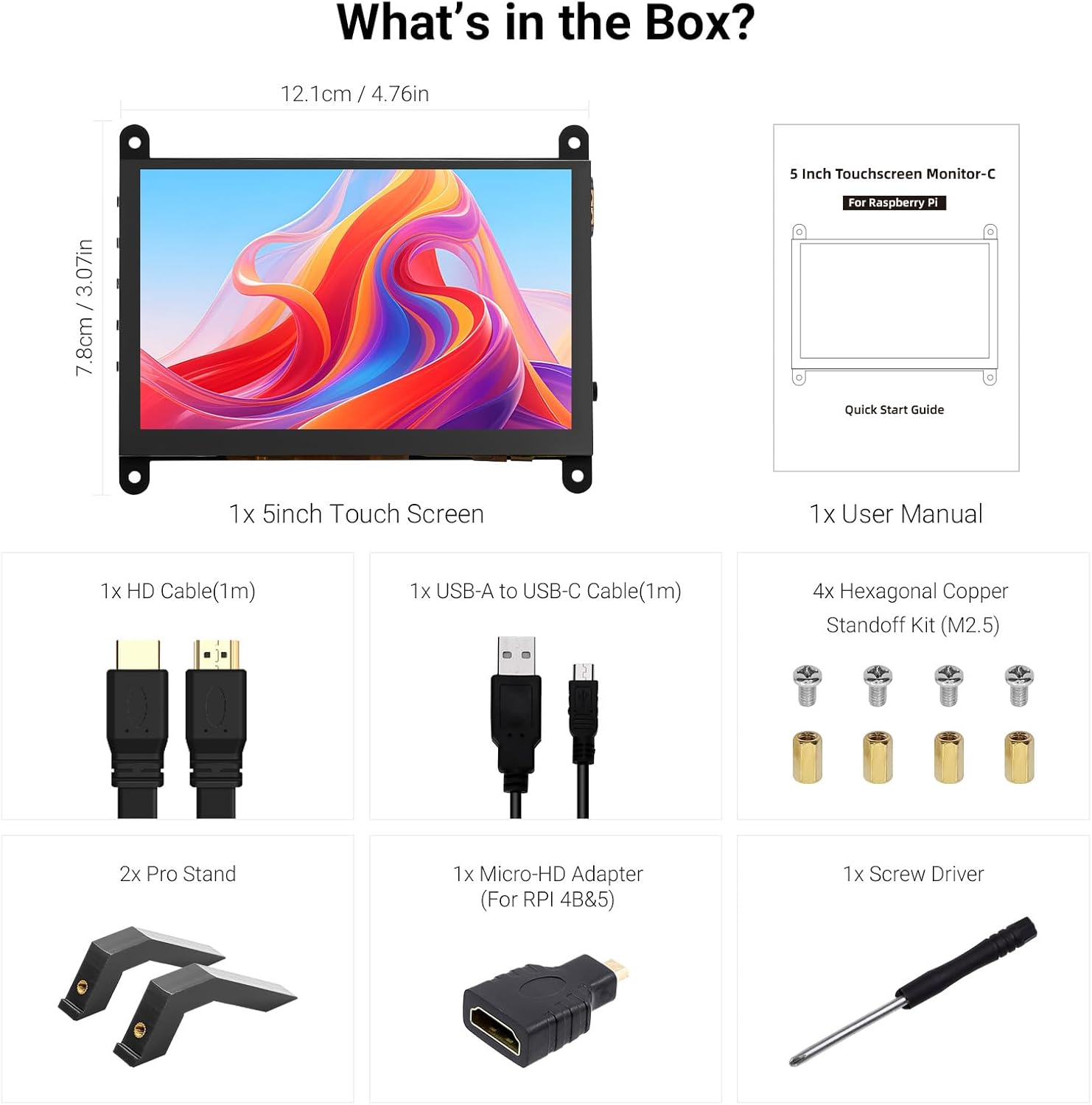
Wszystkie elementy zawarte w opakowaniu produktu.
3. Koniec produktuview
Familiarize yourself with the ports and buttons on your ELECROW 5-inch Touch Screen Monitor:

Szczegółowy view portów i przycisków sterujących monitora.
- HD Input Port: Do wejścia sygnału wideo.
- Port USB-C: For power supply and touch signal transmission.
- Gniazdo słuchawkowe 3.5 mm: Do wyjścia audio.
- Przycisk menu: Dostęp do menu ekranowego (OSD).
- Przycisk lewy/górny: Navigates left or up in the OSD menu.
- Przycisk prawy/w dół: Navigates right or down in the OSD menu.
- Przycisk powrotu: Exits a menu or returns to the previous option.
- Przycisk zasilania: Włącza lub wyłącza wyświetlacz.
- 20P-FPC-0.5mm Display Port: For flexible cable expansion in embedded systems.
4. Instrukcje konfiguracji
Follow these steps to connect your ELECROW 5-inch Touch Screen Monitor to a compatible device:
4.1 Łączenie z Raspberry Pi
- Podłącz kabel HD: Use the provided HD cable to connect the monitor's HD Input Port to the HDMI port on your Raspberry Pi. If using Raspberry Pi 4B or 5, use the included Micro-HD adapter.
- Podłącz kabel USB: Connect the USB-C port on the monitor to a USB-A port on your Raspberry Pi using the provided USB-A to USB-C cable. This supplies power to the monitor and enables touch functionality.
- Włączanie: Power up your Raspberry Pi. The display should automatically detect the signal and power on.
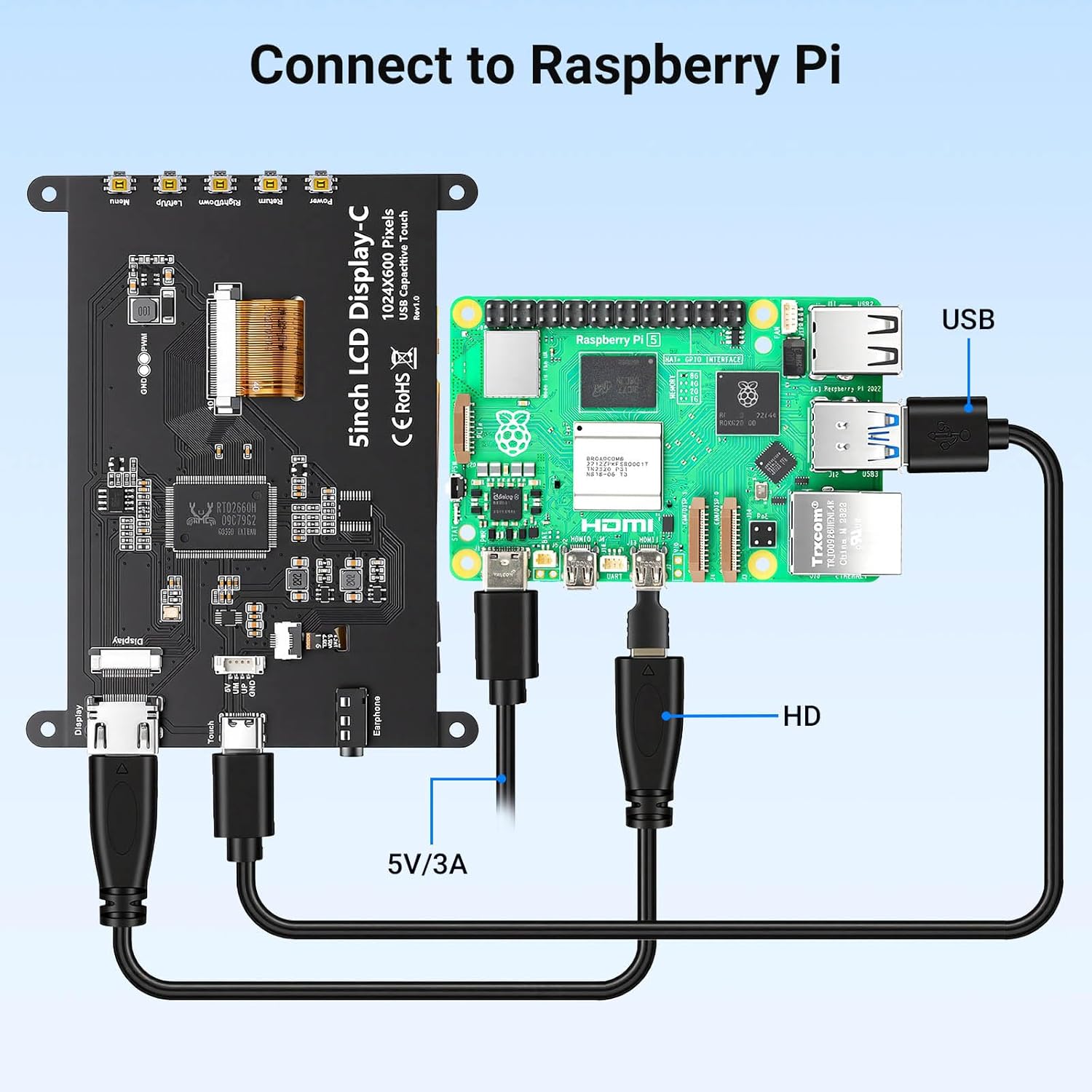
Connection diagram for Raspberry Pi.
4.2 Connecting to Windows PC/Laptop
- Podłącz kabel HD: Use the provided HD cable to connect the monitor's HD Input Port to the HDMI port on your PC/laptop.
- Podłącz kabel USB: Connect the USB-C port on the monitor to a USB-A port on your PC/laptop using the provided USB-A to USB-C cable. This provides power and enables touch functionality.
- Włączanie: Power on your PC/laptop. The display should be recognized automatically. No additional drivers are typically required for Windows 7/8/10/11.
5. Instrukcja obsługi
5.1 Podstawowa obsługa
- Włączanie/wyłączanie: Press the Power Button (8) to turn the display on or off.
- Funkcja dotykowa: The monitor features a capacitive touchscreen. On Windows systems, it supports 5-point multi-touch. On Raspberry Pi (Raspbian, Ubuntu, Kali, Retropie) and Jetson Nano, it supports single-touch operation.

Responsive touch experience for various devices.
5.2 Nawigacja w menu OSD
The On-Screen Display (OSD) menu allows you to adjust various display settings:
- Naciśnij Menu Button (4) aby otworzyć menu OSD.
- Użyj Left/Up Button (5) I Right/Down Button (6) aby poruszać się po opcjach menu.
- Naciśnij Menu Button (4) ponownie, aby wybrać opcję lub potwierdzić ustawienie.
- Naciśnij Przycisk powrotu (7) to exit the current menu or return to the previous level.
Common adjustable settings include Brightness, Contrast, and other display parameters.
5.3 Wyjście audio
Connect headphones or external speakers to the 3.5mm Headphone Jack (3) for audio output from the connected device.
6. Zgodność
The ELECROW 5-inch Touch Screen Monitor offers broad compatibility with various operating systems and hardware platforms:
- Systemy operacyjne: Raspbian, Ubuntu, Kali, Retropie, Windows 7/8/10/11, Windows 10 IoT.
- Zgodne urządzenia: Raspberry Pi 5, Raspberry Pi 4, Raspberry Pi 3 B+, BB Black, Banana Pi, Jetson Nano, PS4, Xbox.

Broad compatibility with popular operating systems and devices.
7. Specyfikacje
| Funkcja | Szczegół |
|---|---|
| Marka | ELEKTROROW |
| Numer modelu | DLH04950B |
| Rozmiar ekranu | 5 cali |
| Rezolucja | 1024 x 600 pikseli |
| Typ wyświetlacza | IPS |
| Viewing kąt | 178 stopni |
| Jasność | 410 cd/m² |
| Częstotliwość odświeżania | 60 Hz |
| Czas reakcji | 2 milisekund |
| Łączność | HDMI, USB typu C |
| Tomtage | 5 wolty |
| Wymiary (szer. x wys.) | 12.1 cm x 7.8 cm (4.76 cala x 3.07 cale) |
| Dodatkowe funkcje | Portable, Touchscreen, Headphone Jack, OSD Menu |

Visual representation of key display specifications.
8. Konserwacja
Proper care and maintenance will ensure the longevity and optimal performance of your monitor:
- Czyszczenie ekranu: Użyj miękkiej, niestrzępiącej się ściereczki, lekko wyczyśćampened with water or a screen-cleaning solution. Avoid harsh chemicals, abrasive materials, or excessive moisture.
- Ogólne sprzątanie: Wipe the exterior of the monitor with a dry, soft cloth.
- Składowanie: Jeśli monitor nie będzie używany przez dłuższy czas, należy przechowywać go w chłodnym, suchym miejscu, z dala od bezpośredniego światła słonecznego i ekstremalnych temperatur.
- Obsługiwanie: Avoid dropping the monitor or subjecting it to strong impacts. Do not apply excessive pressure to the screen.
- Wentylacja: Ensure the monitor has adequate ventilation to prevent overheating. Do not block any vents.
9. Rozwiązywanie Problemów
If you encounter issues with your ELECROW 5-inch Touch Screen Monitor, refer to the following common problems and solutions:
9.1 Brak obrazu / Czarny ekran
- Sprawdź połączenia: Ensure the HD cable is securely connected to both the monitor and the source device.
- Zasilanie: Verify that the USB-C cable is properly connected and providing sufficient power (5V). Try a different USB port or power adapter if available.
- Urządzenie źródłowe: Confirm that your source device (e.g., Raspberry Pi, PC) is powered on and outputting a video signal.
- Ustawienia rozdzielczości: Ensure the output resolution of your source device is compatible with the monitor (1024x600 or a resolution that can be scaled).
9.2 Touch Function Not Working
- Połączenie USB: The USB-C cable is essential for touch functionality. Ensure it is connected to both the monitor and the source device.
- Obsługa systemu operacyjnego: Verify that your operating system supports touch input and that necessary drivers (if any, though usually plug-and-play) are installed. For Raspberry Pi, ensure the OS is configured for touch.
- Rekalibracja: Some operating systems may require touch screen calibration. Refer to your OS documentation for instructions.
9.3 Image Quality Issues (Flickering, Distorted Colors)
- Integralność kabla: Try a different HD cable to rule out a faulty cable.
- Sygnał źródłowy: Test the monitor with a different source device to determine if the issue is with the monitor or the source.
- Ustawienia OSD: Adjust brightness, contrast, and other color settings via the OSD menu.
10. Gwarancja i pomoc techniczna
10.1 Informacje o gwarancji
This ELECROW 5-inch Touch Screen Monitor comes with a 1-letnia gwarancja producenta. This warranty covers defects in materials and workmanship under normal use. It does not cover damage caused by misuse, accident, modification, or unauthorized repair.
10.2 Wsparcie techniczne
For technical assistance, troubleshooting beyond this manual, or warranty claims, please contact ELECROW customer support through their official website or the platform where you purchased the product. Please have your model number (DLH04950B) and purchase details ready when contacting support.