
1. Wprowadzenie
This manual provides essential information for setting up, operating, and maintaining your HP OmniDesk Slim Desktop PC, Model S03-0006. This desktop PC is designed for daily tasks, offering an Intel Core i3-14100 processor, ample memory, and various connectivity options for productivity and entertainment.
2. Zawartość opakowania
Sprawdź, czy w opakowaniu znajdują się wszystkie elementy:
- HP S03-000 OmniDesk Slim Desktop PC
- Zasilacz
- USB Black Wired Keyboard (if included with specific bundle)
- USB Wired Mouse (if included with specific bundle)
Uwaga: Dodatkowe akcesoria mogą być sprzedawane oddzielnie.
3. Koniec produktuview
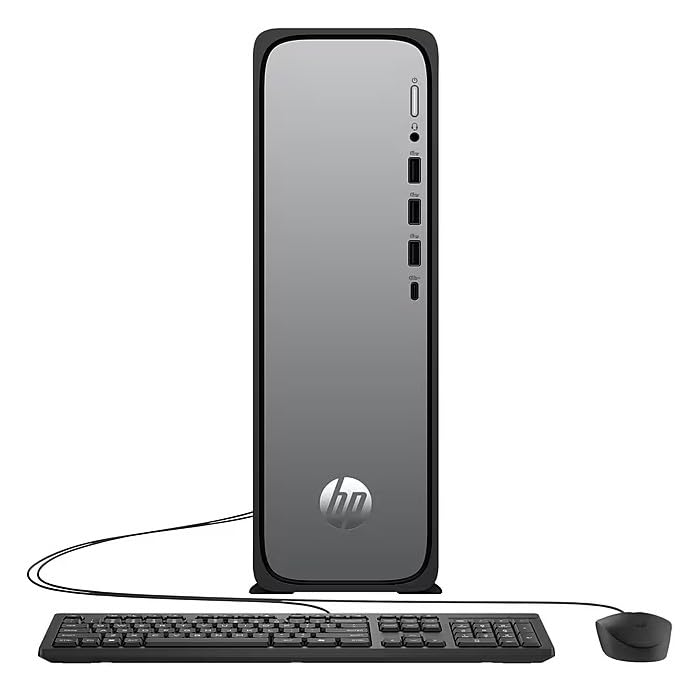
The HP OmniDesk Slim Desktop PC features a compact design with essential components for efficient computing.

Rysunek 3.1: HP OmniDesk Slim Desktop PC showcasing its slim profile, Intel Core i3-14100 processor, 8GB DDR5 RAM, 256GB SSD, Intel UHD Graphics 710, Wi-Fi 6, Bluetooth 5.4, Windows 11, and dual display support.
3.1. Porty i złącza
Familiarize yourself with the various ports on your desktop PC for connecting peripherals and displays.
Rysunek 3.2: Front and rear port layout of the HP OmniDesk Slim Desktop PC. Front ports include a headphone/microphone combo jack, USB Type-A 5Gbps ports, and a USB Type-C 10Gbps port. Additional ports (typically rear) include 4 USB 2.0 Type-A, 1 RJ-45 (Ethernet), 1 HDMI Out, and 1 DisplayPort 1.4.
- Porty przednie:
- Kombinacja słuchawek i mikrofonu
- USB Type-A 5Gbps signaling rate (3 ports)
- USB Type-C 10Gbps signaling rate (1 port)
- Porty tylne:
- USB 2.0 Type-A (4 ports)
- RJ-45 (Ethernet)
- HDMI 1.4b (1 port)
- DisplayPort 1.4a (1 port)
4. Przewodnik konfiguracji
Follow these steps to set up your HP OmniDesk Slim Desktop PC:
- Podłącz monitor: Connect your monitor to the PC using an HDMI or DisplayPort cable. Ensure the cable is securely plugged into both the PC and the monitor.
- Podłącz urządzenia peryferyjne: Plug in your USB keyboard and mouse into the available USB ports on the PC.
- Podłącz zasilanie: Connect the power supply cable to the PC's power input, then plug the other end into a wall outlet or surge protector.
- Włączanie: Press the power button on the front of the PC. The system will boot up, and you will see the Windows 11 setup screen.
- Początkowa konfiguracja systemu Windows: Follow the on-screen instructions to complete the Windows 11 setup, including language, region, network connection, and user account creation.
5. Instrukcja obsługi
5.1. Podstawowa obsługa
- Włączanie/wyłączanie: Press the power button to turn on the PC. To shut down, click the Start button, then Power > Shut down.
- Uruchom ponownie: Kliknij przycisk Start, następnie Zasilanie > Uruchom ponownie.
- Tryb uśpienia: Kliknij przycisk Start, następnie Zasilanie > Uśpienie.
5.2. Łączenie z siecią
Your PC supports both wired (Ethernet) and wireless (Wi-Fi) network connections.
- Połączenie przewodowe: Connect an Ethernet cable from your router or modem to the RJ-45 port on the back of the PC.
- Połączenie bezprzewodowe (Wi-Fi 6):
- Kliknij ikonę Wi-Fi na pasku zadań.
- Wybierz żądaną sieć Wi-Fi z listy.
- Wprowadź klucz bezpieczeństwa sieci (hasło), jeśli zostaniesz o to poproszony, a następnie kliknij Łączyć.
5.3. Obsługa dwóch wyświetlaczy
To extend your desktop to a second monitor:
- Connect the second monitor to an available video output port (HDMI or DisplayPort) on your PC.
- Kliknij prawym przyciskiem myszy na pulpicie i wybierz Ustawienia wyświetlania.
- Under "Multiple displays," select how you want the displays to behave (e.g., Extend these displays, Duplicate these displays).
6. Konserwacja
- Aktualizacje oprogramowania: Regularly check for and install Windows updates to ensure system stability and security. Go to Ustawienia > Windows Update.
- Aktualizacje sterowników: Keep your device drivers updated. HP Support Assistant (MyHP) can help manage these updates.
- Czyszczenie: Use a soft, dry cloth to clean the exterior of the PC. Avoid liquid cleaners directly on components. Ensure ventilation openings are clear of dust.
- Kopia zapasowa danych: Regularnie twórz kopie zapasowe ważne filena dysk zewnętrzny lub do pamięci masowej w chmurze, aby zapobiec utracie danych.
7. Rozwiązywanie Problemów
| Problem | Możliwe rozwiązanie |
|---|---|
| Komputer się nie włącza. |
|
| Brak obrazu na monitorze. |
|
| Brak połączenia internetowego. |
|
| Urządzenia peryferyjne (klawiatura/mysz) nie działają. |
|
8. Specyfikacje
| Nazwa modelu | HP OmniDesk Desktop HP S03-000 PC |
| Numer modelu | OmniDesk Slim S03-0006 |
| Edytor | Intel Core i3-14100 (3.5 GHz, 6 MB Cache) |
| Grafika | Karta graficzna Intel UHD 710 (zintegrowana) |
| BARAN | 8 GB DDR5 (4800 MT/s), Max 64 GB |
| Składowanie | 256 GB SSD (dysk półprzewodnikowy) |
| System operacyjny | Windows 11 Home |
| Łączność | Realtek Wi-Fi 6 (2x2), Bluetooth 5.4, Gigabit Ethernet (RJ-45) |
| Porty |
|
| Wymiary (wys. x szer. x gł.) | 11.61 x 3.94 x 11.97 cala |
| Waga | 8.38 funtów |
| Certyfikaty | ENERGY STAR certified, EPEAT Gold with Climate+ |
9. Gwarancja i wsparcie
9.1. Informacje o gwarancji
This HP OmniDesk Slim Desktop PC comes with a 90-dniowa ograniczona gwarancjaSzczegółowe warunki gwarancji można znaleźć w dokumentacji gwarancyjnej dołączonej do produktu.
9.2. Wsparcie techniczne
Aby uzyskać pomoc techniczną, pobrać sterowniki lub uzyskać więcej informacji, odwiedź oficjalną stronę pomocy technicznej HP website. You can also utilize the pre-installed MyHP application for device customization, optimization, and access to helpful messages and settings.
Always provide your product model number (S03-0006) and serial number when contacting support.