
1. Wprowadzenie
The SOLAKAKA SM802 is a versatile tri-mode wireless gaming mouse designed for various computing needs. It offers 2.4GHz wireless, Bluetooth 5.0, and wired USB-C connectivity, along with customizable features such as replaceable shells, microswitches, and programmable buttons. This manual provides detailed instructions for setup, operation, maintenance, and troubleshooting to ensure optimal performance.
2. Zawartość opakowania
Sprawdź, czy w przesyłce znajdują się wszystkie elementy:
- SOLAKAKA SM802 Tri-Mode Wireless Gaming Mouse
- Kabel ładujący USB-C
- Odbiornik USB 2.4 GHz (przechowywany wewnątrz myszy)
- Additional Set of Micro Switches (Gaming Switch and Office Mute Switch)
- Additional Set of Shells (Hollowed-out Shell and Classic Shell)
- Instrukcja obsługi

Video: This video demonstrates the unboxing and contents of the SOLAKAKA SM802 gaming mouse package, including the mouse, cables, and interchangeable parts.
3. Koniec produktuview
Komponenty myszy
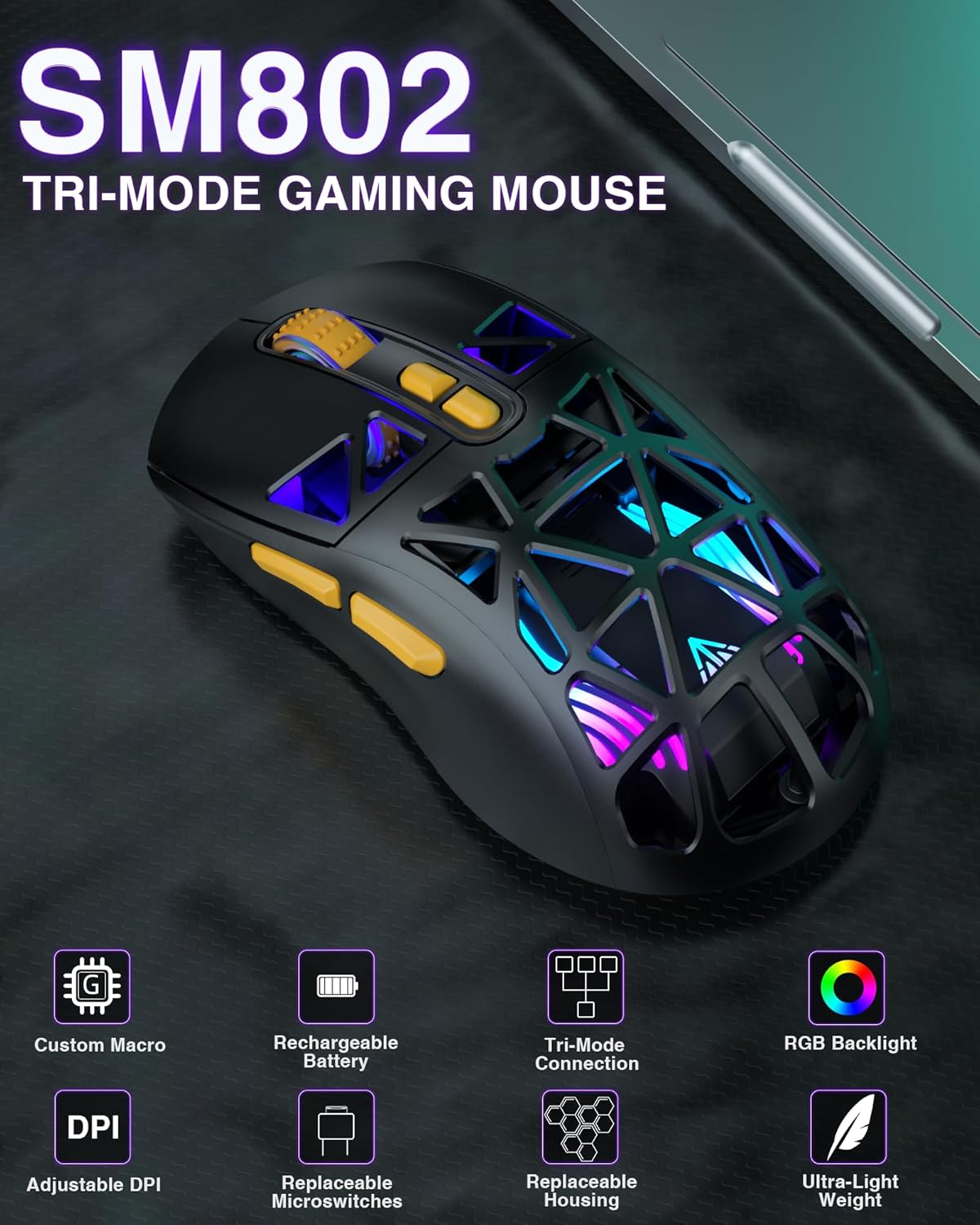
Obraz: widok z góry view of the SM802 mouse, showcasing its overall design and accessible buttons.
Główne cechy
- Łączność trójmodowa: Supports 2.4GHz wireless, Bluetooth 5.0, and wired USB-C connections. Can save up to 4 devices simultaneously.
- DIY Personalized Hotswap: Comes with two sets of micro switches (gaming and office mute) that users can easily change. Compatible with most branded microswitches.
- Customizable Shells: Includes two sets of shells (hollowed-out and classic) allowing for four different aesthetic styles.
- 7 programowalnych przycisków: Buttons can be customized via software (Windows system only) to reset functions, adjust DPI, and configure macros.
- Regulowane DPI: Six DPI levels available (1000, 1200, 1600, 2400, 4800, 10000).
- Akumulator: Built-in 450mAh lithium battery with USB-C charging. Supports use while charging. Low battery indicator flashes red.
- Power Saving Design: RGB lighting automatically turns off when the mouse is in motion in wireless mode. A toggle switch on the bottom can turn off partial RGB lights (keeping wheel and logo lights on).
4. Konfiguracja i łączność
Ładowanie myszy
Connect the mouse to your computer using the provided USB-C cable. The mouse can be used while charging. A red flashing light indicates a low battery.
Połączenie bezprzewodowe 2.4GHz
- Locate the 2.4GHz USB receiver stored in the compartment on the bottom of the mouse.
- Podłącz odbiornik USB do dostępnego portu USB w komputerze.
- Toggle the mode switch on the bottom of the mouse to the '2.4G' position. The mouse will automatically connect.
Połączenie Bluetooth 5.0
- Toggle the mode switch on the bottom of the mouse to either 'BT1' or 'BT2' position.
- On your device (laptop, tablet, etc.), enable Bluetooth and search for new devices.
- Select 'SM802' from the list of available devices to pair.
Połączenie przewodowe
Connect the mouse to your computer using the provided USB-C cable. The mouse will automatically switch to wired mode.
Przełączanie trybów połączenia
Use the mode switch located on the bottom of the mouse to select between 2.4GHz wireless, Bluetooth 1 (BT1), Bluetooth 2 (BT2), or wired mode. Ensure the mouse's signal source matches the selected device for proper connection.

Image: The SM802 mouse demonstrating its tri-mode connectivity options, connecting to a laptop via 2.4GHz, a tablet via Bluetooth, and a PC via wired USB-C.
5. Działanie
Regulacja DPI
The mouse supports 6 adjustable DPI levels: 1000, 1200, 1600, 2400, 4800, and 10000. Use the DPI button, typically located behind the scroll wheel, to cycle through these settings. The current DPI level may be indicated by an LED color change or through the customization software.
Sterowanie oświetleniem RGB
The SM802 features RGB backlighting. You can adjust lighting effects using a dedicated light button on the mouse or through the customization software. In wireless mode, RGB lighting automatically turns off when the mouse is moved to conserve power. A toggle switch on the bottom allows for partial RGB light deactivation (wheel and logo lights remain on).
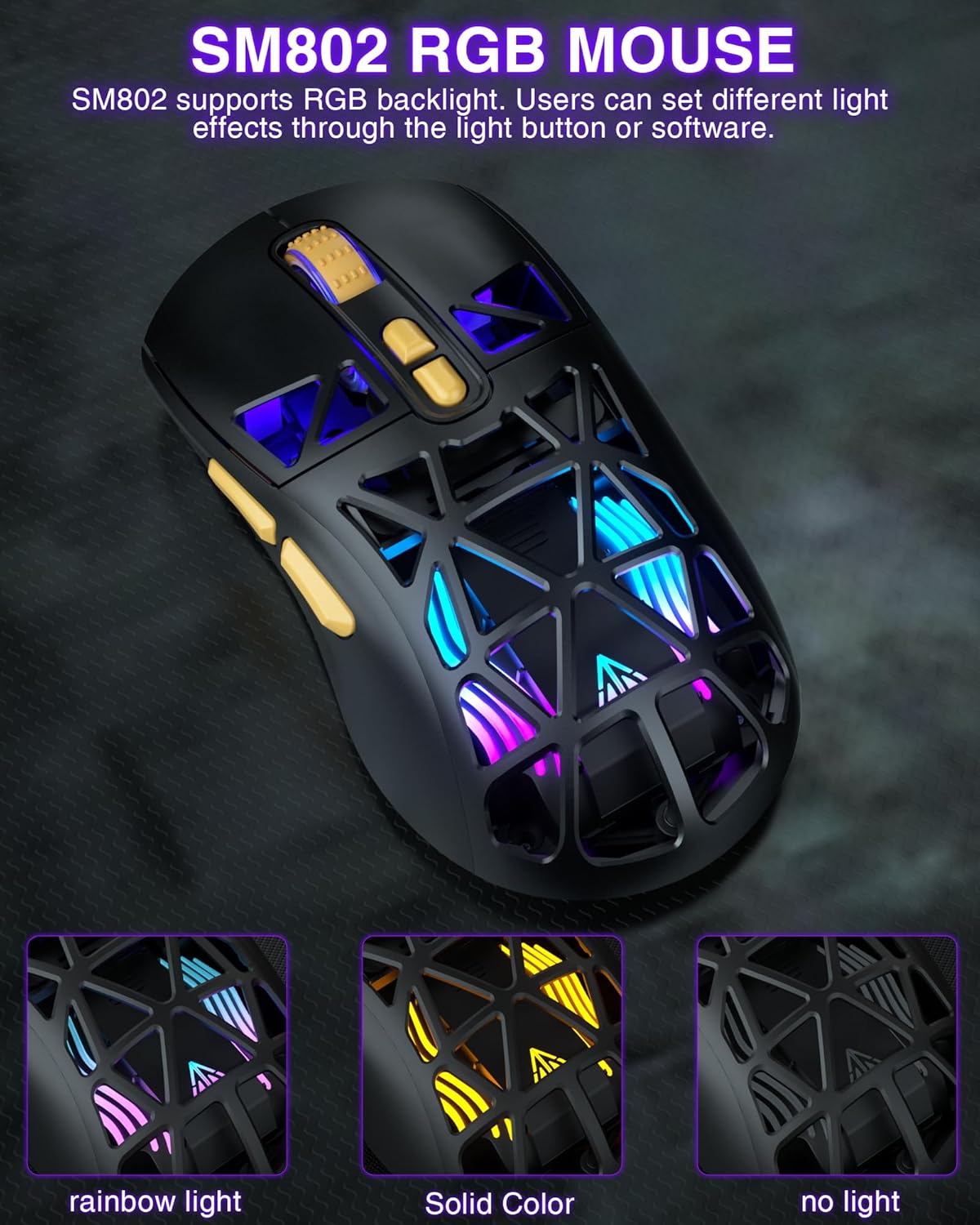
Image: The SM802 mouse displaying its vibrant RGB lighting, alongside information on its 6-level adjustable DPI up to 10000 and its rechargeable battery.
Customizable Shells
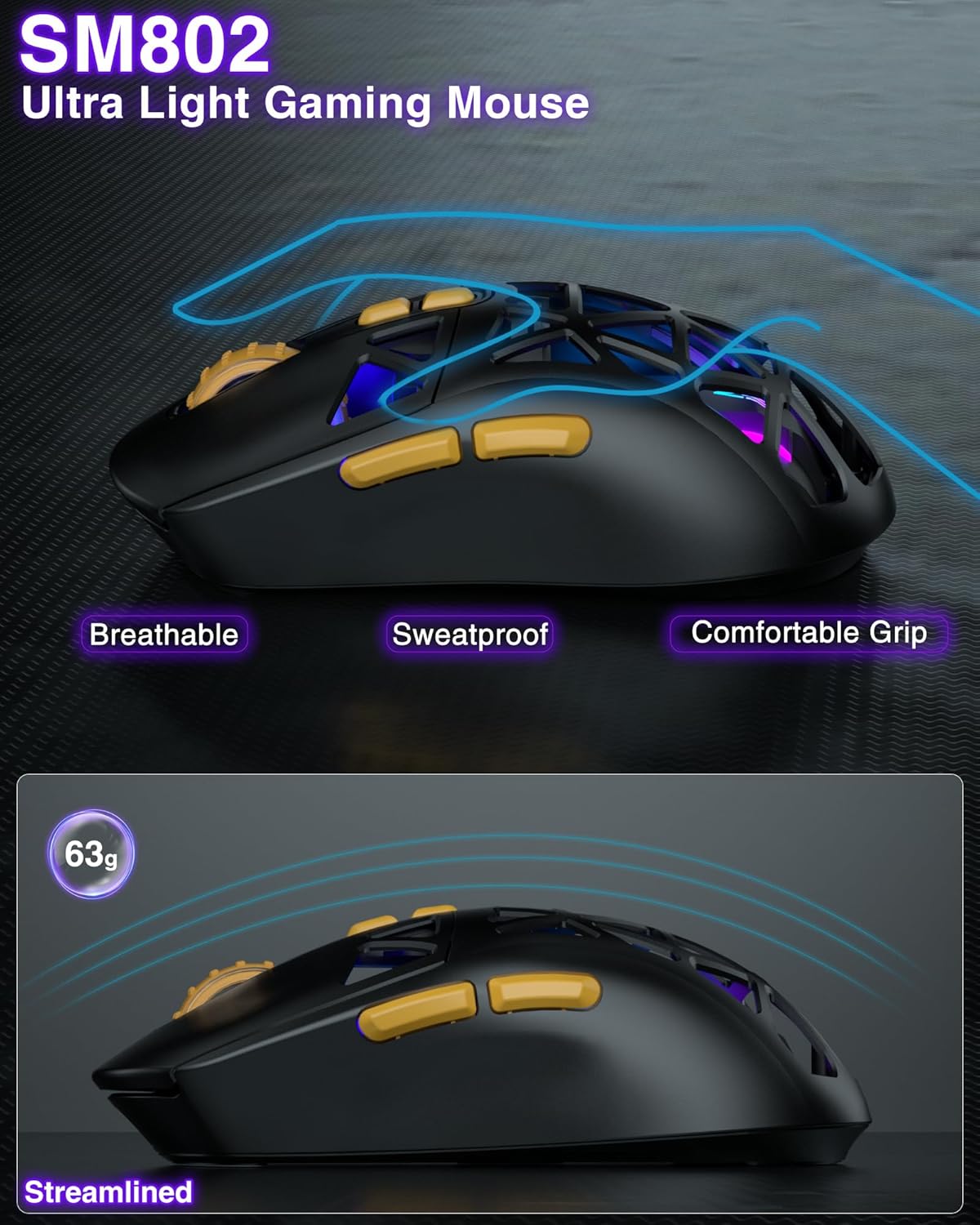
The SM802 mouse comes with two sets of shells: a hollowed-out shell and a classic shell. These can be interchanged to customize the mouse's appearance and feel. The hollowed-out shell enhances the RGB lighting and provides a breathable, sweat-proof design, while the classic shell offers a more traditional and versatile look.
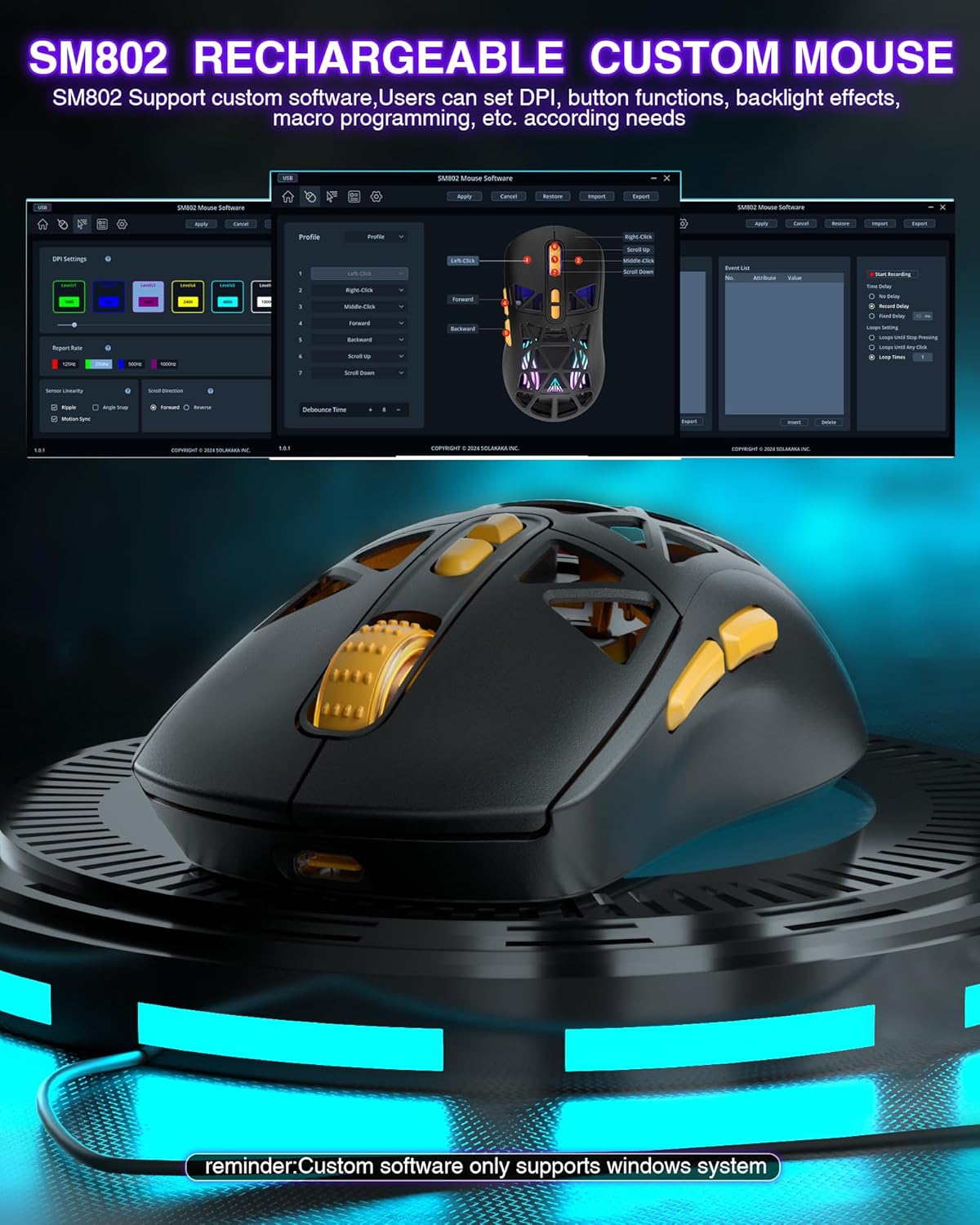
Image: The SM802 mouse with its two interchangeable shell options, showing how users can switch between a hollowed-out design and a solid classic design.
Replaceable Microswitches
The mouse includes two types of microswitches: a gaming switch and an office mute switch. Users can replace these switches according to their preference for click feel and sound. The hotswap design allows for easy replacement and compatibility with most standard microswitches.
Obraz: Zbliżenie view of the SM802 mouse's internal structure, illustrating how to replace the microswitches with either a click switch or a silent switch.
Programowalne przyciski i oprogramowanie
The SM802 mouse features 7 programmable buttons. Customization is available through dedicated software, which allows users to reset button functions, adjust DPI settings, and configure macro files. Notatka: The customization software is only compatible with Windows operating systems and functions in wired mode.
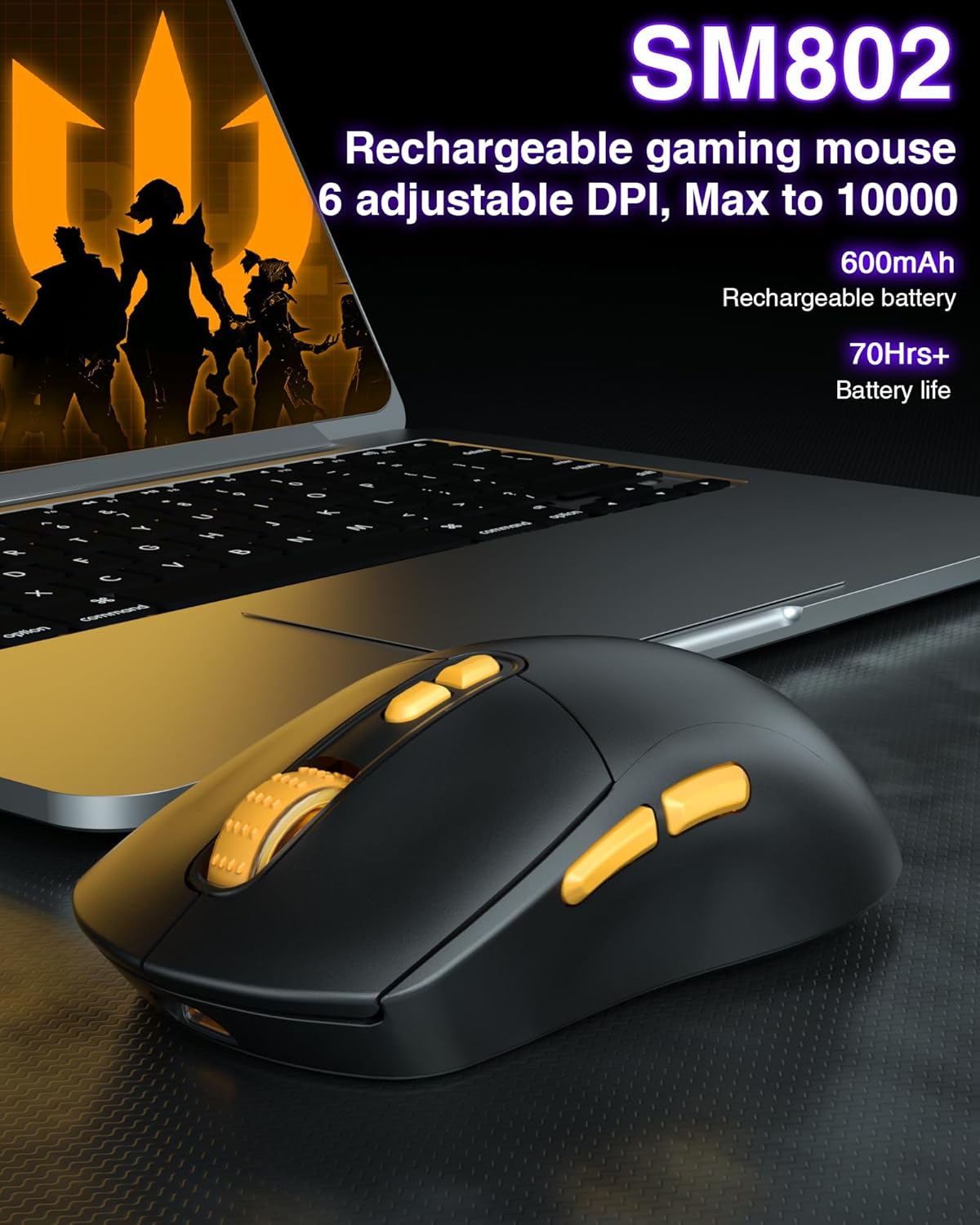
Image: A visual representation of the SM802 mouse customization software, demonstrating its interface for adjusting button assignments, DPI, and macro settings.
6. Konserwacja
To ensure the longevity and optimal performance of your SOLAKAKA SM802 mouse, follow these maintenance guidelines:
- Czyszczenie: Do czyszczenia powierzchni myszy użyj miękkiej, suchej ściereczki. W przypadku uporczywych zabrudzeń, delikatnie przetrzyj powierzchnię.amp Można użyć ściereczki, ale należy uważać, aby wilgoć nie dostała się do wnętrza podzespołów. Unikać agresywnych środków chemicznych i ściernych środków czyszczących.
- Pielęgnacja czujnika: Utrzymuj czujnik optyczny znajdujący się na spodzie myszy w czystości i zapobiegaj jego zakurzeniu lub zanieczyszczeniom, aby zapewnić dokładność śledzenia.
- Składowanie: Przechowuj mysz w chłodnym, suchym miejscu, z dala od bezpośredniego światła słonecznego i ekstremalnych temperatur.
- Bateria: Unikaj częstego całkowitego rozładowywania baterii. Naładuj mysz, gdy pojawi się wskaźnik niskiego poziomu naładowania baterii.
7. Rozwiązywanie Problemów
If you encounter issues with your SM802 mouse, refer to the following common solutions:
- Mysz nie odpowiada:
- Sprawdź, czy mysz jest naładowana.
- Check the connection mode switch on the bottom of the mouse. Make sure it matches your intended connection (2.4G, BT1, BT2, or wired).
- For 2.4GHz, ensure the USB receiver is securely plugged into a working USB port.
- For Bluetooth, ensure Bluetooth is enabled on your device and the mouse is paired correctly. Try re-pairing if necessary.
- W przypadku trybu przewodowego upewnij się, że kabel USB-C jest prawidłowo podłączony do myszy i komputera.
- Opóźnienie lub przerywane połączenie:
- Reduce the distance between the mouse and the receiver/device.
- Usuń wszelkie potencjalne źródła zakłóceń (np. inne urządzenia bezprzewodowe, duże przedmioty metalowe).
- Sprawdź, czy bateria myszy nie jest krytycznie słaba.
- DPI się nie zmienia:
- Naciśnij mocno przycisk DPI.
- If using customization software, ensure settings are applied and saved to the mouse.
- RGB lights not working or behaving unexpectedly:
- Check the RGB light button on the mouse.
- Verify settings in the customization software.
- Ensure the power-saving feature is not active if you expect constant lighting during movement.
- Customization software not detecting mouse:
- Ensure the mouse is connected in wired mode.
- Confirm your operating system is Windows.
- W razie potrzeby zainstaluj ponownie oprogramowanie.
8. Specyfikacje
| Funkcja | Szczegół |
|---|---|
| Marka | SOLAKKA |
| Numer modelu | SM802 |
| Technologia łączności | 2.4GHz Wireless, BT5.0, USB-C Wired |
| Technologia wykrywania ruchu | Optyczny |
| Maximum Sensitivity (DPI) | 10000 |
| Regulowane poziomy DPI | 1000, 1200, 1600, 2400, 4800, 10000 |
| Ilość przycisków | 7 (Programowalne) |
| Orientacja dłoni | Prawidłowy |
| Źródło zasilania | Battery Powered (Built-in 450mAh Lithium Battery) |
| Kompatybilne urządzenia | Laptop, komputer osobisty, tablet |
| Zgodność z systemem operacyjnym | Android, Windows (Windows 10 minimum), iOS |
| Materiał obudowy | Plastikowy |
| Waga przedmiotu | 0.43 funtów |
9. Gwarancja i wsparcie
The SOLAKAKA SM802 Wireless Gaming Mouse comes with a manufacturer's warranty. For specific warranty details, please refer to the documentation included with your purchase or contact SOLAKAKA customer support.
For technical support, troubleshooting assistance, or further inquiries, please visit the official SOLAKAKA webOdwiedź stronę internetową lub skontaktuj się z działem obsługi klienta. Dane kontaktowe zazwyczaj znajdują się na opakowaniu produktu lub w sklepie internetowym marki.