
1. Wprowadzenie
The Trezor Safe 7 is a crypto hardware wallet designed for secure storage and management of digital assets. It incorporates advanced security features, including a dual-chip architecture and quantum-ready protection, alongside user-friendly elements such as a color touchscreen and Bluetooth connectivity.
This manual provides essential information for setting up, operating, maintaining, and troubleshooting your Trezor Safe 7 device.
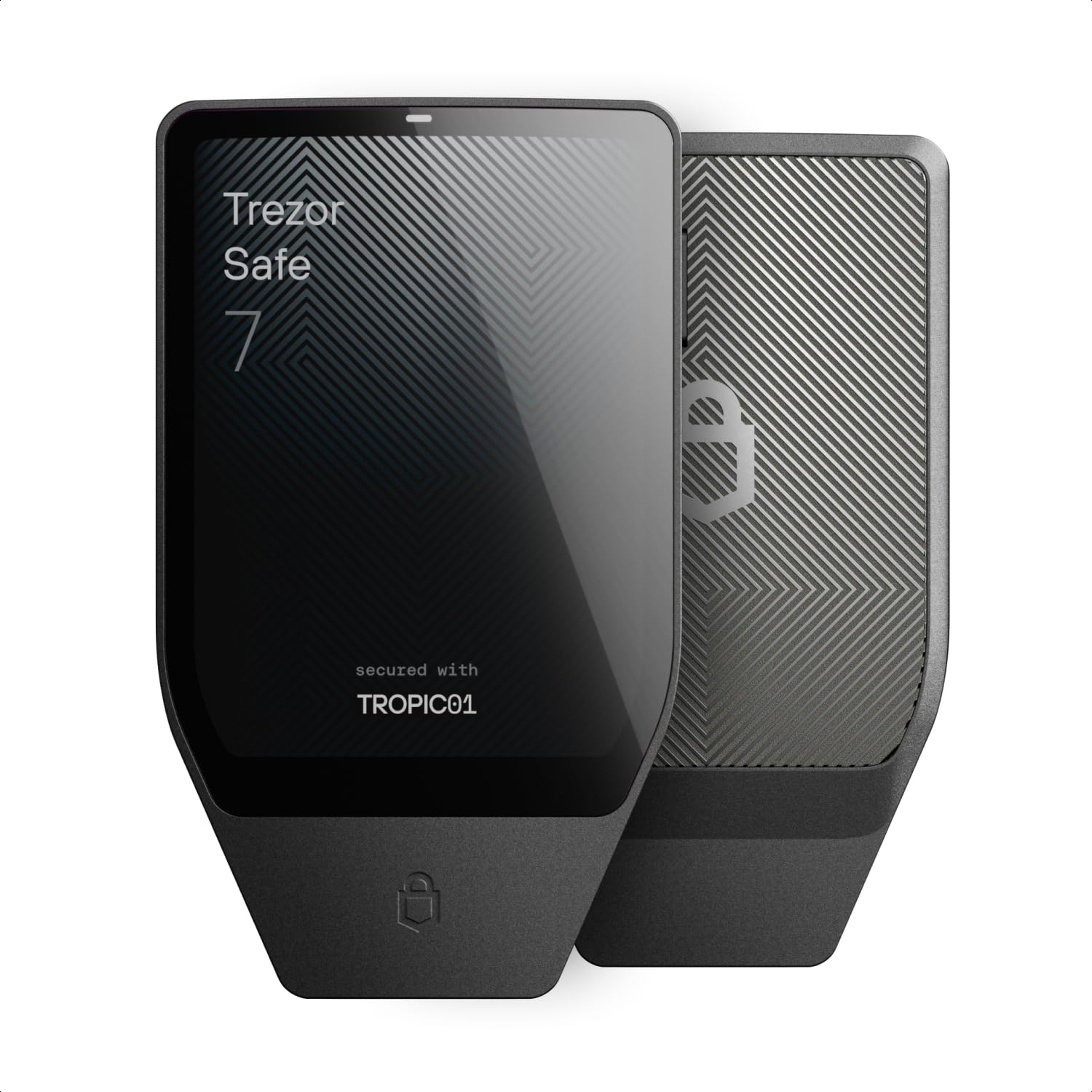
Opis obrazu: Przód view of the Trezor Safe 7 hardware wallet in Charcoal Black, showcasing its sleek design and color touchscreen.
Co jest w pudełku
- Trezor Safe 7 hardware wallet
- Kabel USB-C
- 2× wallet backup cards
- Przewodnik startowy
- Naklejki
Opis filmu: This video introduces the Trezor Safe 7, highlighting its design, internal components, and user interface. It demonstrates the device's physical appearance and some of its key features.
2. Konfiguracja
Follow these steps to set up your Trezor Safe 7 for the first time:
- Rozpakowywanie i wstępna inspekcja: Carefully remove the Trezor Safe 7 from its packaging. Inspect the device for any signs of tampering or damage. Ensure the security seals are intact.
- Włączanie: Press the power button on the side of the device to turn it on. The device will guide you through the initial setup process on its color touchscreen.
- Connect to Trezor Suite: Download and install the official Trezor Suite application on your computer or mobile device. Connect your Trezor Safe 7 to your computer using the provided USB-C cable, or connect wirelessly via Bluetooth to your mobile device.
- Aktualizacja firmware: The Trezor Suite will prompt you to update the device firmware if a new version is available. Always ensure your device runs the latest official firmware for optimal security and functionality.
- Create or Recover Wallet:
- New Wallet: If you are setting up a new wallet, the device will generate a unique recovery seed. Write down this recovery seed on the provided backup cards in the correct order. Store these cards in a secure, private location. Do not store your recovery seed digitally or share it with anyone.
- Odzyskaj portfel: If you are recovering an existing wallet, follow the on-screen instructions to enter your recovery seed using the device's touchscreen.
- Ustaw PIN: Create a strong PIN for your device. This PIN will be required to unlock your Trezor Safe 7 for transactions.
- Opcjonalne hasło: For enhanced security, consider setting up a passphrase. This adds an extra layer of protection beyond your recovery seed.
3. Instrukcja obsługi
The Trezor Safe 7 is designed for intuitive operation. Here are key functionalities:
3.1. Poruszanie się po ekranie dotykowym
The large, high-resolution color touchscreen allows for easy navigation. Swipe to browse menus and tap to select options. All critical actions, such as confirming transactions, are performed directly on the device screen.

Opis obrazu: Zbliżenie view of the Trezor Safe 7's 2.5-inch color touchscreen displaying a cryptocurrency transaction with total amount and transaction fee. The screen shows a "Hold to sign" prompt, indicating user interaction is required for confirmation.
3.2. Connecting to Trezor Suite
Use the Trezor Suite application on your desktop or mobile device to manage your cryptocurrencies. Connect your Trezor Safe 7 via:
- Kabel USB-C: For a direct, wired connection to your computer.
- Bluetooth: For wireless connectivity with compatible mobile devices (Android, iOS) and desktops. Ensure Bluetooth is enabled on both your Trezor Safe 7 and your host device.

Opis obrazu: The Trezor Safe 7 hardware wallet is shown alongside a laptop and a smartphone, both displaying the Trezor Suite interface. This illustrates the device's wireless connectivity via Bluetooth to various platforms.
3.3. Managing Cryptocurrencies
Through Trezor Suite, you can perform various actions:
- Send/Receive: Generate receiving addresses and send transactions. All outgoing transactions require physical confirmation on your Trezor Safe 7.
- Buy/Sell/Swap: Utilize integrated services within Trezor Suite to acquire, exchange, or sell cryptocurrencies.
- Stawka: Participate in staking for supported cryptocurrencies directly from your wallet.
- Portfolio Tracking: Monitor your asset balances and transaction history.

Opis obrazu: A person is shown holding a Trezor Safe 7 and a smartphone, actively managing cryptocurrency. The image illustrates the convenience of mobile management with the hardware wallet.
3.4. Ładowanie bezprzewodowe
The Trezor Safe 7 supports Qi2-compatible wireless charging. Place the device on a compatible wireless charger to power it up. Ensure proper alignment for efficient charging.
4. Konserwacja
To ensure the longevity and optimal performance of your Trezor Safe 7:
- Czyszczenie: Do czyszczenia urządzenia używaj miękkiej, suchej ściereczki. Unikaj materiałów ściernych i silnych środków chemicznych.
- Składowanie: Store your Trezor Safe 7 in a safe, dry place away from extreme temperatures, direct sunlight, and strong magnetic fields.
- Pielęgnacja baterii: While the device has a durable LiFePO₄ battery, avoid fully discharging it frequently. Charge it periodically even if not in active use to maintain battery health.
- Aktualizacje oprogramowania układowego: Regularnie sprawdzaj dostępność aktualizacji oprogramowania sprzętowego za pośrednictwem pakietu Trezor Suite i instaluj je. Aktualizacje te często zawierają ulepszenia zabezpieczeń i nowe funkcje.
5. Rozwiązywanie Problemów
Jeśli masz problemy z urządzeniem Trezor Safe 7, weź pod uwagę następujące kwestie:
- Urządzenie nie odpowiada: Try connecting the device via USB-C to a computer. If unresponsive, ensure it is charged.
- Problemy z łącznością Bluetooth:
- Ensure Bluetooth is enabled on both your Trezor Safe 7 and the host device.
- Spróbuj rozparować i ponownie sparować urządzenie.
- Upewnij się, że żadne inne urządzenia nie zakłócają sygnału Bluetooth.
- Transaction Confirmation Problems: Verify that the transaction details displayed on your Trezor Safe 7 screen match those in Trezor Suite before confirming.
- Zapomniany PIN: If you forget your PIN, you will need to wipe the device and recover your wallet using your recovery seed. This is why secure storage of your recovery seed is critical.
- Urządzenie się nie ładuje:
- Sprawdź, czy kabel USB-C jest całkowicie włożony i sprawny.
- For wireless charging, ensure the device is correctly positioned on a Qi2-compatible charger.
For further assistance, refer to the official Trezor support resources.
6. Specyfikacje
| Funkcja | Szczegół |
|---|---|
| Nazwa modelu | Safe 7 (TS7) |
| Rozmiar wyświetlacza ekranu | 2.5 cali |
| Maksymalna rozdzielczość ekranu | 520x380 pikseli |
| Edytor | 160 MHz ARM |
| Rozmiar pamięci Flash | 12 MB |
| Typ bezprzewodowy | 802.11ac (Bluetooth) |
| System operacyjny | Trezor OS |
| Waga przedmiotu | 1.6 uncji (45 g) |
| Wymiary opakowania | 5.59 x 3.9 x 1.57 cala |
| Kolor | Charcoal Black (variant) |
| Bateria | 1 Nonstandard LiFePO₄ Battery (included) |
| Funkcja specjalna | Encrypted, Quantum-Ready Architecture, Dual-chip (TROPIC01 & EAL6+ Secure Element) |
| Kompatybilne urządzenia | Android, PC, iOS |

Opis obrazu: An image illustrating the physical dimensions of the Trezor Safe 7, showing its length (75.4 mm / 2.97 in), width (44.5 mm / 1.75 in), thickness (8.3 mm / 0.33 in), and weight (45 g / 1.6 oz).
7. Gwarancja i wsparcie
For warranty information and technical support, please refer to the official Trezor webOdwiedź stronę internetową lub skontaktuj się bezpośrednio z działem obsługi klienta. Zachowaj paragon jako dowód zakupu na wypadek reklamacji.
Zasoby internetowe:
- Oficjalny Trezor Webstrona: trezor.io
- Trezor Support: trezor.io/wsparcie