
1. Wprowadzenie
The GEEKOM A7 Max Mini PC is a compact and powerful computing solution designed for various applications, including remote work, creative tasks, and gaming. Featuring an AMD Ryzen 9 7940HS processor and Radeon 780M graphics, it offers high performance in a small form factor. This manual provides essential information for setting up, operating, and maintaining your device.
Zawartość opakowania
Verify that all items listed below are present in your package. If any items are missing or damaged, please contact GEEKOM support.
- GEEKOM A7 Max Mini PC Unit
- Mocowanie VESA
- Zasilacz
- Japanese-spec AC Power Cable
- Kabel HDMI
- Instrukcja obsługi (po japońsku)

Image: GEEKOM A7 Max Mini PC and its included accessories.
2. Koniec produktuview
The GEEKOM A7 Max is designed for efficiency and versatility. Its compact size allows for easy integration into any workspace, while its robust connectivity options support a wide range of peripherals and display configurations.

Image: GEEKOM A7 Max Mini PC overview highlighting its main features and compact dimensions.
Panele przednie i tylne
Familiarize yourself with the ports and buttons on your Mini PC:

Obraz: Szczegółowy view of the GEEKOM A7 Max Mini PC's front and rear ports.
- Panel przedni: 1x SD Card Reader, 4x USB 3.2 Gen 2 Type-A, 1x 3.5mm Audio Jack, 1x Power Button, 1x Kensington Lock Slot.
- Tylny panel: 1x DC Input, 2x 2.5G RJ45 LAN Ports, 2x USB4 (40Gbps, Power Delivery output), 2x HDMI 2.0, 1x USB 2.0 Type-A.
3. Konfiguracja
Aby po raz pierwszy skonfigurować komputer GEEKOM A7 Max Mini PC, wykonaj poniższe czynności.
- Podłącz urządzenia peryferyjne: Connect your monitor(s) using the HDMI or USB4 ports. Connect your keyboard and mouse to the available USB ports.
- Podłącz do zasilania: Plug the power adapter into the DC input port on the rear panel, then connect the AC power cable to a power outlet.
- Włączanie: Naciśnij przycisk zasilania na panelu przednim. System się uruchomi.
- Początkowa konfiguracja systemu Windows 11: Follow the on-screen instructions to complete the Windows 11 setup process. This includes selecting your region, language, and setting up your user account.
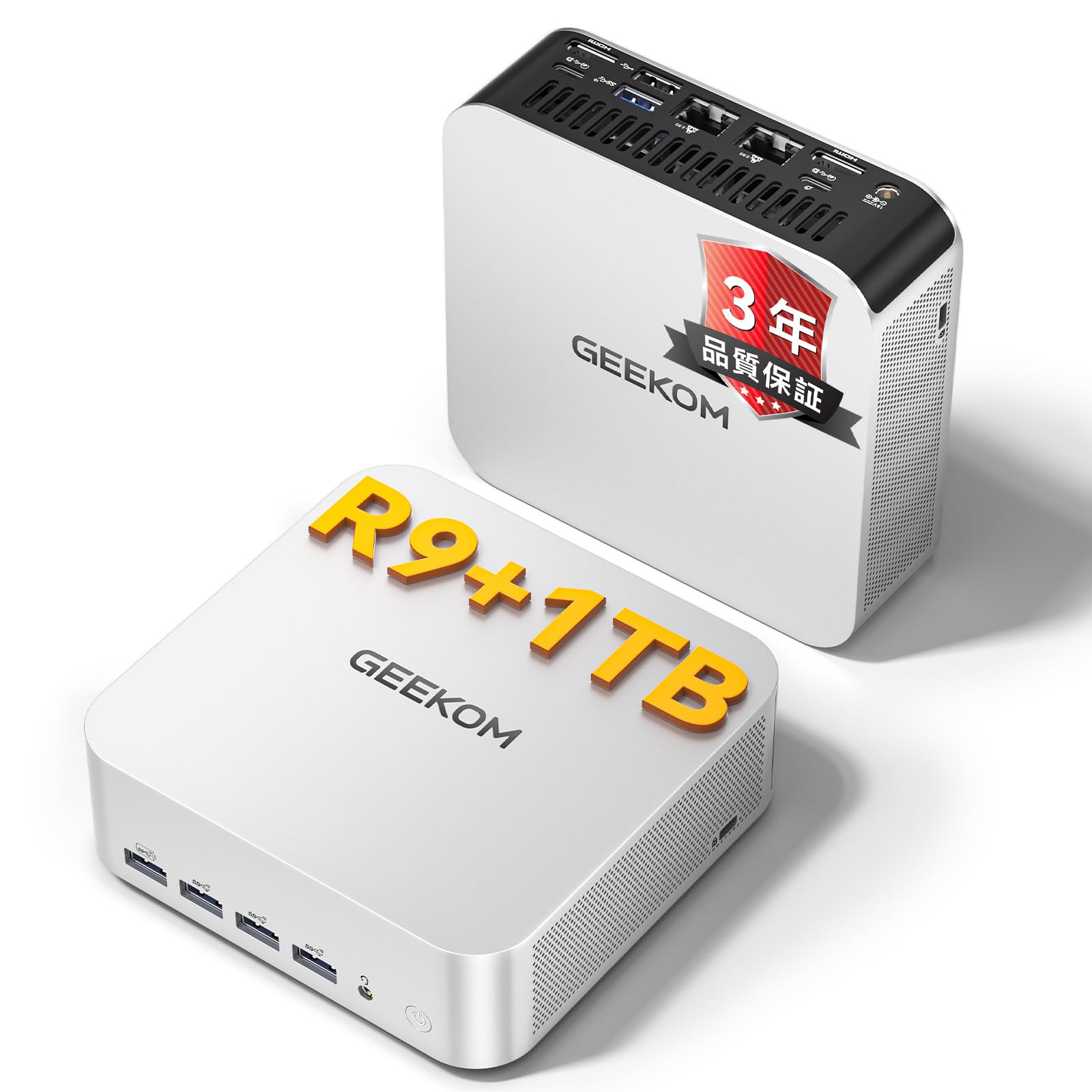
Image: The GEEKOM A7 Max Mini PC in a typical desktop setup.
4. Korzystanie z minikomputera
Tryby wydajności
The GEEKOM A7 Max offers four performance modes to optimize power consumption and performance based on your needs:
- Tryb cichy (35 W): Ideal for light tasks and quiet environments, such as watching movies or browsing.
- Tryb zrównoważony (45 W): Suitable for everyday office work and general computing. This is the default mode.
- Tryb wydajności (54 W): Provides enhanced performance for more demanding applications.
- Turbo Mode (70W): Maximizes performance for intensive tasks like gaming or video editing. The system automatically switches to Turbo mode under high load.

Image: Visual representation of the four intelligent scheduling modes.
Konfiguracja wielu wyświetlaczy
The GEEKOM A7 Max supports up to four displays simultaneously, with 8K resolution output, using its two HDMI 2.0 ports and two USB4 ports. This allows for an expansive workspace for productivity, creative work, or immersive gaming.

Obraz: Byłyample of an 8K quad-display setup with the GEEKOM A7 Max.
Pamięć masowa i rozszerzanie pamięci
The Mini PC comes with 16GB of DDR5 RAM and a 1TB PCIe 4.0 NVMe SSD. The DDR5 memory is user-replaceable and expandable up to 128GB, offering a future-proof solution. The storage can also be expanded up to 4TB.

Obraz: Wewnętrzny view emphasizing DDR5 memory and SSD expandability.
Łączność
The GEEKOM A7 Max provides comprehensive connectivity options:
- Dual USB4 Ports: Two USB4 ports offer ultra-high-speed data transfer up to 40Gbps, 8K video output, and Power Delivery support. They also support eGPU connections for enhanced graphics performance.
- Dwa porty LAN 2.5G: Two 2.5 Gigabit Ethernet ports enable high-speed wired network connections, supporting network segmentation and Link Aggregation for advanced users and home servers.
- Wi-Fi 6E & Bluetooth 5.2: Integrated Wi-Fi 6E provides fast and stable wireless internet, while Bluetooth 5.2 allows seamless connection to wireless keyboards, mice, headphones, and other devices.
- Czytnik kart SD: A built-in SD card reader (UHS-II compatible) facilitates quick transfer of photos and files from cameras and other devices.

Image: Dual USB4 ports for next-generation connectivity.
5. Konserwacja
Układ chłodzenia
The GEEKOM A7 Max features a proprietary "SilentStorm" cooling system with dual copper heat pipes and a large silent fan. This design ensures efficient heat dissipation, keeping operating noise below 36dB even under heavy loads, providing a quiet working environment.

Image: SilentStorm cooling system components and performance.
Czyszczenie
To maintain optimal performance and longevity, regularly clean your Mini PC:
- Do wycierania powierzchni zewnętrznych należy używać miękkiej, suchej ściereczki.
- W przypadku gromadzenia się kurzu w otworach wentylacyjnych należy użyć sprężonego powietrza. Przed czyszczeniem upewnij się, że urządzenie jest wyłączone i odłączone od zasilania.
- Unikaj stosowania płynnych środków czyszczących i materiałów ściernych.

Image: The GEEKOM A7 Max operates quietly, suitable for any environment.
6. Rozwiązywanie Problemów
This section addresses common issues you might encounter with your GEEKOM A7 Max Mini PC.
| Problem | Możliwa przyczyna | Rozwiązanie |
|---|---|---|
| Brak zasilania / System nie włącza się | Power cable not connected properly; Power adapter malfunction; Power outlet issue. | Ensure all power cables are securely connected. Try a different power outlet. Check the power adapter for damage. |
| Brak obrazu na monitorze | Monitor cable loose or incorrect port; Monitor not powered on or incorrect input selected. | Check display cable connections. Ensure monitor is powered on and set to the correct input source. Try a different display cable or port. |
| System jest powolny lub nie odpowiada | Zbyt wiele uruchomionych aplikacji; za mało pamięci RAM; przegrzanie. | Close unnecessary applications. Check system resource usage. Ensure proper ventilation and clean dust from vents. Consider upgrading RAM if frequently encountering this issue. |
| Wi-Fi or Bluetooth not working | Drivers not installed or updated; Wireless features disabled; Interference. | Check device manager for wireless adapter status. Ensure Wi-Fi/Bluetooth is enabled in Windows settings. Update drivers from the GEEKOM website. Reduce interference from other devices. |
7. Specyfikacje techniczne
Detailed specifications for the GEEKOM A7 Max Mini PC.
| Funkcja | Specyfikacja |
|---|---|
| Marka | GEEKOM |
| Model | A7 Max |
| System operacyjny | Windows 11 |
| Model procesora | Procesor AMD Ryzen 9 7940HS |
| Prędkość procesora | 3.2 GHz (Max Boost 5.2 GHz) |
| Koprocesor graficzny | Karta graficzna AMD Radeon 780M |
| Technologia pamięci RAM | DDR5 |
| Zainstalowana pamięć RAM | 16 GB (możliwość rozszerzenia do 128 GB) |
| Prędkość pamięci | 4800MHz |
| Typ pamięci masowej | SSD (PCIe 4.0 NVMe) |
| Pojemność magazynowa | 1 TB (Expandable up to 4 TB) |
| Porty USB | 4x USB 3.2 Gen 2 Type-A, 1x USB 2.0 Type-A, 2x USB4 (40Gbps, PD output) |
| Wyjście wideo | 2x HDMI 2.0, 2x USB4 (DisplayPort Alt Mode) |
| Maksymalna rozdzielczość wyświetlacza | 8K (7680x4320) |
| Sieć lokalna | 2x 2.5G RJ45 LAN |
| Łączność bezprzewodowa | Wi-Fi 6E, Bluetooth 5.2 |
| Metoda chłodzenia | Air Cooling (SilentStorm System) |
| Wymiary produktu | 112.4 x 112.4 x 37 mm (approx. 0.47L volume) |
| Pobór mocy | 54 W (typowo) |
| Certyfikaty | PSE, TELEC, CE, FCC, CB, RoHS |
8. Gwarancja i wsparcie
GEEKOM stawia sobie za cel dostarczanie wysokiej jakości produktów i zapewnianie doskonałej obsługi klienta.
Informacje o gwarancji
The GEEKOM A7 Max Mini PC comes with a 3 rok pełnej gwarancji, which is a testament to its quality and reliability. This includes:
- Roczna bezpłatna wymiana gwarancji
- 2-letnia bezpłatna gwarancja naprawy
- 24/7/365 customer support
Obsługa klienta
For any inquiries or technical assistance, please contact GEEKOM support:
- Wsparcie e-mailowe: service@geekom.jp (Responses typically within 24 hours)
- Wsparcie online: Odwiedź oficjalną stronę GEEKOM webstrona z odpowiedziami na często zadawane pytania i dalszą pomocą.

Image: GEEKOM's quality standards and support commitment.


